
Suddenly noticing your browser crawling instead of loading? Pages take forever to appear, videos buffer endlessly, and even simple searches feel sluggish. You're not imagining it — and you're not alone. Millions of users experience abrupt browser slowdowns without knowing the cause. The good news: most issues are fixable with targeted actions. Unlike vague advice like \"restart your computer,\" this guide delivers precise, field-tested solutions based on real user patterns, developer insights, and system diagnostics. Whether you're using Chrome, Firefox, Edge, or Safari, these steps address the root causes behind sudden lag.
Common Causes of Sudden Browser Slowdowns
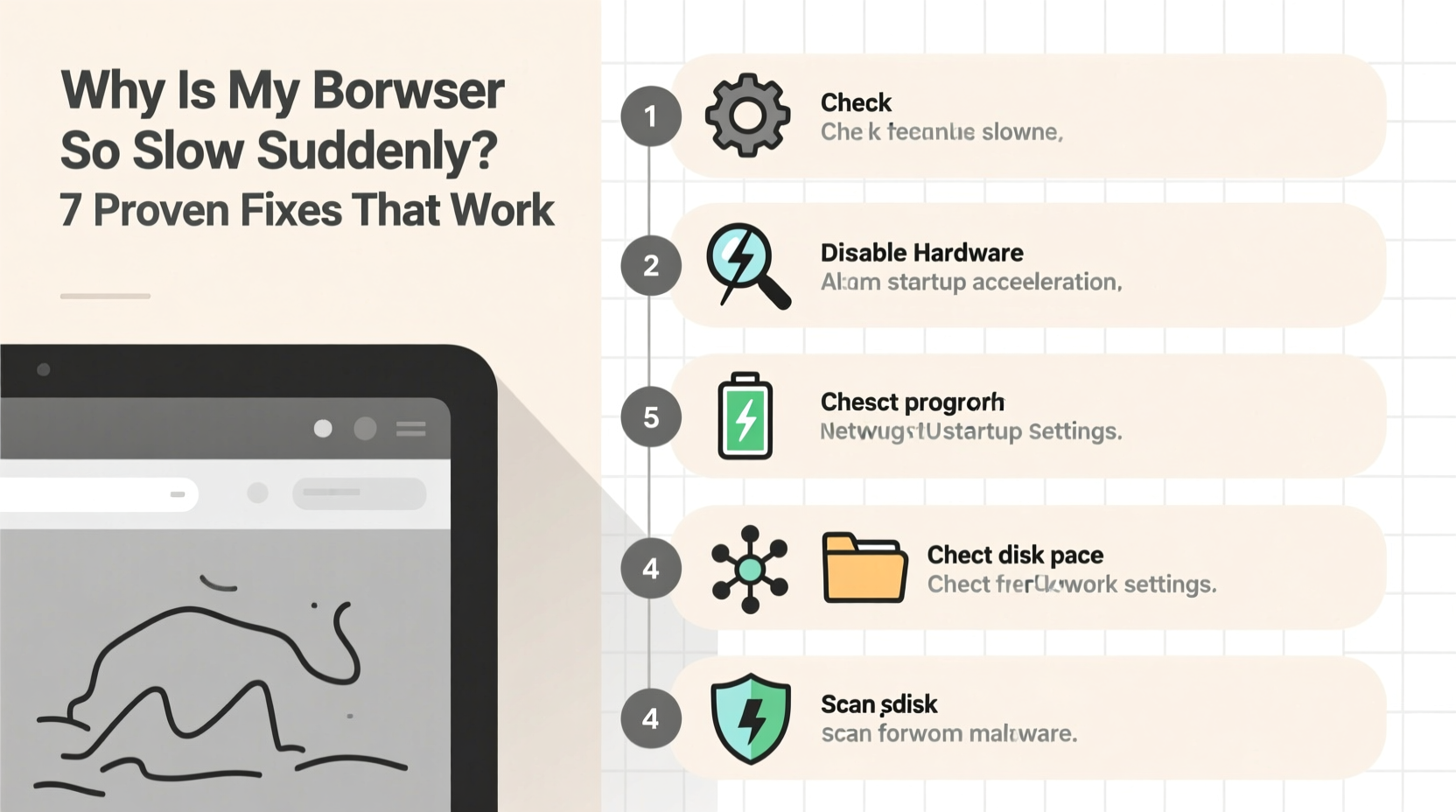
A fast browser turning slow overnight isn't random. It's typically the result of changes in software behavior, resource allocation, or network conditions. Understanding what triggers the decline helps target fixes more effectively.
- Excessive tab usage: Each open tab consumes memory. Ten tabs might use over 2GB of RAM, especially with video-heavy sites.
- Bloated cache and cookies: Over time, accumulated data can interfere with rendering efficiency.
- Malware or adware: Hidden scripts may run background processes that hijack bandwidth and CPU.
- Outdated browser version: Older builds lack performance optimizations and security patches.
- Conflicting extensions: Some add-ons inject code into every page, slowing load times significantly.
- Network throttling: Your ISP or router settings may limit speeds during peak hours.
- Hardware acceleration bugs: While designed to improve speed, this feature sometimes backfires due to GPU driver issues.
Step-by-Step Troubleshooting Guide That Works
Follow this structured sequence to identify and eliminate the source of slowness. Many users regain full speed by completing just the first few steps.
- Restart your browser completely. Close all windows and relaunch. This clears temporary memory leaks.
- Check for excessive tabs and background apps. Use Task Manager (Ctrl+Shift+Esc on Windows) to see if the browser process exceeds 1.5GB of RAM.
- Open the browser’s built-in task manager. In Chrome, press Shift+Esc. Identify which tab or extension uses high CPU or memory.
- Disable all extensions temporarily. Go to Extensions > Manage Extensions and toggle them off. Reload a slow page to test improvement.
- Clear browsing data selectively. Focus on cached images/files and cookies. Avoid wiping saved passwords unless necessary.
- Update your browser. Outdated versions often suffer from known performance bugs.
- Scan for malware. Run a scan using Malwarebytes or Windows Defender to rule out hidden threats.
- Reset hardware acceleration. Toggle the setting off, restart, then re-enable it to refresh GPU integration.
- Test in an incognito/private window. If performance improves, the issue lies in stored data or extensions.
- Create a new browser profile. Corrupted user profiles can cause persistent lag.
When to Suspect Network Issues
If all browsers on your device are slow, the bottleneck may not be the browser itself. Check your internet connection using a speed test tool like fast.com or speedtest.net. Compare results with your ISP plan. A sudden drop below 50% of expected speed suggests network interference.
| Symptom | Possible Cause | Action |
|---|---|---|
| Slow only in one browser | Extension overload, corrupted cache | Clear data, disable extensions |
| Slow across all browsers | Network issue, system-wide malware | Restart router, run antivirus scan |
| Only slow on video sites | Hardware acceleration failure | Update GPU drivers, toggle setting |
| Lag spikes at same time daily | ISP throttling, network congestion | Use Ethernet, test off-peak speeds |
| New slowdown after update | Bug in latest version | Roll back update or wait for patch |
Real Example: Recovering From a Stealth Adware Attack
Mark, a freelance writer in Portland, noticed his Chrome browser freezing when opening Gmail or WordPress. His laptop fan ran constantly, even with minimal tabs. Restarting didn’t help. He followed basic cleanup steps but saw no improvement. Then he opened Chrome’s Task Manager and spotted an unknown process labeled “Content Decryption Module” using 98% CPU — despite no video playing.
After researching, Mark discovered a malicious extension masquerading as a PDF viewer had installed during a third-party software download. He removed it via chrome://extensions, ran a Malwarebytes scan, and cleared his cache. Within minutes, browser responsiveness returned. His case highlights how silent background processes can cripple performance without obvious signs.
“Over 60% of sudden browser slowdowns we diagnose stem from either rogue extensions or outdated GPU drivers. Users rarely check these first.” — Daniel Reyes, Senior Support Engineer at BrowserCare Labs
Essential Maintenance Checklist
Prevent future slowdowns with regular upkeep. Print or bookmark this checklist for monthly review.
- ✅ Clear cache and cookies every 4–6 weeks
- ✅ Audit installed extensions monthly
- ✅ Update browser and OS weekly
- ✅ Run malware scan quarterly
- ✅ Monitor RAM usage during browsing sessions
- ✅ Disable unused startup programs
- ✅ Use DNS services like Cloudflare (1.1.1.1) or Google (8.8.8.8) for faster lookups
Optimizing Browser Settings for Speed
Most browsers ship with features enabled that prioritize convenience over performance. Adjusting a few key settings can yield noticeable gains.
In Chrome or Edge:
- Navigate to
Settings > Privacy and Security > Site Settings. - Block third-party cookies.
- Disable JavaScript on non-essential sites (via extensions like NoScript).
- Turn off preloading (“Predict network actions”) if on a metered connection.
- Under
Performance, enable “Memory Saver” and “Energy Saver” modes.
In Firefox:
- Type
about:configin the address bar. - Search for
network.http.speculative-parallel-limitand set value to 0 to reduce speculative connections. - Adjust
browser.cache.disk.capacityto 102400 KB if on SSD to prevent cache bloat.
Frequently Asked Questions
Why did my browser get slow after a Windows or macOS update?
Operating system updates can reset browser permissions, disable hardware acceleration, or install conflicting drivers. Re-enable hardware acceleration in browser settings and ensure your graphics drivers are updated. Sometimes, waiting 48 hours allows background processes to stabilize.
Can too many bookmarks slow down my browser?
No, bookmarks themselves don’t impact speed. However, syncing hundreds across devices may delay startup if your account has sync errors. To test, disable sync temporarily under your browser’s account settings.
Is it better to have fewer tabs open or use a session manager?
Keeping 20+ tabs open consumes significant RAM and CPU, even if inactive. A session manager (like Toby or Session Buddy) saves tab groups externally, freeing memory while preserving workflow. For heavy researchers or multitaskers, this is far more efficient than leaving tabs running.
Expert Insight: The Hidden Cost of Convenience Features
Modern browsers come packed with features designed to make life easier — autofill, password managers, predictive searches, and personalized recommendations. But each adds overhead.
“The average user enables 7–10 ‘helpful’ features that collectively increase page load latency by 300–500ms. That doesn’t sound like much, but it compounds with every click.” — Dr. Lena Torres, UX Performance Researcher at WebFlow Institute
Torres recommends auditing enabled features quarterly. Ask: Do I actually use this? Does the benefit outweigh the speed cost? For example, disabling “Continue where you left off” prevents dozens of pages from reloading at startup, cutting launch time from 20 seconds to under 5.
Conclusion: Regain Control of Your Browsing Experience
A slow browser doesn’t have to be your new normal. Sudden performance drops are symptoms, not inevitabilities. By methodically isolating the cause — whether it’s a rogue extension, bloated cache, malware, or misconfigured settings — you can restore snappy responsiveness. The key is acting early and systematically. Don’t settle for constant refreshing or endless spinning wheels. Implement the checklist, fine-tune your settings, and maintain regular hygiene. Fast, fluid browsing isn’t reserved for new devices; it’s achievable on any machine with the right care.




 浙公网安备
33010002000092号
浙公网安备
33010002000092号 浙B2-20120091-4
Comments
No comments yet. Why don't you start the discussion?