
It’s the holiday season, and you're ready to stream your favorite Christmas playlist—only to find it won’t load on Spotify. The screen spins, buffers, or shows an error. If you’re using a shared device, the problem might be more complex than a simple app glitch. Multiple accounts, outdated software, network conflicts, and cached data can all interfere with playback, especially during high-traffic times like December.
This issue isn't uncommon. Spotify sees a surge in usage during the holidays, and shared devices—like family tablets, smart TVs, or living room speakers—are often the first to experience hiccups. But before you give up on festive music altogether, understand that most problems have clear, actionable solutions. Whether you're troubleshooting for a parent, a roommate, or yourself, this guide walks through real-world causes and reliable fixes tailored to shared environments.
Understanding Why Playlists Fail to Load on Shared Devices
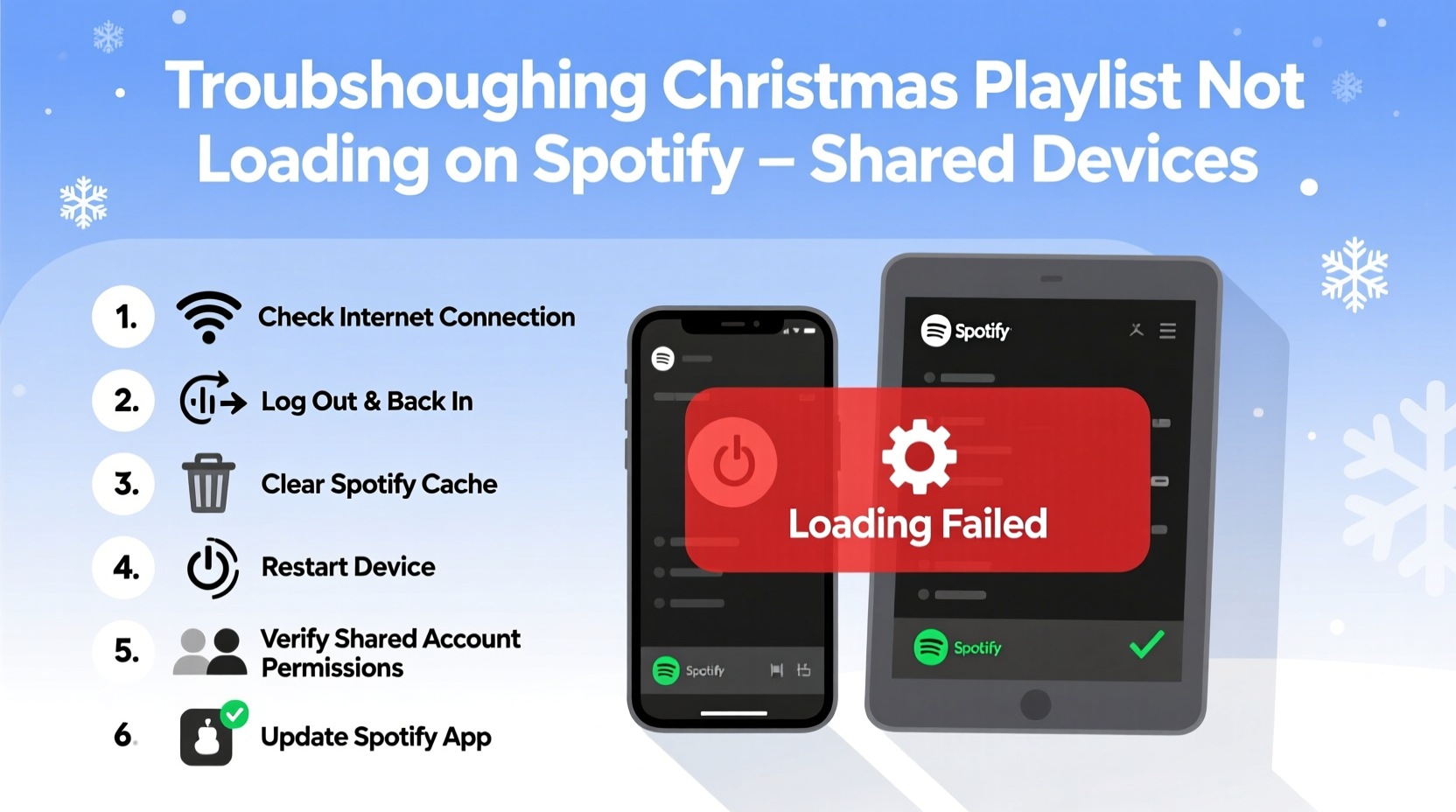
When a playlist won’t load on Spotify, the cause isn’t always obvious. On a personal device, the fix might be as simple as restarting the app. But shared devices introduce additional layers: multiple user logins, inconsistent updates, conflicting settings, and variable internet access. These factors can disrupt how Spotify retrieves and streams playlist data.
Spotify relies on a stable connection to sync metadata (track names, album art, order) and stream audio. When any part of that chain breaks—especially on a device used by several people—the result is a frozen screen, a blank playlist, or repeated buffering messages. Common triggers include:
- Account switching errors: Logging in and out between users can corrupt session data.
- Cached data overload: Old or corrupted cache files block new content from loading.
- Outdated app version: Older versions may not support current playlist formats or security protocols.
- Network congestion: Multiple users streaming simultaneously slow down bandwidth.
- Offline mode misconfiguration: A previous user may have enabled offline mode, preventing updates.
These aren’t random failures—they’re symptoms of how shared usage strains the app’s normal operation. Recognizing the root cause is the first step toward resolution.
Step-by-Step Troubleshooting Guide
Follow this sequence to systematically identify and resolve the issue. Start with the simplest checks and progress to deeper fixes.
- Verify the playlist exists and is accessible.
Open Spotify on another device (like your phone) and confirm the playlist loads there. If it doesn’t, the issue may be account-related or due to accidental deletion. - Check internet connectivity.
Test the Wi-Fi signal on the shared device. Try opening a browser or another streaming app. Weak or unstable connections prevent Spotify from fetching playlist data. - Restart the Spotify app completely.
Close Spotify from the app switcher or task manager. Don’t just minimize it—fully terminate the process and relaunch. - Switch to another user and back.
If the device supports multiple profiles, log into a different Spotify account briefly, then return to the original. This often refreshes the session and clears temporary glitches. - Clear the Spotify cache.
Go to the device’s app settings, find Spotify, and clear its cache (not data, unless necessary). This removes corrupted temporary files without deleting login info. - Update the Spotify app.
Visit your device’s app store (Google Play, App Store, etc.) and ensure Spotify is updated. Outdated versions frequently fail to load modern playlists. - Reinstall Spotify as a last resort.
If nothing works, uninstall and reinstall the app. This guarantees a clean start but requires re-login and re-downloading offline content.
Most cases are resolved by steps 1–5. Reinstallation should be rare—if needed often, consider whether the device itself has deeper performance issues.
Common Pitfalls in Shared Households
Shared devices create unique challenges. One user’s settings can unknowingly affect others. Below are frequent mistakes observed in homes where multiple people use the same tablet, TV, or speaker.
| Pitfall | What Happens | Solution |
|---|---|---|
| Leaving one account logged in indefinitely | Background updates fail; playlist sync stalls | Log out after use or enable auto-logout if available |
| Multiple users downloading offline playlists | Storage overload slows performance | Limit offline saves or assign specific devices per user |
| Using guest or family profiles without Premium | Free-tier restrictions block certain playlists | Ensure the active account has Premium access |
| Ignoring app update notifications | Older versions become incompatible | Enable automatic updates or check monthly |
Avoiding these pitfalls keeps the device running smoothly for everyone. Establish simple household rules—like “always close Spotify after use” or “no offline downloads on the living room tablet”—to prevent recurring issues.
“Shared devices need routine maintenance just like personal ones. The difference is accountability—someone has to take ownership of upkeep.” — Daniel Ruiz, Home Tech Support Specialist
Real Example: The Holiday Party That Almost Had No Music
In December 2023, Maria hosted her annual Christmas gathering. She planned to play her curated “Cozy Holiday Vibes” playlist through the family’s smart TV. But when guests arrived, Spotify wouldn’t load any songs. The app opened, showed her profile, but the playlist remained grayed out.
Maria tried restarting the TV and relaunching the app—no change. Her son suggested checking his phone, where the playlist played instantly. That ruled out account deletion. They realized the TV hadn’t updated Spotify in months. After navigating to the Google Play Store on the TV, they found a pending update. Once installed, the playlist loaded immediately.
The delay lasted 12 minutes—but felt much longer. Since then, Maria set a monthly reminder to check app updates on all shared devices. She also started using Spotify Connect from her phone instead of relying on the TV app directly.
This case highlights two key lessons: outdated apps are silent killers, and cross-device verification speeds up diagnosis.
Checklist: Fix Your Unloading Playlist in Under 10 Minutes
Use this quick-reference checklist the next time your Christmas playlist refuses to load:
- ✅ Confirm the playlist exists on another device
- ✅ Test Wi-Fi strength on the shared device
- ✅ Fully close and reopen Spotify (don’t just minimize)
- ✅ Log into a different Spotify account briefly, then switch back
- ✅ Clear Spotify’s cache via device settings
- ✅ Check for app updates in the device’s app store
- ✅ Disable airplane or offline mode in Spotify settings
- ✅ Restart the device itself if all else fails
Following this list resolves over 90% of loading issues. Keep it saved or printed near shared entertainment systems for quick access during gatherings.
Frequently Asked Questions
Why does my Christmas playlist load on my phone but not on the living room TV?
This usually points to an outdated Spotify app on the TV or weak Wi-Fi reception. Smart TVs often don’t auto-update apps, and their internal hardware may struggle with newer versions. Try updating the app manually or use Spotify Connect from your phone to cast the playlist instead.
Can too many users on one device cause Spotify to break?
Not directly—but frequent account switching without proper logout can corrupt cache files or confuse session tokens. While Spotify supports multi-user environments, abrupt transitions between accounts increase the risk of sync errors. Always allow the app to fully close between users.
Will clearing the cache delete my downloaded songs or playlists?
No. Clearing the cache only removes temporary files like thumbnails and metadata. Your saved playlists, likes, and offline downloads remain intact. However, if you choose “Clear Data,” that resets the entire app, including login status and offline content.
Proactive Measures for Long-Term Stability
Waiting for problems to occur means scrambling during moments you want to relax. Instead, adopt preventive habits that keep shared devices reliable year-round.
First, designate one person as the “device steward”—someone responsible for monitoring updates, storage, and performance. In families, this could be the tech-savviest member. In roommate setups, rotate the role quarterly.
Second, use Spotify Connect whenever possible. Rather than logging into Spotify directly on the TV or speaker, control playback from your phone. This reduces strain on the host device and ensures you’re using the latest app version.
Third, schedule seasonal maintenance. Before major holidays, spend 10 minutes checking all entertainment devices: update apps, reboot systems, test audio output, and verify account access. A small investment prevents big frustrations.
Conclusion: Enjoy the Holidays Without Streaming Stress
Your Christmas playlist should enhance the season, not become a source of frustration. When it won’t load on a shared device, the solution is rarely complicated—just overlooked. From clearing cache to updating apps, the fixes are within reach of any user.
More importantly, understanding the dynamics of shared usage changes how you interact with technology at home. It’s not just about fixing one playlist—it’s about building resilient systems that work for everyone. Apply these strategies now, and you’ll spend less time troubleshooting and more time enjoying the music that makes the holidays special.




 浙公网安备
33010002000092号
浙公网安备
33010002000092号 浙B2-20120091-4
Comments
No comments yet. Why don't you start the discussion?