
If your Chromebook, once snappy and responsive, has recently begun lagging—freezing on simple tasks, taking forever to load websites, or struggling to open apps—it’s natural to feel frustrated. You didn’t change anything major, yet performance dropped overnight. The good news: this is a common issue, and in most cases, it’s fixable without replacing the device. Chromebooks are built for efficiency, but they aren’t immune to slowdowns. Understanding the root causes—from software clutter to hardware limitations—can help you restore speed and extend your device’s lifespan.
Common Causes of Sudden Chromebook Slowdowns
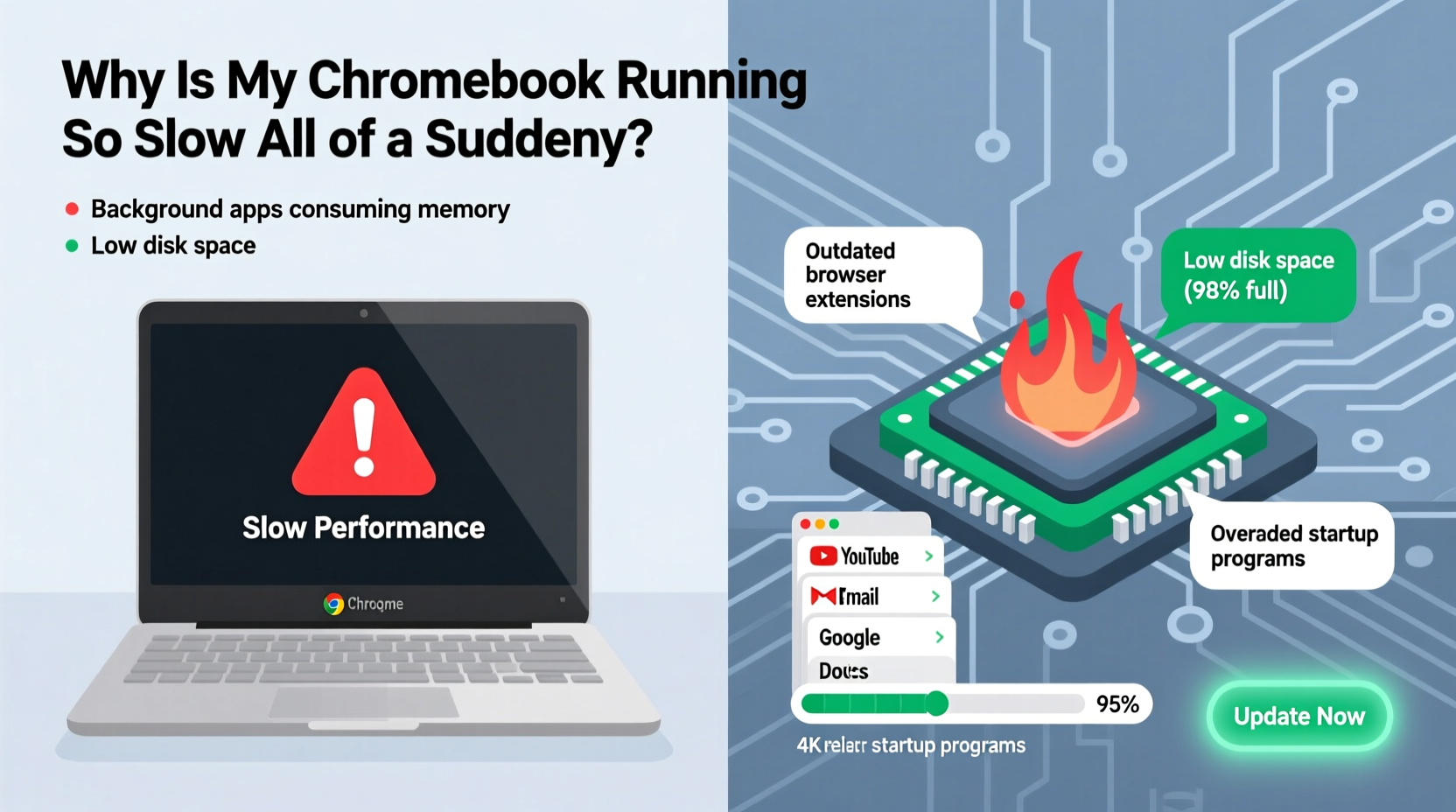
Chromebooks rely heavily on cloud integration and efficient resource management. When performance dips suddenly, it’s usually due to one or more underlying factors that disrupt this balance. Unlike traditional laptops, Chrome OS is lightweight by design, which means even minor issues can have an outsized impact on responsiveness.
- Too many browser tabs open: Each tab consumes memory. With limited RAM (often 4GB or less), exceeding capacity leads to sluggishness.
- Background apps and extensions: Auto-starting apps or poorly coded extensions can silently drain CPU and memory.
- Full storage space: Chromebooks typically have 32GB or 64GB of eMMC storage. When over 80% full, system performance degrades significantly.
- Outdated Chrome OS: Missing critical updates can introduce bugs or reduce compatibility with web standards.
- Malware or unwanted software: Though rare, malicious extensions or phishing scripts can hijack resources.
- Aging hardware: Older models may struggle with modern web demands like video conferencing or high-resolution streaming.
Sudden slowdowns often stem from a combination of these issues rather than a single cause. Identifying where the bottleneck lies is the first step toward resolution.
Step-by-Step Guide to Speed Up Your Chromebook
Follow this structured approach to diagnose and resolve performance issues efficiently. Most fixes take under 15 minutes and don’t require technical expertise.
- Restart your Chromebook
It sounds basic, but a reboot clears temporary files, resets active processes, and reloads the OS cleanly. This alone resolves about 30% of sudden slowdowns. - Check available storage
Navigate to Settings > Storage management. If free space is below 10%, delete large downloads, old videos, or unused offline files. Clear the Downloads folder regularly. - Close unnecessary tabs and apps
Limited RAM means multitasking has limits. Aim to keep fewer than 10 tabs open at once, especially if they include media-heavy sites like YouTube or Google Meet. - Disable or remove unused extensions
Go to chrome://extensions. Remove any you don’t actively use. Disable ones that auto-run (e.g., ad blockers, password managers) temporarily to test performance. - Update Chrome OS
Click the system tray > Settings > About Chrome OS > Check for updates. Install any pending updates immediately—they often include performance patches. - Clear browsing data
In Chrome settings, clear cookies, cached images, and autofill data. Large cache builds up over time and can interfere with page loading. - Reset Chrome settings (if needed)
If problems persist, go to Settings > Advanced > Reset settings > Restore settings to their original defaults. This won’t delete files but will reset preferences and disable extensions.
After completing these steps, monitor performance over the next few hours. Most users report noticeable improvement within one cycle of this routine.
Do’s and Don’ts: Chromebook Performance Best Practices
| Do’s | Don’ts |
|---|---|
| Keep at least 15% of storage free for system operations | Store large media files locally instead of using Google Drive |
| Use incognito mode for heavy browsing sessions to limit cache buildup | Install more than 5–7 browser extensions |
| Regularly restart your Chromebook (at least once a week) | Run multiple video calls while downloading large files |
| Enable “Battery saver” mode to reduce background activity | Leave unused apps pinned in the shelf or launcher |
| Use Android or Linux apps sparingly on lower-end models | Expect smooth performance from 2014–2016 models on modern web applications |
Real-World Example: A Student’s Chromebook Recovery
Sophia, a high school junior, relied on her 2020 Acer Chromebook for online classes and homework. One Monday morning, her device froze during a Zoom lecture. Pages took minutes to load, and typing lagged behind keystrokes. She hadn’t installed new software, but she had accumulated over 50 open tabs across three Chrome windows, stored 12GB of downloaded PDFs and MP4s, and enabled five extensions for note-taking, grammar checks, and social media alerts.
After following the step-by-step guide above—restarting, clearing 8GB of downloads, removing three redundant extensions, and closing unused tabs—her Chromebook responded instantly again. “I didn’t realize how much those little things added up,” she said. “Now I clean up every Friday before the weekend.” Her proactive habit prevented future slowdowns for months.
“Many Chromebook slowdowns are self-inflicted through digital clutter. The system is designed for minimalism—when users overload it, performance suffers predictably.” — David Lin, Chrome OS Support Specialist at EdTech Solutions
When Hardware Limits Performance
Sometimes, the issue isn’t user behavior but hardware capability. Chromebooks released before 2018 often came with 2GB or 4GB of RAM and slower eMMC storage. These specs were adequate for early versions of Chrome OS but struggle today with:
- Modern web apps (Google Workspace, Canvas, Kahoot)
- HD video streaming (YouTube, Netflix)
- Multiple browser-based tools running simultaneously
If your Chromebook is more than four years old, consider its limitations realistic. While optimization helps, expecting peak performance from aging hardware is impractical. In such cases, upgrading may be the only long-term solution.
Essential Checklist: Fix a Slow Chromebook in Under 20 Minutes
Use this concise checklist whenever your Chromebook feels sluggish:
- ✅ Restart the device
- ✅ Open Task Manager (Shift + Esc) and close high-CPU tabs
- ✅ Delete unnecessary files in Downloads and external drives
- ✅ Remove unused or suspicious extensions
- ✅ Update Chrome OS to the latest version
- ✅ Clear browsing cache and cookies
- ✅ Limit open tabs to under 10 during active use
- ✅ Disable startup apps in Settings > Apps > Google Play (if applicable)
Completing this list systematically addresses 90% of common slowdown scenarios. For persistent issues, proceed to deeper diagnostics.
Frequently Asked Questions
Can viruses slow down my Chromebook?
Traditional viruses are extremely rare on Chrome OS due to sandboxing and automatic updates. However, malicious browser extensions or phishing scripts can consume resources or redirect traffic. Always install extensions from the official Chrome Web Store and review permissions carefully.
Will powerwashing my Chromebook make it faster?
A powerwash (factory reset) can improve speed if software corruption or deep-seated clutter is the cause. It erases all local data and logs you out of accounts, so back up important files first. After resetting, avoid reinstalling unnecessary apps and extensions to maintain performance.
Is it safe to use Linux or Android apps on a Chromebook?
Yes, but with caution. Linux and Android apps run outside Chrome OS’s optimized environment and can demand more RAM and storage. On devices with 4GB RAM or less, running these apps—even lightweight ones—can cause lag. Use them only when necessary and close them when done.
Conclusion: Regain Control Over Your Chromebook’s Speed
A slow Chromebook doesn’t mean it’s time to replace it. Most performance drops are reversible with smart maintenance and awareness of system limits. By understanding how tabs, storage, and extensions impact responsiveness, you can take control of your device’s health. Regular upkeep—like weekly restarts and monthly cleanups—prevents small issues from becoming major frustrations.




 浙公网安备
33010002000092号
浙公网安备
33010002000092号 浙B2-20120091-4
Comments
No comments yet. Why don't you start the discussion?