
If your Chromebook has started feeling sluggish—taking forever to open apps, freezing on simple tasks, or struggling to load web pages—you're not alone. Millions of users rely on Chromebooks for school, work, and daily browsing, but over time performance can degrade. The good news? Most slowdowns aren't permanent hardware issues. In fact, the vast majority stem from fixable software habits, background processes, or storage overload. With a few smart adjustments, you can restore snappy responsiveness in minutes.
Chromebooks are built for efficiency, running Chrome OS—a lightweight operating system designed for speed and simplicity. But even efficient systems suffer when overloaded. Whether you’ve had your device for months or years, understanding the root causes of slowness empowers you to act fast and keep your workflow smooth.
Why Chromebooks Slow Down: Common Causes
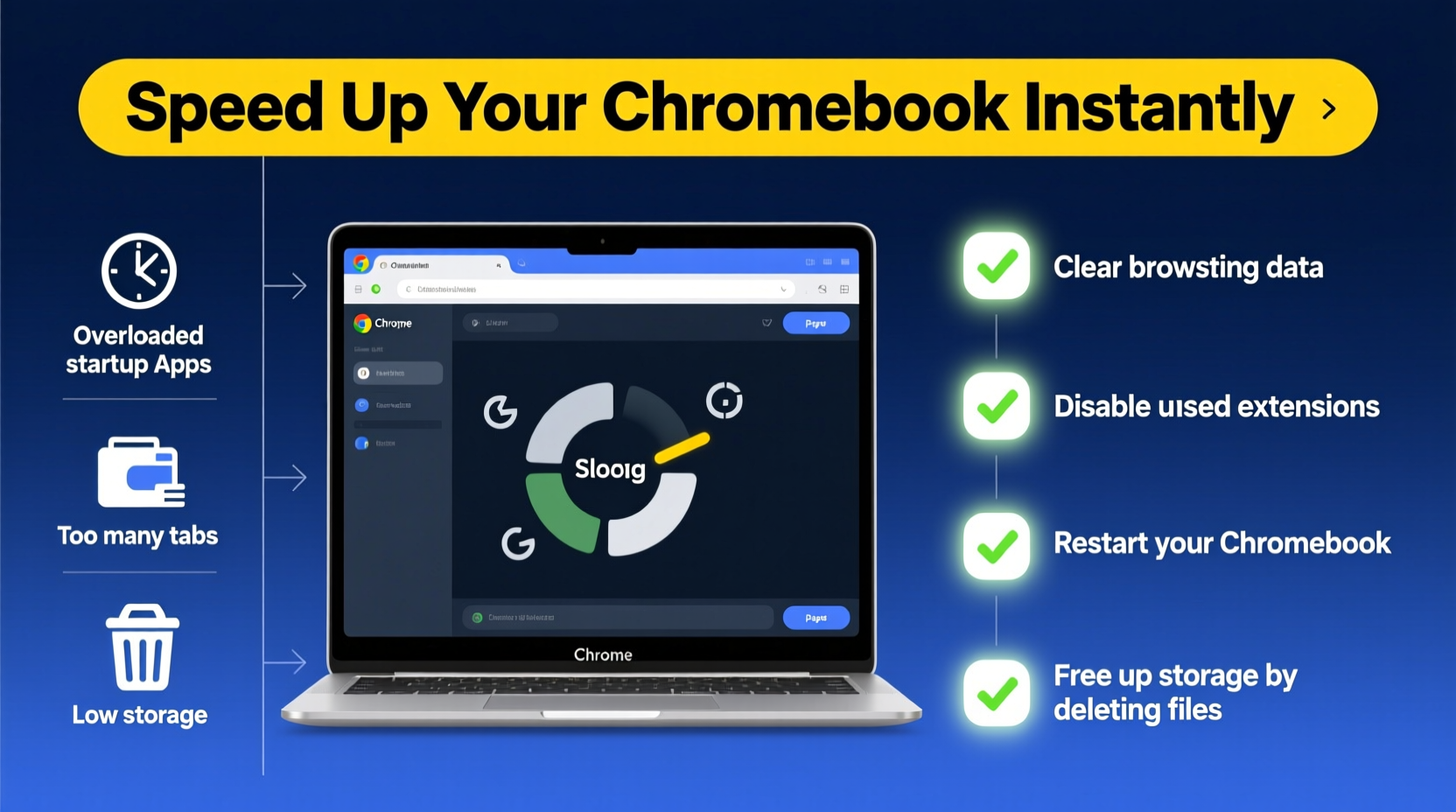
Before jumping into fixes, it helps to understand what’s dragging your Chromebook down. Unlike traditional laptops, Chromebooks don’t run complex desktop applications, but they’re still vulnerable to performance bottlenecks.
- Too many browser tabs open: Each tab runs as a separate process, consuming RAM. Dozens of tabs—even inactive ones—can max out memory.
- Background apps and extensions: Some extensions run constantly, checking for updates or tracking activity, which eats CPU cycles.
- Low storage space: Chrome OS needs free space to operate efficiently. When storage drops below 10%, performance often tanks.
- Outdated Chrome OS: Missing critical updates can leave your system unstable or incompatible with newer web standards.
- Accumulated cache and cookies: Over time, temporary files build up and can interfere with browser speed and app loading.
- Auto-launching apps at startup: Too many apps launching when you sign in can delay boot time and reduce available resources.
“Many users assume their Chromebook is failing when it’s just overloaded. A quick cleanup can restore near-new performance.” — David Lin, Chrome OS Support Specialist
Step-by-Step Guide to Speed Up Your Chromebook Instantly
You don’t need technical expertise to improve performance. Follow this practical sequence to see noticeable improvements within 15 minutes.
- Restart your Chromebook. It sounds obvious, but a reboot clears memory, stops rogue processes, and reloads the OS cleanly. Hold Power + Refresh (circular arrow) keys to force restart if frozen.
- Check for system updates. Go to Settings > About ChromeOS > Check for Updates. Install any pending update—it may include performance patches.
- Close all unnecessary tabs and apps. Press Shift + Esc to open the Chrome Task Manager. Sort by “Memory” or “CPU” and end high-usage tasks that aren’t essential.
- Clear browsing data. Navigate to Settings > Privacy and Security > Clear Browsing Data. Select “All time” and check boxes for cookies, cached images, and site data. This reduces bloat.
- Disable or remove unused extensions. Type
chrome://extensionsin the address bar. Remove anything you don’t actively use. Pay attention to ad blockers, password managers, or shopping tools that auto-run. - Manage startup apps. Go to Settings > Apps > Google Play Store (if enabled) > Manage Android preferences > Startup, and disable non-essential apps from launching at boot.
- Free up storage space. Open the Files app and delete large downloads, old videos, or duplicate files. Empty the trash afterward.
Real Example: How Sarah Regained Full Speed in 20 Minutes
Sarah, a high school teacher using her Chromebook daily for virtual classes, noticed her device freezing during Zoom calls and taking over a minute to boot. She had over 30 tabs open across two windows, five active extensions (including two she forgot she installed), and only 2% storage left. After following the steps above—restarting, removing unused extensions, clearing cache, and deleting old lesson recordings—her boot time dropped to 12 seconds, and Zoom ran smoothly again. No hardware changes, no factory reset—just smart digital hygiene.
Do’s and Don’ts for Chromebook Performance
| Do | Don’t |
|---|---|
| Restart your Chromebook weekly | Leave dozens of tabs open overnight |
| Keep at least 10–15% of storage free | Store large media files locally instead of in Google Drive |
| Update Chrome OS as soon as updates appear | Ignore update notifications for weeks |
| Use incognito mode for heavy research sessions | Install every extension you find “interesting” |
| Use keyboard shortcuts to manage windows and tabs | Run multiple Android or Linux apps simultaneously on low-end models |
Optimize Chrome OS Settings for Long-Term Speed
Once you’ve performed an immediate cleanup, adjust key settings to prevent future slowdowns.
Enable Hardware Acceleration (If Available)
Hardware acceleration uses your Chromebook’s GPU to handle graphics-heavy tasks like video playback. To enable: Go to Settings > Advanced > System > Use hardware acceleration when available. Toggle it on. Restart your device. Note: On older or low-powered models, this may cause instability—turn it off if performance worsens.
Limit Background App Activity
Android apps (if enabled) and Progressive Web Apps (PWAs) can continue running in the background. To restrict them: Navigate to Settings > Apps > Google Play Store > Manage Android preferences > Battery > Background restriction. Set apps like social media or games to “Restricted.”
Switch to Dark Mode
On Chromebooks with OLED or AMOLED screens (rare but possible), dark mode reduces pixel load and can slightly improve responsiveness. Even on standard LCDs, it reduces eye strain during long sessions. Enable via Settings > Personalization > Device theme > Dark.
Use Guest Mode for Shared Use
If others use your Chromebook, let them use Guest Mode. It prevents profile clutter, avoids extension bloat, and keeps your main account clean. No data is saved after logout.
When to Consider a Powerwash (Factory Reset)
If your Chromebook remains slow despite troubleshooting, a Powerwash may be the best solution. It erases all local data and resets Chrome OS to factory condition—like starting fresh.
Before Powerwashing:
- Back up important files to Google Drive or a USB drive.
- Ensure your Google Account is synced and accessible.
- Write down Wi-Fi passwords or save them in your Google Password Manager.
To Powerwash:
- Click the system tray (bottom-right clock).
- Select your profile picture > Settings.
- Go to Advanced > Reset settings > Powerwash > Restart.
- Follow prompts. The process takes about 5–10 minutes.
Afterward, sign in normally. Chrome OS will restore your apps and settings from the cloud if sync is enabled. Most users report dramatically improved speed post-Powerwash, especially on devices used for over a year.
“Powerwash isn’t a last resort—it’s a routine maintenance tool. I recommend doing it every 6–12 months for optimal performance.” — Lena Park, IT Administrator at a K–12 School District
FAQ: Common Questions About Chromebook Speed
Can too many Google Drive files slow down my Chromebook?
No—files stored in Google Drive online don’t affect performance unless they’re synced to your device via “Offline Access.” If you have hundreds of large files set to offline, they consume local storage. Disable offline access for folders you don’t need regularly.
Does closing the lid damage my Chromebook or slow it down?
No. Closing the lid puts your Chromebook to sleep, which saves power and preserves system state. However, leaving it asleep for days without a full shutdown can sometimes lead to memory leaks. Reboot weekly for best results.
Is it safe to use third-party cleaning apps?
Avoid them. Chrome OS doesn’t need registry cleaners or “speed booster” apps. Many are scams or contain malware. Stick to built-in tools and manual cleanup methods.
Performance Checklist: Quick Actions You Can Take Now
Print or bookmark this checklist for regular maintenance:
- ✅ Restart your Chromebook at least once a week
- ✅ Update Chrome OS immediately when prompted
- ✅ Keep fewer than 10 tabs open at once
- ✅ Remove unused extensions (
chrome://extensions) - ✅ Clear browsing data monthly
- ✅ Delete unnecessary downloads and empty trash
- ✅ Disable startup apps and background processes
- ✅ Back up files and Powerwash every 6–12 months
Conclusion: Take Control of Your Chromebook’s Speed Today
Your Chromebook doesn’t have to stay slow. Most performance issues are self-inflicted—not by you, but by daily digital habits that accumulate over time. Tabs multiply, files pile up, and extensions go unnoticed. The solution isn’t buying new hardware; it’s applying consistent, intelligent maintenance.
By following the steps outlined here—from simple restarts to strategic Powerwashes—you regain control over your device’s responsiveness. These fixes take minutes but deliver lasting benefits. Whether you're a student, professional, or casual user, a faster Chromebook means less frustration and more productivity.




 浙公网安备
33010002000092号
浙公网安备
33010002000092号 浙B2-20120091-4
Comments
No comments yet. Why don't you start the discussion?