
When your computer freezes but the mouse still moves, it’s one of the most frustrating and misleading symptoms you can encounter. At first glance, it might seem like the system is responsive—after all, the cursor glides across the screen—but clicking does nothing, programs stop responding, and even keyboard shortcuts fail. This partial freeze often points to a deeper issue rooted in hardware performance, driver conflicts, or system resource exhaustion. Unlike a full system crash, this state tricks users into thinking the machine is still functional, delaying proper diagnosis.
Understanding what causes this behavior is crucial for effective troubleshooting. While software glitches can contribute, persistent freezing with a moving mouse frequently traces back to hardware limitations or failures. The key is knowing where to look and what tools to use before the problem worsens or leads to data loss.
What Does It Mean When Only the Mouse Moves?
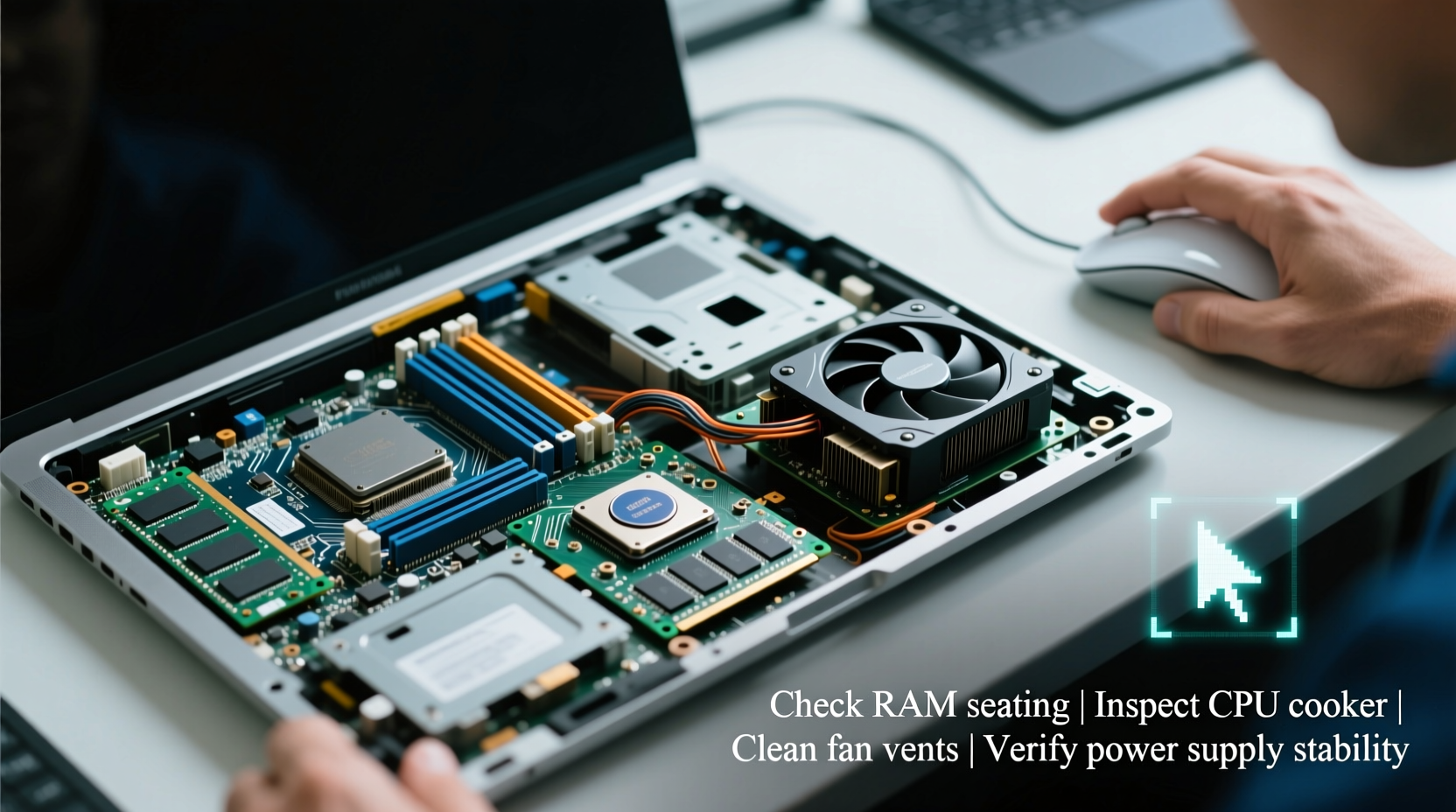
The ability of the mouse cursor to move while the rest of the system appears frozen indicates that some low-level processes are still operational. The mouse driver and input subsystem typically run in kernel mode, meaning they have direct access to hardware and aren’t dependent on higher-level user interfaces. If these components remain active, the cursor may continue to respond even when the graphical shell (like Windows Explorer) or critical system services have stalled.
This symptom often reflects one of several underlying conditions:
- Disk I/O bottleneck: The hard drive or SSD is overwhelmed with read/write requests, causing applications and the OS to hang.
- Insufficient RAM: When physical memory is exhausted, the system relies heavily on virtual memory, slowing down responsiveness.
- Failing storage device: Bad sectors or controller issues on an aging drive can cause intermittent freezes.
- Overheating components: CPUs and GPUs throttling due to heat can lead to sudden performance drops.
- Driver conflicts: Outdated or corrupted drivers—especially GPU or chipset—can disrupt system stability without fully crashing.
Because the operating system hasn’t completely locked up, basic input devices like the mouse may remain usable, creating a false sense of functionality. However, any attempt to interact with open windows, launch new programs, or switch tasks will likely fail.
Step-by-Step Hardware Diagnostic Process
To determine whether hardware is responsible for the freezing issue, follow this structured diagnostic workflow. Each step isolates potential failure points and helps identify the root cause.
- Monitor System Temperatures
Overheating is a common but often overlooked cause of intermittent freezing. Use tools like HWMonitor, Core Temp, or Open Hardware Monitor to track real-time CPU and GPU temperatures. Sustained temperatures above 90°C under load indicate inadequate cooling. Clean dust from fans and heatsinks, ensure proper airflow, and consider repasting the CPU if necessary. - Check Disk Health
Run built-in diagnostics such as CHKDSK (chkdsk C: /f /r) or use manufacturer-specific utilities (e.g., Samsung Magician for SSDs, WD Data Lifeguard for HDDs). Look for signs of bad sectors, excessive reallocations, or SMART errors. A failing drive may allow basic operations momentarily but struggle during heavy file access, leading to freezes. - Test RAM Stability
Faulty memory can cause unpredictable behavior. Boot from a USB drive containing MemTest86 and let it run for at least four passes. Any reported errors mean the RAM should be replaced. If multiple sticks are installed, test them individually to isolate the defective module. - Inspect Power Supply Unit (PSU)
An underpowered or failing PSU may deliver inconsistent voltage, especially under load. Symptoms include random reboots, peripheral disconnects, and system instability during multitasking. While testing requires specialized equipment, replacing the PSU with a known-good unit of adequate wattage can rule out power issues. - Evaluate GPU Performance
Even if not gaming, modern desktop environments rely on GPU acceleration. Update graphics drivers through the manufacturer’s website (NVIDIA, AMD, Intel). If crashes occur during video playback or window animations, try disabling hardware acceleration in Display Settings or browser configurations.
After completing each test, reboot and observe system behavior. If freezes persist despite normal readings, proceed to software-level investigation.
Common Hardware Culprits and Their Warning Signs
Certain components are more prone to degradation over time. Recognizing early warning signs can prevent complete system failure.
| Component | Failure Indicators | Action Required |
|---|---|---|
| Hard Drive / SSD | Slow boot times, file corruption, frequent freezes during file access | Backup data immediately; replace drive |
| RAM | Blue Screen Errors (BSOD), application crashes, garbled text | Run MemTest86; replace faulty modules |
| CPU | Overheating, system throttling, POST failures | Clean cooler; reapply thermal paste; verify socket integrity |
| Graphics Card | Artifacts on screen, display flickering, driver timeouts | Update drivers; test in another system if possible |
| Power Supply | Sudden shutdowns, inability to power on, burning smell | Replace with high-efficiency unit rated for your build |
Keep in mind that component lifespans vary based on usage, environment, and quality. A five-year-old mechanical hard drive, for example, has a significantly higher risk of failure than a newer NVMe SSD—even if both appear to function normally.
“Many users assume their system is ‘fine’ because it boots up, but subtle signs like delayed responses or occasional freezes often precede total hardware failure.” — David Lin, Senior Systems Engineer at TechRescue Labs
Mini Case Study: Resolving a Persistent Freeze Issue
A freelance graphic designer using a three-year-old desktop workstation began experiencing daily freezes. The mouse remained responsive, but Photoshop would become unresponsive, and switching between apps was impossible. Initial checks showed no malware, sufficient free disk space, and updated antivirus software.
Using Task Manager, he noticed consistent 100% disk usage during freezes. Further investigation with CrystalDiskInfo revealed that his SATA SSD had accumulated over 500 reallocated sectors—a clear sign of hardware degradation. Despite passing basic speed tests, the drive struggled under sustained workloads typical in creative software.
He backed up his project files, replaced the SSD with a new NVMe model, and reinstalled Windows. Post-upgrade, the system ran smoothly without a single freeze. This case underscores how a seemingly stable component can degrade internally while maintaining superficial functionality.
Troubleshooting Checklist: Is It Hardware or Software?
Use this checklist to methodically eliminate possibilities and pinpoint the source of freezing issues.
- ✅ Reboot and observe if the freeze recurs immediately or only after specific actions
- ✅ Open Task Manager: Are CPU, memory, or disk usage maxed out?
- ✅ Check Event Viewer for critical errors around the time of the freeze (look under Windows Logs > System)
- ✅ Boot into Safe Mode: If the system runs smoothly, the issue is likely driver- or software-related
- ✅ Disconnect non-essential peripherals to rule out USB conflicts
- ✅ Run hardware diagnostics: SMART status, RAM test, temperature monitoring
- ✅ Update BIOS/UEFI to the latest version (caution: only do this if stable power is guaranteed)
- ✅ Perform a clean boot to disable startup programs and background services
If all hardware tests pass and the issue disappears in Safe Mode, focus shifts to software optimization. Uninstall recently added programs, roll back driver updates, or perform a system restore to a point before symptoms began.
Frequently Asked Questions
Can a virus cause my computer to freeze while the mouse still works?
Yes, although less common today due to advanced antivirus protections, certain types of malware—particularly cryptojackers or rootkits—can consume excessive CPU or disk resources, leading to system lag and apparent freezing. Always run a full scan with a trusted antivirus solution if hardware checks come back clean.
Why does my laptop freeze only when unplugged?
This usually relates to power plan settings. When on battery, laptops often switch to a power-saving mode that limits CPU performance. In some cases, aggressive throttling combined with background tasks can create temporary freezes. Adjust the power plan to \"Balanced\" or \"High Performance\" and monitor changes.
Is it safe to keep using my computer if it freezes occasionally?
Occasional freezes may not pose immediate danger, but they are a red flag. Continuing to use a system with underlying hardware issues risks permanent data loss or complete component failure. Address the root cause promptly rather than adapting to unreliable performance.
Conclusion: Take Control Before the Next Freeze
A computer that freezes while the mouse still moves isn't just inconvenient—it's a warning signal. Whether caused by aging hardware, insufficient resources, or misconfigured drivers, ignoring these symptoms can lead to irreversible damage or lost productivity. By systematically evaluating each component and leveraging diagnostic tools, you can identify weak links before they fail completely.
Don’t wait for a total crash to act. Proactive maintenance—regular backups, temperature checks, and firmware updates—goes a long way in preserving system health. If you’ve identified a failing drive or overheating CPU, address it now. Your future self will thank you when your machine continues to perform reliably for years to come.




 浙公网安备
33010002000092号
浙公网安备
33010002000092号 浙B2-20120091-4
Comments
No comments yet. Why don't you start the discussion?