
There’s nothing more frustrating than clicking an icon and waiting—sometimes for minutes—for a program to open. If your computer has slowed to a crawl, you're not alone. Millions of users face declining performance over time, often without realizing the root causes. The good news: most slowdowns are fixable with practical steps. This guide dives into five major reasons behind sluggish performance and delivers actionable solutions that don’t require technical expertise.
1. Excessive Startup Programs Are Draining Resources
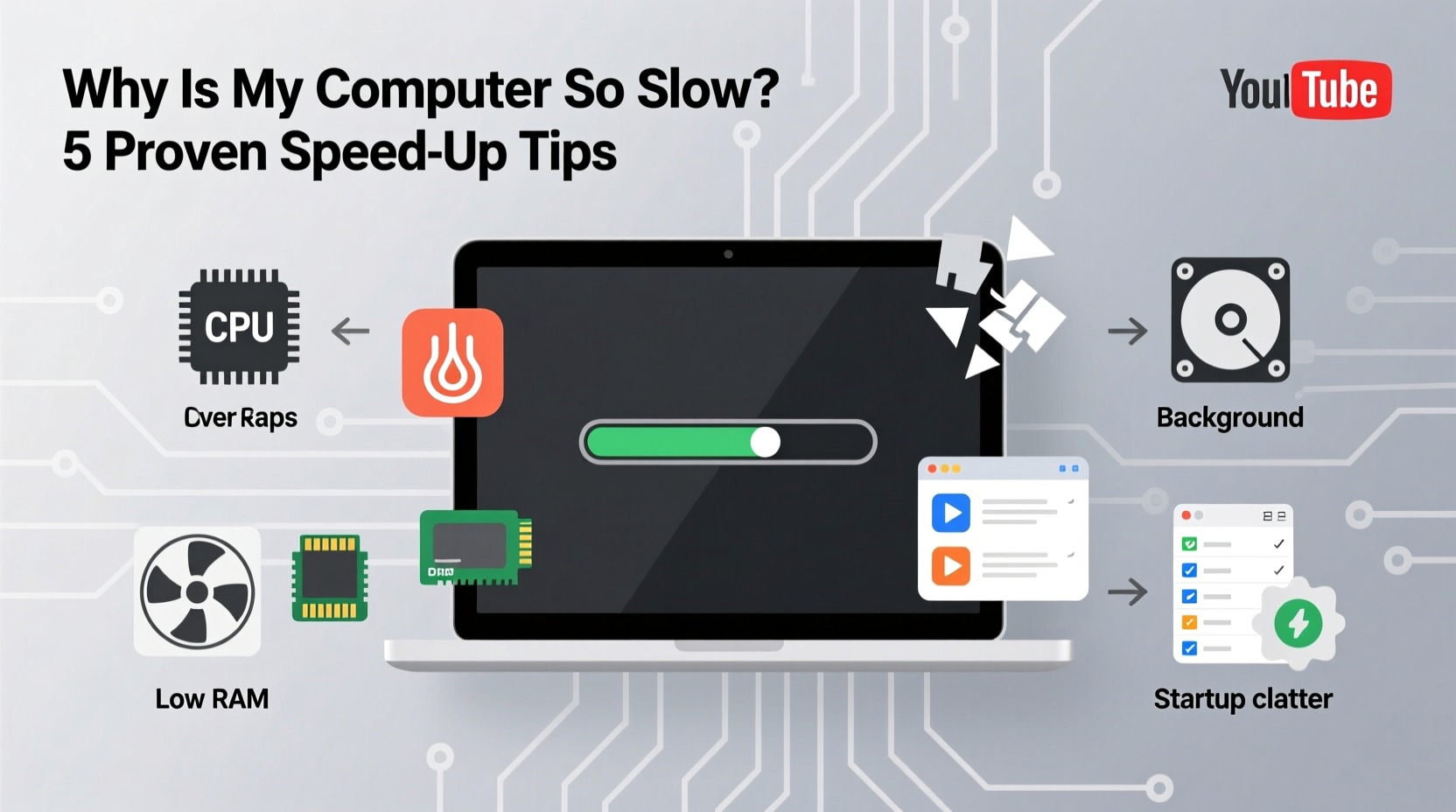
Every time you boot your computer, dozens of programs may launch automatically in the background. While some are essential (like antivirus software), many others—such as cloud sync tools, chat apps, or outdated utilities—are unnecessary and consume valuable RAM and CPU.
A bloated startup list can turn a quick boot into a three-minute wait. Over time, this habit compounds, especially if you install new software without reviewing default settings.
How to Clean Up Startup Programs on Windows
- Press Ctrl + Shift + Esc to open Task Manager.
- Navigate to the Startup tab.
- Select any application you don’t need at startup (e.g., Spotify, Adobe Reader).
- Click Disable.
On Mac, go to System Settings > General > Login Items, then toggle off unwanted apps. After cleanup, reboot and notice faster startup times.
2. Insufficient or Fragmented Storage Is Holding You Back
Your hard drive’s health directly impacts system responsiveness. When storage is nearly full—or when files are scattered across a traditional HDD—your computer struggles to read and write data efficiently.
Solid State Drives (SSDs) are significantly faster than Hard Disk Drives (HDDs), but even SSDs suffer when overloaded. As a rule of thumb, keep at least 15–20% of your drive free for optimal operation.
“An overloaded hard drive forces the system to work harder just to locate files. It’s like searching for a book in a packed, disorganized closet.” — David Lin, Systems Performance Analyst
Disk Cleanup Checklist
- Delete temporary files using built-in tools like Disk Cleanup (Windows) or Optimized Storage (Mac).
- Uninstall unused applications.
- Move large media files (videos, photos) to external drives or cloud storage.
- Clear browser caches and download folders.
- Empty the Recycle Bin/Trash permanently.
3. Outdated Software and Drivers Are Causing Bottlenecks
Operating systems, drivers, and firmware receive regular updates that improve stability, security, and performance. Ignoring these updates can leave your system vulnerable and inefficient.
For example, an outdated graphics driver might cause lag during video playback or gaming, while missing OS patches can introduce memory leaks or compatibility issues.
| Component | Check Method | Recommended Action |
|---|---|---|
| Operating System | Windows: Settings > Update & Security Mac: System Settings > Software Update |
Install all pending updates |
| Device Drivers | Device Manager (Windows) Apple Support (Mac) |
Update via manufacturer website or built-in updater |
| Firmware | BIOS/UEFI (Windows) macOS recovery mode |
Only update if advised by manufacturer |
Updating should be routine—not reactive. Enable automatic updates where possible to stay current without effort.
4. Malware or Bloatware May Be Running in the Background
Not all slowdowns stem from user behavior. Some are caused by malicious software or pre-installed bloatware that runs silently, consuming CPU cycles and network bandwidth.
Bloatware—software bundled with new devices—often includes trial versions of antivirus tools, games, or shopping apps that start automatically and offer little value. Meanwhile, malware such as spyware or crypto-mining scripts can severely degrade performance.
Mini Case Study: Sarah’s Sudden Slowdown
Sarah, a freelance designer, noticed her laptop freezing frequently despite having plenty of RAM. After ruling out hardware issues, she ran a full antivirus scan and discovered a hidden cryptocurrency miner installed through a fake plugin download. Removing the threat restored normal speeds within minutes. The lesson? Regular scans catch threats before they cripple performance.
Step-by-Step Guide to Eliminate Hidden Threats
- Run a full system scan using trusted antivirus software (e.g., Windows Defender, Bitdefender).
- Use anti-malware tools like Malwarebytes for deeper inspection.
- Review active processes in Task Manager (Windows) or Activity Monitor (Mac).
- Look for suspicious names or high resource usage by unknown apps.
- Uninstall unfamiliar programs via Control Panel (Windows) or Applications folder (Mac).
5. Hardware Limitations Need Addressing
Sometimes, no amount of tweaking can overcome aging hardware. If your computer is more than five years old, it may lack the RAM or processing power needed for modern applications.
Common signs of hardware strain include:
- Frequent freezing or crashing
- Excessive fan noise under light load
- Inability to multitask between browsers and office apps
Potential Upgrades and Their Impact
| Upgrade | Cost Range | Performance Gain |
|---|---|---|
| Add RAM (e.g., 8GB → 16GB) | $30–$70 | Noticeable improvement in multitasking |
| Replace HDD with SSD | $50–$100 | Boot time reduced by 50–80% |
| Clean internal dust | Free (DIY) or $20–$40 (professional) | Better cooling, less throttling |
Before investing in upgrades, verify compatibility. Check your device model’s specs online to ensure the RAM type, SSD interface (SATA vs NVMe), and physical space match your plans.
FAQ
How do I know if my computer needs more RAM?
Open Task Manager (Windows) or Activity Monitor (Mac) and check memory usage. If it consistently exceeds 80% during normal tasks, upgrading RAM will likely help.
Can too many browser tabs really slow down my PC?
Yes. Each tab runs its own process and consumes memory. Having 20+ tabs open can use several gigabytes of RAM, especially with video or ads. Use tab suspender extensions or bookmark pages instead.
Is it worth upgrading an old computer, or should I buy a new one?
If your machine is more than seven years old, lacks upgrade options, or uses outdated architecture (e.g., DDR3 RAM, SATA-only SSD support), replacement may be more cost-effective than incremental fixes.
Conclusion
Slow computers rarely fail overnight—they degrade gradually, masked by daily habits. By addressing startup overload, clearing storage, updating software, eliminating hidden threats, and evaluating hardware limits, you reclaim speed and reliability. These fixes aren’t temporary patches; they’re sustainable practices that extend your device’s lifespan.




 浙公网安备
33010002000092号
浙公网安备
33010002000092号 浙B2-20120091-4
Comments
No comments yet. Why don't you start the discussion?