
There’s nothing more frustrating than a sluggish computer—typing lags behind, programs take forever to open, and even simple tasks feel like marathons. If you’ve found yourself asking, “Why is my computer so slow?” you’re not alone. Millions of users face performance degradation over time, often without realizing the underlying causes. The good news: most slowdowns are fixable with targeted troubleshooting. This guide breaks down the real reasons behind poor performance and delivers eight actionable steps to get your system running smoothly again.
1. Understand the Common Causes of Slow Performance
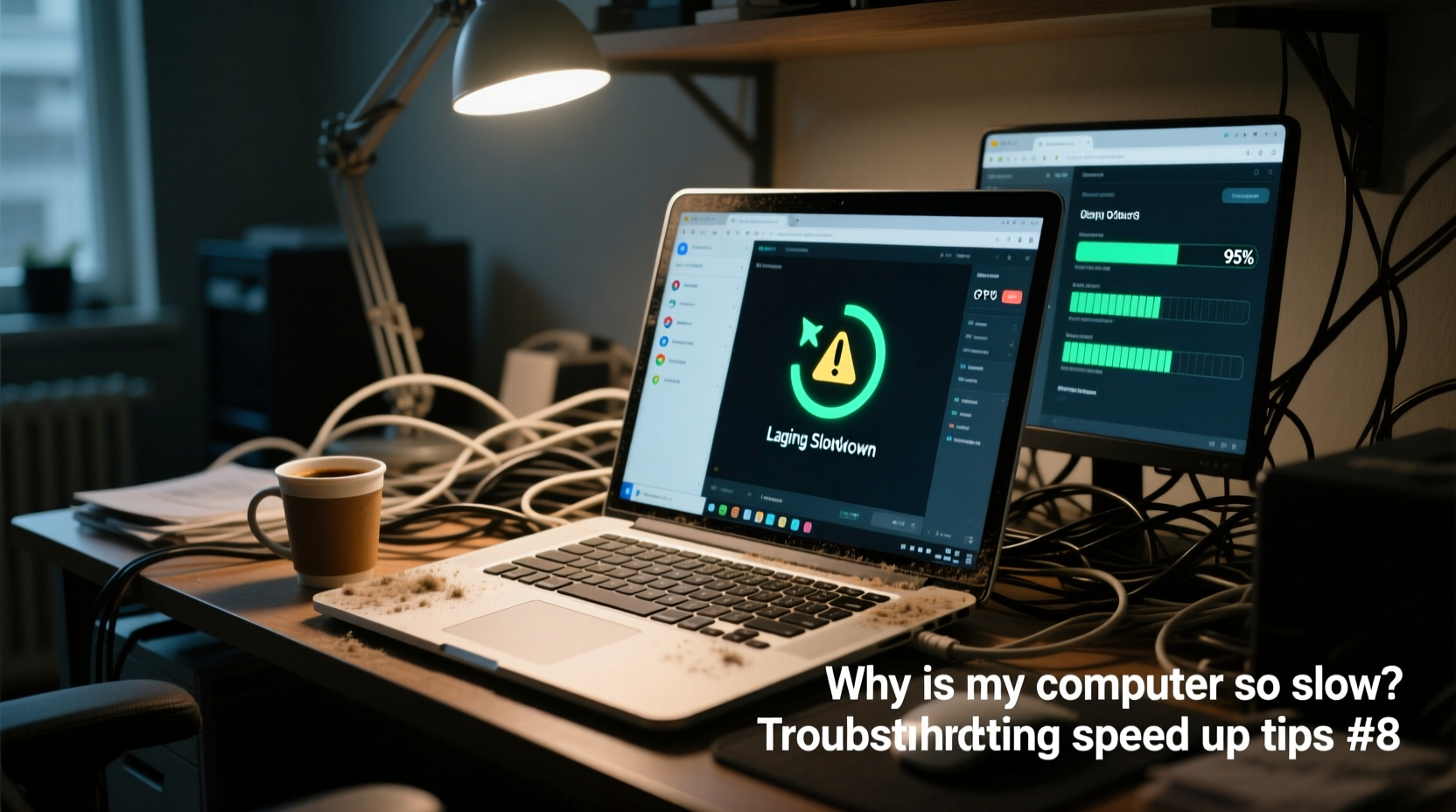
A slow computer rarely has a single cause. Instead, it's usually the result of multiple factors compounding over time. Identifying these root issues is the first step toward resolution.
- Insufficient RAM: When your system runs out of memory, it relies on slower virtual memory, causing delays.
- Fragmented or overloaded hard drive: Traditional HDDs suffer from fragmentation, while full drives reduce efficiency.
- Too many startup programs: Applications launching at boot consume resources before you even begin working.
- Background processes and malware: Hidden software can hog CPU and network bandwidth.
- Outdated drivers or OS: Older software lacks optimizations and security patches that affect stability and speed.
- Overheating: High temperatures trigger thermal throttling, reducing processor performance.
“Performance issues are often systemic. Users blame hardware, but in 70% of cases, software mismanagement is the culprit.” — David Lin, Senior Systems Engineer at TechFlow Solutions
2. Run a Full Malware Scan
Malware remains one of the most overlooked causes of system slowdowns. Even if your antivirus hasn’t alerted you, certain types of spyware, adware, or crypto-mining scripts operate silently in the background, consuming CPU cycles and memory.
To ensure your system is clean:
- Boot into Safe Mode to limit active processes.
- Use Windows Defender (or a trusted third-party tool like Malwarebytes) to perform a full system scan.
- Quarantine or remove any detected threats.
- Restart normally and monitor performance afterward.
3. Optimize Startup Programs
Every program that launches at startup eats into boot time and available system resources. Over months or years, this adds up—especially on machines with mechanical hard drives.
Here’s how to manage startup apps on Windows:
- Press Ctrl + Shift + Esc to open Task Manager.
- Navigate to the “Startup” tab.
- Sort by “Startup impact” and disable high-impact apps you don’t need immediately.
- Common candidates: cloud sync tools, updaters (e.g., Adobe, Spotify), chat apps.
On macOS, go to System Settings > General > Login Items and toggle off unnecessary applications.
| Program | Purpose | Safe to Disable? |
|---|---|---|
| Google Update | Checks for Chrome updates | Yes |
| Spotify Web Helper | Enables web playback | Yes |
| Dropbox | File syncing | Only if you manually start it later |
| Skype | Voice/video calls | Yes, unless used daily |
| NVIDIA GeForce Experience | Driver updates & recording | Yes, unless gaming |
4. Free Up Disk Space and Defragment (if applicable)
A nearly full hard drive slows down file access and limits virtual memory efficiency. Aim to keep at least 15–20% of your drive free.
Start by using built-in tools:
- Windows: Use Disk Cleanup to remove temporary files, system cache, and old updates.
- macOS: Go to About This Mac > Storage > Manage to offload large files to iCloud or delete downloads.
If you're still using a traditional HDD (not SSD), run disk defragmentation monthly:
- Type “Defragment and Optimize Drives” in the Start menu.
- Select your drive and click “Optimize.”
Note: Do not defragment SSDs—they don’t benefit from it and can experience reduced lifespan.
5. Upgrade Hardware: The Long-Term Fix
While software tweaks help, aging hardware eventually hits a ceiling. Two upgrades deliver the most noticeable improvements:
- Switch to an SSD: Replacing an HDD with a solid-state drive can cut boot times from minutes to seconds and dramatically improve application responsiveness.
- Add more RAM: If you regularly use multiple browser tabs, design tools, or office suites, upgrading from 4GB to 8GB or 16GB eliminates constant swapping and freezing.
For desktops, both upgrades are typically inexpensive and straightforward. Laptops may require professional assistance depending on model constraints.
“A $60 SSD upgrade often provides better performance gains than a brand-new mid-tier laptop from three years ago.” — Lena Torres, IT Consultant and Hardware Analyst
6. Mini Case Study: Reviving a 7-Year-Old Laptop
Mark, a freelance writer, struggled with a 2017 HP laptop running Windows 10. It took over five minutes to boot, and Microsoft Word frequently froze during typing. He assumed it was time for a replacement—until he followed a systematic cleanup.
His process:
- Ran a Malwarebytes scan—found adware bundled with an old PDF converter.
- Disabled 12 of 18 startup programs, reducing boot time to 90 seconds.
- Used Disk Cleanup and uninstalled redundant software, freeing 28GB of space.
- Upgraded from a 500GB HDD to a 500GB SSD ($55).
Result: Boot time dropped to 18 seconds. Applications opened instantly. Mark extended the laptop’s usable life by at least two more years—all for under $70.
7. Maintain Peak Performance: A Weekly Checklist
Prevention beats repair. Incorporate these habits to avoid future slowdowns:
- ✅ Restart your computer weekly to clear memory leaks.
- ✅ Clear browser cache and close unused tabs.
- ✅ Check for OS and driver updates.
- ✅ Run a quick virus scan.
- ✅ Delete temporary files and downloads you no longer need.
- ✅ Monitor task manager for unusually high CPU or disk usage.
This routine takes less than 10 minutes but prevents the gradual buildup that leads to major slowdowns.
8. Frequently Asked Questions
How do I know if my computer needs more RAM?
Open Task Manager (Windows) or Activity Monitor (macOS) and check memory usage. If it consistently exceeds 80% during normal use—even with few apps open—you’ll benefit from an upgrade.
Can too many browser tabs really slow down my PC?
Absolutely. Each tab runs as a separate process and consumes RAM. Having 20+ tabs open can use several gigabytes of memory, especially with video or ads. Use bookmarking or tab-suspension extensions to manage load.
Is it safe to use registry cleaners?
No. Most reputable tech experts advise against them. Registry cleaners often remove critical entries, leading to instability or crashes. Windows manages the registry efficiently on its own.
Conclusion: Take Action Before Frustration Wins
A slow computer doesn’t have to mean replacement. In most cases, performance issues stem from manageable software problems or outdated components that can be upgraded cost-effectively. By understanding the causes, applying smart troubleshooting, and maintaining regular care, you can restore speed and extend your machine’s lifespan significantly.




 浙公网安备
33010002000092号
浙公网安备
33010002000092号 浙B2-20120091-4
Comments
No comments yet. Why don't you start the discussion?