
If your computer takes forever to boot, freezes during simple tasks, or struggles to keep up with everyday browsing, you're not alone. Millions of users face the same frustration. While a slow PC can feel like an inevitable part of aging hardware, many performance issues stem from avoidable causes—background processes, outdated software, fragmented storage, or malware. The good news? Most slowdowns can be reversed with targeted troubleshooting. This guide breaks down the real reasons behind sluggish performance and delivers practical, step-by-step solutions to restore speed and reliability.
Common Causes of a Slow Computer
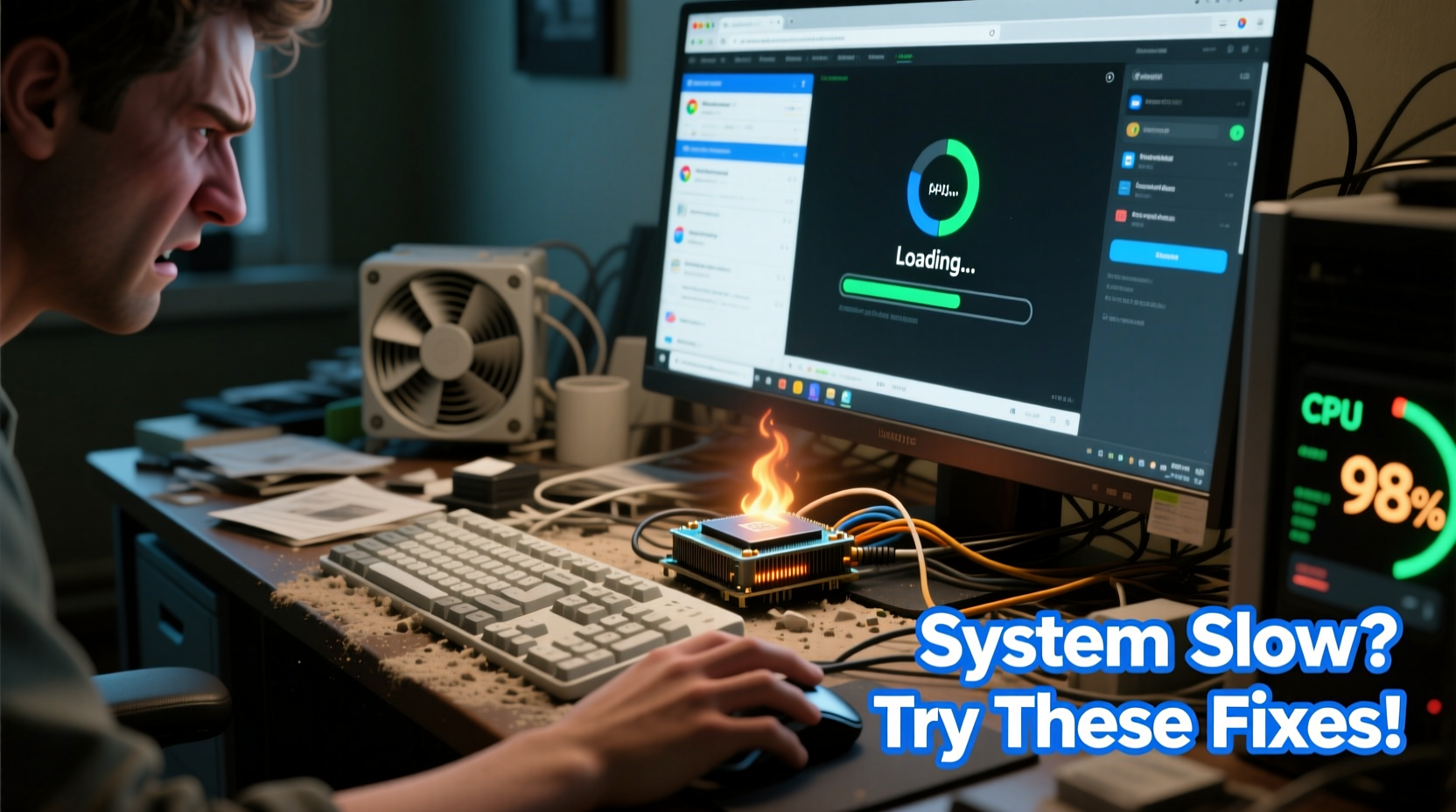
Before jumping into fixes, it's essential to understand what’s dragging your system down. Performance bottlenecks rarely come from a single source. Instead, they’re often the result of multiple overlapping issues.
- Insufficient RAM: Running too many applications at once overwhelms memory, forcing the system to use slower virtual memory on the hard drive.
- Fragmented or full hard drives: Traditional HDDs suffer when files are scattered across the disk or when free space drops below 15%.
- Outdated drivers or OS: Missing updates can lead to compatibility issues, security flaws, and inefficient resource use.
- Bloatware and startup programs: Apps launching at boot consume CPU and RAM before you even begin working.
- Malware or viruses: Hidden threats run background processes that drain resources without your knowledge.
- Overheating: Dust buildup or failing cooling systems cause thermal throttling, reducing processor speed to prevent damage.
Step-by-Step Guide to Speed Up Your Computer
Follow this systematic approach to diagnose and resolve performance issues. Each step targets a specific bottleneck and can yield noticeable improvements—even on older machines.
- Restart your computer regularly. A simple reboot clears temporary files, resets memory usage, and stops runaway processes.
- Uninstall unused programs. Go to Settings > Apps > Installed apps and remove software you no longer need, especially pre-installed bloatware.
- Disable unnecessary startup programs. In Task Manager (Startup tab), disable apps like cloud sync tools, chat clients, or updaters that don’t need to launch at boot.
- Run Disk Cleanup. Search for “Disk Cleanup,” select your system drive, and delete temporary files, system cache, and回收站 contents.
- Update your operating system and drivers. Ensure Windows (or macOS) is current. Use Device Manager or your manufacturer’s support site to update critical drivers.
- Scan for malware. Run a full system scan using Windows Defender or a trusted third-party antivirus tool.
- Defragment your HDD (if applicable). For traditional hard drives, use the built-in “Optimize Drives” tool weekly. SSDs do not need defragmentation.
- Add more RAM if possible. Upgrading from 4GB to 8GB or 16GB can dramatically improve multitasking performance.
- Upgrade to an SSD. Replacing an old HDD with a solid-state drive is one of the most effective upgrades for overall responsiveness.
- Adjust visual effects for performance. In System Properties > Advanced > Performance Settings, choose “Adjust for best performance” or manually disable animations.
Troubleshooting Checklist
Use this checklist as a quick reference to systematically improve your computer’s speed:
- ✅ Restart the computer
- ✅ Check Task Manager for high resource usage
- ✅ Uninstall unused software
- ✅ Disable non-essential startup programs
- ✅ Run Disk Cleanup and clear browser cache
- ✅ Update OS, drivers, and firmware
- ✅ Perform a full antivirus scan
- ✅ Defragment HDD (not SSD)
- ✅ Clean dust from fans and vents
- ✅ Consider upgrading RAM or switching to an SSD
Do’s and Don’ts: What Helps (and Hurts) Performance
| Do | Don't |
|---|---|
| Keep at least 15–20% of your drive free | Fill your system drive beyond 85% capacity |
| Use an SSD for your operating system | Rely solely on a mechanical HDD for system storage |
| Install reputable antivirus software | Use multiple real-time antivirus programs simultaneously |
| Regularly update software and drivers | Ignore system update notifications |
| Clean internal dust every 6–12 months | Block ventilation ports with blankets or cushions |
Real-World Example: From Lag to Lightning-Fast
Sarah, a freelance graphic designer, struggled with her five-year-old laptop. It took over five minutes to boot, Adobe Photoshop froze constantly, and saving files felt like watching paint dry. After running diagnostics, she discovered her 500GB HDD was 93% full, 17 programs were launching at startup, and her RAM was maxing out regularly. She followed the steps in this guide: cleaned up old project files, uninstalled redundant design tools, disabled startup apps, and upgraded to a 500GB SSD. The results? Boot time dropped to 18 seconds, Photoshop launched instantly, and overall system responsiveness improved so much she postponed buying a new machine.
“Upgrading to an SSD is the single most impactful improvement you can make to an older computer. It transforms the user experience.” — David Lin, Senior Systems Engineer at TechFlow Solutions
Frequently Asked Questions
How do I know if my computer needs more RAM?
If your system consistently uses over 80% of available RAM (visible in Task Manager’s Performance tab), and you experience lag when switching between apps or opening large files, adding more RAM will likely help. For general use, 8GB is the minimum; for photo/video editing or gaming, 16GB or more is recommended.
Can a slow internet connection make my computer feel sluggish?
Yes—especially if you rely on cloud-based apps or stream media. However, this only affects online tasks. If local programs (like Word or Photoshop) are also slow, the issue is likely internal, such as insufficient RAM, a failing drive, or background processes.
Is it worth repairing an old computer instead of buying a new one?
Often, yes. Many older computers run poorly not because of hardware failure but due to software clutter and outdated components. Replacing the HDD with an SSD and adding RAM can extend a machine’s useful life by several years—at a fraction of the cost of a new device.
Final Steps and Long-Term Maintenance
Speeding up your computer isn’t just about one-time fixes—it’s about building habits that sustain performance. Schedule monthly maintenance: clean temporary files, review installed programs, and verify updates. Monitor temperatures using tools like HWMonitor to catch overheating early. Avoid downloading pirated software or clicking suspicious email links to reduce malware risk. And if you're still using a traditional hard drive, strongly consider upgrading to an SSD. The investment pays off in daily productivity, reduced frustration, and extended device lifespan.




 浙公网安备
33010002000092号
浙公网安备
33010002000092号 浙B2-20120091-4
Comments
No comments yet. Why don't you start the discussion?