
A sharp, vibrant desktop background enhances the visual experience of using your computer. It sets the tone for productivity, creativity, or relaxation—depending on your preference. But when that image appears fuzzy, pixelated, or stretched beyond recognition, it can be more than just annoying; it can reflect deeper issues with display settings, image quality, or system configuration. Understanding why your desktop background is blurry is the first step toward restoring clarity. This guide breaks down the most common causes and delivers proven, actionable solutions.
Common Causes of a Blurry Desktop Background
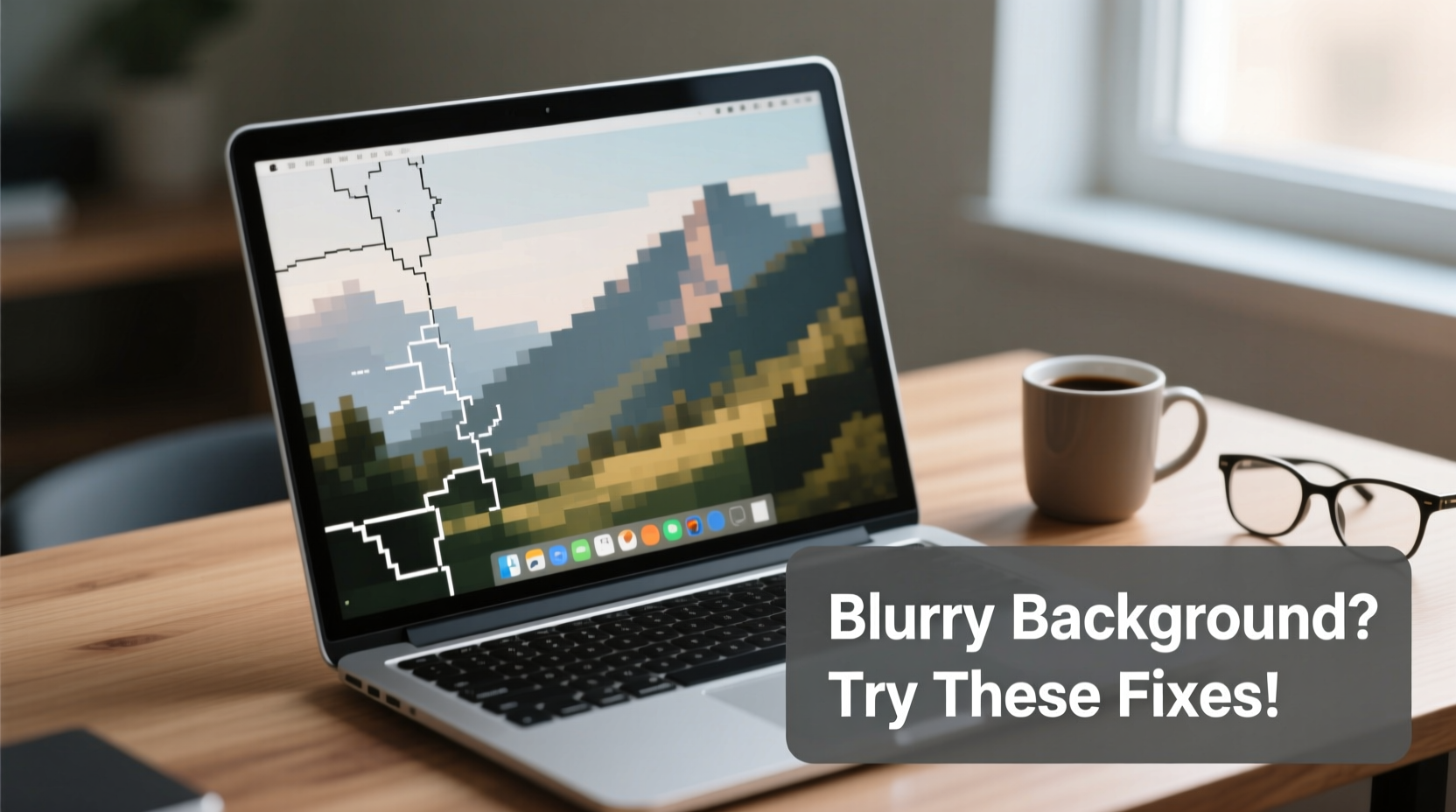
A blurry wallpaper isn’t always due to a poor-quality image. Multiple factors contribute to how an image renders on your screen. Identifying the root cause ensures you apply the right fix instead of guessing.
- Low-resolution image: Using a photo smaller than your screen’s resolution forces Windows or macOS to stretch it, causing blurriness.
- Incorrect scaling settings: Operating systems often adjust image size based on display scaling, which can distort visuals.
- Mismatched aspect ratio: When the image proportions don’t match your monitor (e.g., 4:3 image on a 16:9 screen), stretching or cropping occurs.
- DPI scaling interference: High-DPI displays may misrender images if scaling isn’t properly configured.
- Compression artifacts: Some wallpapers saved in low-quality formats lose detail during compression.
- Multiple monitors with different resolutions: Setting one wallpaper across screens with varying specs can lead to inconsistent quality.
Step-by-Step Fixes for a Crisp Desktop Background
Resolving a blurry desktop background involves both technical adjustments and smart image selection. Follow this sequence to restore image clarity.
- Determine your screen’s native resolution. On Windows, go to Settings > System > Display > Resolution. On macOS, open System Settings > Displays. Note the recommended setting.
- Select a wallpaper with matching or higher resolution. For Full HD (1920x1080), use at least a 1920x1080 image. For 4K (3840x2160), source ultra-HD images.
- Use the correct fit option. In Windows, right-click the desktop > Personalize > Background. Choose “Fill,” “Fit,” or “Span” carefully. “Center” avoids stretching but shows black bars if the aspect ratio differs.
- Adjust DPI scaling. In Windows, go to Settings > System > Display > Scale & layout. Set scaling to 100% temporarily to test if blurriness disappears. If it does, customize per-app scaling to maintain readability without distorting the wallpaper.
- Disable image smoothing for wallpapers. Some third-party tools or themes enable smoothing filters. Turn these off in appearance settings.
- Reapply the wallpaper after changes. Sometimes, simply reselecting the image triggers a proper redraw.
Comparison of Wallpaper Fit Options
| Fit Option | Description | Best For | Risk of Blurriness |
|---|---|---|---|
| Fill | Scales image to fill screen, may crop edges | High-res images slightly larger than screen | Low |
| Fit | Shrinks image to fit entirely, adds borders | Precise preservation of original image | None |
| Stretch | Forces image to cover screen regardless of proportion | Legacy systems or outdated workflows | Very High |
| Tile | Repeats small image across desktop | Patterns or textures | Medium (if base image is low-res) |
| Center | Places image in middle without resizing | Exact resolution matches | None (unless image is small) |
Real Example: Fixing a Blurry Dual-Monitor Setup
Jamal, a graphic designer, uses two monitors: a 27-inch 4K primary and a 24-inch Full HD secondary. He set a beautiful landscape photo as his wallpaper, only to find it appeared sharp on one screen and distorted on the other. After investigation, he realized the image was 3840x2160—perfect for the 4K monitor but too wide for the 1080p display. Windows stretched it vertically to compensate, creating blur. His solution? He used a dual-monitor wallpaper tool to assign separate images tailored to each screen’s resolution. The result: crisp, immersive visuals across both displays.
“Image fidelity starts with matching resolution and ends with proper rendering settings. Most blurriness stems from mismatched expectations between user intent and system behavior.” — Dr. Lin Zhao, Display Systems Engineer at VisualEdge Technologies
Tips for Sourcing and Managing High-Quality Wallpapers
Prevention is often easier than correction. Building a habit of using high-fidelity wallpapers reduces recurring issues.
- Download wallpapers in .PNG format when possible—they support transparency and lossless compression.
- Avoid screenshots or social media images—they’re often compressed and low-res.
- Create a dedicated folder for wallpapers sorted by resolution (e.g., “1080p”, “1440p”, “4K”).
- Use dynamic wallpaper tools (like Wallpaper Engine or Rainmeter) that auto-adjust based on screen specs.
- Regularly audit your wallpaper library—delete outdated or blurry images.
FAQ: Common Questions About Blurry Desktop Backgrounds
Why does my wallpaper look fine on my phone but blurry on my PC?
This usually happens because mobile operating systems handle image scaling differently and often use higher pixel density (PPI). Additionally, phones typically display images in full-screen mode with optimized rendering. On PCs, especially with mismatched resolutions or scaling settings, the same image may appear stretched or poorly interpolated.
Can I fix a blurry image without downloading a new one?
Only to a limited extent. While AI-powered upscaling tools (like Topaz Gigapixel or Let’s Enhance) can improve low-res images, they can’t add real detail—only simulate it. Results vary, and over-upscaling may introduce artifacts. It’s better to replace the image with a native high-resolution version.
Does changing the wallpaper format affect quality?
Yes. JPEG files use lossy compression, which can degrade quality, especially after repeated saves. PNG preserves quality but results in larger file sizes. For static wallpapers, PNG is preferable. For animated or video wallpapers, MP4 or WebM formats with high bitrate settings maintain clarity.
Checklist: How to Prevent Blurry Wallpapers
- ✅ Know your screen’s native resolution
- ✅ Use wallpapers with equal or higher resolution
- ✅ Match aspect ratios (e.g., 16:9, 21:9)
- ✅ Avoid \"Stretch\" as the fit option
- ✅ Disable aggressive DPI scaling for desktop icons
- ✅ Test wallpapers after every major OS update
- ✅ Store originals in a high-quality format (PNG or TIFF)
Final Thoughts: Clarity Starts with Intention
A blurry desktop background might seem like a minor annoyance, but it reflects broader habits around digital organization and system awareness. By understanding how resolution, scaling, and image formatting interact, you gain control over your computing environment. Don’t settle for fuzzy visuals—take a few minutes to audit your current setup, source better images, and configure your display correctly. A crisp wallpaper isn’t just about aesthetics; it’s a sign of a well-maintained, intentional workspace.




 浙公网安备
33010002000092号
浙公网安备
33010002000092号 浙B2-20120091-4
Comments
No comments yet. Why don't you start the discussion?