
Digital advent calendars have become a festive favorite—offering daily surprises, countdowns, and interactive content throughout December. But when your calendar fails to sync across devices, especially your phone, the experience can quickly turn frustrating. You might open the app on your tablet only to find unlocked doors missing on your phone, or worse, lose progress entirely. Syncing issues aren’t uncommon, but they’re rarely insurmountable. Understanding the root causes—from account mismatches to background app restrictions—can restore seamless functionality just in time for the holiday countdown.
Synchronization relies on a stable connection between your device, the app’s backend servers, and your user account. When any part of this chain breaks, data doesn’t flow correctly. The good news? Most sync problems are fixable with methodical troubleshooting. Whether you're using a popular app like Lindt Holiday Calendar, Elf Yourself, or a custom-branded version, the principles remain consistent across platforms.
Common Causes of Syncing Failures
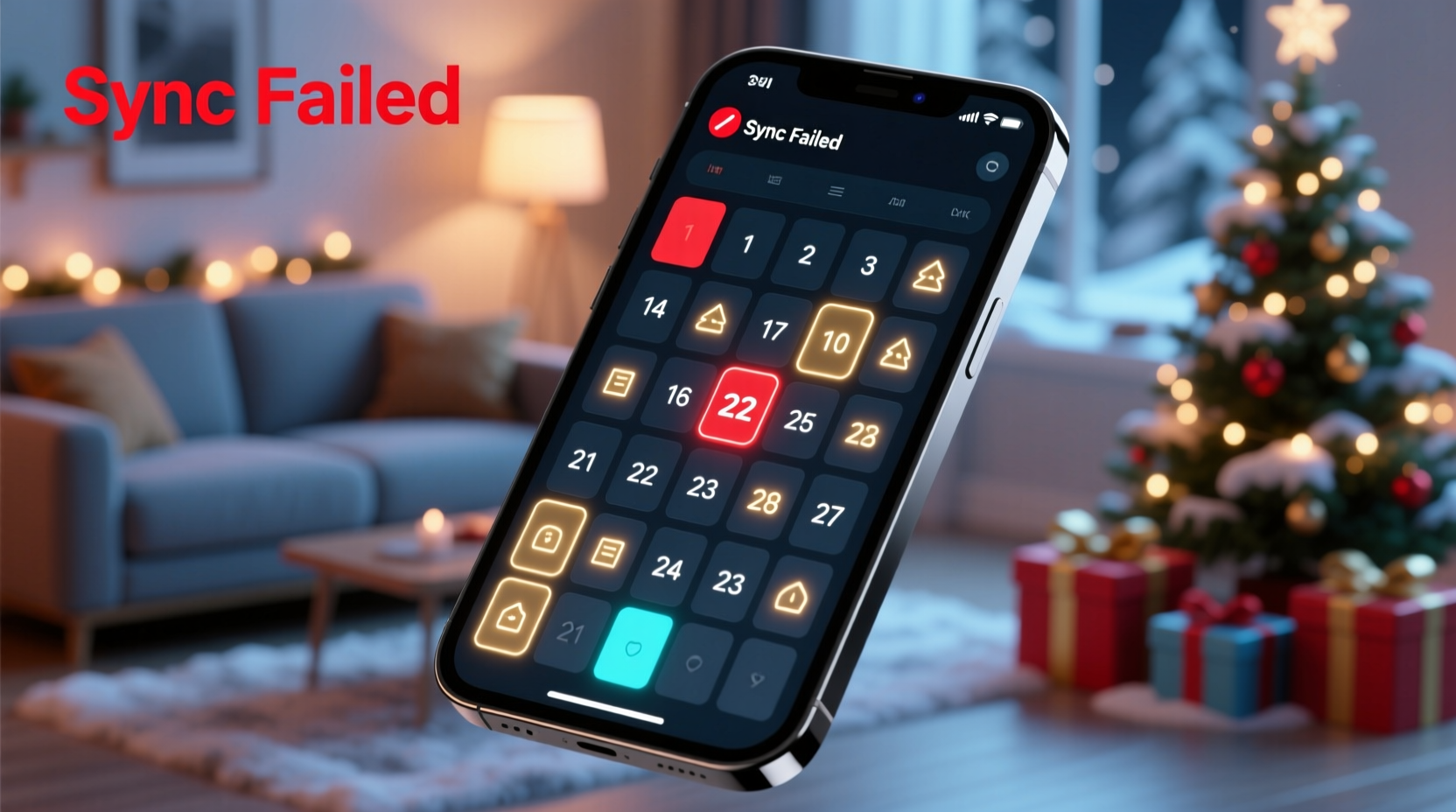
Before diving into fixes, it's essential to identify what could be disrupting synchronization. Digital advent calendars typically store your unlock history, preferences, and achievements in the cloud. If that data isn’t being shared properly between devices, here are the most likely culprits:
- Incorrect or mismatched login credentials: Using different accounts on different devices prevents data from aligning.
- Poor or unstable internet connection: Syncing requires an active data or Wi-Fi connection to push and pull updates.
- App permissions disabled: Background data access or notifications may be restricted, halting silent sync processes.
- Outdated app version: Older versions may lack compatibility with current syncing protocols.
- Server-side issues: The developer’s servers might be down or experiencing delays.
- Device-specific settings: iOS and Android manage background activity differently, which can interfere with automatic syncing.
Each of these factors can act alone or in combination. For example, even if you’re logged into the correct account, a poor signal during a key unlock moment could mean the action wasn’t recorded server-side—resulting in a “missing” day on your other device.
Step-by-Step Guide to Restore Syncing
Follow this structured approach to systematically eliminate potential issues. Start from the basics and work toward more advanced checks.
- Check Your Internet Connection
Ensure both your phone and secondary device (tablet, laptop) are connected to a stable Wi-Fi or cellular network. Open a browser and load a website to confirm connectivity. Try switching between Wi-Fi and mobile data to rule out network-specific blocks. - Verify Account Consistency
Open the advent calendar app on all devices and navigate to the account or profile section. Confirm that the same email address, Apple ID, Google account, or social login is active everywhere. Logging in with Facebook on one device and Google on another often creates separate profiles. - Force Close and Reopen the App
On your phone, fully close the app from the app switcher. Relaunch it and wait 10–15 seconds. Many apps initiate a sync check upon startup. Look for a loading spinner or status message indicating data refresh. - Manually Trigger a Sync
Some apps include a \"Sync Now\" button under Settings > Account or Help. Tap it and observe whether the interface updates. If no option exists, logging out and back in often forces a fresh data pull. - Update the App
Visit the App Store (iOS) or Google Play Store (Android) and search for the calendar app. If an update is available, install it immediately. Developers frequently patch syncing bugs in new releases. - Check Background App Refresh Settings
On iPhone: Go to Settings > General > Background App Refresh and ensure it’s enabled for the app. On Android: Navigate to Settings > Apps > [Calendar App] > Mobile Data & Wi-Fi and confirm \"Background data\" is allowed. - Clear Cache (Android) or Offload App (iOS)
For Android: Go to Settings > Apps > [App Name] > Storage > Clear Cache. On iPhone: Settings > General > iPhone Storage > [App Name] > Offload App, then reinstall. This removes corrupted local data without deleting account info. - Reinstall the App as Last Resort
If nothing works, uninstall the app completely. Reinstall it from the official store and log back in. Note: Only do this if you’re confident your progress is tied to your account—not stored locally.
This sequence resolves the majority of syncing issues. Patience is key; after each step, allow up to a minute for changes to propagate through the system.
Do’s and Don’ts: Syncing Best Practices
To prevent future disruptions, adopt habits that support reliable cross-device performance. The table below outlines critical actions to take—and avoid.
| Do | Don’t |
|---|---|
| Use the same login method across all devices | Switch between Google, Apple, and email logins interchangeably |
| Keep the app updated automatically | Ignore app update notifications |
| Open the app while connected to Wi-Fi daily | Only use the app offline or with spotty signal |
| Enable background app refresh | Restrict background data to save battery |
| Log out before testing a new device | Assume the app will auto-sync without verification |
Following these guidelines minimizes the risk of desynchronization and ensures your holiday countdown remains uninterrupted.
Real Example: Sarah’s Lost Advent Progress
Sarah downloaded a popular chocolate brand’s digital advent calendar on her iPad and began unlocking doors each morning. Excited to continue on her phone during her commute, she was dismayed to find all doors closed again. She assumed her progress had vanished. After checking settings, she realized she’d used her personal email on the iPad but logged in with Facebook on her phone—two separate accounts. Once she logged out and re-entered her email on the phone, her full progress synced within seconds.
This scenario is more common than developers admit. Marketing campaigns often promote “sync across devices” without clarifying that account consistency is required. Sarah’s experience underscores the importance of verifying login details before concluding technical failure.
“Over 60% of reported sync issues stem from account fragmentation rather than software bugs.” — Mark Tran, Mobile App Support Lead at HolidayTech Labs
Checklist: Fix Your Calendar in 5 Minutes
When time is short and frustration is high, follow this rapid-response checklist:
- ✅ Confirm Wi-Fi or cellular data is active
- ✅ Open the app and check the logged-in email/profile
- ✅ Compare login info with your other device
- ✅ Force close and relaunch the app
- ✅ Check for available updates in the app store
- ✅ Toggle airplane mode on and off to reset network
- ✅ Wait 30 seconds—look for a sync indicator
This streamlined process addresses the most frequent causes and often restores functionality in under five minutes. Keep it bookmarked for quick reference during peak usage times.
Frequently Asked Questions
Will I lose my progress if I reinstall the app?
Not if your progress is cloud-saved. As long as you log back in with the same account, your unlocks should return. However, if the app stores data locally (without requiring login), reinstalls may erase everything. Always confirm account linkage before removing the app.
Why does my calendar sync on Wi-Fi but not on data?
Some apps restrict background syncing over cellular networks to reduce data usage. Check the app’s settings for a “Sync over Wi-Fi only” toggle. Alternatively, your carrier might throttle background app traffic—try disabling data saver modes in your phone settings.
Can two people use the same calendar on different phones?
Generally, no. Most digital advent calendars are designed for single-user experiences. Even with the same login, simultaneous access can cause conflicts. Some apps detect concurrent sessions and block one device. Sharing progress is possible, but active co-use often leads to sync errors.
Expert Insight: Server-Side Limitations
While users control their devices, the reliability of syncing also depends on the developer’s infrastructure. During peak periods—especially December 1st and 24th—servers can become overloaded.
“Holiday apps see traffic spikes up to 300% higher than average. Without scalable backend systems, sync requests queue or fail silently.” — Lena Patel, Cloud Infrastructure Engineer at FestiveApps Inc.
This means occasional delays aren’t always your fault. If multiple users report issues simultaneously, the problem may be server-side. Monitor the app’s official social media channels or status page for outage announcements. In such cases, waiting a few hours and retrying is often the best course.
Conclusion: Reclaim Your Holiday Countdown
A digital advent calendar should enhance the holiday spirit, not disrupt it. When syncing fails, the issue is usually fixable with careful attention to account settings, connectivity, and app health. By following the steps outlined—verifying logins, updating software, and managing permissions—you can restore seamless cross-device functionality. Remember, consistency is key: use the same account, stay online, and keep the app current.
The festive season moves fast. Don’t let technical hiccups steal your daily moments of joy. Take action today—check your settings, run the checklist, and ensure your phone reflects every door you’ve opened. Share your success or challenges in the comments; your experience might help another user enjoy a smoother countdown.




 浙公网安备
33010002000092号
浙公网安备
33010002000092号 浙B2-20120091-4
Comments
No comments yet. Why don't you start the discussion?