
If your microphone works perfectly in Discord outside of gameplay but cuts out the moment you launch a game, you're not alone. This frustrating issue affects countless gamers across Windows PCs, especially those running resource-intensive titles or using third-party audio software. The root cause usually lies in how system resources, audio drivers, and background applications interact under load. Unlike general mic issues, this problem is situational—triggered specifically by gaming—which means the solution requires targeted troubleshooting.
The good news: most cases are fixable without hardware upgrades. By adjusting settings in Windows, Discord, and your game, and by identifying hidden bottlenecks, you can restore stable voice communication. This guide walks through proven fixes that address both common and overlooked causes, so you can stay heard in every raid, match, or stream.
Understanding Why Mic Cutouts Happen During Gaming
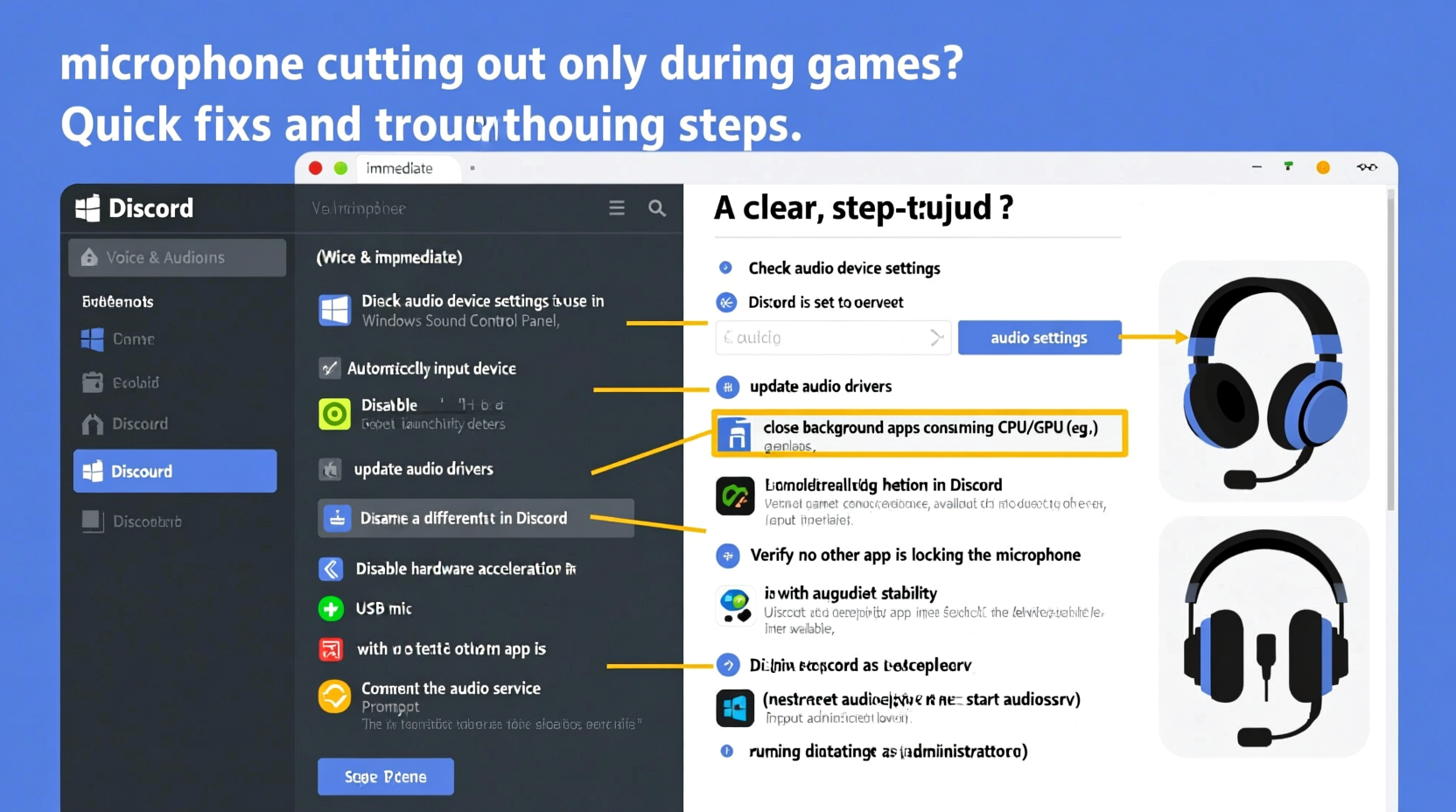
When you start a game, your computer shifts priorities. CPU, GPU, and RAM usage spike, and background processes—including audio routing—can be deprioritized or interrupted. Discord relies on consistent access to your microphone input, but under heavy load, that connection may falter. Additionally, games often take exclusive control of audio devices, which can mute or override other applications like Discord.
Common technical triggers include:
- Exclusive audio device access: A game or driver locks your audio interface, blocking Discord’s access.
- CPU overload: High processor usage leads to audio buffer underruns, causing dropouts.
- Outdated or conflicting audio drivers: Poorly optimized drivers struggle when multitasking between game audio and voice chat.
- Power-saving settings: Laptops or power plans may throttle USB or audio components during gaming.
- Third-party audio software conflicts: Apps like Nahimic, Sonic Studio, or RGB control suites interfere with mic input.
Because the issue doesn’t occur outside of gameplay, it’s rarely a faulty mic. Instead, it’s a systems-level conflict that emerges under stress. Fixing it involves reducing competition for resources and ensuring Discord maintains priority access to your microphone.
Step-by-Step Fixes to Restore Stable Mic Performance
Follow this sequence of solutions, starting with the quickest and safest. Most users resolve the issue within the first few steps.
1. Disable Exclusive Audio Access in Windows
Windows allows apps to take exclusive control of audio devices. Games often enable this by default, which can block Discord from accessing the mic.
- Right-click the speaker icon in the taskbar and select Sound settings.
- Scroll down and click More sound settings (under Related Settings).
- In the Playback tab, right-click your default output device (e.g., Speakers/Headphones) and choose Properties.
- Go to the Advanced tab.
- Uncheck both options:
- Allow applications to take exclusive control of this device
- Give exclusive mode applications priority
- Repeat the same process in the Recording tab for your microphone.
- Click Apply, then OK.
This change ensures no single app can lock out others from using the audio interface.
2. Adjust Discord Voice Settings
Discord’s voice processing features can strain older systems or clash with game audio.
- Open Discord and go to User Settings (gear icon near your profile).
- Navigate to Voice & Video under App Settings.
- Adjust the following:
- Input Device: Confirm it’s set to your correct mic.
- Automatically determine input sensitivity: Turn OFF.
- Input Sensitivity: Manually set to 75–80% to prevent over-triggering.
- Noise Suppression: Try toggling ON or OFF—sometimes it helps, sometimes it hinders.
- Echo Cancellation: Disable if using a headset with built-in isolation.
- Use Legacy Audio Subsystem: Enable this if issues persist (beta feature that bypasses newer Windows audio layers).
After changes, test in a voice channel while launching a game.
3. Update or Reinstall Audio Drivers
Outdated or corrupted drivers are a frequent culprit. Use the following approach:
- Press Win + X and select Device Manager.
- Expand Audio inputs and outputs and Sound, video and game controllers.
- Right-click each audio-related device (e.g., Realtek, NVIDIA High Definition Audio) and select Update driver.
- Choose “Search automatically for updated driver software.”
If updates don’t help, visit your motherboard or laptop manufacturer’s support site and download the latest audio drivers manually. For example, ASUS, Dell, or MSI provide dedicated driver portals.
In stubborn cases, uninstall the driver (right-click > Uninstall device), restart your PC, and let Windows reinstall it automatically.
4. Change Power Plan Settings
Power-saving modes can throttle USB bandwidth or CPU performance, affecting real-time audio.
- Open Control Panel > Hardware and Sound > Power Options.
- Select High performance or Balanced.
- Click Change plan settings, then Change advanced power settings.
- Expand USB settings > USB selective suspend setting and set to Disabled.
- Expand Processor power management and set both minimum and maximum processor state to 100% when plugged in.
Note: On laptops, keep battery settings conservative to avoid overheating.
5. Close Background Audio Applications
Apps like Spotify, Chrome tabs with autoplay, voice changers, or RGB control panels can monopolize audio resources.
Launch Task Manager (Ctrl+Shift+Esc) before gaming and end tasks related to:
- Audio enhancers (Nahimic, DTS, Sonic Studio)
- RGB software (iCUE, Armoury Crate, Synapse)
- Multiple browser instances
- Other voice comms (TeamSpeak, Skype)
Some users report immediate improvement after closing just one conflicting app.
Do’s and Don’ts: Audio Setup Best Practices
| Do | Don't |
|---|---|
| Use wired headsets instead of Bluetooth during gaming | Rely on Bluetooth mics—they introduce latency and compression |
| Set Discord to use Push-to-Talk instead of Voice Activity | Use Voice Activity with low thresholds—it increases false triggers |
| Run games and Discord with administrator privileges | Ignore UAC prompts that affect audio permissions |
| Keep your OS and drivers updated monthly | Use generic Windows drivers for branded audio hardware |
| Test mic stability with a 30-minute gameplay session | Assume the problem is fixed after a 5-minute test |
Real Example: Fixing Mic Dropouts on a Mid-Range Gaming Rig
Jamal, a 28-year-old Apex Legends player, experienced constant mic cutouts during squad comms. His setup included a HyperX Cloud II headset, an MSI B450 motherboard, and Windows 11. Outside of games, Discord worked flawlessly. But once he launched Apex, his mic would cut out every 30–60 seconds.
He tried switching USB ports and reinstalling Discord—no change. Then he checked Device Manager and found outdated Realtek drivers. After updating them via MSI’s website, the issue persisted. Next, he disabled exclusive audio access in Windows and turned off noise suppression in Discord. Still no fix.
The breakthrough came when he opened Task Manager and noticed “Armoury Crate Service” consuming high CPU during gameplay. He disabled the app from startup and closed its background process. After relaunching Discord and joining a match, his mic remained stable for over two hours.
Lesson: Sometimes the culprit isn’t audio-related at all. Background utilities tied to peripherals can silently disrupt system stability.
“Over 60% of ‘mic cutting out’ issues during gaming stem from software conflicts, not hardware failure. The key is isolating what changes when the game starts.” — Lena Park, Senior Support Engineer at Razer Audio Labs
Quick Diagnostic Checklist
Use this checklist to systematically eliminate causes:
- ✅ Test mic in non-gaming scenarios (Discord calls, recording apps)
- ✅ Disable exclusive mode for playback and recording devices
- ✅ Turn off noise suppression and echo cancellation in Discord
- ✅ Update audio drivers from manufacturer’s website
- ✅ Switch to Push-to-Talk mode in Discord
- ✅ Close third-party audio or RGB control software
- ✅ Set power plan to High Performance
- ✅ Run Discord as Administrator
- ✅ Try a different USB port (especially for USB headsets)
- ✅ Test with a lightweight game (e.g., CS2) vs. heavy title (e.g., Cyberpunk 2077)
If the issue only occurs in one game, check that game’s audio settings. Some titles have built-in voice chat that conflicts with external apps.
Frequently Asked Questions
Why does my mic work fine until I start a game?
Gaming increases system load and often triggers exclusive audio access or background app conflicts. Your mic isn’t broken—it’s being temporarily blocked or starved of resources.
Does overclocking affect Discord mic stability?
Yes. Unstable overclocks can cause memory or CPU errors under load, leading to audio glitches. If you’ve recently overclocked, revert to default settings and retest.
Can a bad cable or port cause intermittent cutouts?
Absolutely. Especially with USB headsets, loose connections or damaged cables can manifest under movement or system vibration during gameplay. Try a different cable or port to rule this out.
Final Steps and Long-Term Stability
If none of the above fixes work, consider deeper system factors:
- LatencyMon: Download and run LatencyMon to check for DPC (Deferred Procedure Call) spikes. High DPC latency from drivers (often Wi-Fi or GPU) can interrupt audio streams.
- Clean boot: Perform a clean boot of Windows (via msconfig) to disable all non-Microsoft services. If the mic works, re-enable services one by one to find the offender.
- Alternative comms: As a temporary workaround, use in-game voice chat or mobile Discord while diagnosing.
For streamers or competitive players, investing in a dedicated USB audio interface or mixer can bypass onboard audio limitations entirely.
Conclusion: Stay Heard, Stay Competitive
Mic cutouts during gaming break immersion, damage team coordination, and frustrate everyone involved. But in nearly all cases, the fix lies in configuration—not replacement. By methodically addressing audio exclusivity, driver health, background apps, and system performance, you regain reliable voice communication.
Start with disabling exclusive audio access and updating drivers—two of the most effective fixes. Then refine Discord settings and eliminate background noise from peripheral software. Keep your tools lean, your drivers current, and your priorities clear: smooth gameplay and clear comms shouldn’t be mutually exclusive.




 浙公网安备
33010002000092号
浙公网安备
33010002000092号 浙B2-20120091-4
Comments
No comments yet. Why don't you start the discussion?