
Email remains a cornerstone of professional and personal communication. When messages fail to send and remain trapped in the outbox, it can disrupt workflows, delay responses, and cause unnecessary stress. While frustrating, an email stuck in the outbox is rarely a permanent issue. Most cases stem from identifiable technical or configuration problems that can be resolved with methodical troubleshooting. Whether you're using desktop clients like Outlook or web-based platforms such as Gmail, understanding the root causes—and knowing how to address them—can restore your email flow within minutes.
Common Causes of Emails Stuck in the Outbox
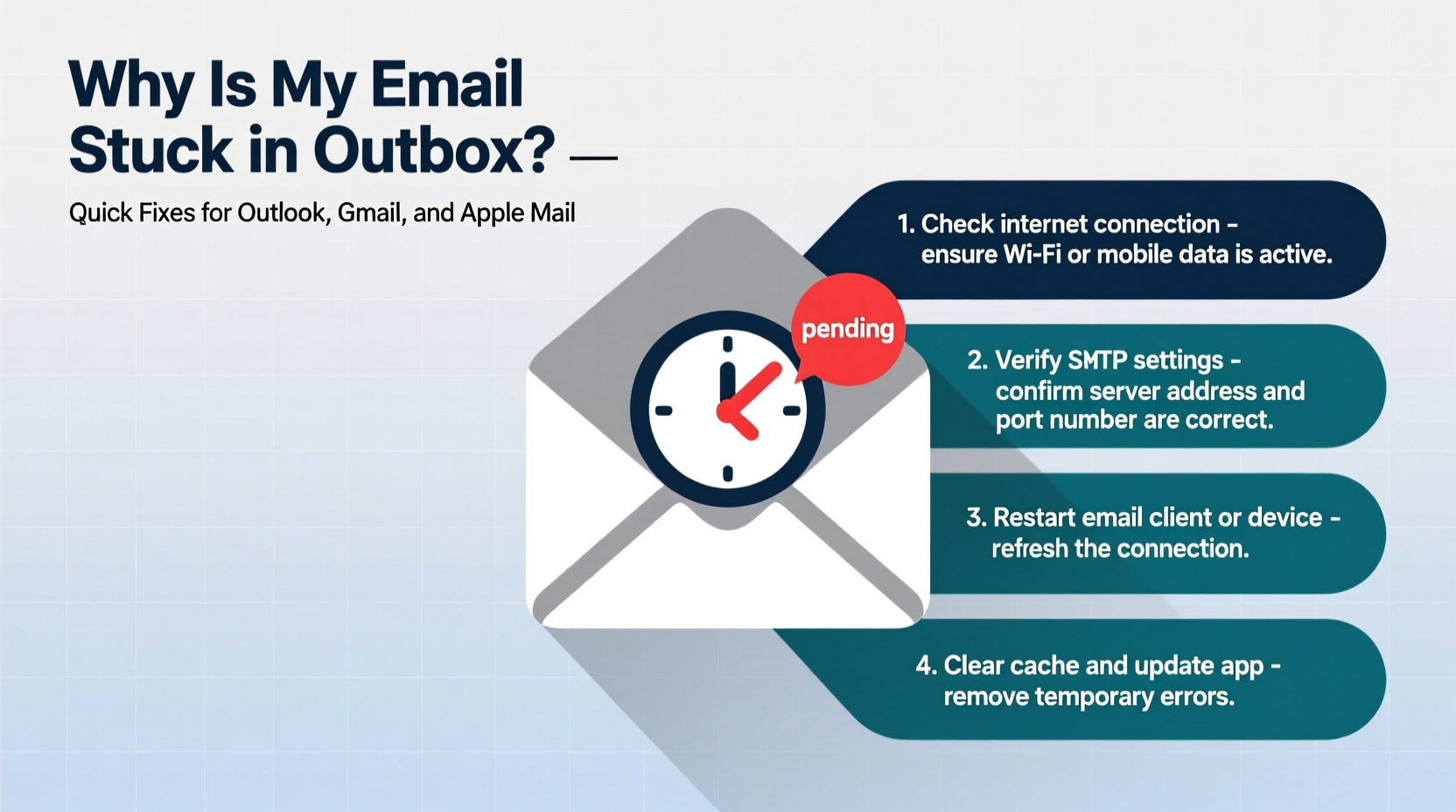
The outbox acts as a temporary holding area for outgoing messages before they are successfully transmitted through a mail server. If delivery fails at any point, the message stays in this folder. Several factors can prevent successful transmission:
- Internet connectivity issues: Without a stable connection, emails cannot reach the outgoing (SMTP) server.
- Incorrect SMTP settings: Misconfigured server addresses, ports, or authentication settings block message delivery.
- Large attachments: Files exceeding size limits imposed by your email provider may fail to upload.
- Server downtime: Temporary outages on your email provider’s end can delay or halt sending.
- Full mailbox or storage quota: Some systems restrict outgoing mail if inbox limits are reached.
- Antivirus or firewall interference: Security software may mistakenly block email client connections.
- Outdated email client: Older versions of software may lack support for updated security protocols.
Step-by-Step Troubleshooting Guide
Follow this logical sequence to diagnose and resolve the issue efficiently:
- Check Internet Connection
Verify you’re online by loading a website. If connectivity is unstable, reset your modem/router or switch to a different network. - Review the Problematic Email
Open the stuck message. Look for unusually large attachments or invalid recipient addresses. Remove or compress files over 10–25 MB depending on your provider. - Attempt Manual Send/Receive
In clients like Outlook, go to the Send/Receive tab and click “Send All.” This forces the system to retry transmission. - Inspect SMTP Settings
Navigate to your account settings and confirm the outgoing mail server (SMTP) details:- Gmail: smtp.gmail.com, Port 587 (TLS)
- Outlook/Hotmail: smtp-mail.outlook.com, Port 587 (STARTTLS)
- Yahoo: smtp.mail.yahoo.com, Port 587 (TLS)
- Test with a New Message
Create a new email without attachments and send it to a known working address. If it sends, the original message may be corrupted. - Disable Antivirus/Firewall Temporarily
Turn off third-party security tools briefly to test if they’re interfering. Re-enable immediately after testing. - Repair or Recreate Email Profile
In Outlook, use the built-in Account Repair tool or create a new profile via Control Panel > Mail > Show Profiles.
Do’s and Don’ts: Best Practices for Smooth Email Delivery
| Do’s | Don’ts |
|---|---|
| Compress large files before attaching | Attach files larger than 20 MB without checking limits |
| Use cloud links (Google Drive, Dropbox) for big files | Ignore recurring outbox errors—address them early |
| Keep your email client updated | Share login credentials or allow untrusted apps |
| Verify recipient email addresses | Disable SSL/TLS encryption for convenience |
| Clear out old emails to stay under storage limits | Run multiple email clients simultaneously without syncing properly |
Real-World Example: A Corporate User’s Recovery
Sarah, a project manager at a mid-sized marketing firm, noticed her urgent client proposal remained in Outlook’s outbox for over an hour. She first confirmed her internet was active by browsing internally hosted dashboards. Next, she opened the email and saw a 32 MB design file attached—above her company’s 25 MB limit. After uploading the file to SharePoint and replacing the attachment with a link, she resent the email. It delivered instantly. Later, IT advised her team to implement automatic attachment reminders for files over 20 MB, preventing future delays.
“Over 60% of outbox failures in corporate environments trace back to oversized attachments or outdated SMTP configurations.” — James Lin, Senior Network Administrator at TechFlow Solutions
Essential Checklist for Immediate Action
- ✅ Confirm internet connectivity
- ✅ Close and reopen your email client
- ✅ Check for large attachments (remove or compress)
- ✅ Validate recipient email addresses
- ✅ Verify SMTP server settings
- ✅ Restart your device
- ✅ Test sending a plain text email
- ✅ Update your email app or OS if prompted
Frequently Asked Questions
Why does only one email get stuck while others send fine?
This typically points to an issue with that specific message—such as a large attachment, formatting error, or invalid recipient address. Try recreating the email in plain text format to isolate the problem.
Can a full inbox prevent emails from sending?
Yes. Many email providers, including Gmail and Microsoft 365, restrict outgoing mail when storage quotas are exceeded. Aim to keep usage below 85% of your total allowance to avoid service limitations.
How do I know if the problem is on my end or the recipient’s server?
If multiple recipients fail to receive your messages, the issue is likely yours. If only one person isn’t receiving emails and others are, the fault may lie with their spam filter or server. Send a test message to a different address (e.g., a personal Gmail) to verify your ability to send.
Prevent Future Outbox Issues with Proactive Habits
Sustained email reliability depends on consistent maintenance. Schedule monthly reviews of your account settings, especially after software updates. Use rules or filters to automatically archive old messages and prevent storage bloat. For teams, centralize email configuration guides so all members use correct server settings. Enable two-factor authentication and app-specific passwords where needed—especially for IMAP/SMTP access—to maintain security without sacrificing functionality.
Additionally, consider switching to web-based interfaces during critical sending periods. Webmail bypasses local client glitches and often provides real-time error feedback, helping you resolve issues faster.
Final Thoughts and Call to Action
An email stuck in the outbox doesn't have to derail your day. With a clear understanding of common pitfalls and a structured approach to diagnosis, most issues can be resolved in under ten minutes. The key is staying calm, isolating variables, and applying solutions step by step. Whether you're managing personal correspondence or time-sensitive business communications, mastering these troubleshooting techniques empowers you to maintain seamless digital interactions.




 浙公网安备
33010002000092号
浙公网安备
33010002000092号 浙B2-20120091-4
Comments
No comments yet. Why don't you start the discussion?