
Email remains one of the most critical tools for personal and professional communication. When Gmail—trusted by millions—starts lagging, even a few seconds of delay can disrupt workflow, damage credibility, or cause missed opportunities. If you've found yourself staring at a spinning \"Sending...\" icon, wondering why your message isn't going through, you're not alone. Gmail delays are more common than many users realize, and they stem from a range of factors: network instability, account settings, third-party app interference, or even temporary server outages. The good news? Most causes are diagnosable and fixable with the right approach.
Understanding How Gmail Sends Email
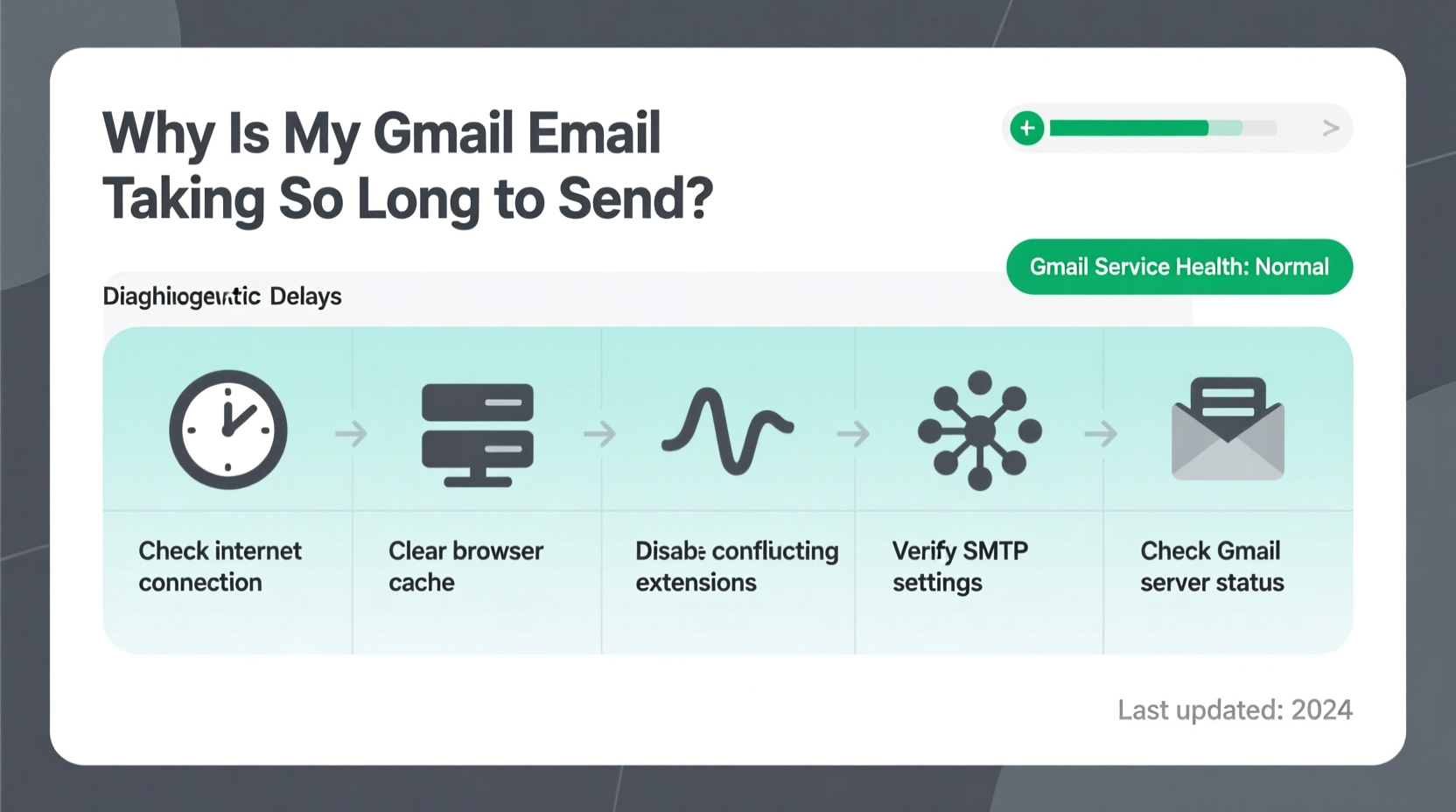
To troubleshoot effectively, it's essential to understand what happens when you hit “Send.” Your email doesn’t teleport instantly. Instead, it travels from your device to Google’s servers via your internet connection, where it’s processed and queued for delivery. Any disruption in this chain—your Wi-Fi, browser performance, or Gmail’s own routing systems—can slow things down.
Gmail uses SMTP (Simple Mail Transfer Protocol) behind the scenes. While most users interact with the web interface or mobile app, the underlying protocol must authenticate, route, and deliver the message. Delays often occur during authentication or when large attachments bog down transmission speed.
“Email delivery isn’t always instant—it depends on multiple interconnected systems working in harmony. A single weak link can create noticeable lag.” — Dr. Lena Park, Network Communications Engineer
Common Causes of Gmail Sending Delays
Before jumping into fixes, identify which factor might be causing the slowdown. Below are the most frequent culprits:
- Slow or unstable internet connection: Weak Wi-Fi or high latency prevents smooth data transfer.
- Large file attachments: Emails with files over 10MB take longer to upload and process.
- Outdated browser or app version: Older versions may lack optimized sending protocols.
- Too many open tabs or background apps: These consume memory and slow down browser responsiveness.
- Third-party extensions interfering: Ad blockers, grammar tools, or security plugins can conflict with Gmail’s scripts.
- Account synchronization issues: Especially on mobile devices using IMAP/POP settings.
- Temporary Google server issues: Rare but possible during outages or maintenance windows.
- Suspicious activity detection: Google may temporarily throttle sending if unusual behavior is detected.
Step-by-Step Guide to Fix Gmail Sending Delays
Follow this systematic approach to diagnose and resolve the root cause of delayed emails.
- Check your internet connection
Open another website or run a speed test. If speeds are below 5 Mbps download or upload, that could be the bottleneck. Restart your router if necessary. - Reduce attachment size
If your email includes large files, compress them or use Google Drive links instead. Gmail allows up to 25MB per email; larger files require Drive integration. - Try a different browser or device
Open Gmail in Chrome Incognito mode, Firefox, or Safari. If sending works faster elsewhere, the issue lies with your primary browser setup. - Disable browser extensions temporarily
Go to your browser’s extension manager and turn off all non-essential add-ons. Re-enable one by one to identify the problematic one. - Clear cache and cookies
In your browser settings, clear cached images and files as well as saved cookies for mail.google.com. This resolves script conflicts caused by stale data. - Update your browser and operating system
Ensure both are running the latest stable versions. Outdated software often lacks performance optimizations. - Restart your device
A simple reboot clears memory leaks and resets network configurations that may be slowing connectivity. - Check Gmail’s status dashboard
Visit Google Workspace Status Dashboard to see if there’s an ongoing outage affecting Gmail services. - Review third-party app access
Go to your Google Account settings > Security > Third-party apps with account access. Revoke permissions for any unfamiliar or outdated apps. - Reconfigure email clients (if applicable)
If you’re using Outlook, Thunderbird, or Apple Mail with Gmail, ensure IMAP settings are correct and passwords are updated. Consider switching to OAuth2 authentication for better reliability.
Troubleshooting Table: Do’s and Don’ts When Gmail Is Slow to Send
| Action | Do | Don't |
|---|---|---|
| Handling Attachments | Use Google Drive links for files over 10MB | Attach multiple high-resolution videos directly |
| Browser Usage | Use incognito/private mode to test performance | Keep dozens of tabs open while composing emails |
| Security Settings | Enable 2FA and review recent sign-in activity | Allow access to unknown third-party apps |
| Network Environment | Switch to Ethernet if Wi-Fi is unstable | Assume your ISP is always at fault without testing |
| Mobile Devices | Update the Gmail app regularly via App Store or Play Store | Ignore sync frequency settings in email preferences |
Real Example: A Freelancer’s Gmail Crisis
Jamal, a freelance graphic designer based in Austin, relied on Gmail to submit client drafts and invoices. One Monday morning, he noticed his emails were taking over three minutes to send—or failing entirely. With a deadline approaching, he couldn’t afford further delays.
He first tested his internet speed and confirmed his connection was strong. Next, he tried sending a plain-text email without attachments—it sent instantly. That ruled out network issues. Then he realized he had just added a new design portfolio PDF (18MB) to every outgoing message. After replacing the attachment with a Google Drive link, sending time dropped to under 10 seconds.
The culprit? Oversized attachments overwhelming the upload buffer. By adjusting his workflow, Jamal not only fixed the immediate problem but improved his long-term email efficiency.
Advanced Fixes for Persistent Delays
If basic troubleshooting doesn’t help, consider deeper technical adjustments.
1. Adjust IMAP Sync Settings (For Email Clients)
If you use desktop or mobile email apps synced with Gmail, excessive syncing can clog bandwidth. In your email client settings:
- Limits synced folders to Inbox, Sent, and Drafts only.
- Set sync frequency to every 15–30 minutes instead of push or real-time.
- Disable automatic downloading of remote images and attachments.
2. Check for Suspended Sending Limits
Gmail imposes daily sending limits to prevent spam:
- Free Gmail accounts: Up to 500 emails per day, 100 recipients per message.
- Google Workspace accounts: Up to 2,000 per day.
If you’ve exceeded these, Gmail will delay or block further sends until the next cycle. You’ll usually receive a warning email. Wait 24 hours or upgrade your plan if high-volume sending is routine.
3. Use Gmail Offline Mode Strategically
Gmail’s offline feature (available in Chrome) lets you compose messages when disconnected. However, when reconnected, it queues all unsent emails at once, causing apparent delays. To avoid this:
- Wait until fully connected before enabling sync.
- Send messages one at a time after reconnecting.
- Disable offline mode if not actively needed.
Preventive Checklist: Keep Gmail Running Smoothly
Stay ahead of future delays with this proactive checklist:
- ✅ Test internet speed weekly, especially if working remotely.
- ✅ Compress or link large files instead of direct attachments.
- ✅ Update browsers, apps, and OS monthly.
- ✅ Clear Gmail cache and cookies every 2–3 weeks.
- ✅ Review third-party app access quarterly.
- ✅ Monitor Google Workspace Status Dashboard during critical send times.
- ✅ Avoid scheduling bulk emails during peak hours (9–11 AM local time).
Frequently Asked Questions
Why does Gmail say \"sending...\" but never finish?
This typically means the message hasn’t uploaded successfully. Common causes include poor connectivity, oversized attachments, or browser script errors. Close the compose window, check your connection, reduce file sizes, and try again in an incognito window.
How long should a Gmail email take to send?
Under normal conditions, Gmail sends messages within 1–5 seconds. Delays beyond 30 seconds suggest a technical issue. Messages stuck for over 5 minutes should be canceled and resent after troubleshooting.
Can antivirus software slow down Gmail sending?
Yes. Some antivirus programs scan outgoing traffic in real time, adding latency. Temporarily disable scanning features to test performance. If sending improves, adjust the antivirus settings to exclude your browser or Gmail URLs from deep scanning.
Final Thoughts: Regain Control Over Your Email Flow
Email delays don’t have to derail your productivity. Most Gmail sending issues are solvable with methodical troubleshooting and preventive habits. The key is acting quickly when delays occur and understanding the ecosystem your email operates within—your device, network, browser, and Google’s infrastructure.
By optimizing your setup, staying aware of usage limits, and maintaining clean digital hygiene, you can ensure your messages reach their destination promptly. Don’t wait for the next delay to strike. Apply these strategies today and make fast, reliable email sending the norm—not the exception.




 浙公网安备
33010002000092号
浙公网安备
33010002000092号 浙B2-20120091-4
Comments
No comments yet. Why don't you start the discussion?