
An external hard drive failing to appear on your computer can be both frustrating and alarming—especially if it contains important files, photos, or backups. Whether you're using a Windows PC or a Mac, the issue could stem from hardware, software, or connection problems. The good news: most cases are fixable without professional help. This guide walks through proven solutions in order of simplicity, helping you restore access quickly and safely.
First Steps: Rule Out the Obvious
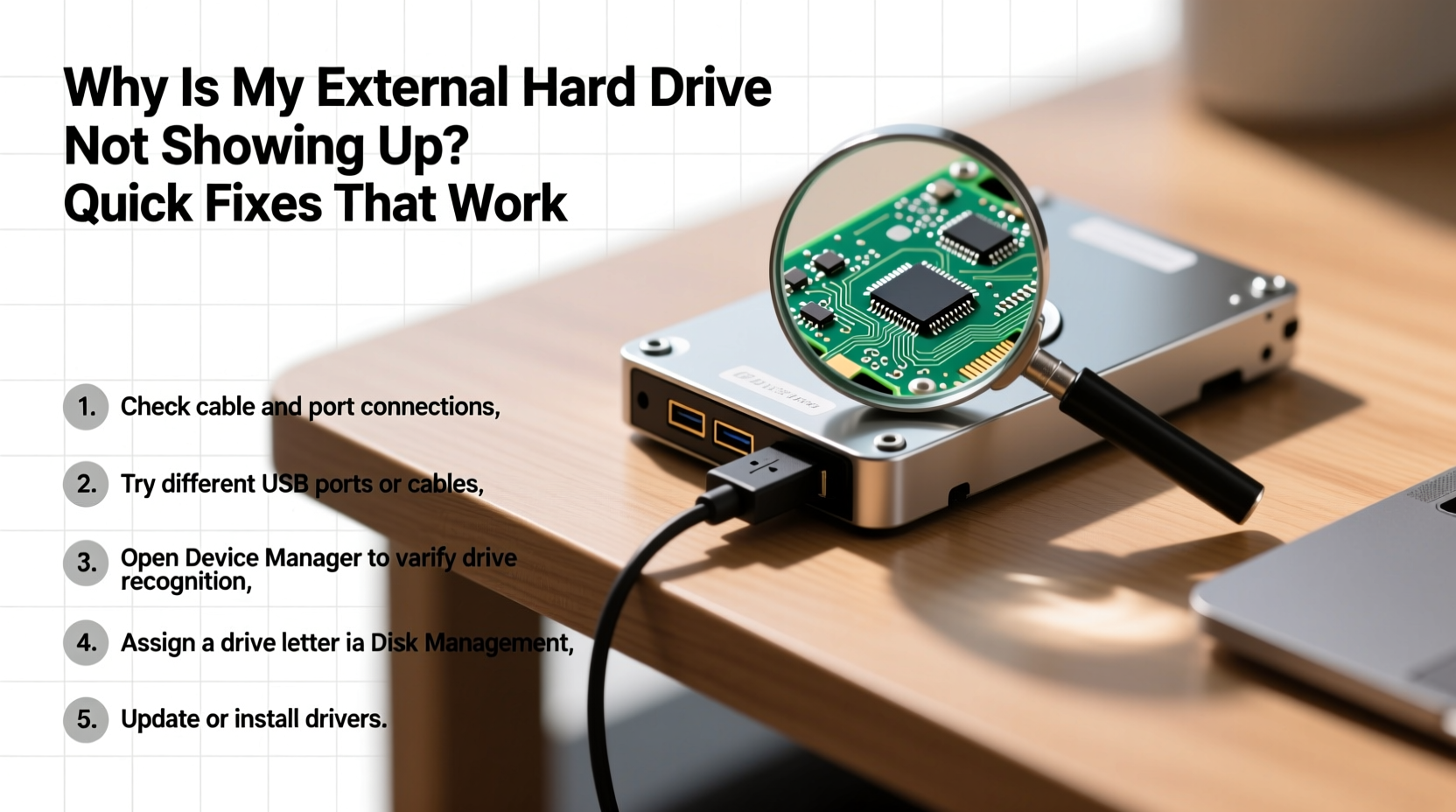
Before diving into complex troubleshooting, eliminate simple causes. Many \"not showing up\" issues result from avoidable oversights.
- Check the USB cable: A frayed or loose cable is one of the top reasons for connection failure. Try a different cable, preferably one known to work with other devices.
- Test another USB port: Some ports may have power delivery issues or driver conflicts. Plug the drive into a different port, ideally on the back of a desktop (which often provides better power stability).
- Try a different computer: Connect the drive to another system. If it appears there, the problem lies with your original machine—not the drive.
- Listen for signs of life: Does the drive make a spinning sound or show LED activity? No sound or light could indicate a hardware malfunction.
Verify Drive Visibility in System Tools
Sometimes, the drive is connected but not assigned a drive letter or mounted properly. It may exist in the background without appearing in File Explorer (Windows) or Finder (Mac).
On Windows: Use Disk Management
- Press Win + X and select Disk Management.
- Look for your external drive in the list. It might appear as \"Removable\" with unallocated space or without a drive letter.
- If the drive is listed but has no letter:
- Right-click the partition and choose Change Drive Letter and Paths.
- Click Add, assign a new letter (e.g., E:), then click OK.
- If the status says \"Offline,\" right-click the disk and select Online.
On Mac: Use Disk Utility
- Open Applications > Utilities > Disk Utility.
- Check the left sidebar for your external drive. It may appear grayed out or with a warning icon.
- If visible but not mounted, select it and click Mount.
- If the drive appears but shows errors, run First Aid to repair filesystem issues.
“Over 60% of ‘missing’ external drives are actually detected by the system but fail to mount due to incorrect drive letters or corrupted mount points.” — David Lin, Data Recovery Specialist at DriveSafe Labs
Update or Reinstall USB and Driver Software
Outdated or corrupted drivers can prevent proper communication between your computer and the external drive.
For Windows Users
USB controllers rely on drivers managed by Windows. If they’re outdated or damaged, your system may ignore connected devices.
- Press Win + X and open Device Manager.
- Expand Universal Serial Bus controllers.
- Right-click each entry labeled USB Root Hub or similar and select Update driver.
- Choose Search automatically for updated driver software.
- If no updates are found, right-click and select Uninstall device. Then disconnect and reconnect the drive—Windows will reinstall the driver automatically.
You can also try uninstalling the external drive itself under Disk drives if it appears there. Reconnecting forces a fresh driver installation.
For Mac Users
macOS handles drivers more seamlessly, but resetting system management controllers can resolve connectivity hiccups.
- Shut down your Mac.
- Press and hold Shift + Control + Option on the left side of the keyboard, then press the power button. Hold all four for 10 seconds.
- Release and turn the Mac back on.
This resets the SMC (System Management Controller), which manages power and peripheral communication.
Fix File System and Partition Issues
A corrupted file system or missing partition table can cause the drive to vanish from normal view—even if the hardware works.
| Issue | Symptom | Solution |
|---|---|---|
| No drive letter (Windows) | Drive visible in Disk Management but not Explorer | Assign a new drive letter via Disk Management |
| RAW file system | Windows prompts to format the drive | Use data recovery software before formatting |
| Unmountable (Mac) | Drive appears in Disk Utility but won’t mount | Run First Aid or reformat if data is backed up |
| Corrupted partition table | Drive not detected at all | Use testdisk or professional recovery tools |
Reformatting as a Last Resort
If the drive is recognized but unusable, reformatting may restore functionality—but only do this after attempting data recovery.
- In Disk Management (Windows) or Disk Utility (Mac), locate the drive.
- Back up any visible data using recovery tools like Recuva (Windows) or Disk Drill (Mac/Windows).
- Right-click the drive and select Format.
- Choose a file system:
- NTFS: Best for Windows-only use.
- exFAT: Compatible with both Windows and Mac; ideal for large files.
- APFS or Mac OS Extended: For Mac-only drives.
Mini Case Study: Recovering a Seagate Backup Plus
Sarah, a freelance photographer, plugged in her Seagate Backup Plus after returning from a shoot. Her laptop didn’t recognize it. She tried multiple cables and ports—no luck. The drive made no noise.
She brought it to a technician who diagnosed a power delivery issue. The USB cable was faulty, and the laptop’s front ports were underpowered. Using a Y-cable (with dual USB-A connectors for extra power) on a rear port restored connection. The drive appeared in Disk Management without a letter. After assigning “E:”, Sarah regained full access to 2TB of client photos.
The fix took less than 15 minutes and cost nothing—just a known-good cable and basic system navigation.
Checklist: Quick Fixes That Work
Follow this step-by-step checklist when your external hard drive isn’t showing up:
- ✅ Swap the USB cable with a known-working one.
- ✅ Plug into a different USB port—preferably on the back of a desktop.
- ✅ Test the drive on another computer.
- ✅ Check Disk Management (Windows) or Disk Utility (Mac) for hidden drives.
- ✅ Assign a drive letter if missing (Windows).
- ✅ Run First Aid or repair permissions (Mac).
- ✅ Update or reinstall USB and disk drivers.
- ✅ Reset SMC on Mac if using Apple hardware.
- ✅ Use data recovery software if the drive is detected but unreadable.
- ✅ Reformat only after backing up critical data.
Frequently Asked Questions
Can a dead external hard drive be revived?
Sometimes. If the circuit board is damaged but the internal platters are intact, a data recovery service may retrieve files. However, consumer-level fixes rarely revive completely dead drives. Prevention—like using surge protectors and safe ejection—is key.
Why does my computer detect the drive but won’t open it?
This usually indicates file system corruption or permission issues. On Windows, run chkdsk X: /f (replace X with the drive letter). On Mac, use Disk Utility’s First Aid. Avoid formatting unless necessary.
Is it safe to use third-party recovery software?
Yes, if downloaded from reputable sources. Tools like Recuva, EaseUS Data Recovery Wizard, and Disk Drill are widely trusted. Never install recovery software onto the drive you’re trying to recover—use your main system drive instead.
When to Seek Professional Help
Not every issue can be resolved at home. Consider professional data recovery services if:
- The drive makes clicking, grinding, or repetitive buzzing sounds.
- It gets unusually hot within seconds of connecting.
- Multiple computers fail to detect it, even in Disk Management.
- You’ve tried all software fixes without success.
These signs often point to physical damage—such as head crashes or motor failure—which require cleanroom intervention. While costly ($200–$1,200), professionals can recover data from drives deemed “dead” by standard methods.
Prevent Future Connection Issues
Once your drive is working again, take steps to prevent recurrence:
- Eject properly: Always use “Safely Remove Hardware” (Windows) or “Eject” (Mac) before unplugging.
- Use quality cables: Invest in shielded, high-power USB cables—especially for larger drives.
- Keep drivers updated: Enable automatic updates or check manufacturer websites periodically.
- Monitor drive health: Use tools like CrystalDiskInfo (Windows) to track temperature and SMART status.
- Backup redundantly: Follow the 3-2-1 rule: 3 copies of data, 2 local (on different devices), 1 offsite (cloud or remote drive).
“The most common mistake users make is assuming the drive is gone forever when it’s just a software hiccup. Patience and methodical testing save 80% of ‘lost’ drives.” — Dr. Lena Torres, Digital Forensics Researcher, MIT Media Lab
Conclusion
A missing external hard drive doesn’t mean your data is lost. In most cases, the issue is fixable with careful troubleshooting. Start simple: check cables, ports, and system tools. Move to driver updates and drive management utilities if needed. Only resort to formatting or professional help when all else fails.
By understanding how operating systems interact with storage devices, you gain control over what seems like a technical mystery. These fixes aren’t magic—they’re practical applications of system knowledge anyone can learn.




 浙公网安备
33010002000092号
浙公网安备
33010002000092号 浙B2-20120091-4
Comments
No comments yet. Why don't you start the discussion?