
Fitness trackers like Fitbit are designed to help you stay active, monitor daily progress, and reach health goals. But when your step count seems off—either too low or suspiciously high—it can undermine confidence in the device. While Fitbits use advanced motion sensors and algorithms to track movement, they aren’t infallible. Inaccurate step counts often stem from user behavior, device placement, or settings misconfigurations rather than hardware failure. Understanding the root causes and avoiding common pitfalls can dramatically improve tracking reliability.
How Fitbit Tracks Steps: The Basics
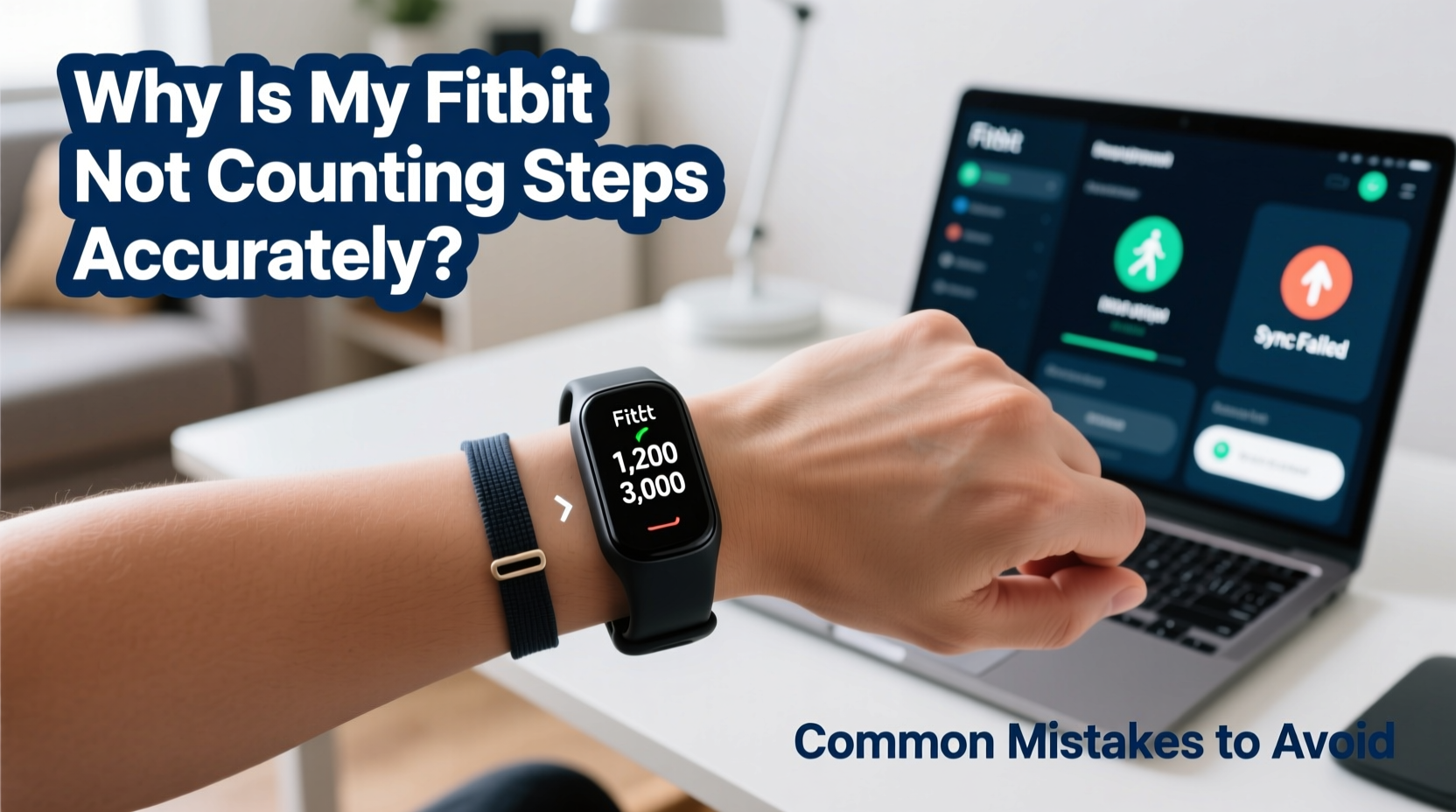
Fitbit devices use a combination of an accelerometer and proprietary algorithms to detect motion patterns associated with walking and running. The sensor measures acceleration in three directions (x, y, z), allowing it to distinguish between intentional steps and incidental movements like hand gestures or driving vibrations.
The algorithm filters out non-step motions based on rhythm, intensity, and duration. For example, shaking your arm while cleaning won’t register as steps because the motion lacks the repetitive, rhythmic pattern of walking. However, certain activities—like pushing a stroller or shopping cart—can trick the system due to similar arm swing patterns.
Despite its sophistication, no wearable is 100% accurate. Studies have shown that wrist-based trackers can vary by up to 10–15% under real-world conditions. The key is minimizing avoidable errors through proper usage.
Common Mistakes That Affect Step Accuracy
1. Wearing the Device Incorrectly
One of the most frequent causes of inaccurate step counts is improper wear. If the Fitbit is too loose, it may rotate or slide during movement, disrupting sensor alignment. If worn too high on the forearm or below the wrist, the natural arm swing isn’t captured correctly.
Additionally, wearing the tracker on your dominant hand can lead to overcounting, as people tend to gesture more frequently with their dominant side. This increases false positives from non-walking motion.
2. Syncing and Calibration Issues
If your Fitbit hasn't synced recently, recent activity data may not reflect current totals. More importantly, if height, weight, stride length, or gender settings are incorrect in your profile, the algorithm adjusts step estimates inaccurately. For instance, someone who enters a shorter stride length than reality will see inflated step counts for the same distance traveled.
3. Using Auto-Recognized Activities Improperly
Fitbit’s SmartTrack feature automatically logs workouts such as walks or runs. However, it only activates after about 10 minutes of continuous activity. Shorter bursts of movement—common in daily life—won’t trigger recognition, leading to missed steps or incomplete records unless manually logged.
4. Environmental Interference
Activities like pushing a shopping cart, stroller, or wheelchair mimic walking motions. Since the arms move rhythmically, the device interprets this as steps even though leg movement is minimal. Similarly, driving over bumpy roads or riding a bike can cause false step accumulation due to vibrations picked up by the accelerometer.
5. Battery Saver Mode and Sleep Settings
Some Fitbit models enter reduced-sensing modes during sleep or when battery saver is enabled. While intended to conserve power, these modes may undercount steps taken during light activity or early morning movement. Ensure you're not inadvertently disabling motion tracking during waking hours.
“Step accuracy depends heavily on consistent wear and correct personal metrics. A miscalibrated stride length alone can throw off daily totals by hundreds.” — Dr. Lena Torres, Biomechanics Researcher at Stanford Health Lab
Do’s and Don’ts: Quick Reference Table
| Do’s | Don’ts |
|---|---|
| Wear the device snugly on your non-dominant wrist | Wear it loosely or let it rotate freely |
| Enter accurate height, weight, and stride length | Leave default values unchanged without verification |
| Manually log short walks under 10 minutes | Assume all movement is auto-tracked |
| Use GPS-enabled models outdoors for better distance mapping | Rely solely on step count without cross-checking distance |
| Regularly sync your device to ensure data updates | Go days without syncing, risking data lag |
Step-by-Step Guide to Improve Fitbit Step Accuracy
- Verify Personal Profile Information
Open the Fitbit app, go to your profile, and confirm that your height, weight, age, and gender are correct. These influence how your movement is interpreted. - Calibrate Your Stride Length
Walk or run a known distance (e.g., a 400m track or measured route) at your normal pace. In the app, navigate to Advanced Settings > Personal Info > Stride Length. Enter the average stride length calculated from the test: total distance divided by number of steps recorded. - Adjust Wrist Placement
Wear the device on your non-dominant wrist, positioned higher than your pulse point but not on the forearm. It should be tight enough that it doesn’t spin but still comfortable. - Disable Battery Saver During Active Hours
If you’re using a model with battery-saving features, disable them during times when you’re most active to ensure full sensor functionality. - Sync Daily
Connect your device to the app every evening to upload data and receive firmware updates that may improve tracking logic. - Log Manual Activities
For walks less than 10 minutes or activities where your arms aren’t swinging (e.g., elliptical training), manually add them via the app to maintain accurate totals. - Test Against a Known Standard
Compare your Fitbit’s count against a smartphone pedometer or handheld clicker over a 10-minute walk. Repeat under different conditions (indoor/outdoor, slow/fast pace) to identify discrepancies.
Real-World Example: Sarah’s Step Count Fix
Sarah, a 38-year-old teacher, noticed her Fitbit consistently showed around 8,000 steps per day, despite walking nearly 5 miles during school hours. She expected closer to 10,000. After reviewing her habits, she realized she wore her Fitbit on her right (dominant) wrist and often removed it during lunch prep and gardening.
She switched the device to her left wrist, tightened the band, and recalibrated her stride length using a local track. She also began logging her midday classroom rounds manually since her arms were often occupied with books or trays, reducing arm swing. Within a week, her average increased to 9,700 steps—much more aligned with her actual movement. The change wasn’t in her activity level, but in how accurately her device could interpret it.
Checklist: Optimize Your Fitbit Step Tracking
- ☑ Confirm personal details (height, weight, age) are up to date in the app
- ☑ Calibrate stride length using a measured walk or run
- ☑ Wear the device on your non-dominant wrist, snug and stable
- ☑ Avoid excessive arm-still activities without manual logging
- ☑ Sync your device at least once daily
- ☑ Turn off battery saver mode during active periods
- ☑ Manually log short walks or non-arm-swing exercises
- ☑ Test accuracy weekly using a controlled walking route
Frequently Asked Questions
Why does my Fitbit count steps when I’m not walking?
This usually happens during activities involving repetitive arm motion—such as cooking, typing vigorously, or driving on rough terrain. The accelerometer detects motion similar to walking. While some false positives are unavoidable, wearing the device properly and avoiding dominant-hand placement reduces overcounting.
Can I improve accuracy without using GPS?
Yes. While GPS helps map distance during outdoor walks or runs, step accuracy primarily depends on sensor placement and calibration. Ensuring correct stride length, consistent wear, and updated settings can significantly enhance results even on non-GPS models like the Inspire series.
Does sleeping with my Fitbit affect daytime step counts?
No. Fitbit automatically detects sleep using movement and heart rate patterns. Steps taken during nighttime bathroom visits are typically filtered out unless prolonged. However, if sleep isn’t logged correctly (manually or automatically), minor step bleed-over may occur. Make sure Sleep Mode is enabled or automatic sleep detection is turned on.
Conclusion: Trust Your Data by Optimizing Your Device
Your Fitbit is only as accurate as the information it receives and how you use it. Minor adjustments in wear, settings, and habits can transform inconsistent step counts into reliable health insights. Rather than questioning the technology, focus on refining your interaction with it. Accurate step tracking empowers better decisions—from meeting daily goals to adjusting fitness routines based on real progress.




 浙公网安备
33010002000092号
浙公网安备
33010002000092号 浙B2-20120091-4
Comments
No comments yet. Why don't you start the discussion?