
Accurate step tracking is one of the core features that makes wearable fitness devices like Fitbit so valuable. Whether you're striving for a daily 10,000-step goal or monitoring progress during rehabilitation, reliable data matters. But if your Fitbit seems to undercount, overcount, or miss steps entirely, frustration can set in quickly. The good news? Most accuracy issues are fixable with the right approach. This guide dives deep into the common causes behind inaccurate step tracking and delivers practical, tested solutions to get your device back on track—literally.
Understanding How Fitbit Tracks Steps
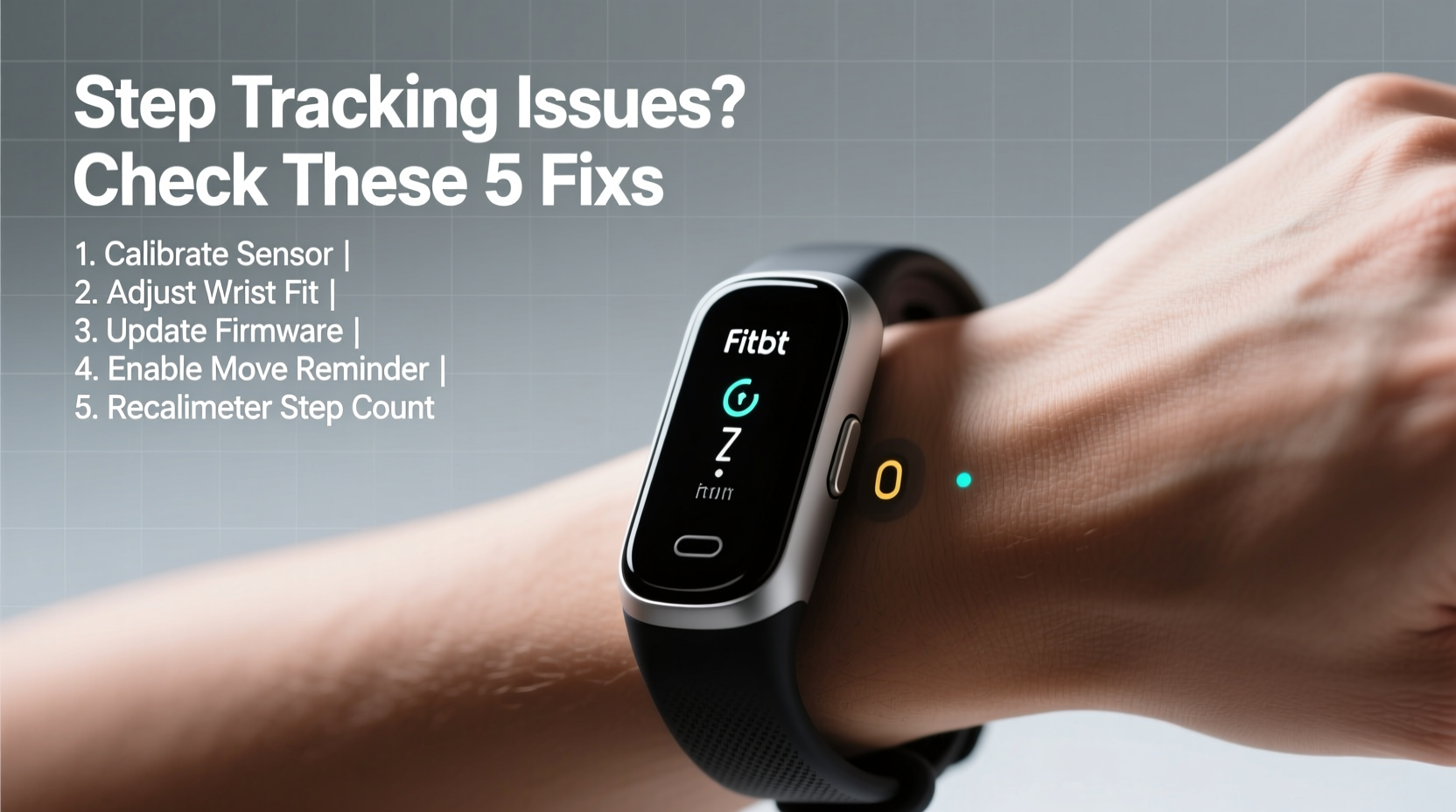
Before troubleshooting, it helps to understand how Fitbit actually counts your steps. Your device uses a built-in motion sensor called an accelerometer to detect movement patterns associated with walking or running. Advanced models also incorporate gyroscopes and altimeters to refine accuracy, especially when distinguishing between intentional steps and incidental arm movements.
The algorithm analyzes the frequency, intensity, and rhythm of motion. For example, gentle arm swings while pushing a shopping cart may register as steps, while vigorous hand gestures during cooking might be filtered out. However, no system is perfect. Variables like wearing position, device model, and personal gait influence performance.
“Wearables rely on pattern recognition, not direct observation. That means they can misinterpret motion—especially if worn incorrectly or used outside typical walking scenarios.” — Dr. Lena Patel, Biomechanics Researcher at Stanford Wellness Lab
Common Reasons for Inaccurate Step Counting
Inaccuracy doesn’t always mean your device is faulty. More often, it’s due to usage habits, environmental factors, or software glitches. Below are the most frequent culprits:
- Improper wearing position: Wearing the band too loose, upside down, or on the wrong wrist can disrupt sensor alignment.
- Non-walking movements: Activities like typing, cooking, or driving can trigger false positives.
- Pushing strollers or carts: These reduce natural arm swing, causing undercounting.
- Outdated firmware: Older software versions may lack optimized motion algorithms.
- Syncing delays: Data may appear inaccurate simply because it hasn’t updated yet.
- Low battery: Power-saving modes can throttle sensor sensitivity.
- Device damage: A cracked casing or internal hardware issue affects sensor function.
Troubleshooting Steps to Restore Accuracy
If your step count feels off, follow this systematic approach to diagnose and resolve the issue.
1. Check Device Placement and Fit
The way you wear your Fitbit has a direct impact on sensor performance. If the band is too loose, the device moves independently of your body, creating erratic readings. Conversely, wearing it too tight can restrict blood flow and cause discomfort, leading you to remove it frequently.
Ensure the tracker sits flat against your skin without sliding around. For wrist-based models, avoid wearing it over clothing or sleeves, which can dampen motion signals.
2. Verify Sync Status and App Data
Sometimes, what appears to be inaccurate tracking is just delayed syncing. Open the Fitbit app and manually sync your device. Look for any gaps in your activity history or timestamps that suggest missing data.
To sync manually:
- Open the Fitbit app.
- Tap the account icon (top left).
- Select your device.
- Wait for the sync animation to complete.
If syncing fails repeatedly, restart both the app and your smartphone’s Bluetooth.
3. Update Firmware and App Version
Fitbit regularly releases firmware updates that improve sensor accuracy, fix bugs, and enhance compatibility. An outdated device may not perform optimally.
To check for updates:
- Go to your device settings in the Fitbit app.
- Look for “Check for Updates.”
- If available, follow prompts to install.
Also ensure the Fitbit app itself is updated via your phone’s app store.
4. Recalibrate Using GPS Walks
While Fitbit doesn’t offer a manual step calibration tool, you can indirectly recalibrate by using GPS-enabled outdoor walks. When GPS is active, Fitbit compares stride length and distance to refine its internal step algorithm.
Try this weekly:
- Start a GPS workout (e.g., \"Outdoor Walk\") in the Fitbit app.
- Walk a known distance (like a measured track or mapped route).
- Afterward, compare recorded distance to actual distance.
- If consistently off, repeat over several sessions to help the system adjust.
5. Reset and Re-pair the Device
If problems persist, a full reset can clear corrupted settings. Note: This erases local data until synced, so sync first.
To reset most Fitbit models:
- Connect the device to its charger.
- Press and hold the side button(s) for 10–12 seconds.
- Release when the Fitbit logo appears and the screen resets.
- Re-pair the device through the Fitbit app.
Do’s and Don’ts of Fitbit Step Tracking
| Do’s | Don’ts |
|---|---|
| Wear the device snugly on the non-dominant wrist | Wear it loosely or upside down |
| Use GPS walks occasionally to fine-tune distance | Rely solely on indoor step counts without verification |
| Keep firmware and app up to date | Ignore update notifications for weeks |
| Manually log intense activities without arm movement (e.g., cycling) | Expect accurate step counts during swimming or cycling |
| Test accuracy with a controlled 100-step walk | Assume inaccuracy without verifying with real-world tests |
Real-World Example: Sarah’s Step Count Mystery
Sarah, a 38-year-old office worker from Portland, noticed her Fitbit Charge 6 was showing only 2,000 steps on days she walked her dog and commuted by foot. She knew she was easily hitting 7,000+ steps. Frustrated, she nearly returned the device.
Instead, she followed a diagnostic process. First, she checked her wearing position—she’d been rotating the band to hide the screen, sometimes wearing it face-down. After repositioning it correctly, step counts improved slightly but still seemed low.
Next, she performed a GPS walk along a marked 1-mile trail. The Fitbit reported 1.1 miles—close enough to indicate reasonable stride calibration. Then she realized she often pushed her toddler’s stroller in the mornings. Research confirmed this reduces arm swing, leading to undercounting.
Solution: Sarah started logging her morning walks as \"Stroller Walk\" activities in the app, which adjusts for reduced motion. She also began wearing the Fitbit on her ankle during those walks (using a clip adapter), which dramatically improved accuracy. Her evening walks, done without the stroller, were now counted properly.
Within a week, her data aligned with her expectations. The issue wasn’t broken hardware—it was context-aware usage.
Expert Tips for Long-Term Accuracy
Maintaining consistent step tracking requires ongoing attention. Here’s what experienced users and technicians recommend:
- Use Activity Profiles: Assign specific profiles for walking with a stroller, hiking, or treadmill use. Some newer Fitbits auto-detect these, but manual tagging improves data integrity.
- Avoid Magnetic Accessories: Bracelets or watches with magnets can interfere with the accelerometer.
- Monitor Battery Health: As batteries degrade, power fluctuations can affect sensor stability. Replace older devices if accuracy declines steadily.
- Clean the Sensor Area: Sweat, lotion, and dirt buildup can block sensors. Wipe the back of the device weekly with a soft, damp cloth.
Frequently Asked Questions
Why does my Fitbit count steps when I’m not walking?
This usually happens due to repetitive motions like chopping food, driving on bumpy roads, or gesturing while talking. Fitbit’s algorithm tries to filter these out, but some false positives are inevitable. You can minimize them by adjusting sensitivity in settings (if available) or reviewing logged activities to identify patterns.
Can I wear my Fitbit on my ankle for better accuracy?
Yes—especially during activities with limited arm movement, such as pushing a stroller or wheelchair. Use a third-party ankle strap or shoe clip. Just remember to remove it afterward, as ankle placement can overcount steps during seated movements.
Does Fitbit automatically correct step errors?
Not retroactively. Once steps are recorded, they’re generally not adjusted unless you manually edit a day’s data (available in premium accounts). However, long-term usage helps the algorithm adapt to your unique movement patterns, improving future accuracy.
Final Checklist: Fixing Fitbit Step Tracking
- ✅ Wear the device correctly: snug, screen facing inward, on non-dominant wrist.
- ✅ Sync your device manually to ensure data is up to date.
- ✅ Check for firmware and app updates.
- ✅ Perform a GPS walk to help calibrate distance and stride.
- ✅ Test accuracy with a 100-step manual count.
- ✅ Reset and re-pair the device if inconsistencies persist.
- ✅ Consider activity-specific wear (e.g., ankle clip for stroller walks).
- ✅ Clean the sensor area regularly.
Conclusion: Take Control of Your Fitness Data
Your Fitbit is only as accurate as how you use it. While technology continues to improve, human behavior and environment play a crucial role in data reliability. By understanding the limitations of motion sensors and applying simple, consistent practices, you can trust the numbers you see each day.
Don’t let inaccurate step counts derail your motivation. Instead, treat your device like a smart tool—one that thrives on proper setup, regular maintenance, and informed usage. Whether you're training for a marathon or just trying to stay active, precise tracking empowers better decisions.




 浙公网安备
33010002000092号
浙公网安备
33010002000092号 浙B2-20120091-4
Comments
No comments yet. Why don't you start the discussion?