
If your gaming PC sounds like a jet engine during gameplay, you're not alone. Many gamers face the same issue: excessive fan noise caused by overheating components. While some noise is expected under heavy load, constant high-pitched whirring or sudden spikes in fan speed are red flags. The good news is that most causes of loud fans are fixable with basic maintenance and smart adjustments. This guide walks through the root causes, practical solutions, and preventive steps to keep your system cool and quiet—without needing a full rebuild.
Understanding Why PC Fans Get Loud
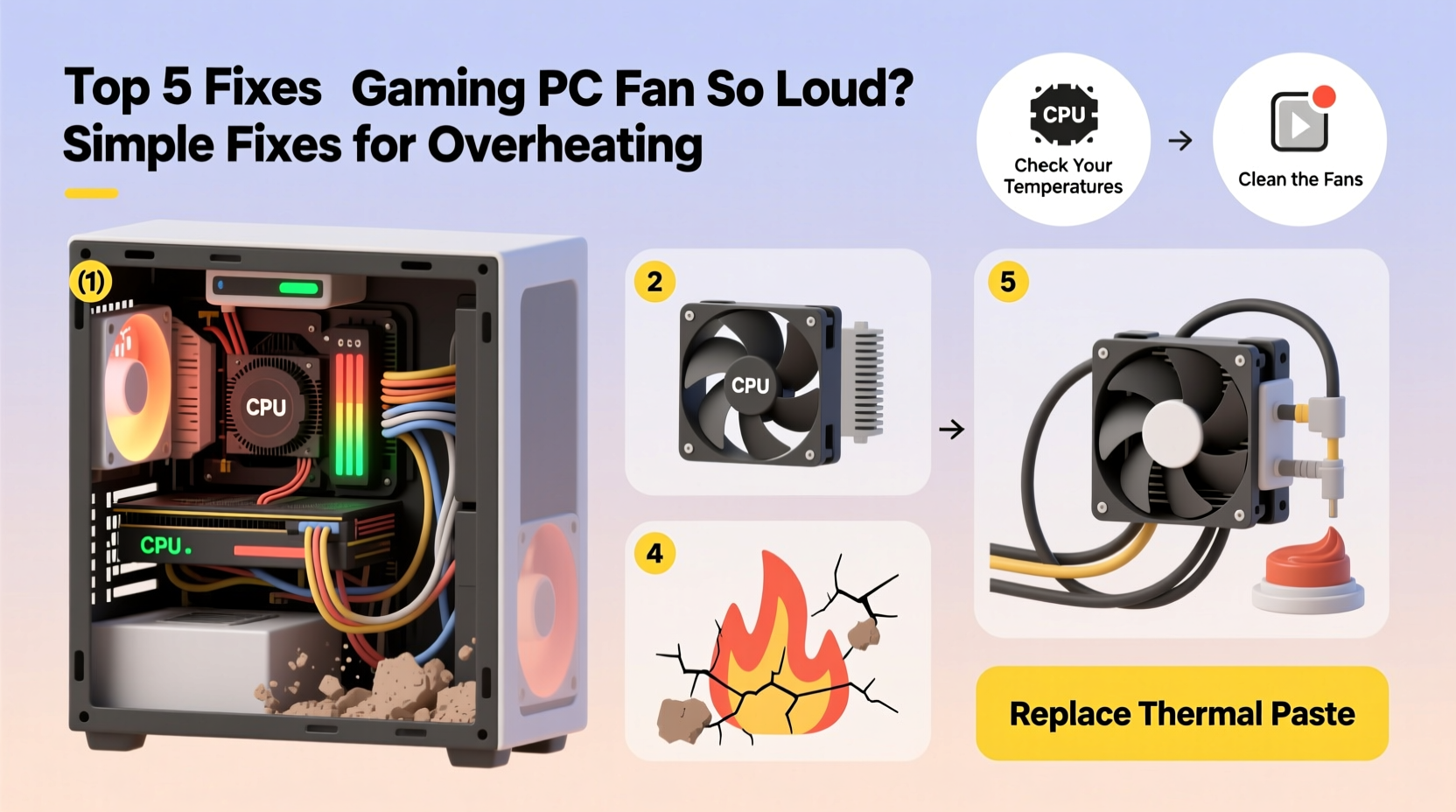
PC cooling fans respond to internal temperatures. When your CPU, GPU, or power supply heats up, the system increases fan speed to dissipate heat. If components run hotter than normal, fans spin faster and louder. Overheating isn’t just noisy—it can throttle performance, reduce hardware lifespan, and in extreme cases, cause shutdowns or permanent damage.
Common triggers include dust buildup, poor airflow, outdated thermal paste, background software consuming resources, or inadequate case ventilation. Identifying which component is overheating is the first step toward a quieter system.
“Thermal management is one of the most overlooked aspects of PC longevity. A well-cooled system runs quieter, faster, and lasts longer.” — David Lin, Hardware Engineer at PC Dynamics Lab
Step-by-Step Guide to Diagnose the Problem
Before making changes, confirm whether overheating is the real culprit. Follow this timeline to assess your system’s health:
- Monitor temperatures: Use free tools like HWMonitor, Core Temp, or MSI Afterburner to check CPU and GPU temps during idle and gaming.
- Identify baseline readings: Idle temps should be 30–45°C; under load, 60–85°C is typical. Anything above 90°C indicates overheating.
- Listen for patterns: Are fans loud even when not gaming? That suggests background processes or BIOS settings may be at fault.
- Check task manager: Look for apps using high CPU/GPU usage unexpectedly (e.g., crypto miners, bloatware).
- Inspect physical condition: Open the case (after powering off) and examine dust levels, cable clutter, and fan movement.
5 Common Causes and How to Fix Them
1. Dust Buildup Inside the Case
Dust acts as insulation, trapping heat around components. Over time, filters clog, fans struggle, and cooling efficiency drops dramatically.
Solution: Power down and unplug your PC. Use compressed air to clean intake/exhaust vents, fans, heatsinks, and PSU grills. Focus on the CPU cooler and GPU, which collect the most debris. Do this every 3–6 months depending on environment.
2. Dried-Out or Poor-Quality Thermal Paste
Thermal paste transfers heat from the CPU to the cooler. Over 2–3 years, it degrades and loses effectiveness, causing higher CPU temps.
Solution: Reapply high-quality thermal paste (e.g., Arctic MX-4, Noctua NT-H1). Remove the cooler, wipe off old paste with isopropyl alcohol, apply a pea-sized drop, then reattach. This can lower CPU temps by 5–15°C.
3. Inadequate Case Airflow
Poor airflow turns your case into an oven. Too many cables blocking paths, missing intake fans, or a cramped layout restricts cool air entry and hot air exit.
Solution: Optimize fan configuration—ideally two intake fans at the front and one exhaust at the rear. Manage cables with zip ties or Velcro straps. Avoid placing the PC flush against walls or inside enclosed desks.
4. Background Processes Overloading the CPU
Even outside games, malware, updates, or startup programs can spike CPU usage, triggering aggressive fan response.
Solution: Open Task Manager (Ctrl+Shift+Esc), sort by CPU usage, and disable unnecessary startup apps via the Startup tab. Scan for malware using Windows Defender or Malwarebytes.
5. Outdated BIOS or Fan Curves
Some motherboards default to aggressive fan profiles. Others may have firmware bugs affecting temperature reporting or fan control.
Solution: Enter BIOS/UEFI (usually by pressing Del or F2 at boot) and adjust fan curves. Set slower speeds at lower temps, ramping up only past 70°C. Also, check your motherboard manufacturer’s website for BIOS updates that improve thermal management.
Do’s and Don’ts: Cooling Best Practices
| Do | Don't |
|---|---|
| Clean your PC every 3–6 months | Use vacuum cleaners near components (static risk) |
| Reapply thermal paste every 2–3 years | Apply too much thermal paste (causes insulation) |
| Use positive air pressure (more intake than exhaust) | Block side panel vents or place PC on carpet |
| Update drivers and BIOS regularly | Ignore persistent coil whine or fan grinding noises |
| Invest in quality case fans (e.g., Noctua, Be Quiet!) | Overtighten CPU cooler screws (can warp heatsink) |
Real Example: Fixing a Noisy Mid-Tower Build
James, a casual gamer in Chicago, noticed his 3-year-old gaming rig became increasingly loud during Fortnite sessions. His GPU temps hit 92°C, and the CPU hovered near 88°C under load. He followed a diagnostic process:
- Ran HWMonitor and discovered both CPU and GPU were overheating.
- Opened the case and found thick dust layers on the GPU fan and CPU heatsink.
- Used compressed air to clean all components thoroughly.
- Reapplied Arctic MX-4 thermal paste on the CPU.
- Adjusted the fan curve in BIOS to reduce noise below 60°C.
After these steps, his GPU dropped to 76°C and CPU to 72°C under the same load. Fan noise decreased by over 50%, measured via decibel app. James extended his system’s usable life by at least two more years—without spending a cent on new parts.
When to Consider Hardware Upgrades
While cleaning and tuning help, some systems need hardware improvements. Consider upgrades if:
- Your CPU cooler is stock and you’re overclocking.
- Your case has only one small exhaust fan.
- You’re using a GPU in a compact chassis with no airflow.
Effective upgrades include:
- Air cooler upgrade: Swap stock coolers for dual-tower models like the Cooler Master Hyper 212 or Thermalright Peerless Assassin.
- Case fans: Replace stock fans with fluid dynamic bearing (FDB) models known for quiet operation and durability.
- Better case: Move to a mid-tower with mesh front panels and support for multiple 120mm or 140mm fans.
- Liquid cooling: A 240mm AIO can offer superior cooling and lower noise, especially for high-TDP CPUs.
Preventive Maintenance Checklist
To avoid recurring noise and overheating, follow this quarterly checklist:
- ✅ Clean dust from intake filters and fans using compressed air.
- ✅ Check CPU and GPU temperatures under load.
- ✅ Review startup programs and remove unnecessary ones.
- ✅ Verify all fans are spinning freely and securely mounted.
- ✅ Update motherboard BIOS and GPU drivers.
- ✅ Re-seat loose cables that block airflow.
- ✅ Test fan curves and adjust for optimal balance of noise and cooling.
Frequently Asked Questions
Is it bad if my PC fans are always running at high speed?
Consistently high fan speeds suggest your system is struggling to cool itself. While not immediately dangerous, prolonged high temps can degrade components over time. Investigate the cause—likely dust, poor airflow, or failing thermal paste.
Can I manually control my fan speed?
Yes. Most motherboards allow manual fan control via BIOS. Alternatively, use third-party software like FanControl or Argus Monitor. Always monitor temps while adjusting speeds to avoid overheating.
How do I know if my thermal paste needs replacing?
If your CPU runs significantly hotter than before despite similar workloads, or if it's been over two years since the last application, it’s time to replace it. Sudden temp spikes after cleaning other components also point to degraded paste.
Conclusion: Silence Starts with Smart Care
A loud gaming PC doesn’t mean you need a new build. More often than not, simple fixes—cleaning dust, reapplying thermal paste, optimizing airflow, and adjusting fan settings—can restore quiet, efficient operation. These steps not only reduce noise but also protect your investment by preventing heat-related wear. Overheating is a solvable problem, not an inevitable part of gaming.




 浙公网安备
33010002000092号
浙公网安备
33010002000092号 浙B2-20120091-4
Comments
No comments yet. Why don't you start the discussion?