
If you’ve opened Google recently and found yourself staring at Chinese characters instead of your usual English interface, you’re not alone. This sudden shift can be disorienting—especially if you didn’t make the change yourself. The good news is that switching Google back to your preferred language is usually quick and straightforward. Whether it happened due to an accidental setting change, browser sync issues, or location-based redirection, this guide walks you through every possible cause and solution.
Why Did Google Suddenly Switch to Chinese?
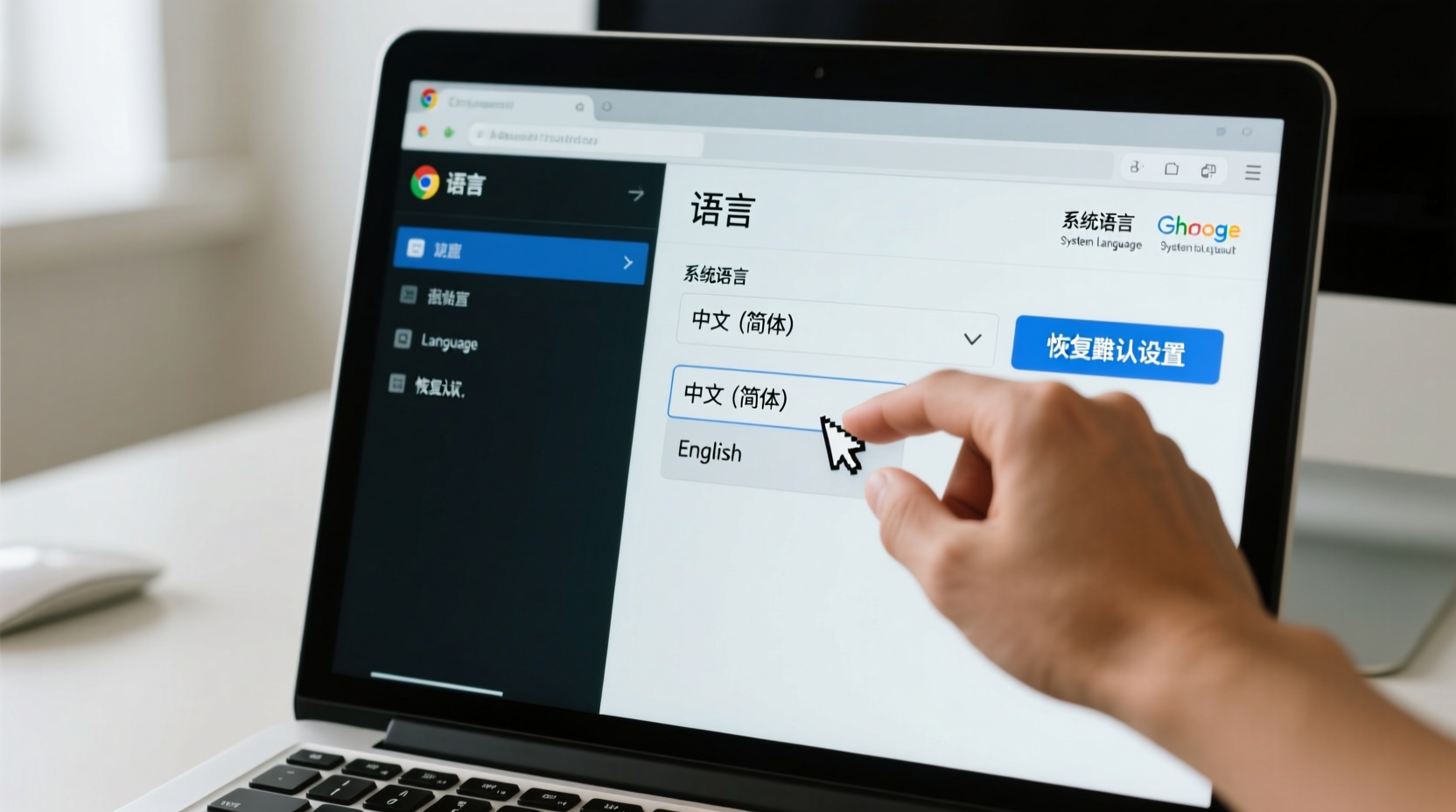
Several factors can cause Google’s interface to appear in Chinese unexpectedly:
- Browser language settings changed: Your browser may have been set to prefer Chinese, either manually or automatically after a software update.
- Google account language updated: If you're signed into your Google account, the language setting there overrides browser preferences.
- Location-based redirection: Traveling or using a VPN might trigger Google to serve content based on your current IP address.
- Accidental clicks: You may have clicked a “Translate to Chinese” prompt or visited a Chinese-language site that altered session settings.
- Device-wide system language change: On phones or computers, changing the OS language often propagates to apps like Chrome and Google services.
Understanding the root cause helps prevent recurrence. Let’s explore how to reverse the change across different platforms.
Step-by-Step: How to Change Google Back to English (or Your Preferred Language)
Follow this sequence to systematically restore your Google interface:
- Check Google’s language setting while signed in: Visit Google Preferences while logged into your account. Under “Languages,” ensure your preferred language is selected and move it to the top of the list.
- Adjust browser language settings: In Chrome, go to Settings → Advanced → Languages. Make sure your primary language (e.g., English) is first. Remove Chinese if listed unnecessarily.
- Clear browsing data: Sometimes cached settings persist. Clear cookies and site data for Google.com via browser settings.
- Sign out and back in: Logging out of your Google account and logging back in can refresh language preferences tied to your profile.
- Force the language in URL: Append
&hl=ento any Google search URL (e.g.,google.com/search?q=example&hl=en) to temporarily force English.
Fix Google Language on Different Devices
The method varies slightly depending on whether you're using a desktop, smartphone, or tablet.
On Desktop (Chrome Browser)
Chrome relies heavily on both system and browser-level language settings:
- Open Chrome and click the three-dot menu → Settings.
- Scroll to “Advanced” and select “Languages.”
- Click “Add languages” and add English (or your native language) if missing.
- Click the three dots next to your preferred language and select “Move to the top.”
- Ensure “Offer to translate pages that aren’t in a language you read” is enabled.
This ensures Google respects your browser’s language hierarchy.
On Android Phone
If your entire Google experience—including Search, Assistant, and Discover—is in Chinese, check these areas:
- Go to Settings → System → Languages & input → Languages.
- Drag English (or your preferred language) to the top.
- Open the Google app → tap your profile → Settings → General → Language.
- Select your desired language under “Search language.”
Changes typically apply within seconds.
On iPhone/iOS
iOS handles language differently, but Google follows system settings unless overridden:
- Go to Settings → General → Language & Region.
- Set “iPhone Language” to English.
- Reopen Safari or the Google app; it should now display in English.
- If using the Google app, also check its internal language settings under “Settings > Language.”
Common Mistakes That Keep Google in Chinese
Even after adjusting settings, some users find Google reverts to Chinese. These common oversights are often the culprit:
| Mistake | Why It Matters | How to Fix |
|---|---|---|
| Only changing browser language, not Google account | Account settings override browser preferences | Update language in Google Account under “Data & Personalization” |
| Not restarting the browser after changes | Old session data persists | Close and reopen browser completely |
| Using a location-specific Google domain (e.g., google.cn) | google.cn defaults to Chinese regardless of settings | Use google.com or redirect via google.com/ncr (No Country Redirect) |
| Leaving translated pages cached | Previous sessions may retain language flags | Clear browsing history and cookies |
google.com/ncr to bypass regional redirects entirely. The \"ncr\" stands for \"no country redirect.\"
Mini Case Study: Recovering from Accidental Language Change
Sarah, a university student in Canada, noticed her Google searches appeared in Chinese after helping a friend practice Mandarin. She had clicked “Translate this page” on a Chinese website, which triggered Chrome to suggest adding Chinese as a preferred language. Unaware, she accepted. For days, her Google homepage, search results, and even YouTube recommendations were in Chinese.
After researching, she realized the issue was twofold: her browser had Chinese as a top language, and her Google account had synced that preference. By removing Chinese from Chrome’s language list and resetting her Google language preference to English, she restored normalcy within minutes. She now keeps her language settings locked and avoids automatic translation prompts on unfamiliar sites.
Expert Insight on Language Settings and User Experience
“Users often overlook how deeply language preferences are layered—from the OS to the browser to individual accounts. A mismatch at any level can cause confusion. Always audit all three layers when troubleshooting unexpected language changes.” — David Lin, UX Localization Specialist at TechFlow Solutions
FAQ: Common Questions About Google Language Issues
Why does Google keep switching to Chinese even after I change it?
This usually happens when multiple devices or browsers sync conflicting language settings. Ensure your Google account language is correct, as it overrides device-specific preferences. Also, avoid visiting language-specific domains like google.hk or google.cn frequently, as they can influence regional settings.
Can malware cause Google to appear in Chinese?
Rarely, but yes. Malicious browser extensions or adware can hijack language and search settings. If standard fixes don’t work, scan your system with a trusted antivirus tool and review installed extensions. Remove anything unfamiliar.
Will changing my Google language affect my search results?
Yes, but positively. Google tailors results based on language and region. Using English will return more globally relevant, English-language websites. However, you can still search for Chinese content by typing queries in Chinese—language setting doesn’t block access.
Checklist: Restore Google to Your Preferred Language
- ✅ Log into your Google account and verify language under “Data & Personalization.”
- ✅ Set your preferred language as default in browser settings (Chrome, Safari, Firefox, etc.).
- ✅ Check your phone or computer’s system language settings.
- ✅ Clear cookies and cached data for Google.com.
- ✅ Use
google.com/ncrto avoid regional redirection. - ✅ Restart your browser or device to apply changes fully.
- ✅ Avoid clicking “Translate to [Language]” prompts unless intended.
Conclusion: Take Control of Your Google Experience
Finding Google in Chinese when you expect English can feel jarring, but it’s almost always reversible with the right steps. The key is understanding that language settings operate on multiple levels—account, browser, and device—and all must align for consistent results. By auditing each layer and applying the fixes outlined here, you can restore your preferred interface and prevent future surprises.




 浙公网安备
33010002000092号
浙公网安备
33010002000092号 浙B2-20120091-4
Comments
No comments yet. Why don't you start the discussion?