
A suddenly dark or dim screen on a Google device—whether it's a Pixel phone, Pixel tablet, or Chromebook—can be more than just an inconvenience. It affects readability, strains the eyes, and may interfere with daily tasks like reading messages, watching videos, or working remotely. While a dark screen might initially seem like a hardware failure, most cases stem from software settings, power-saving features, or environmental sensors. Understanding the root cause allows you to restore optimal brightness quickly and avoid unnecessary repairs.
Common Causes of a Dim Google Device Screen
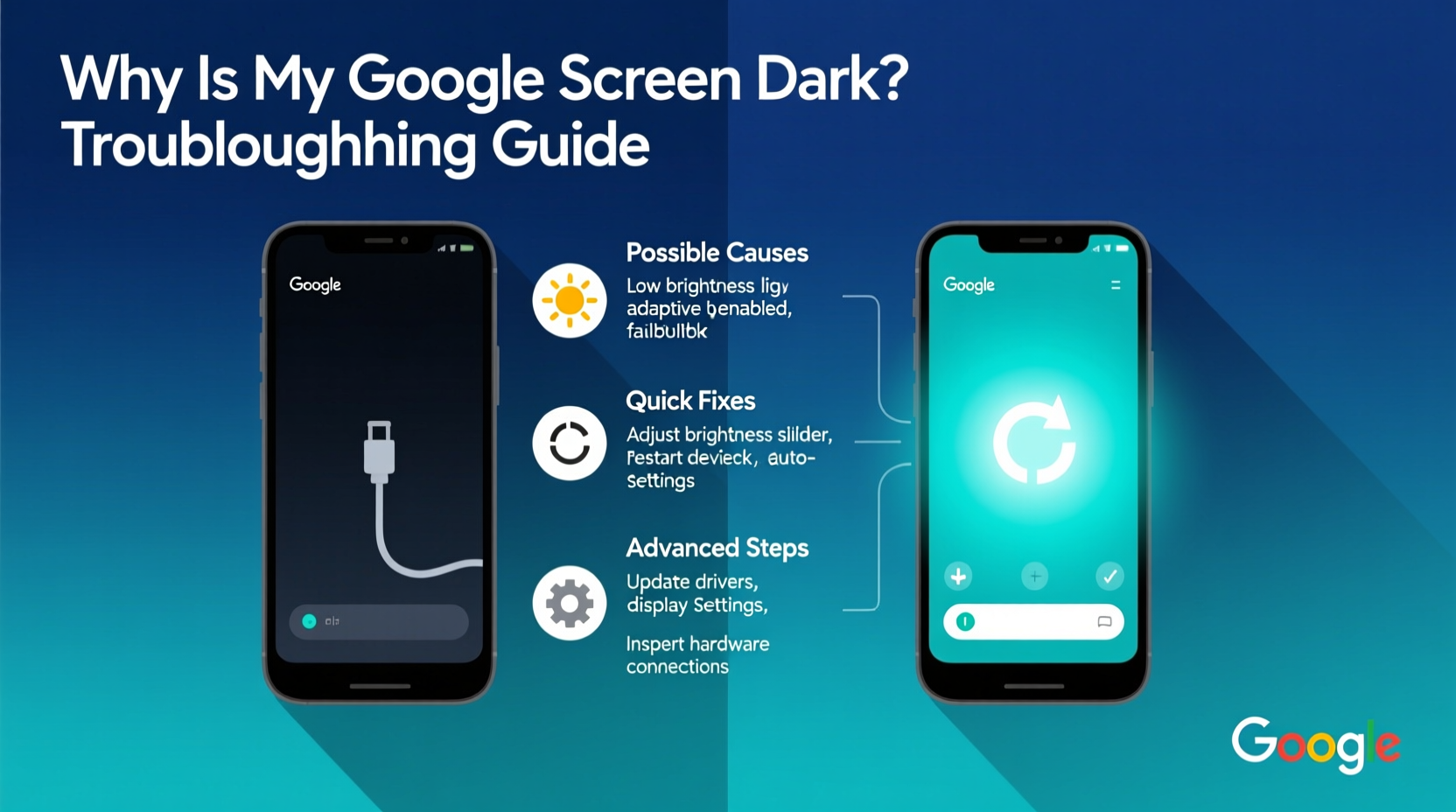
The first step in resolving a dark display is identifying what’s causing it. Several factors can reduce screen brightness on Google devices:
- Adaptive Brightness: Automatically adjusts screen brightness based on ambient light, sometimes making the screen too dim indoors.
- Battery Saver Mode: Limits performance and reduces screen brightness to extend battery life.
- Manual Brightness Settings: The brightness slider may have been accidentally lowered.
- Dark Theme or Night Light: Visual modes that alter color temperature and perceived brightness.
- Screen Timeout Settings: Short screen-off delays can make the display appear dimmer due to frequent dimming before shutdown.
- Hardware Issues: Less commonly, a failing backlight, damaged display panel, or moisture exposure could be responsible.
Step-by-Step Troubleshooting Guide
Follow this systematic approach to diagnose and resolve a dim display issue across Google devices:
- Check Manual Brightness Level
Open the notification shade and adjust the brightness slider to maximum. If the screen brightens, the issue was simply a misconfigured setting. - Disable Adaptive Brightness
Go to Settings > Display > Brightness level and toggle off “Adaptive brightness.” This prevents the sensor from lowering brightness in low-light environments where you still need a visible screen. - Turn Off Battery Saver Mode
Navigate to Settings > Battery > Battery Saver and disable it. When enabled, this mode caps brightness regardless of manual adjustments. - Disable Dark Theme and Night Light
Check under Settings > Display for “Dark theme” and “Night Light.” Turn both off temporarily to assess whether they contribute to the dim appearance. - Restart Your Device
A soft reboot clears temporary glitches. Press and hold the power button, then select “Restart.” - Check for System Updates
Outdated software can cause display bugs. Go to Settings > System > System Update and install any pending updates. - Test in Safe Mode (Android Only)
Boot into Safe Mode to rule out third-party apps interfering with display settings. On Pixel phones, press and hold the power button, then long-press “Power off” and tap “OK” to reboot in Safe Mode. - Reset Display Settings
If available, use “Reset app preferences” or “Reset all settings” (without erasing data) to revert display-related configurations to default.
When Hardware Might Be the Issue
If none of the above steps restore normal brightness, consider physical causes:
- Inspect the screen for cracks, discoloration, or black spots.
- Ensure no protective film or case is obstructing the ambient light sensor (located near the front camera).
- Check for moisture damage indicators (rare but possible after exposure to liquids).
“Many users assume their screen is broken when it’s actually adaptive brightness reacting aggressively to indoor lighting. Disabling that feature often solves the problem instantly.” — David Lin, Mobile Support Engineer at FixIt Pro
Tips and Best Practices for Optimal Screen Visibility
Maintaining consistent screen brightness enhances usability and reduces eye strain. Implement these habits to prevent future issues:
| Setting | Recommended Action | Why It Matters |
|---|---|---|
| Adaptive Brightness | Disable if inconsistent | Prevents unwanted dimming in controlled lighting |
| Battery Saver | Use selectively | Max brightness is restricted when active |
| Night Light Schedule | Set custom hours | Reduces blue light without overly dimming display |
| Auto-Rotate | Keep enabled | Ensures proper orientation and touch response |
Real-World Example: Resolving a Persistent Dim Screen
Sarah, a freelance writer using a Pixel 6a, began noticing her screen dimmed drastically during midday work sessions—even when fully charged and indoors. She assumed the battery was degrading. After adjusting the brightness slider repeatedly with no lasting effect, she followed a structured troubleshooting process. First, she disabled Battery Saver, which had activated automatically after dropping below 15%. Then, she turned off Adaptive Brightness, discovering that the ambient sensor was misreading office lighting as “dark environment.” With both settings adjusted, her screen remained consistently bright. A system update two days later resolved the erratic sensor behavior entirely.
This case highlights how multiple settings can interact to create persistent issues—and why isolating variables matters.
Quick Checklist: Fix a Dark Google Screen
Use this checklist to rapidly address a dim display:
- ✅ Adjust brightness slider to maximum
- ✅ Disable Adaptive Brightness
- ✅ Turn off Battery Saver Mode
- ✅ Disable Dark Theme and Night Light
- ✅ Restart the device
- ✅ Check for OS updates
- ✅ Boot into Safe Mode (Android)
- ✅ Inspect for physical damage or obstructions
- ✅ Reset display settings if needed
Frequently Asked Questions
Why does my Google screen keep getting darker even when I increase brightness?
This typically occurs when Adaptive Brightness is enabled. The ambient light sensor detects changes in surroundings and overrides manual settings. Disable adaptive brightness in Display settings to maintain consistent levels.
Does Dark Mode make my screen actually dimmer?
Dark Mode doesn’t lower brightness technically, but black backgrounds reduce overall screen luminance, creating a perception of dimness. OLED screens go completely black on dark pixels, enhancing contrast but reducing total light output.
Can a screen protector cause my display to look dark?
Poor-quality or matte-finish screen protectors can diffuse light and reduce clarity, making the screen appear dimmer. Remove the protector temporarily to test if brightness perception improves.
Conclusion: Take Control of Your Display Experience
A dark Google screen is rarely a permanent defect. Most often, it’s the result of intelligent features working too well—or being misconfigured. By methodically reviewing brightness settings, disabling aggressive power-saving modes, and ensuring your software is up to date, you can restore full visibility and comfort. Don’t rush to replace your device; instead, apply these proven fixes and regain control over your display. Small adjustments today can significantly improve your digital experience tomorrow.




 浙公网安备
33010002000092号
浙公网安备
33010002000092号 浙B2-20120091-4
Comments
No comments yet. Why don't you start the discussion?