
You run a speed test and see impressive numbers—100 Mbps, even 500 Mbps. Your internet feels snappy when browsing or streaming. But then you go to download a large file, and it crawls at just 2–3 MB/s. What gives? This frustrating disconnect between high-speed test results and sluggish real-world downloads is more common than you think. The truth is: your internet connection is only one link in a long chain. A single weak point can drag everything down. Understanding where those bottlenecks occur—and how to identify and resolve them—is key to unlocking your true download potential.
The Illusion of Speed: Why Fast Tests Don’t Guarantee Fast Downloads
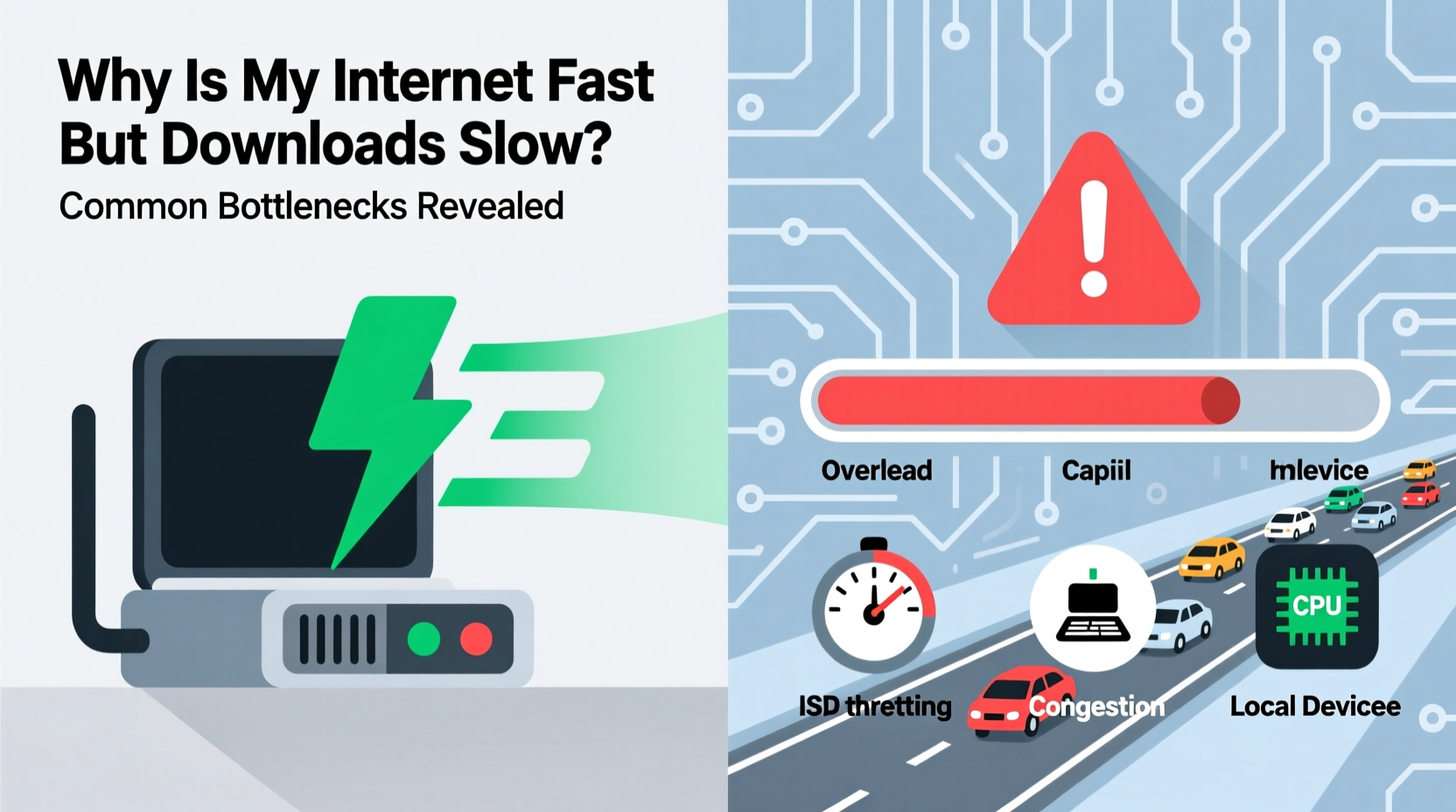
Internet service providers advertise speeds based on bandwidth—the maximum amount of data that can be transferred per second under ideal conditions. Speed tests measure this theoretical peak by connecting directly to a nearby server with minimal interference. But actual download performance depends on many factors beyond raw bandwidth. When you download a file from a distant server, multiple systems must cooperate: your router, device hardware, network protocols, server availability, and even software settings. If any part of this chain underperforms, your download speed suffers—even if your ISP delivers exactly what they promised.
Think of it like a highway system. Just because a road has four lanes doesn’t mean traffic will always move quickly. Accidents, toll booths, merging lanes, or poor weather can all slow things down. Similarly, your internet may have plenty of “lanes,” but congestion, outdated equipment, or inefficient routing can create traffic jams that throttle download speeds.
Common Bottlenecks That Slow Down Downloads
1. Server-Side Limitations
The most overlooked bottleneck is the source itself. No matter how fast your connection is, you can't download faster than the server allows. Many websites, especially free file hosts, impose artificial download caps to manage bandwidth costs. Others simply lack the infrastructure to serve multiple users at full speed. For example, downloading from a small university server hosting research data might max out at 1 MB/s—even if your connection could handle 50 MB/s.
Additionally, geographic distance affects latency and throughput. Data travels across physical cables, and each hop introduces delay. A server located overseas may respond slowly, reducing effective download rates despite high bandwidth.
2. Wi-Fi Interference and Signal Degradation
If you're using Wi-Fi instead of a wired Ethernet connection, signal quality plays a major role. Walls, appliances, neighboring networks, and even microwave ovens can interfere with your wireless signal. While your router may broadcast at high speeds close up, performance drops significantly with distance or obstacles.
Older Wi-Fi standards (like 802.11n) also limit maximum throughput. Even under perfect conditions, 802.11n caps at around 150 Mbps—far below modern gigabit connections. Newer standards like Wi-Fi 5 (802.11ac) and Wi-Fi 6 (802.11ax) improve this, but only if both your router and device support them.
3. Outdated or Overloaded Hardware
Your computer or phone may not be able to keep up. Older devices with slow processors, limited RAM, or mechanical hard drives (HDDs) struggle to process incoming data quickly. For instance, an HDD with a write speed of 80 MB/s becomes a bottleneck when trying to receive data at higher rates—even if your network supports it.
Routers are another weak point. Budget models provided by ISPs often have underpowered CPUs and limited memory. When handling multiple devices or large transfers, these routers can become overwhelmed, causing packet loss and reduced throughput.
4. Network Congestion and Background Activity
Other devices on your network might be silently consuming bandwidth. Smart TVs streaming 4K video, cloud backups syncing, or smartphones updating apps in the background all contribute to total usage. Even if you’re not actively using those devices, they can saturate your connection.
Peak usage times (evening hours) can also lead to local network congestion, especially in densely populated areas. Cable internet users share bandwidth within a neighborhood node. If everyone streams Netflix at once, speeds drop for all—even if individual plans promise high bandwidth.
5. Protocol and Software Limitations
Not all download methods are created equal. HTTP/HTTPS downloads typically use a single connection, limiting their ability to fully utilize available bandwidth. In contrast, tools like BitTorrent or download managers split files into chunks and download them simultaneously over multiple connections, dramatically improving speed.
Similarly, browser-based downloads often lack optimization. They don’t resume interrupted transfers efficiently and rarely use parallel threads. Switching to a dedicated download manager can yield significant improvements.
“Many users assume their ISP is throttling them when downloads are slow, but the culprit is often closer to home—outdated firmware, misconfigured routers, or background processes eating bandwidth.” — David Lin, Senior Network Engineer at NetPath Solutions
Step-by-Step Guide to Diagnose and Fix Slow Downloads
To pinpoint the cause of slow downloads, follow this systematic approach:
- Test with a Wired Connection
Connect your computer directly to the router via Ethernet. If download speeds improve significantly, Wi-Fi is likely the bottleneck. - Run Multiple Speed Tests
Use different services (Speedtest.net, Fast.com, Google’s speed test) and locations. Compare results to rule out anomalies. - Check Server Source
Try downloading the same file from a different mirror or provider. If speed improves, the original server was limiting you. - Monitor Device Usage
Open Task Manager (Windows) or Activity Monitor (Mac) during a download. Look for high CPU, disk, or network usage that could indicate hardware strain. - Scan for Background Traffic
Review connected devices on your router’s admin page. Disable or schedule updates for off-peak hours. - Update Firmware and Drivers
Ensure your router, modem, and network adapter drivers are up to date. Manufacturers often release performance fixes. - Use a Download Manager
Tools like Free Download Manager or JDownloader use segmented downloading to maximize bandwidth utilization. - Reboot Network Equipment
Power cycle your modem and router. This clears temporary glitches and resets connections.
Do’s and Don’ts: Optimizing Your Setup
| Do | Don’t |
|---|---|
| Use Ethernet for critical downloads | Rely solely on Wi-Fi for large file transfers |
| Upgrade to a modern dual-band or tri-band router | Use ISP-provided routers indefinitely without evaluation |
| Enable Quality of Service (QoS) settings on your router | Allow unrestricted bandwidth hogs (e.g., automatic 4K streaming) |
| Use download managers for large files | Depend only on browser-based downloads |
| Regularly reboot your networking hardware | Ignore firmware update notifications |
Real-World Example: Solving a Persistent Download Issue
Consider Sarah, a freelance graphic designer working from home. Her ISP advertised 300 Mbps fiber, and her speed tests confirmed it. Yet, when downloading large project files from clients, she rarely exceeded 5 MB/s (about 40 Mbps). Frustrated, she contacted her ISP, who insisted the line was fine.
She followed the diagnostic steps above. First, she switched from Wi-Fi to Ethernet—no change. Then, she tested different files: some downloaded at full speed, others remained slow. That pointed to the server side. She asked a colleague in another city to download the same file. It was fast for them. Conclusion: the client’s server had bandwidth restrictions for certain regions.
Sarah requested alternate delivery via WeTransfer and saw immediate improvement. Later, she also upgraded her aging laptop’s SSD, which further boosted processing speed during large file extractions. By isolating variables, she resolved what initially seemed like an ISP issue.
FAQ: Common Questions About Slow Downloads
Why does my speed test show 200 Mbps but my download is only 20 MB/s?
Speed tests measure megabits per second (Mbps), while download speeds are usually shown in megabytes per second (MB/s). There are 8 bits in a byte, so 200 Mbps translates to about 25 MB/s under ideal conditions. Real-world overhead (protocol headers, error correction) reduces this slightly, making 20 MB/s reasonable. However, if you're getting much less, other bottlenecks exist.
Can my antivirus software slow down downloads?
Yes. Some antivirus programs scan files in real time as they download, adding processing delay. While important for security, this can reduce perceived speed. Consider adjusting scan settings or scheduling deep scans during idle times.
Is my ISP throttling my connection?
Possible, but not always likely. ISPs typically throttle specific types of traffic (like peer-to-peer sharing) rather than all downloads. Use a VPN to test—if speeds improve dramatically, throttling may be occurring. However, first rule out local issues like Wi-Fi or server limits.
Conclusion: Take Control of Your Download Experience
Fast internet doesn’t guarantee fast downloads—but understanding the difference empowers you to fix it. The bottleneck isn’t always your ISP. Often, it’s your Wi-Fi setup, outdated hardware, background traffic, or the server you’re downloading from. By methodically testing each component of your network chain, you can identify and eliminate the weakest link.
Start with simple changes: switch to Ethernet, update firmware, use a download manager. These alone can double or triple your effective download speed. Over time, consider upgrading your router or storage hardware for lasting gains. Remember, digital performance is cumulative—small optimizations add up.




 浙公网安备
33010002000092号
浙公网安备
33010002000092号 浙B2-20120091-4
Comments
No comments yet. Why don't you start the discussion?