
It’s a frustratingly common scenario: your phone zips through videos and downloads without a hitch, while your laptop crawls on the same network. You’re not imagining it—there are real, technical reasons why this happens. The good news is that most of these issues are fixable without calling your ISP or replacing hardware. Understanding the root causes and applying targeted solutions can dramatically improve your laptop’s internet performance, often within minutes.
Differences in wireless technology, device settings, interference, and software background processes all contribute to inconsistent speeds across devices. This guide breaks down the most likely culprits and provides actionable steps to diagnose and resolve them—no tech degree required.
Understanding the Discrepancy
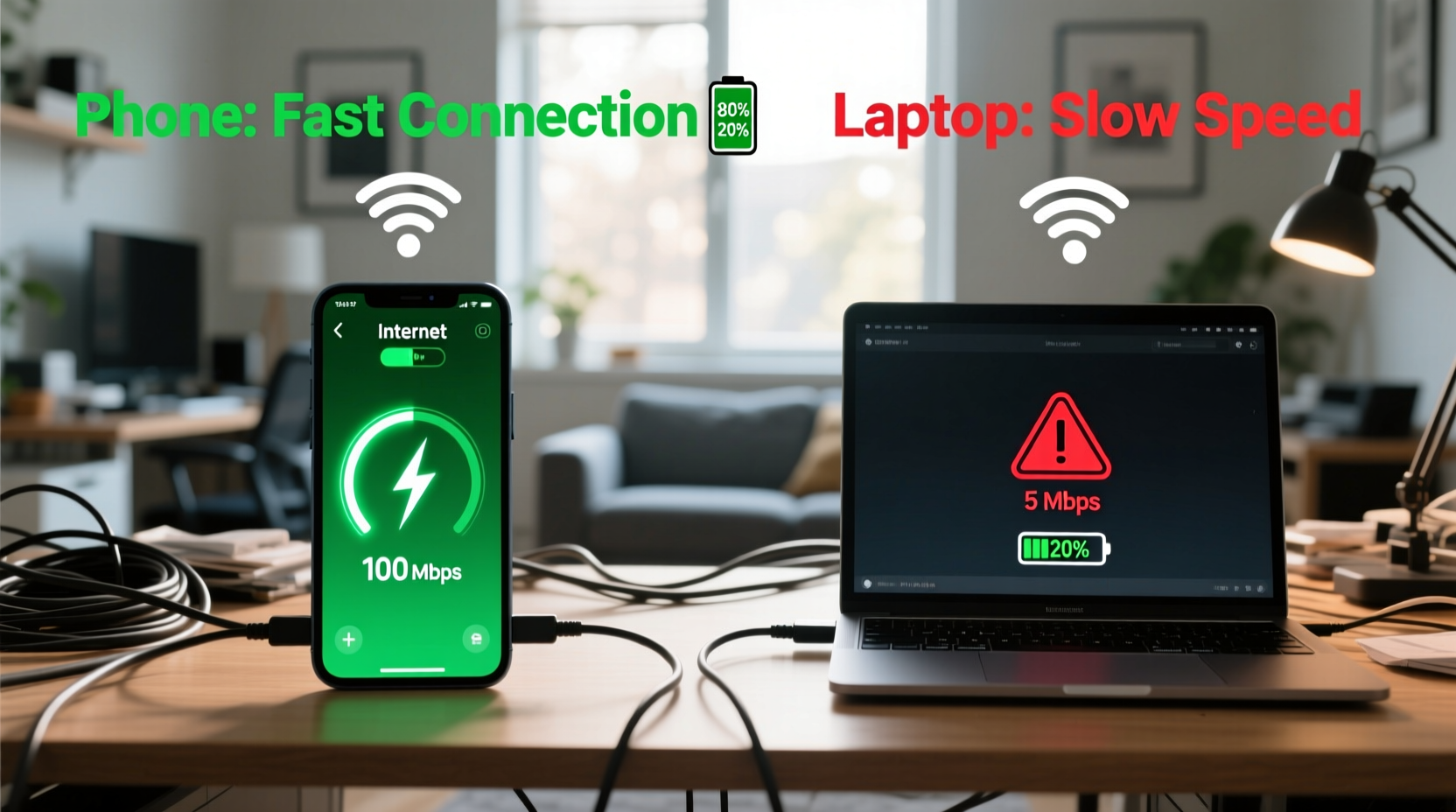
Your phone and laptop may be connected to the same router, but they’re not equal when it comes to connectivity. Modern smartphones often support newer Wi-Fi standards and have finely tuned antennas optimized for mobility. Laptops, especially older models, may use outdated wireless cards or lack firmware updates that impact performance.
Additionally, operating systems handle network resources differently. Windows and macOS run background updates, cloud syncs, and security scans that consume bandwidth invisibly. Phones, by contrast, are more tightly controlled environments with fewer concurrent tasks competing for connection.
“Wi-Fi performance isn’t just about signal strength—it’s about compatibility, configuration, and congestion.” — Dr. Lena Patel, Network Systems Engineer
Common Causes of Slow Laptop Wi-Fi
- Outdated Wi-Fi drivers: A major bottleneck on Windows laptops.
- Incorrect power settings: Laptops may throttle Wi-Fi to save battery.
- Interference from nearby electronics: Microwaves, cordless phones, or Bluetooth devices disrupt 2.4 GHz bands.
- Distance and physical obstructions: Walls, furniture, and flooring weaken signals unevenly across devices.
- Router prioritization: Some routers favor mobile devices due to better signal negotiation.
- Background applications: Updates, cloud backups, or streaming apps eat up bandwidth silently.
Step-by-Step Diagnosis and Fixes
Before making changes, confirm the issue is isolated to your laptop. Run a speed test on both devices using the same tool (e.g., Speedtest.net or Fast.com). If your phone shows 80+ Mbps and your laptop struggles under 10 Mbps, proceed with the following troubleshooting steps.
1. Restart Your Router and Laptop
A simple restart clears temporary glitches in both devices. Unplug your router for 30 seconds, then power it back on. Wait for all lights to stabilize before rebooting your laptop. This often resolves transient network congestion or IP conflicts.
2. Check for Background Applications
Laptops frequently run silent processes that consume bandwidth. On Windows:
- Press Ctrl + Shift + Esc to open Task Manager.
- Go to the “Processes” tab and sort by “Network” usage.
- Identify high-bandwidth apps (e.g., OneDrive, Dropbox, Zoom, Windows Update).
- Right-click and select “End task” if unnecessary.
On macOS:
- Open Activity Monitor from Applications > Utilities.
- Select the “Network” tab.
- Review which apps are using the most data.
3. Update Your Wi-Fi Driver (Windows)
An outdated or corrupted driver is one of the top reasons for poor Wi-Fi performance on Windows laptops.
- Press Windows + X and select “Device Manager.”
- Expand “Network adapters.”
- Right-click your Wi-Fi adapter (e.g., Intel Wireless-AC 9560) and choose “Update driver.”
- Select “Search automatically for updated driver software.”
If no update is found, visit the manufacturer’s website (e.g., Dell, HP, Lenovo) and download the latest driver using your laptop’s model number.
4. Adjust Power Management Settings
Windows may reduce Wi-Fi performance to conserve battery life.
- In Device Manager, right-click your Wi-Fi adapter and select “Properties.”
- Go to the “Power Management” tab.
- Uncheck “Allow the computer to turn off this device to save power.”
- Click “OK.”
This ensures maximum performance even on battery mode.
5. Switch Wi-Fi Bands: 2.4 GHz vs. 5 GHz
Many routers broadcast two networks:
- 2.4 GHz: Longer range but slower and more congested.
- 5 GHz: Faster speeds, less interference, but shorter range.
If your laptop is stuck on 2.4 GHz while your phone uses 5 GHz, you’ll notice a significant speed difference.
To connect to 5 GHz:
- Ensure your laptop supports 5 GHz (most models from 2015 onward do).
- Check your router settings—ensure 5 GHz is enabled.
- Disconnect and reconnect to the 5 GHz network (often named similarly but labeled “_5G” or “_5GHz”).
| Feature | 2.4 GHz Band | 5 GHz Band |
|---|---|---|
| Speed | Slower (up to 150 Mbps) | Faster (up to 1 Gbps) |
| Range | Better through walls | Shorter, line-of-sight ideal |
| Interference | High (microwaves, Bluetooth) | Low |
| Best For | Basic browsing, IoT devices | Streaming, gaming, video calls |
Hardware and Environmental Factors
Sometimes, the issue lies beyond software. Physical conditions and hardware limitations play a crucial role.
Antenna Quality and Placement
Laptop Wi-Fi antennas are typically located near the screen bezel. If you're using your laptop far from the router or behind obstacles, the signal weakens significantly. Phones, with compact internal antennas and adaptive signal switching, often perform better in suboptimal locations.
Try repositioning your laptop closer to the router or adjusting its angle. Even a few inches can make a difference.
Older Wi-Fi Standards
If your laptop only supports Wi-Fi 4 (802.11n), it won’t benefit from the speeds offered by Wi-Fi 5 (802.11ac) or Wi-Fi 6 (802.11ax). Newer phones typically support the latest standards, giving them a clear advantage.
Consider upgrading your laptop’s Wi-Fi card if it’s user-replaceable, or use a USB 3.0 Wi-Fi 6 adapter for immediate improvement.
Interference from Other Devices
Bluetooth speakers, baby monitors, and microwave ovens operate on the 2.4 GHz frequency. If your laptop relies on this band, performance drops during interference.
Mini Case Study: Sarah’s Home Office Struggle
Sarah, a freelance graphic designer, noticed her laptop buffering during client Zoom calls, despite her phone showing full bars and smooth streaming. Her home office was on the second floor, directly above the router in the living room.
She tested both devices side by side—her iPhone recorded 92 Mbps, while her 2017 MacBook Pro managed only 14 Mbps. After checking settings, she discovered her laptop was connected to the 2.4 GHz network. She switched to the 5 GHz band, but the signal dropped frequently.
The solution? She moved her router to a central location on the first floor and added a Wi-Fi extender halfway up the stairs. She also disabled automatic iCloud and Adobe Creative Cloud syncs during work hours. Her laptop’s speed jumped to 78 Mbps, resolving the lag in meetings.
Sarah’s case highlights how environment, network selection, and background traffic combine to impact real-world performance.
Quick Fix Checklist
Use this checklist to rapidly troubleshoot and improve your laptop’s internet speed:
- ✅ Restart your router and laptop.
- ✅ Run a side-by-side speed test on phone and laptop.
- ✅ Close bandwidth-heavy apps (cloud sync, updates, streaming).
- ✅ Update Wi-Fi drivers (Windows) or system software (macOS).
- ✅ Disable power-saving mode for the Wi-Fi adapter.
- ✅ Connect to the 5 GHz Wi-Fi network if available.
- ✅ Move closer to the router or reduce physical obstructions.
- ✅ Check for interference from nearby electronics.
- ✅ Reset network settings (Windows: Settings > Network & Internet > Network reset).
- ✅ Consider a USB Wi-Fi adapter or mesh network for persistent issues.
Frequently Asked Questions
Why does my phone get better Wi-Fi than my laptop even when they’re next to each other?
Phones often have more efficient antennas and prioritize real-time communication (like calls and messages). They also tend to support newer Wi-Fi standards and negotiate better connections with routers. Additionally, laptops run more background processes that consume bandwidth without user awareness.
Can a virus slow down my internet on my laptop?
Yes. Malware can use your internet connection to send spam, mine cryptocurrency, or communicate with remote servers—slowing down your available bandwidth. Run a full scan with a trusted antivirus program to rule this out.
Should I upgrade my router if my laptop is slow?
Not necessarily. First, ensure your laptop is configured correctly and free of software bottlenecks. If multiple devices struggle, or you need broader coverage, upgrading to a Wi-Fi 6 router or a mesh system can help. But start with device-level fixes before investing in new hardware.
Final Steps and When to Upgrade
Most speed disparities between phone and laptop stem from correctable software or configuration issues. The majority of users see improvement after updating drivers, switching to 5 GHz, and managing background apps.
If you’ve tried all the steps and still experience slow speeds, consider:
- Purchasing a USB Wi-Fi 6 adapter (~$25–$40) for instant hardware upgrade.
- Installing a mesh Wi-Fi system if dead zones exist in your home.
- Consulting a technician to replace an outdated internal Wi-Fi card.
Technology evolves quickly, but smart maintenance keeps older devices competitive. Don’t assume your laptop is obsolete—sometimes, a few tweaks are all it needs to keep pace with modern demands.
“Fixing Wi-Fi isn’t always about more power—it’s about smarter connections.” — Rajiv Mehta, IT Infrastructure Consultant
Take Action Today
Your laptop doesn’t have to suffer slow internet while your phone thrives. By systematically addressing drivers, settings, network bands, and environmental factors, you can reclaim fast, reliable connectivity. Start with the quick fixes—restart, update, and reconnect—and work through the checklist. Most solutions take less than 10 minutes and cost nothing.
Don’t let a sluggish connection disrupt your productivity or entertainment. Apply these strategies now, and experience the difference a well-tuned device can make.




 浙公网安备
33010002000092号
浙公网安备
33010002000092号 浙B2-20120091-4
Comments
No comments yet. Why don't you start the discussion?