
Ping, or latency, measures the time it takes for data to travel from your device to a game server and back. In competitive gaming, even a 50ms delay can mean the difference between victory and defeat. If you're experiencing high ping during gameplay despite having a fast internet plan, the issue may not be your ISP — it could be your router. Many gamers overlook their home network setup, assuming that as long as they have broadband, performance should be optimal. But routers, like any technology, require proper configuration and maintenance. The good news? You don’t need to buy new gear to fix most issues. With a few strategic adjustments, you can significantly reduce your ping and enjoy smoother, more responsive online gaming.
Understanding Ping and Its Impact on Gaming
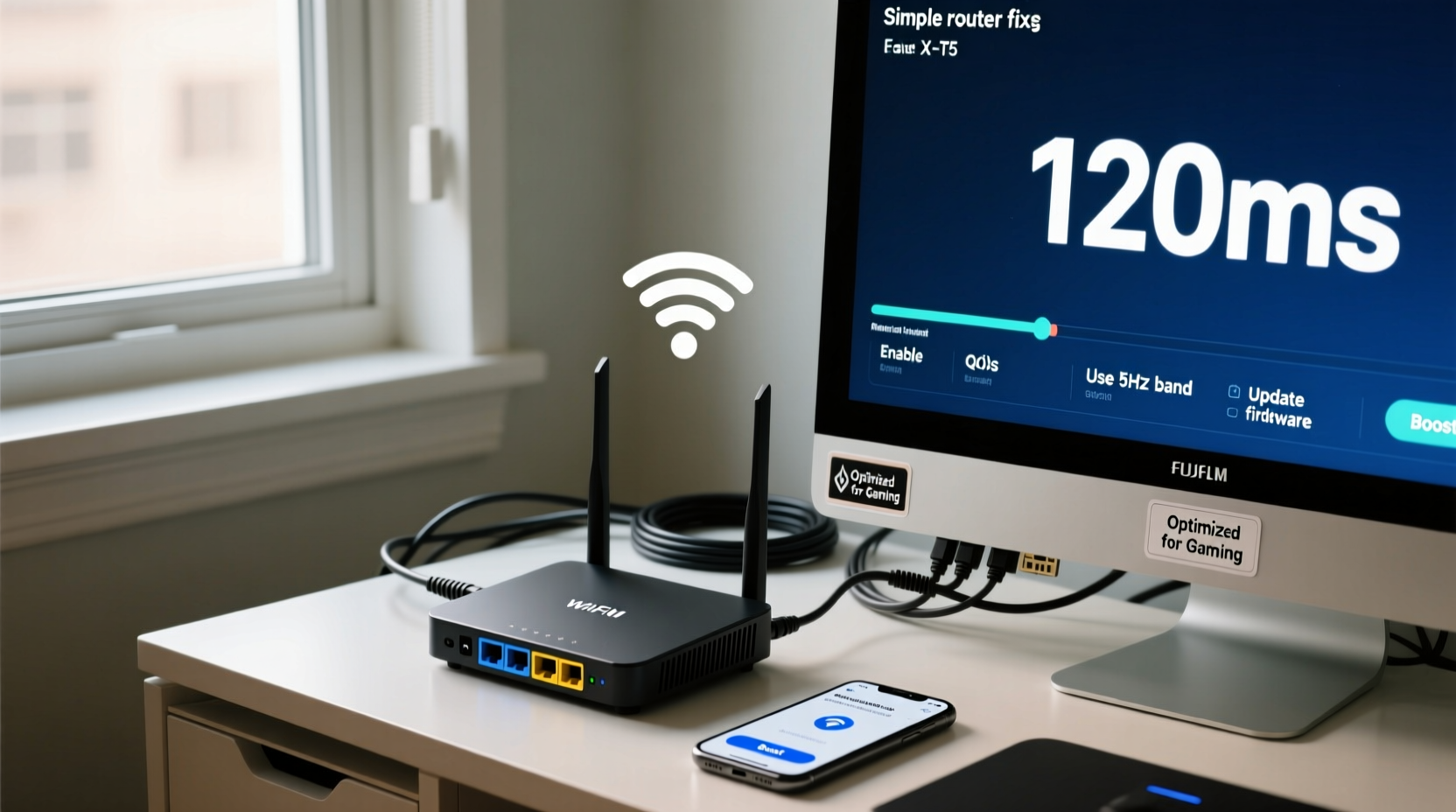
Ping is measured in milliseconds (ms). A lower number means faster communication between your device and the game server. For reference:
- 0–40ms: Excellent — ideal for competitive gaming.
- 40–60ms: Good — acceptable for most games.
- 60–100ms: Fair — noticeable lag in fast-paced titles.
- 100ms+: Poor — disruptive delays, especially in shooters or MOBAs.
High ping doesn’t always stem from slow download speeds. It often results from network congestion, poor signal strength, outdated firmware, or suboptimal router settings. Unlike bandwidth-heavy activities like streaming, online gaming demands consistent low-latency connections rather than raw speed. This makes router optimization crucial — even more so than increasing your Mbps.
“Latency is the silent killer of competitive advantage. Gamers with identical ISPs often see vastly different performance based solely on router configuration.” — David Lin, Network Engineer at GameNet Labs
Common Router Issues That Increase Ping
Before attempting fixes, identify whether your router is the bottleneck. Consider these common culprits:
1. Overloaded Bandwidth
Multiple devices streaming, downloading, or updating in the background consume bandwidth and increase latency. Even if total usage is below your plan’s limit, burst activity can spike ping temporarily.
2. Wireless Interference
If you’re using Wi-Fi, nearby networks, appliances (microwaves, cordless phones), or physical obstructions weaken your signal. This forces retransmissions, increasing latency.
3. Outdated Firmware
Routers receive firmware updates that improve stability, security, and traffic handling. An outdated model may struggle with modern QoS (Quality of Service) demands.
4. Suboptimal Channel Selection
Wi-Fi channels can become congested, especially in dense housing areas. Routers stuck on crowded channels experience interference, raising ping unpredictably.
5. NAT Type Restrictions
Strict NAT types (Type 3) prevent direct peer-to-peer connections in multiplayer games, forcing traffic through additional relays, which adds latency.
Step-by-Step Guide to Reduce Ping via Router Fixes
Follow this sequence of proven router optimizations to minimize latency. Each step builds on the last, but even implementing one or two can yield noticeable improvements.
- Restart Your Router and Modem
Power cycle both devices: unplug them, wait 30 seconds, then plug the modem in first, followed by the router after another 30 seconds. This clears temporary glitches and resets IP assignments. - Update Router Firmware
Log into your router’s admin panel (usually via 192.168.1.1 or 192.168.0.1). Navigate to the firmware section and check for updates. Manufacturers like ASUS, Netgear, and TP-Link regularly release performance patches. - Enable Quality of Service (QoS)
QoS prioritizes gaming traffic over less time-sensitive tasks like downloads or streaming. In your router settings, locate QoS or “Bandwidth Control,” enable it, and assign highest priority to your gaming device by its IP or MAC address. - Switch to Less Congested Wi-Fi Channels
Use tools like WiFi Analyzer (Android) or NetSpot (PC/Mac) to scan nearby networks. On 2.4GHz, stick to channels 1, 6, or 11. On 5GHz, choose non-DFS channels (e.g., 36, 40, 44, 48) with fewer neighbors. - Change DNS Servers
Default ISP DNS can be slow. Switch to faster alternatives:- Google DNS: 8.8.8.8 and 8.8.4.4
- Cloudflare: 1.1.1.1 and 1.0.0.1
- Reduce Background Traffic
Pause automatic updates on consoles, PCs, and smart devices. Disable cloud backups or large file syncs during gaming sessions. - Optimize Router Placement
Place your router centrally, elevated, and away from metal objects, thick walls, and electronics. Avoid basements or enclosed cabinets. - Use Port Forwarding for Specific Games
Identify required ports for your game (e.g., Destiny 2 uses UDP 3074) and forward them to your console or PC’s local IP. This reduces handshake delays and improves NAT type.
Router Settings Comparison: Before and After Optimization
| Setting | Default State | Optimized State | Impact on Ping |
|---|---|---|---|
| QoS | Disabled | Enabled, gaming device prioritized | Reduces spikes by 20–40ms |
| DNS Server | ISP-provided | Cloudflare or Google | Faster matchmaking & login |
| Wi-Fi Channel | Congested (e.g., Channel 6) | Less crowded (e.g., Channel 1 or 44) | Stabilizes connection, fewer drops |
| Connection Type | Wi-Fi 2.4GHz | Ethernet or 5GHz Wi-Fi | Lowers base ping by 15–30ms |
| Firmware | Outdated | Latest version installed | Improves throughput efficiency |
Real Example: Fixing High Ping in a Shared Household
James, a competitive Apex Legends player in Toronto, was consistently seeing 120–180ms ping despite paying for a 200Mbps fiber plan. His kids were simultaneously streaming YouTube and downloading school videos, and his router was tucked behind a bookshelf in the basement.
He applied the following changes over one evening:
- Moved the router to the main floor hallway.
- Connected his PS5 via Ethernet.
- Updated firmware from version 1.0.2 to 1.0.7.
- Enabled QoS and set his console as top priority.
- Changed DNS to 1.1.1.1.
The next day, his average ping dropped to 45ms. Matches loaded faster, and he noticed immediate responsiveness in gunfights. “I didn’t spend a dime,” James said. “Just spent 45 minutes adjusting settings, and it transformed my gameplay.”
Tips for Sustained Low-Ping Performance
- Monitor Real-Time Ping: Use built-in game network stats or third-party tools like NetLimiter or Wireshark to track fluctuations.
- Label Devices: Assign static IPs to your gaming gear so QoS and port forwarding rules remain consistent.
- Limit Connected Devices: Disconnect unused smart home gadgets during matches. Each connected device consumes overhead.
- Test Regularly: Run ping tests to google.com (
ping google.com -tin Command Prompt) to benchmark baseline latency.
FAQ: Common Questions About Router-Related Ping Issues
Does restarting my router really help with ping?
Yes. Restarting clears memory leaks, resets unstable connections, and forces a fresh DHCP lease. It’s often the fastest way to resolve temporary latency spikes caused by software glitches.
Can a cheap router cause high ping even with good internet?
Absolutely. Budget routers often lack advanced QoS, have weak processors, and support outdated Wi-Fi standards. They struggle to manage multiple streams efficiently, leading to packet delays regardless of line speed.
Is 5GHz Wi-Fi better than Ethernet for gaming?
No. While 5GHz offers faster speeds than 2.4GHz, it still can't match the stability and lower latency of a wired Ethernet connection. Physical cables eliminate wireless contention and provide full-duplex communication.
Essential Router Optimization Checklist
Use this checklist before every major gaming session or when noticing increased lag:
- ✅ Restart router and modem
- ✅ Confirm firmware is up to date
- ✅ Connect via Ethernet if possible
- ✅ Enable QoS and prioritize gaming device
- ✅ Change DNS to 1.1.1.1 or 8.8.8.8
- ✅ Select least congested Wi-Fi channel
- ✅ Close background apps and pause downloads
- ✅ Position router centrally and unobstructed
- ✅ Forward necessary game ports
- ✅ Test ping using command line or in-game tool
Conclusion: Take Control of Your Gaming Experience
High ping doesn’t have to be a permanent frustration. Most latency issues originate within your local network — and that means they’re within your control. By understanding how your router manages traffic and applying targeted fixes, you can dramatically improve responsiveness without upgrading your internet plan or purchasing expensive equipment. Small changes like enabling QoS, switching DNS, or simply relocating your router can make a measurable difference. Gaming is as much about precision as it is about reflexes, and your network should support that. Apply these strategies today, monitor the results, and refine your setup over time. A smoother, lower-ping experience is closer than you think.




 浙公网安备
33010002000092号
浙公网安备
33010002000092号 浙B2-20120091-4
Comments
No comments yet. Why don't you start the discussion?