
It’s a familiar frustration: during the day, your internet works fine—videos stream smoothly, downloads finish quickly, and video calls are clear. But as soon as evening hits, everything grinds to a crawl. Pages load slowly, Zoom calls freeze, and buffering becomes the norm. You're not imagining it. Internet slowdowns at night are real, widespread, and often predictable. The good news? Most causes are fixable with practical steps you can take today.
This isn’t just about inconvenience—it impacts work, education, entertainment, and family life. Understanding why your connection dips after dark empowers you to regain control. From network congestion to outdated hardware, we’ll break down the most common culprits and deliver actionable solutions that don’t require technical expertise or expensive upgrades.
Network Congestion: The Prime Suspect
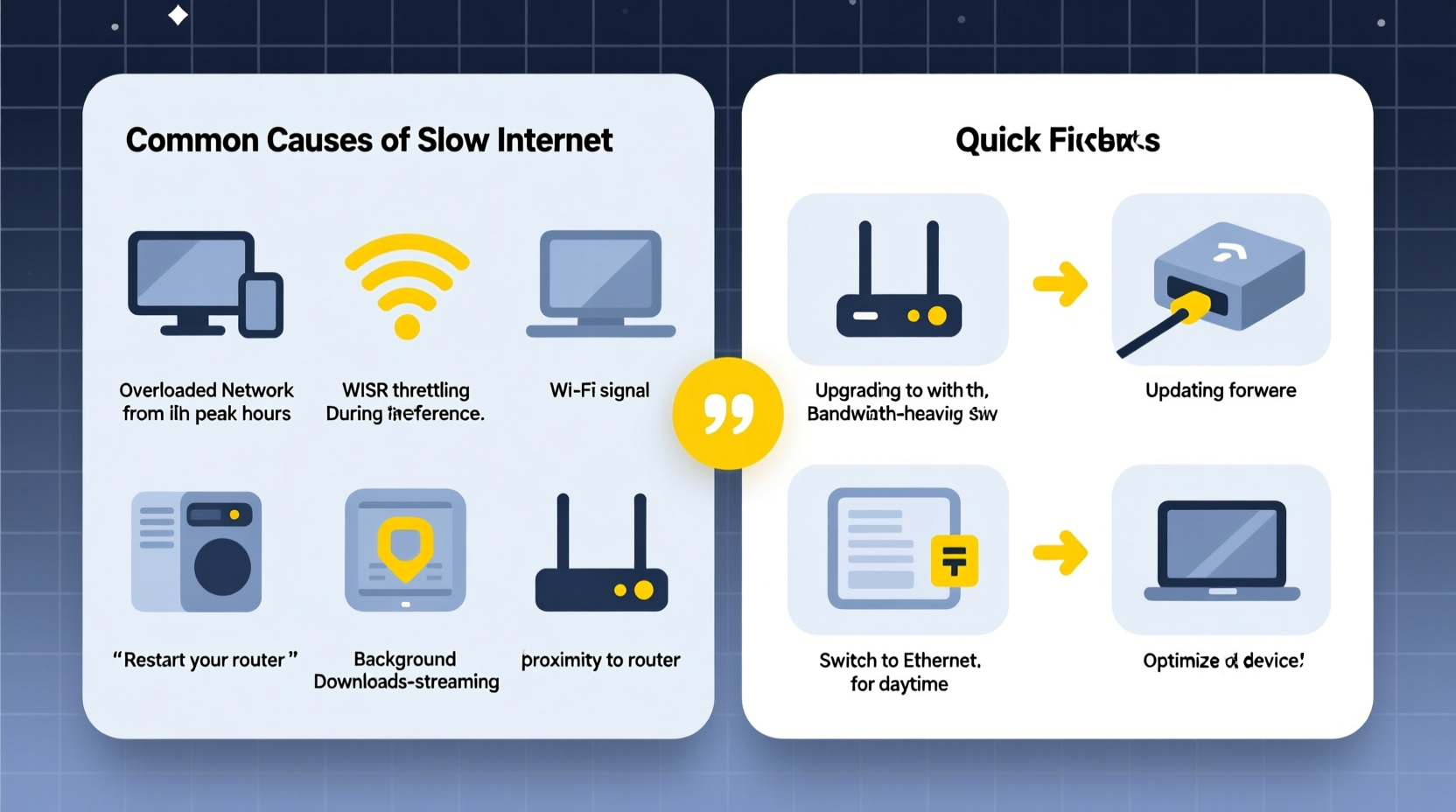
The single biggest reason for slow internet at night is network congestion. When most people return home from work or school, they simultaneously turn on smart TVs, start streaming services, game online, and browse social media. This surge in demand affects both your home network and your Internet Service Provider’s (ISP) infrastructure.
Your neighborhood likely shares a node—a segment of the ISP’s local network. During peak hours (typically 7–10 PM), heavy usage across multiple households can overwhelm this shared bandwidth, leading to slower speeds for everyone connected to it. Think of it like rush-hour traffic: more cars on the road mean slower travel times, even if no accident has occurred.
“Peak-time slowdowns are often due to ‘contention ratio’—the number of users sharing a single data line. In dense urban areas, ratios can exceed 50:1.” — David Lin, Network Engineer at Broadband Insights Group
ISPs typically design their networks assuming not everyone uses full bandwidth simultaneously. But with the rise of 4K streaming, cloud gaming, and multiple connected devices per household, that assumption no longer holds true in many communities.
Wi-Fi Interference and Signal Degradation
Even if your ISP delivers consistent speeds, poor Wi-Fi performance inside your home can make it feel like your internet is broken. At night, more devices come online—phones, tablets, smart speakers, security cameras—which increases wireless interference.
Many homes use the 2.4 GHz Wi-Fi band because it covers larger areas. However, this frequency is also used by microwaves, baby monitors, cordless phones, and neighboring routers. As more devices activate in the evening, signal interference intensifies, reducing throughput and increasing latency.
The 5 GHz band offers faster speeds and less interference but has shorter range and struggles with walls and floors. If your router is far from where you use the internet most (like a bedroom or basement), signal strength drops significantly by nightfall when background devices add noise to the spectrum.
How to Minimize Wi-Fi Interference
- Switch high-bandwidth devices (like smart TVs) to the 5 GHz band.
- Reposition your router to a central, elevated location away from appliances.
- Use a Wi-Fi analyzer app to find the least congested channel and adjust your router settings accordingly.
- Limit the number of active connected devices during peak usage.
In-House Bandwidth Hogs
Sometimes, the bottleneck isn’t outside your home—it’s within it. Multiple users engaging in high-data activities simultaneously can max out your available bandwidth, especially if your plan isn’t designed for heavy concurrent use.
Consider this scenario: one person is streaming Netflix in 4K (using ~15 Mbps), another is playing an online game (~3–6 Mbps), someone else is on a video call (~2 Mbps), and a smart home system runs in the background. That easily exceeds 25 Mbps—more than enough to strain a 50 Mbps plan, particularly if quality fluctuates.
Background processes also contribute silently. Devices may automatically update software, back up photos to the cloud, or sync files overnight. These tasks often begin in the evening without your knowledge, consuming bandwidth you expected to be free.
Mini Case Study: The Johnson Family’s Streaming Struggles
The Johnsons subscribed to a 100 Mbps plan but still experienced constant buffering on their living room TV every night. After investigating, they discovered their son’s gaming console was downloading a 40 GB game update each evening at 8 PM. Meanwhile, their smart home hub was syncing camera footage to the cloud. By rescheduling updates and enabling QoS (Quality of Service) on their router to prioritize streaming traffic, their evening experience improved dramatically—within 24 hours.
Outdated or Overloaded Hardware
Your internet speed is only as strong as your weakest link—and that often means your router. Many households use the router provided by their ISP, which may be years old, underpowered, or poorly configured.
Routers degrade over time. Firmware becomes outdated, internal components heat up, and memory leaks reduce efficiency. A router older than three years likely lacks support for modern standards like MU-MIMO (Multi-User, Multiple Input, Multiple Output) or beamforming, both of which improve performance in multi-device environments.
Additionally, overheating is a common issue. Routers generate heat, especially when handling sustained traffic. If yours is tucked behind a TV stand, buried under books, or enclosed in a cabinet, poor ventilation can cause thermal throttling—slowing performance to prevent damage.
Step-by-Step Guide: Reboot and Refresh Your Router
- Unplug the router and modem from power.
- Wait 60 seconds to fully discharge capacitors and clear cache.
- Plug in the modem first and wait until all lights stabilize (usually 1–2 minutes).
- Plug in the router and wait another 2 minutes.
- Test your speed using a wired connection to eliminate Wi-Fi variables.
- If speeds improve, schedule weekly reboots or consider upgrading hardware.
“A simple reboot resolves up to 60% of reported slowdowns. It clears memory, resets connections, and forces renegotiation with the ISP.” — Tech Support Lead, NetSecure Communications
Internet Plan Limitations and Throttling
Not all internet plans are created equal. Some ISPs implement “throttling”—intentionally slowing speeds after you reach a certain data threshold or during peak times. While less common with unlimited plans, some providers still use fair usage policies that cap performance temporarily.
Additionally, many advertised speeds are “up to” a certain level, meaning actual performance depends on network conditions. A 200 Mbps plan might deliver 180 Mbps midday but drop to 40 Mbps at 8 PM due to infrastructure limits.
To determine if your plan is the bottleneck, check your current package and compare it to your household’s usage patterns. Use tools like Netflix’s Fast.com or Ookla’s Speedtest.net during peak hours to measure real-world performance.
| Activity | Minimum Speed Required | Recommended for Peak Hours |
|---|---|---|
| HD Video Streaming | 5 Mbps | 8–10 Mbps |
| 4K Streaming | 25 Mbps | 35+ Mbps |
| Online Gaming | 3–6 Mbps | 10–15 Mbps (low latency critical) |
| Video Conferencing | 2–4 Mbps | 6 Mbps |
| Multiple Devices (4–6) | 50 Mbps | 100–200 Mbps |
If your plan falls below recommended levels for your usage, upgrading may be the most effective long-term solution.
Quick Fixes Checklist
Before contacting your ISP or buying new equipment, try these proven troubleshooting steps:
- ✅ Reboot your modem and router.
- ✅ Test speed via Ethernet cable to rule out Wi-Fi issues.
- ✅ Identify and pause large downloads or updates running in the background.
- ✅ Switch high-priority devices to the 5 GHz Wi-Fi band.
- ✅ Update your router’s firmware through its admin panel.
- ✅ Enable Quality of Service (QoS) settings to prioritize streaming or gaming.
- ✅ Move your router to a central, open location away from obstructions.
- ✅ Limit the number of active devices during peak usage.
- ✅ Contact your ISP to confirm no outages or throttling policies apply.
- ✅ Consider upgrading your internet plan if household needs have increased.
Frequently Asked Questions
Can my neighbors really slow down my internet?
Yes—especially if you share a network node with them. In cable internet systems, multiple homes connect to the same local distribution point. Heavy usage by nearby households during evenings can reduce available bandwidth for everyone on that segment.
Does turning off Wi-Fi at night help?
Turning off Wi-Fi won’t improve your ISP’s service, but it can help identify issues. If speeds improve when only wired devices are active, the problem likely lies in wireless interference or device overload. Also, periodic shutdowns can refresh your network and reduce router wear.
Is mesh Wi-Fi worth it for evening performance?
Absolutely—if your home is large or has dead zones. Mesh systems eliminate weak spots by distributing multiple access points. They also manage traffic intelligently, reducing congestion and improving reliability during high-usage periods. Modern mesh kits support Wi-Fi 6, offering better efficiency for multiple connected devices.
Conclusion: Take Control of Your Connection
Slow internet at night doesn’t have to be a nightly ritual. By understanding the root causes—network congestion, Wi-Fi interference, device overload, outdated hardware, or insufficient plans—you gain the power to fix it. Most solutions require no special tools or technician visits. Simple actions like rebooting your router, optimizing Wi-Fi bands, or adjusting usage habits can yield dramatic improvements.
Start with the checklist, test changes methodically, and monitor results. If problems persist, consider upgrading your plan or investing in a modern mesh system. Your internet should serve you, not frustrate you—especially when you’re trying to unwind after a long day.




 浙公网安备
33010002000092号
浙公网安备
33010002000092号 浙B2-20120091-4
Comments
No comments yet. Why don't you start the discussion?