
You run a speed test on your device, and the result looks great—100 Mbps download, low ping, solid upload. Yet, your video keeps buffering, Zoom calls freeze, and websites load sluggishly. This contradiction is more common than you think. A high-speed test doesn’t always reflect real-world internet performance. The truth is, many factors beyond raw bandwidth influence how smoothly your online experience feels. Understanding why your internet feels slow—even when numbers suggest otherwise—is key to restoring reliable connectivity.
The Disconnect Between Speed Tests and Real Performance
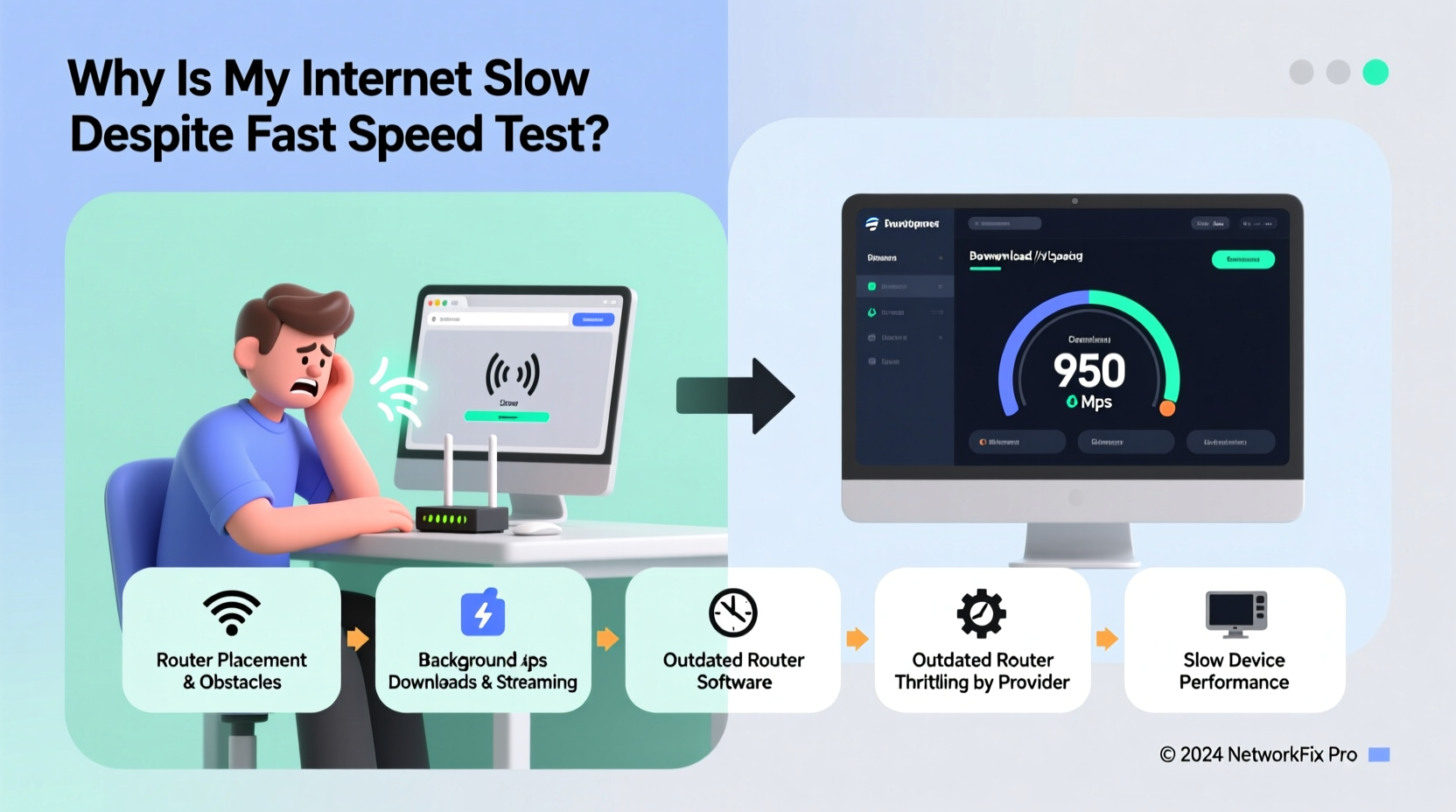
Speed tests measure maximum throughput under ideal conditions: direct connection to the router, no background traffic, and communication with a nearby server. But daily usage is far from ideal. You're streaming on multiple devices, downloading updates in the background, and connecting through walls or across floors. These variables degrade performance even if your ISP delivers the promised speeds.
Latency, jitter, packet loss, network congestion, Wi-Fi interference, and device limitations all play critical roles. For example, a game requiring stable 30 Mbps might stutter despite a 200 Mbps connection if latency spikes due to network congestion. Similarly, a smart TV struggling to buffer 4K content may not be limited by speed but by an outdated Wi-Fi adapter or signal degradation.
“Speed tests are like checking your car’s top speed on an empty highway. Real driving involves traffic, weather, and road conditions.” — David Lin, Network Engineer at OpenSignal Labs
Common Hidden Causes of Slow Internet Despite Fast Speed Tests
1. Wi-Fi Signal Interference and Range Issues
Even with excellent modem performance, Wi-Fi signals weaken over distance and through obstacles like walls, appliances, and metal structures. Devices on the edge of your network range often suffer from unstable connections, leading to retransmissions and lag.
Additionally, neighboring Wi-Fi networks, Bluetooth devices, microwaves, and baby monitors operate on the 2.4 GHz band, causing interference. While your speed test might succeed during off-peak hours, daytime congestion can cripple responsiveness.
2. Network Congestion During Peak Hours
Your internet plan shares bandwidth with neighbors, especially on cable networks. ISPs use a “shared medium” model, meaning peak usage times (typically 7–10 PM) can slow down your connection regardless of advertised speeds. Even if your individual speed test runs fast early in the morning, evening performance may drop significantly.
This phenomenon, known as \"contention ratio,\" explains why your Netflix stream buffers at night despite unchanged hardware or settings.
3. Device Limitations and Background Activity
Older laptops, smartphones, or IoT devices may have outdated Wi-Fi chips that max out at 802.11n or single-stream 802.11ac. These devices cannot take full advantage of modern gigabit connections. Likewise, automatic updates, cloud backups, or malware running in the background consume bandwidth silently.
For instance, a Windows PC updating overnight may saturate your upload capacity, increasing latency for other devices without affecting download speed readings.
4. DNS Latency and Server Routing
Speed tests usually connect to geographically close servers using optimized protocols. However, everyday browsing relies on Domain Name System (DNS) resolution. If your DNS provider is slow or misconfigured, it adds delays before any data transfer begins—even if bandwidth is sufficient.
Similarly, routing inefficiencies between your ISP and destination servers (e.g., international websites or gaming platforms) can increase latency and reduce perceived speed.
5. QoS Settings and Bandwidth Throttling
Some routers prioritize certain types of traffic via Quality of Service (QoS) rules. Misconfigured QoS can deprioritize web browsing or video calls, making them feel sluggish. Additionally, some ISPs throttle specific services like streaming or torrenting after detecting high usage, which won’t appear in standard speed tests unless they mimic those traffic patterns.
Troubleshooting Step-by-Step Guide
To resolve the disconnect between test results and actual performance, follow this structured approach:
- Restart Your Equipment: Power cycle your modem and router. Unplug both for 60 seconds, then reconnect. This clears temporary glitches and resets IP assignments.
- Test via Ethernet: Connect a computer directly to the modem/router with an Ethernet cable. Run a speed test and compare results to Wi-Fi. If wired performance is significantly better, the issue lies in your wireless setup.
- Check for Background Usage: Use Task Manager (Windows), Activity Monitor (Mac), or your router’s admin interface to identify devices consuming bandwidth. Look for software updates, cloud syncs, or unauthorized access.
- Switch DNS Providers: Change your router’s DNS settings to Google DNS (8.8.8.8, 8.8.4.4) or Cloudflare (1.1.1.1). This often improves page load times and reduces timeouts.
- Update Firmware and Drivers: Ensure your router has the latest firmware. Update Wi-Fi drivers on computers and check for OS updates on mobile devices.
- Analyze Network Health: Use tools like
ping,tracert(Windows), ortraceroute(Mac/Linux) to detect packet loss or high latency to key destinations:ping google.com
Look for consistent response times below 50ms and zero packet loss. - Change Wi-Fi Channels: Use a Wi-Fi analyzer app (e.g., Wi-Fi Analyzer for Android or NetSpot for desktop) to find the least congested channel. Switch your router to 5 GHz if possible, or select a clear 2.4 GHz channel (1, 6, or 11).
- Limit Connected Devices: Temporarily disconnect non-essential devices to see if performance improves. Smart speakers, security cameras, and guest phones add cumulative strain.
- Contact Your ISP: Share your findings, especially if wired speeds are also inconsistent. Request a line quality check and inquire about throttling policies.
Do’s and Don’ts When Diagnosing Internet Slowness
| Action | Do | Don't |
|---|---|---|
| Running Speed Tests | Use multiple platforms (Ookla, Fast.com, Google Fiber Test) and test at different times. | Rely on a single test or only one service like Netflix’s built-in speed tool. |
| Router Placement | Place centrally, elevated, away from obstructions and electronics. | Hide it in a cabinet, basement, or behind a TV stand. |
| DNS Configuration | Use trusted public DNS servers like 1.1.1.1 or 8.8.8.8. | Stick with default ISP DNS if experiencing frequent timeouts. |
| Device Management | Regularly audit connected devices and remove unknown ones. | Allow unlimited device access without monitoring usage. |
| ISP Communication | Provide detailed evidence: ping results, traceroutes, and test comparisons. | Say vaguely, “My internet is slow,” without data. |
Real-World Example: The Case of the Buffering Living Room TV
Mark, a remote worker in Chicago, upgraded to a 300 Mbps fiber plan after complaining of slow internet. His speed tests showed 290+ Mbps on his laptop—but his living room smart TV constantly buffered during movie nights.
He followed the steps above: first testing with Ethernet (which worked flawlessly), then checking Wi-Fi signal strength. He discovered the TV was receiving only -78 dBm signal (very weak) due to two concrete walls between it and the router in the bedroom.
Instead of buying a new router, Mark purchased a mesh Wi-Fi extender and placed it halfway between the rooms. Signal improved to -52 dBm, and 4K streaming became seamless. The original speed hadn’t changed—the delivery method had.
This case illustrates that speed isn’t everything; signal quality and network topology matter just as much.
Essential Troubleshooting Checklist
- ✅ Restart modem and router
- ✅ Test internet via Ethernet cable
- ✅ Compare Wi-Fi vs. wired speeds
- ✅ Check for background downloads or updates
- ✅ Scan for malware or unauthorized devices
- ✅ Switch to a faster DNS (e.g., 1.1.1.1)
- ✅ Update router firmware and device drivers
- ✅ Use a Wi-Fi analyzer to pick optimal channel
- ✅ Reduce number of active devices temporarily
- ✅ Contact ISP with diagnostic data if issues persist
Frequently Asked Questions
Why does my phone show full bars but still have slow internet?
Full signal bars indicate strong radio reception, not network performance. Your phone could be connected to a distant tower with high congestion or poor backhaul. Also, cellular networks dynamically allocate bandwidth based on demand. Try switching to Wi-Fi or moving closer to a window to improve signal quality.
Can a virus make my internet feel slow?
Yes. Malware such as crypto miners or botnets can run in the background, consuming CPU, memory, and bandwidth. They may send data to remote servers without your knowledge, reducing available resources. Run a full system scan using reputable antivirus software and monitor network usage in Task Manager or Activity Monitor.
Does my router affect internet speed even if my plan is fast?
Absolutely. An outdated or low-end router may bottleneck your connection. For example, a router supporting only 802.11n caps speeds at around 150 Mbps and struggles with multiple devices. Modern Wi-Fi 6 routers handle higher throughput, lower latency, and better device management. Upgrading your router can dramatically improve real-world performance even without changing your ISP plan.
Conclusion: Take Control of Your Internet Experience
Fast speed test results don’t guarantee smooth browsing, streaming, or gaming. True internet health depends on stability, latency, signal strength, and intelligent network management. By diagnosing beyond the headline numbers, you uncover the root causes of frustration—whether it’s a weak Wi-Fi signal, silent bandwidth hogs, or inefficient routing.
Start applying these strategies today. Reboot your gear, test with wires, optimize your DNS, and inspect what’s running in the background. Small changes often yield dramatic improvements. Don’t accept “good enough” internet when a few targeted fixes can transform your digital life.




 浙公网安备
33010002000092号
浙公网安备
33010002000092号 浙B2-20120091-4
Comments
No comments yet. Why don't you start the discussion?