
You pay for a 300 Mbps fiber-optic plan, but your video calls buffer, downloads crawl, and web pages load like molasses. It’s frustrating—and increasingly common. High-speed internet plans are now standard in many households, yet actual performance often falls far short of advertised speeds. The disconnect isn’t always about your provider or plan tier. More often, it’s a combination of overlooked technical issues, outdated hardware, network congestion, and environmental interference.
This guide breaks down the most frequent causes behind underperforming internet connections and delivers actionable solutions. Whether you're working from home, streaming in 4K, or supporting multiple devices, restoring your true speed starts with understanding what’s really happening behind the router lights.
The Hidden Factors Behind Slow Internet Speeds
Internet service providers (ISPs) advertise \"up to\" certain speeds, which means peak performance under ideal conditions. In reality, your actual throughput depends on numerous variables beyond the plan itself. Many users assume that paying more guarantees faster speeds, but that’s only part of the equation.
Think of your internet plan like a highway: a 500 Mbps plan is a 10-lane expressway. But if there's construction (network congestion), traffic jams (too many connected devices), or potholes (outdated equipment), your car won't reach top speed—even if the road allows it.
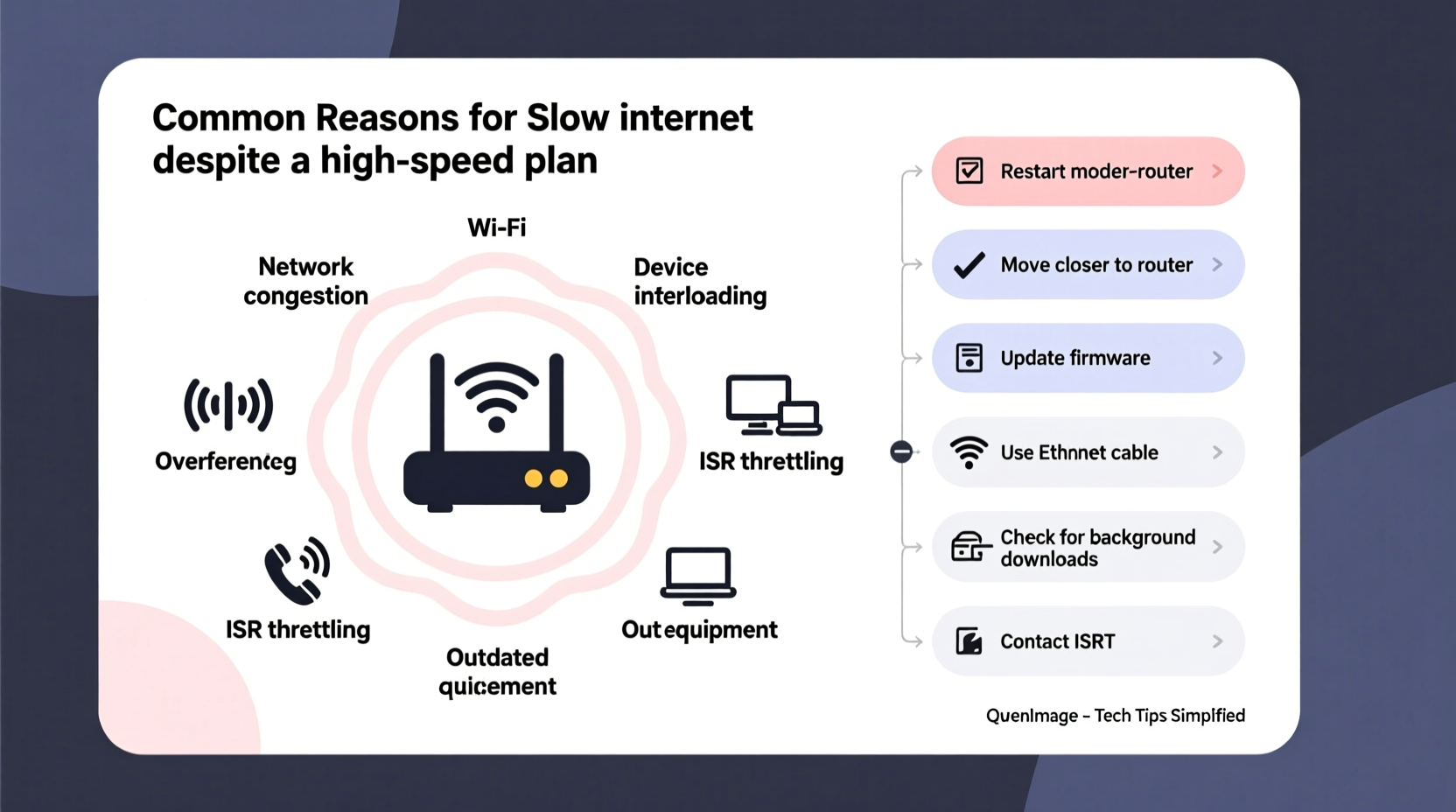
Common culprits include:
- Wi-Fi signal degradation due to distance or walls
- Router placement in suboptimal locations
- Outdated or low-end routers/modems
- Network congestion during peak hours
- Background apps consuming bandwidth
- Malware or unauthorized devices on your network
- ISP throttling or network management practices
Step-by-Step Guide to Diagnose and Fix Your Connection
Before contacting your ISP or upgrading your plan, follow this systematic approach to pinpoint and resolve the issue.
- Test Your Speed Accurately
Use a wired Ethernet connection to test directly from your modem or router. Websites like Speedtest.net or Fast.com provide reliable results. Compare the result to your subscribed plan. If it’s below 80%, there’s a problem. - Restart Your Equipment
Power cycle your modem and router: unplug both for 30 seconds, then plug the modem back in first, wait two minutes, then restart the router. This clears temporary glitches and resets IP assignments. - Check for Background Activity
Ensure no large downloads, cloud backups, or software updates are running silently. On Windows, open Task Manager > Performance > Wi-Fi; on macOS, use Activity Monitor > Network. - Inspect Connected Devices
Log into your router’s admin panel (usually via 192.168.1.1 or 192.168.0.1) and review active devices. Unknown devices could mean unauthorized access. - Update Firmware
Check your router manufacturer’s website for firmware updates. Outdated firmware can cause instability and security vulnerabilities. - Change Wi-Fi Channels
In crowded areas (apartments, dense neighborhoods), neighboring networks can interfere. Use a tool like Wi-Fi Analyzer (Android) or NetSpot (Windows/Mac) to find the least congested channel and switch in your router settings. - Upgrade Hardware if Necessary
If your router is over three years old or doesn’t support modern standards like Wi-Fi 6 (802.11ax), consider replacing it—even with a fast plan, old hardware caps performance.
Do’s and Don’ts of Home Network Optimization
| Do’s | Don’ts |
|---|---|
| Place your router centrally, elevated, and away from metal objects | Hide your router in a cabinet or basement corner |
| Use Ethernet for critical devices (PCs, gaming consoles, smart TVs) | Rely solely on Wi-Fi for high-bandwidth tasks |
| Enable WPA3 encryption to prevent piggybacking | Use default passwords or WEP security |
| Schedule heavy downloads for off-peak hours (late night) | Run automatic updates during work or streaming hours |
| Invest in a mesh network for homes over 2,000 sq ft | Expect one router to cover a large or multi-floor house reliably |
Real-World Example: How Sarah Fixed Her “Fast” But Frustrating Internet
Sarah paid for a 400 Mbps gigabit plan but struggled with Zoom freezing during client meetings. Her initial speed test showed just 78 Mbps. After following diagnostic steps, she discovered several issues:
- Her router was tucked behind a bookshelf in a back bedroom.
- She had an older AC1200 model that didn’t support MU-MIMO or beamforming.
- Her son’s gaming console was downloading a 100GB game update every evening.
- A neighbor had cracked her Wi-Fi password using a weak passphrase.
She moved the router to a central hallway shelf, upgraded to a Wi-Fi 6 mesh system, set up parental controls to limit background downloads, and secured her network with WPA3. A follow-up speed test recorded 387 Mbps—close to her plan’s potential. Video calls became smooth, and streaming resumed without interruption.
“Most speed complaints stem from poor wireless optimization, not the ISP. The last mile matters less than the last ten feet between your device and the router.” — David Lin, Senior Network Engineer at Broadband Insights Group
When Your ISP Might Be the Problem
Even after optimizing your internal setup, you might still face slowdowns. Some ISPs engage in traffic shaping or throttling, especially during peak usage times or when detecting high-bandwidth activities like streaming or torrenting.
To check for throttling:
- Run a speed test normally.
- Connect to a reputable VPN (like Mullvad or NordVPN) and run the test again.
- If speeds improve significantly with the VPN, your ISP may be selectively slowing certain types of traffic.
While legal in many regions under \"reasonable network management,\" throttling without disclosure frustrates users. If confirmed, contact your ISP and ask for clarification. You may also consider switching providers or filing a complaint with regulatory bodies like the FCC (U.S.) or Ofcom (UK).
Essential Checklist: Restore Your Internet Speed in 10 Minutes
For immediate troubleshooting, follow this quick checklist:
- ✅ Reboot modem and router
- ✅ Move closer to the router or eliminate physical obstructions
- ✅ Disconnect unused devices from Wi-Fi
- ✅ Pause ongoing downloads or updates
- ✅ Switch to 5 GHz band if available (less interference than 2.4 GHz)
- ✅ Test speed via Ethernet cable to rule out Wi-Fi issues
- ✅ Check for firmware updates in router settings
- ✅ Change Wi-Fi password to prevent unauthorized access
- ✅ Select a less congested Wi-Fi channel
- ✅ Contact ISP if wired speeds are still below 80% of promised rate
FAQ: Common Questions About Slow Internet Despite Fast Plans
Why is my internet slow on Wi-Fi but fast on Ethernet?
This typically indicates Wi-Fi interference, distance from the router, or device limitations. Older smartphones or laptops may only support slower Wi-Fi standards. Upgrading to a mesh system or using Wi-Fi extenders can help, but Ethernet remains the gold standard for stability and speed.
Can too many devices slow down my internet?
Yes. Each connected device consumes a small amount of bandwidth for background tasks (updates, syncing, ads). While one device won’t crash your network, 20+ active devices—especially those streaming or gaming—can saturate your bandwidth. Prioritize critical devices with Quality of Service (QoS) settings in your router.
Does my internet plan speed matter if my router is old?
No. Your router acts as a bottleneck. A DOCSIS 3.0 modem on a 1 Gbps plan will cap at around 345 Mbps. Similarly, an 802.11n router maxes out at 150–300 Mbps, regardless of your plan. Always ensure your hardware supports your subscription level.
Conclusion: Take Control of Your Connection
Your internet plan is only as good as the weakest link in your network chain. A 1,000 Mbps package means nothing if your router is five years old, buried in a closet, and surrounded by interference. The solution isn’t always spending more—it’s optimizing what you already have.
Start with simple steps: reboot your gear, reposition your router, secure your network, and test with a cable. Then dig deeper—update firmware, analyze congestion, and monitor usage. Most speed issues are fixable at home, saving you time, money, and frustration.




 浙公网安备
33010002000092号
浙公网安备
33010002000092号 浙B2-20120091-4
Comments
No comments yet. Why don't you start the discussion?