
If your internet runs smoothly during the day but grinds to a crawl every evening, you're not imagining things. This pattern is more common than you think—and it’s usually tied to predictable network dynamics. While frustrating, nighttime slowdowns are often fixable with the right diagnosis and adjustments. Understanding why your connection falters after sunset can save time, reduce frustration, and help you reclaim reliable speeds when you need them most—whether for streaming, gaming, or remote work.
Network Congestion: The Prime Culprit
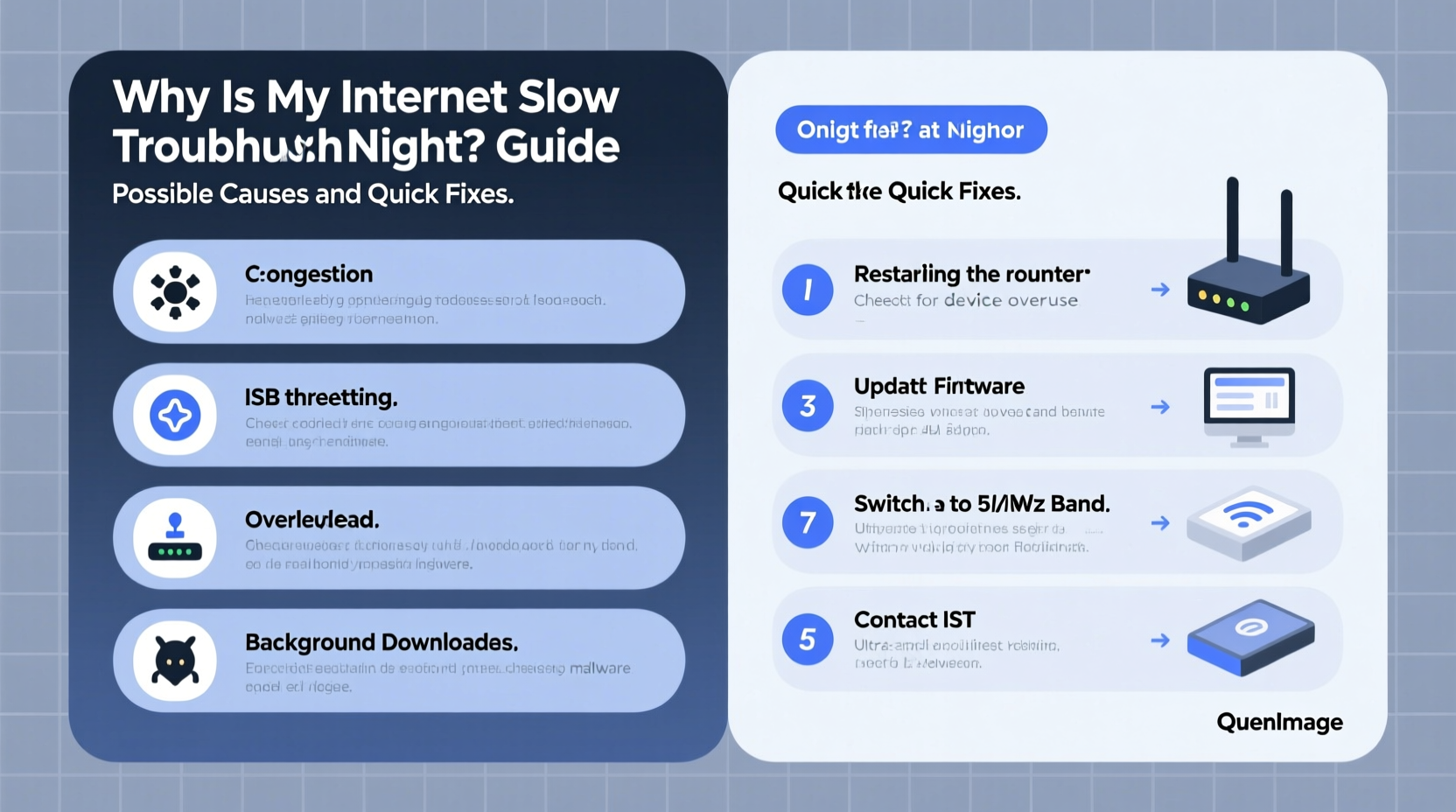
The most frequent reason for slow internet at night is network congestion. As people return home from work and school, they simultaneously begin using bandwidth-heavy services—streaming video on Netflix or YouTube, downloading games, video calling, or browsing social media. This surge in demand affects both your home network and your Internet Service Provider’s (ISP) infrastructure.
Your ISP allocates bandwidth across a shared neighborhood node. During peak hours (typically 7 PM to 11 PM), that node becomes overloaded. Think of it like rush-hour traffic: even if your individual plan allows high speeds, the road itself gets clogged. This phenomenon is known as “peak-time throttling” or “contention ratio overload.”
Urban and suburban areas with dense populations experience this more severely. If your neighbors are also heavy users, the shared upstream capacity may simply be insufficient during peak usage windows.
In-Home Network Issues That Worsen at Night
While external congestion plays a major role, internal network problems often compound the issue once everyone is online at home. Multiple devices connecting simultaneously—phones, tablets, smart TVs, gaming consoles—can overwhelm your router, especially if it's outdated or poorly positioned.
Wi-Fi Interference from Household Devices
Many household electronics emit signals on the 2.4 GHz band, which is already crowded. Cordless phones, baby monitors, microwave ovens, and even LED lights can interfere with Wi-Fi performance. These devices are used more frequently in the evening, increasing interference precisely when you’re trying to stream or browse.
Router Overload and Heat Buildup
Routers generate heat, especially when handling sustained data loads. After hours of continuous use, thermal throttling can reduce performance. A router placed in a closed cabinet or near other electronics may overheat by evening, leading to instability and slower speeds.
“Routers are like any electronic device—they perform best when given room to breathe. Poor ventilation leads to degraded performance over time, particularly during peak usage.” — James Lin, Network Infrastructure Engineer
Common Causes of Nighttime Internet Slowdowns
Below is a breakdown of the most frequent contributors to evening slowdowns, categorized by origin:
| Cause | Description | Impact Level |
|---|---|---|
| ISP Network Congestion | Traffic spikes in your neighborhood node during peak hours | High |
| Multiple Connected Devices | Family members using smartphones, laptops, smart TVs simultaneously | High |
| Wi-Fi Signal Interference | Microwaves, cordless phones, or neighboring networks disrupting signal | Moderate |
| Outdated Router Hardware | Older routers lack modern standards (e.g., Wi-Fi 5/6) and processing power | Moderate to High |
| Background Updates | Devices auto-updating OS, apps, or cloud backups overnight | Moderate |
| Throttling by ISP | Some ISPs reduce speeds during peak times or after data caps | Variable |
Step-by-Step Guide to Diagnose and Fix Nighttime Lag
Follow this structured approach to identify and resolve the root cause of your slow nighttime internet:
- Test Speeds at Different Times: Use a service like Speedtest.net or Fast.com to measure download/upload speeds and ping at noon, 6 PM, and 9 PM. Consistent drops after 7 PM point to congestion.
- Restart Your Router: Power cycle your modem and router before peak hours begin. This clears memory leaks and resets connections.
- Limit Active Devices: Temporarily disconnect unused devices (smart speakers, tablets, etc.) to reduce load.
- Switch Wi-Fi Bands: If your router supports dual-band (2.4 GHz and 5 GHz), connect high-demand devices (laptops, TVs) to the less congested 5 GHz band.
- Check for Background Activity: Inspect each device for automatic updates, cloud syncs, or torrents running in the background.
- Update Router Firmware: Log into your router’s admin panel and check for firmware updates. Outdated software can cause inefficiencies.
- Reposition Your Router: Place it centrally, elevated, and away from metal objects, microwaves, or thick walls.
- Contact Your ISP: Share your speed test results. Ask if your neighborhood experiences congestion and whether upgrading your plan helps.
Real-Life Example: The Martinez Family’s Streaming Struggles
The Martinez family in Austin, Texas, noticed their Netflix streams constantly buffering after dinner. Kids were doing homework online, one parent was on a Zoom call, and another was gaming—all while the smart TV played 4K content. Speed tests showed 120 Mbps at noon but dropped to 18 Mbps at 8 PM.
After testing various fixes, they discovered their five-year-old router couldn’t handle multiple high-bandwidth tasks. They enabled QoS to prioritize the Zoom call and moved the gaming console to a wired Ethernet connection. They also scheduled Windows updates for 2 AM. Combined, these changes improved stability significantly. When they contacted their ISP and upgraded to a fiber plan six months later, the nighttime lag disappeared entirely.
Their case highlights how layered issues—hardware limits, poor configuration, and timing—can converge at night. Solving one factor helped, but addressing several made the real difference.
Quick Fixes You Can Try Tonight
You don’t need to overhaul your entire setup to see improvement. These immediate actions can yield noticeable results:
- Use Ethernet where possible: Connect your main devices (PC, TV, console) via cable to bypass Wi-Fi limitations.
- Turn off auto-play features: Disable autoplay on YouTube and Netflix to prevent unwanted video loading.
- Enable Airplane mode on idle phones: Prevents background syncing and reduces network noise.
- Reboot your modem before prime time: Do this at 6 PM to refresh your connection before peak usage.
- Change your DNS: Switch to Google DNS (8.8.8.8) or Cloudflare (1.1.1.1) for faster domain resolution.
When to Consider Upgrading Equipment or Plans
If basic troubleshooting fails, consider longer-term upgrades:
Upgrade Your Router
If your router is more than three years old, it likely doesn’t support modern Wi-Fi 6 (802.11ax) standards, which offer better efficiency under load. Wi-Fi 6 routers handle multiple devices more effectively and reduce latency during congestion.
Switch to Mesh Wi-Fi
For larger homes, mesh systems (like Eero, Netgear Orbi, or TP-Link Deco) eliminate dead zones and balance traffic across nodes. They automatically steer devices to the best signal, reducing strain on a single access point.
Evaluate Your Internet Plan
If you’re on a lower-tier plan (e.g., 50–100 Mbps) and have four or more active users, upgrade to 200 Mbps or higher. Fiber plans (e.g., 300 Mbps+) are ideal because they offer symmetrical speeds and are less prone to congestion than cable.
Checklist: Restore Nighttime Internet Speed
Follow this checklist to systematically improve your evening internet performance:
- ✅ Run speed tests at different times to confirm the issue
- ✅ Restart your modem and router daily before 7 PM
- ✅ Disconnect unused devices from Wi-Fi
- ✅ Connect high-priority devices via Ethernet
- ✅ Switch streaming devices to 5 GHz Wi-Fi band
- ✅ Enable QoS settings to prioritize key activities
- ✅ Schedule updates and backups for off-peak hours
- ✅ Update router firmware monthly
- ✅ Contact ISP with speed test data to discuss options
- ✅ Consider upgrading to Wi-Fi 6 or a mesh system if needed
Frequently Asked Questions
Why does my internet slow down only between 7 PM and 11 PM?
This window aligns with peak household internet usage. Most people come home, turn on smart devices, stream content, and game online. Combined with neighborhood-level network congestion, this creates a perfect storm for slowdowns.
Can my ISP legally slow down my internet at night?
Yes, within limits. While net neutrality rules restrict outright blocking, many ISPs use \"reasonable network management\" to throttle heavy users during congestion. Some plans include \"data deprioritization\" after a certain threshold, which kicks in during busy periods. Review your service agreement for details.
Does turning off Wi-Fi at night help maintain speed?
Not directly, but rebooting your router nightly can prevent memory buildup and overheating. Turning Wi-Fi off isn’t necessary unless you're concerned about security or radiation exposure. Instead, schedule a daily restart via your router’s settings.
Final Thoughts and Action Steps
Nighttime internet slowdowns aren't inevitable. While some factors—like neighborhood congestion—are beyond your control, many solutions are within reach. Start with simple steps: restart your router, limit connected devices, and switch to the 5 GHz band. Track your speeds, identify patterns, and use that data to make informed decisions.
If problems persist, invest in better hardware or a faster plan. The cost of an upgraded router or higher-speed tier often pays for itself in reduced frustration and increased productivity. Remember, your internet should serve your lifestyle—not disrupt it.




 浙公网安备
33010002000092号
浙公网安备
33010002000092号 浙B2-20120091-4
Comments
No comments yet. Why don't you start the discussion?