
If your internet runs smoothly during the day but grinds to a crawl every evening, you're not alone. Millions of households experience this frustrating phenomenon: fast speeds in daylight hours give way to buffering videos, frozen Zoom calls, and laggy gaming by 7 PM. The good news? Nighttime slowdowns are often predictable — and fixable. Understanding the root causes allows you to take practical steps that restore performance without upgrading your plan or buying new equipment.
This issue typically stems from network congestion, device overload, or signal interference that intensifies when everyone comes home and starts streaming, gaming, and video calling. But with targeted adjustments, you can reclaim your bandwidth and enjoy consistent performance regardless of the clock.
Understanding Why Internet Slows Down at Night
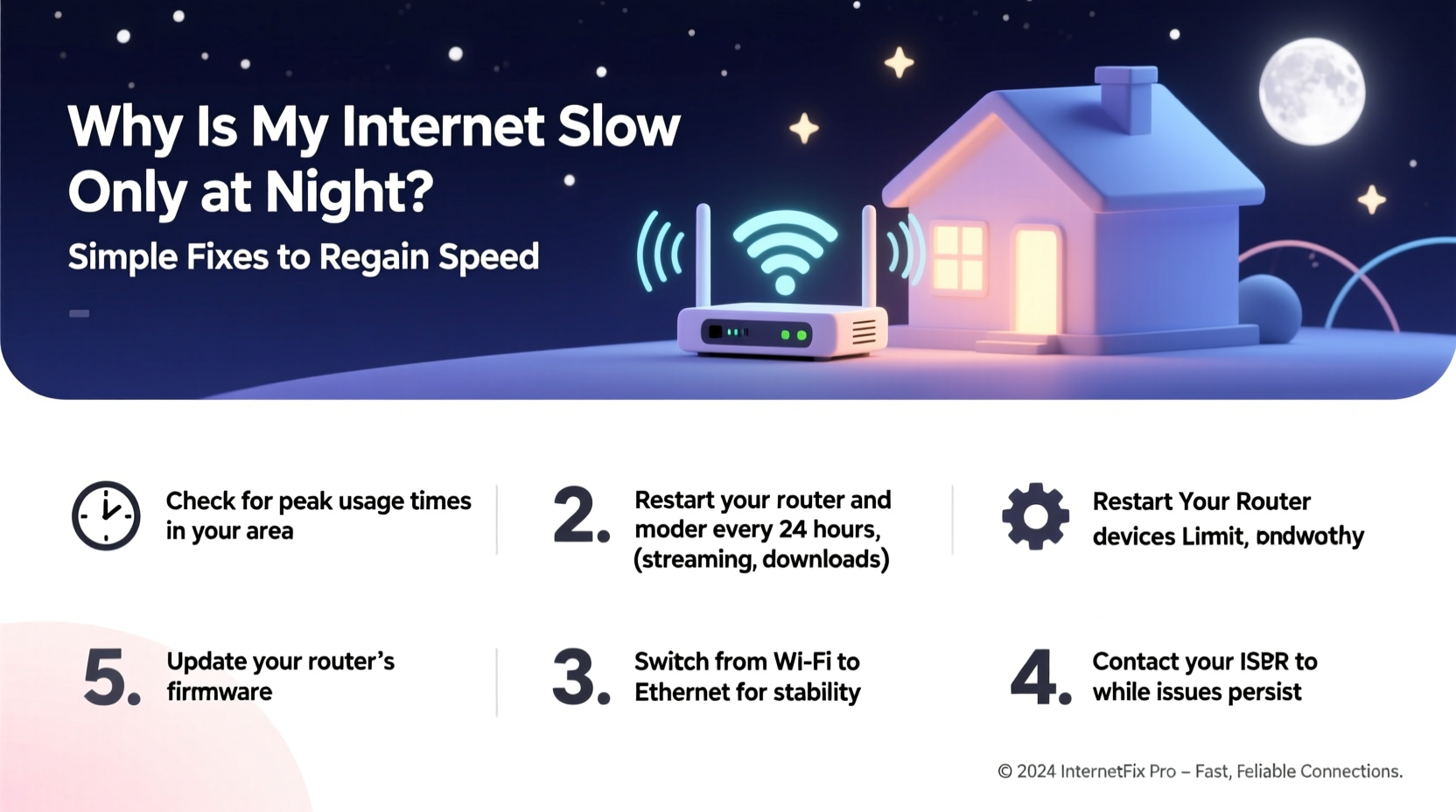
The most common reason for nighttime slowdowns is peak usage. Between 6 PM and 10 PM, residential internet traffic spikes dramatically. This period, known as the \"primetime bandwidth rush,\" affects both your home network and your internet service provider’s (ISP) infrastructure.
On a local level, multiple household members may be using bandwidth-heavy services simultaneously — Netflix on the TV, a teenager gaming online, someone working remotely, and smart devices constantly syncing. Your router has limited processing power and bandwidth capacity, so it struggles to keep up.
Externally, your ISP serves thousands of customers in your area. During peak hours, their shared network segments become congested, especially if they use a cable internet model where bandwidth is pooled among neighborhood nodes. As more users log on, available speed per user drops.
“Peak-time congestion is one of the top reasons for perceived speed loss at night. It's not always your equipment — sometimes, it's simply too many people using the same pipe.” — David Lin, Network Engineer at MetroNet Systems
Common Causes of Nighttime Internet Slowdowns
- Network Congestion: Too many users online locally or on your ISP’s network.
- Wi-Fi Interference: Neighboring networks on the same channel disrupt your signal.
- Overloaded Router: Older or low-end routers can’t handle multiple high-demand devices.
- Background Device Activity: Phones, tablets, and smart TVs updating apps or syncing data overnight.
- Bandwidth-Hogging Applications: Streaming, cloud backups, or peer-to-peer downloads consuming resources.
- Outdated Equipment: Modems or routers past their prime struggle with modern traffic loads.
Step-by-Step Guide to Diagnose and Fix Nighttime Speed Loss
Before making changes, confirm the problem isn’t isolated to a single device or app. Follow this diagnostic sequence to pinpoint the source of slowdowns.
- Test Speed Across Devices: Use different phones, laptops, and tablets to run speed tests via sites like Fast.com or Speedtest.net. If all show similar drops, the issue is network-wide.
- Connect via Ethernet: Plug a computer directly into your router with an Ethernet cable. If wired speeds remain stable while Wi-Fi lags, your wireless signal is the weak link.
- Reboot Your Equipment: Power cycle your modem and router. Unplug them for 30 seconds, then restart. This clears temporary glitches and resets connections.
- Check for Active Downloads: Look for automatic updates on Windows, macOS, game consoles, or cloud backup tools running in the background.
- Monitor Connected Devices: Log into your router’s admin panel (usually via 192.168.1.1 or 192.168.0.1) and review how many devices are connected. Disconnect unknown or idle ones.
- Change Wi-Fi Channel: Use a Wi-Fi analyzer app to see which channels nearby networks use. Switch your router to a less crowded one (e.g., from Channel 6 to Channel 1 or 11 on 2.4 GHz).
Upgrade Firmware and Settings
Manufacturers release firmware updates to improve stability, security, and performance. Outdated firmware can cause throttling or poor handling of multiple connections.
To update:
- Access your router’s admin interface.
- Navigate to “Administration” or “Firmware Update.”
- Check for available updates and install them.
Optimize Your Home Network for Peak Hours
Even with a solid connection, inefficient setup can lead to poor performance. Optimizing your network layout and settings ensures better throughput during high-demand periods.
Position Your Router Strategically
Place your router in a central location, elevated off the floor, and away from large metal objects, microwaves, and cordless phones. These interfere with Wi-Fi signals, especially on the crowded 2.4 GHz band.
Use Dual-Band Smartly
Most modern routers support both 2.4 GHz and 5 GHz bands:
- 2.4 GHz: Longer range but slower and more prone to interference.
- 5 GHz: Faster speeds, less interference, but shorter range.
Assign devices based on need:
- Use 5 GHz for streaming boxes, gaming consoles, and laptops near the router.
- Reserve 2.4 GHz for smart home gadgets (thermostats, lights) farther from the router.
Enable Quality of Service (QoS)
QoS lets you prioritize certain devices or activities over others. For example, you can give your work laptop higher priority than a tablet downloading updates.
In your router settings:
- Find the QoS section (sometimes under “Traffic Control” or “Bandwidth Management”).
- Select the device or application you want to prioritize (e.g., Zoom, Netflix, a specific IP address).
- Set its priority level to “High.”
| Device Type | Recommended Priority | Reason |
|---|---|---|
| Video Conferencing Laptop | High | Latency-sensitive; interruptions affect productivity |
| Gaming Console | High | Low ping is critical for real-time play |
| Smart Thermostat | Low | Minimal bandwidth needs; infrequent data sync |
| Phone (Background Sync) | Low | Non-urgent updates can wait |
Real Example: How One Family Fixed Their Evening Lag
The Thompson family in suburban Denver struggled nightly with buffering YouTube videos and dropped video calls. Their kids’ online homework would stall just as deadlines approached. A 200 Mbps plan should have been sufficient, but speeds tested below 30 Mbps after dinner.
After investigating, they discovered three issues:
- Their five-year-old router couldn’t handle more than four simultaneous HD streams.
- All devices were clustered on the 2.4 GHz band, causing interference.
- A smart home hub was running nightly backups at 8 PM, consuming 60% of upload bandwidth.
Solutions applied:
- Upgraded to a Wi-Fi 6 router with improved MU-MIMO (multi-user) performance.
- Moved streaming devices to the 5 GHz network.
- Rescheduled the backup to 2 AM via the hub’s app settings.
Result: Nighttime speeds stabilized above 150 Mbps. No further complaints about lag — and homework got done on time.
Checklist: 7 Actions to Regain Nighttime Internet Speed
Follow this concise checklist to quickly address common causes of slowdowns:
- ✅ Reboot modem and router daily or on a schedule.
- ✅ Run speed tests at different times to confirm pattern.
- ✅ Disconnect unused or unknown devices from your network.
- ✅ Switch to less congested Wi-Fi channels using a scanner tool.
- ✅ Enable QoS and prioritize critical devices.
- ✅ Schedule large updates and backups for off-peak hours (e.g., overnight).
- ✅ Consider upgrading to a mesh Wi-Fi system if coverage is spotty.
Frequently Asked Questions
Can my neighbors really slow down my internet?
Yes, indirectly. On cable internet, your neighborhood shares a node with your ISP. If many neighbors stream or download heavily at night, overall capacity shrinks. Additionally, overlapping Wi-Fi networks on the same channel cause signal interference, degrading your local performance.
Should I switch to fiber if my internet slows at night?
If available, fiber is an excellent solution. Unlike cable, fiber doesn’t share bandwidth with neighbors and is immune to electromagnetic interference. It offers symmetrical speeds and consistent performance regardless of time of day. While often more expensive, the reliability makes it worth considering for heavy evening users.
Does turning off Wi-Fi at night help?
Turning off Wi-Fi stops background activity and gives your router a rest, but it disables smart home devices, security cameras, and phone notifications. A better approach is scheduling automatic reboots or limiting bandwidth hogs instead of cutting access entirely.
Final Steps: When to Contact Your ISP
If you’ve optimized your network and still face severe slowdowns, contact your ISP. Ask:
- Is there known congestion in my area during peak hours?
- Can I upgrade to a higher-tier plan or switch to a less crowded network segment?
- Is my modem compatible with current DOCSIS standards? (DOCSIS 3.1 is ideal for cable users.)
Some ISPs offer free modem upgrades or can adjust your service node to reduce neighborhood load. Don’t hesitate to request a network technician visit if problems persist — it’s part of your service agreement.
Conclusion: Take Control of Your Connection
Nighttime internet slowdowns aren’t inevitable. With a few strategic tweaks — from managing device loads to optimizing router settings — you can maintain strong, reliable speeds when you need them most. The key is understanding that the problem is often systemic, not technical, and solvable without major expense.
Start tonight: run a speed test, reboot your router, and check what’s running in the background. Small actions compound into big improvements. Your streaming, gaming, and remote work sessions don’t have to suffer just because it’s dark outside.




 浙公网安备
33010002000092号
浙公网安备
33010002000092号 浙B2-20120091-4
Comments
No comments yet. Why don't you start the discussion?