
If your internet works fine during the day but crawls every evening, you're not imagining things—and you're far from alone. Millions of households experience degraded performance after sunset, often without understanding why. The root causes are typically tied to network congestion, device interference, or infrastructure limitations that become more pronounced when usage peaks. Understanding these triggers is the first step toward reclaiming fast, reliable connectivity—no matter the time of day.
Understanding Peak-Time Network Congestion
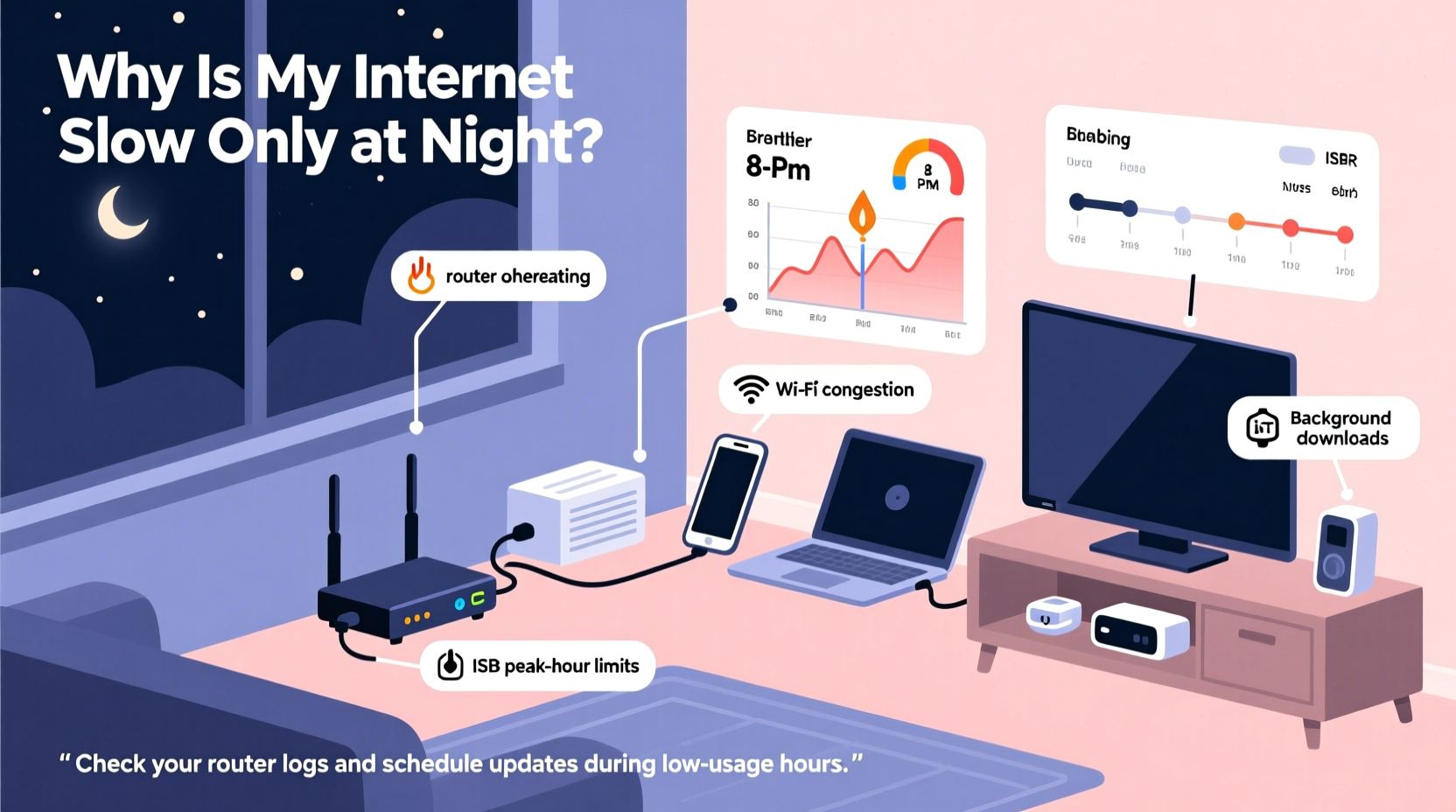
The most common reason for nightly slowdowns is network congestion. Between 6 PM and 10 PM, most people return home, fire up their devices, and begin streaming, gaming, video calling, or downloading large files. This surge in demand affects both your internal home network and your Internet Service Provider’s (ISP) local infrastructure.
Think of bandwidth like a highway: during off-peak hours, traffic flows smoothly. But during rush hour, too many vehicles (data packets) try to use the same lanes (bandwidth), leading to bottlenecks and delays. In urban or densely populated areas, this effect is amplified because multiple homes share the same neighborhood node or cable line.
“Peak-hour slowdowns are less about individual household behavior and more about shared network capacity. It's not just your Wi-Fi—it's the entire last-mile delivery system under strain.” — Dr. Alan Reyes, Network Infrastructure Analyst at Broadband Insights Group
ISPs often oversubscribe their networks, meaning they sell more bandwidth than physically available, banking on the fact that not all users will max out their connections simultaneously. When everyone does—especially during prime time—that assumption breaks down.
Common Causes of Nightly Internet Slowdowns
While ISP-level congestion plays a major role, several factors within your control can compound the issue. Identifying which ones apply to your setup is essential for effective troubleshooting.
1. Overloaded Home Network
As family members return home, the number of connected devices spikes. Smart TVs, phones, tablets, laptops, gaming consoles, and smart home gadgets all compete for bandwidth. If your router isn’t equipped to handle multiple simultaneous high-demand tasks, performance degrades quickly.
2. Outdated or Underpowered Router
Routers have lifespans and technological limits. A model from five or more years ago may support only older Wi-Fi standards (like 802.11n), lack Quality of Service (QoS) features, or struggle with modern data loads. Even if your plan delivers 300 Mbps, an outdated router might bottleneck speeds to 50–75 Mbps.
3. Interference from Nearby Devices
Nighttime brings increased use of microwaves, cordless phones, baby monitors, and Bluetooth devices—all operating in the 2.4 GHz frequency band used by many Wi-Fi routers. Physical obstructions like walls and appliances also interfere more when multiple signals overlap.
4. Background Updates and Cloud Syncing
Many devices automatically check for updates or sync data overnight. Windows PCs, macOS systems, smartphones, and cloud backup services often schedule these tasks for evenings or late-night windows, consuming bandwidth without user awareness.
5. Neighboring Networks on Same Channel
In apartment buildings or dense neighborhoods, dozens of Wi-Fi networks may operate on the same default channel (often Channel 6 on 2.4 GHz). This creates co-channel interference, reducing efficiency. Tools like Wi-Fi analyzers can reveal how crowded your wireless environment is.
Troubleshooting Steps to Diagnose and Fix Nightly Lag
Follow this structured approach to isolate and resolve the source of your slowdowns.
- Test speed consistently: Use a trusted tool like Speedtest.net or Fast.com at different times of day. Record results over three to five days to identify patterns.
- Reboot your router and modem: Power cycle both devices weekly. Unplug for 30 seconds before restarting to clear memory and refresh connections.
- Check connected devices: Log into your router’s admin interface (usually via 192.168.1.1 or similar) and review active devices. Disconnect unknown or idle ones.
- Switch Wi-Fi bands: If your router supports dual-band (2.4 GHz and 5 GHz), move high-performance devices (laptops, streaming boxes) to the less congested 5 GHz band.
- Update firmware: Check your router manufacturer’s website for firmware updates that improve stability and security.
- Change Wi-Fi channel: Manually set your 2.4 GHz network to Channel 1 or 11 (least likely to overlap) using your router settings.
- Enable QoS (Quality of Service): Prioritize traffic for critical applications like video calls or gaming over background tasks.
- Inspect for interference: Relocate your router away from microwaves, refrigerators, and metal objects. Elevate it centrally in your home.
| Issue | Symptom | Solution |
|---|---|---|
| ISP Congestion | Slow speeds across all devices, even wired ones | Contact ISP; consider upgrading plan or switching providers |
| Router Overload | Lag spikes when multiple devices are active | Upgrade to Wi-Fi 6 router with MU-MIMO support |
| Wi-Fi Interference | Poor signal despite proximity to router | Switch channels or use 5 GHz band |
| Background Updates | High upload/download usage when idle | Schedule updates manually or disable auto-sync |
| Outdated Equipment | Consistently low speeds regardless of time | Replace modem/router combo if older than 3–5 years |
Real-World Example: The Martinez Family’s Evening Streaming Struggles
The Martinez family in suburban Austin upgraded to a 200 Mbps fiber plan but still experienced buffering on Netflix every night between 7 and 9 PM. Their two kids streamed YouTube on tablets while one parent worked from home and the other played online games. Despite having a relatively new router, performance dropped sharply after dinner.
After running diagnostics, they discovered their router was broadcasting only on 2.4 GHz and had no QoS enabled. They also found five unrecognized devices connected—likely neighbors piggybacking on a weak password. By changing their Wi-Fi password, enabling WPA3 encryption, switching streaming devices to the 5 GHz band, and prioritizing video traffic via QoS settings, their evening speeds improved by over 60%. They later upgraded to a mesh Wi-Fi 6 system, eliminating dead zones and stabilizing performance.
This case illustrates how layered issues—security, configuration, and hardware—can combine to create frustrating slowdowns, even with good service on paper.
Actionable Checklist: Fix Your Nighttime Internet Issues
- ✅ Run speed tests at 2 PM and 8 PM for three consecutive days
- ✅ Reboot modem and router tonight
- ✅ Log into router settings and list all connected devices
- ✅ Change Wi-Fi password and enable WPA3 encryption
- ✅ Switch high-bandwidth devices to 5 GHz network
- ✅ Update router firmware from manufacturer’s website
- ✅ Enable QoS and prioritize streaming or work-related apps
- ✅ Move router to central, elevated location away from appliances
- ✅ Contact ISP to confirm line quality and inquire about network upgrades
- ✅ Consider upgrading to Wi-Fi 6 or mesh system if problems persist
Frequently Asked Questions
Why is my internet slow only at night but fast during the day?
This pattern strongly suggests network congestion—either from heavy usage within your home or from your ISP’s infrastructure being overloaded during peak hours. It could also be due to automatic device updates or interference from neighboring networks that increase in the evening.
Can too many devices really slow down my internet?
Yes. While your total bandwidth determines maximum speed, each active device consumes part of that pool. Simultaneous 4K streaming, gaming, and video calls can exhaust available bandwidth, especially on older routers that struggle with device management and data routing.
Should I upgrade my internet plan if my speed drops at night?
Not necessarily. First, optimize your current setup: update equipment, reduce interference, and manage device load. If you’ve ruled out internal issues and still see poor speeds on wired connections during peak times, then contacting your ISP about a higher-tier plan or alternative technology (like fiber) makes sense.
Final Thoughts and Next Steps
Nightly internet slowdowns aren’t inevitable—they’re diagnosable and often fixable. Start by gathering data through consistent speed testing, then methodically eliminate potential causes. Many solutions cost nothing beyond a few minutes of your time, such as rebooting equipment or adjusting settings. Others, like upgrading hardware or plans, represent small investments for significant long-term gains in reliability and performance.
Remember: your internet experience depends on both external factors (ISP capacity, neighborhood density) and internal ones (router quality, device habits). You can’t control the former entirely, but you can optimize the latter to minimize disruption.




 浙公网安备
33010002000092号
浙公网安备
33010002000092号 浙B2-20120091-4
Comments
No comments yet. Why don't you start the discussion?