
It’s a frustrating scenario many people face: your laptop streams videos without buffering, downloads files in seconds, and loads web pages instantly—yet your phone crawls when loading the same content. Despite being on the same Wi-Fi network, performance varies drastically between devices. This discrepancy isn’t random; it usually points to device-specific or configuration-related issues rather than problems with your internet service provider.
The good news is that most causes behind slow mobile internet speeds are fixable with targeted troubleshooting. Whether it's outdated software, background apps consuming bandwidth, or incorrect network settings, identifying the root cause can restore your phone’s online performance. In this guide, we’ll walk through the most common reasons for this issue and provide actionable solutions to get your phone back up to speed.
Understanding the Discrepancy: Why Your Phone Lags Behind
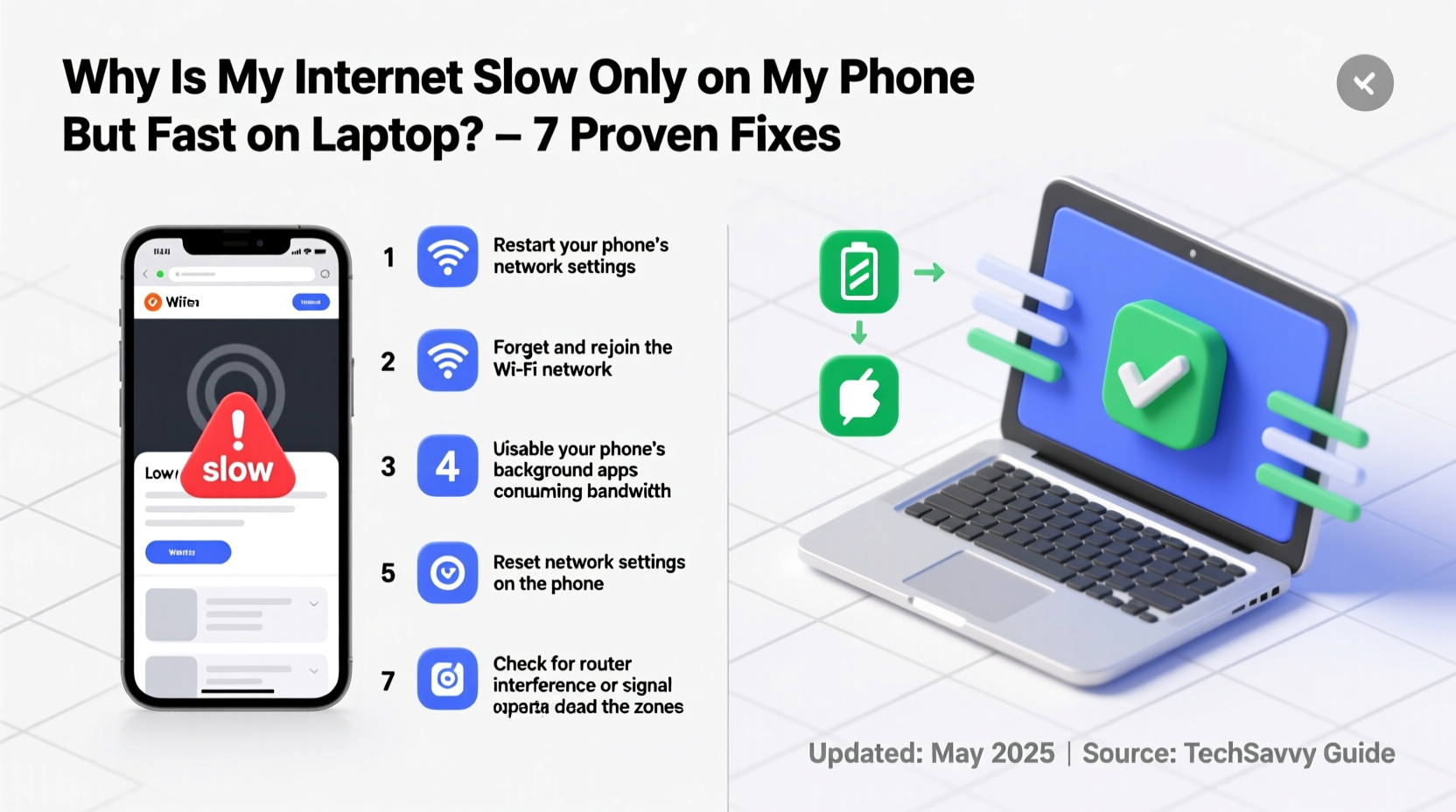
When one device performs well while another struggles on the same network, the problem lies not with the internet connection itself, but how each device interacts with it. Routers distribute bandwidth dynamically, but they don’t guarantee equal performance across all connected gadgets. Differences in hardware capabilities, wireless standards, software efficiency, and even physical positioning affect real-world speeds.
Smartphones often use older Wi-Fi chipsets compared to modern laptops. Many budget or mid-range phones support only 2.4 GHz bands, which are slower and more congested than the 5 GHz band used by most laptops. Additionally, phones run numerous background processes—social media syncs, location tracking, app updates—that consume data silently, reducing available bandwidth for active tasks.
“Wi-Fi performance isn’t just about signal strength—it’s also about how efficiently a device manages connections, handles interference, and prioritizes traffic.” — Dr. Alan Reyes, Network Systems Engineer at NetMetrics Lab
Another overlooked factor is antenna design. Phones have smaller internal antennas than laptops, making them more susceptible to signal degradation from walls, furniture, or even how you’re holding the device. If your hand covers part of the phone near the antenna (often along the edges or bottom), it can significantly reduce reception.
Step-by-Step Troubleshooting Guide
Before assuming your phone is faulty or blaming your ISP, follow this structured approach to isolate and fix the issue:
- Verify both devices are on the same network – Ensure your phone and laptop are connected to the same Wi-Fi SSID. Some routers broadcast dual bands (2.4 GHz and 5 GHz) under different names. If your laptop uses 5 GHz and your phone sticks to 2.4 GHz, speed differences are expected.
- Run a side-by-side speed test – Use the same tool (e.g., Speedtest.net or Fast.com) on both devices simultaneously. Note download, upload, and ping results. A difference of more than 30% warrants investigation.
- Reboot both devices and the router – Sometimes temporary glitches cause inconsistent behavior. Power cycle your phone, laptop, and router. Wait 60 seconds after turning off the router before restarting it.
- Forget and rejoin the Wi-Fi network on your phone – Go to Settings > Wi-Fi, tap the network name, and select “Forget.” Then reconnect by entering the password again. This clears corrupted network profiles.
- Check for software updates – Outdated operating systems may contain bugs affecting Wi-Fi drivers. Update your phone’s OS via Settings > System > Software Update.
- Disable battery-saving modes temporarily – These modes often throttle CPU and network activity to conserve power, leading to slower browsing and streaming.
- Test with mobile data – Turn off Wi-Fi and switch to cellular data. If your phone still feels slow, the issue might be carrier-related or due to poor signal strength.
Common Causes and Targeted Fixes
Below are the most frequent culprits behind slow phone internet speeds—and how to resolve them effectively.
1. Poor Wi-Fi Band Selection
Many phones default to the 2.4 GHz band because it has better wall penetration, but it maxes out at around 150 Mbps and suffers from interference (microwaves, Bluetooth devices, neighboring networks). Meanwhile, the 5 GHz band offers faster speeds (up to 867 Mbps or higher) and less congestion—but shorter range.
If your phone supports 5 GHz Wi-Fi (most models from 2018 onward do), ensure it's connecting to that band. You can force this by separating your router’s dual-band networks into distinct SSIDs (e.g., \"Home-WiFi-2G\" and \"Home-WiFi-5G\") so you can manually choose the faster option.
2. Background App Data Consumption
Apps like Facebook, Instagram, email clients, cloud backups, and messaging platforms constantly sync in the background. While useful, these processes eat up bandwidth without your knowledge.
To control this:
- On Android: Settings > Network & Internet > Data Usage > Mobile & Wi-Fi > Tap individual apps to restrict background data.
- On iPhone: Settings > Cellular > Scroll down to see per-app usage and disable cellular/Wi-Fi data for non-essential apps.
3. DNS Configuration Issues
Your phone may be using a slow or unreliable Domain Name System (DNS) server to translate website addresses. Switching to a public DNS like Google (8.8.8.8 / 8.8.4.4) or Cloudflare (1.1.1.1) can improve response times.
How to change DNS:
- Android: Long-press Wi-Fi network > Modify Network > Advanced > IP Settings > Static > Enter DNS manually.
- iOS: Settings > Wi-Fi > Tap ⓘ next to network > Configure DNS > Manual > Add server (e.g., 1.1.1.1).
4. Signal Interference and Physical Obstacles
Even if your phone shows full bars, environmental factors like thick walls, metal objects, mirrors, or electronic appliances can degrade actual throughput. Try moving closer to the router. If performance improves dramatically, consider relocating the router to a central, elevated position away from obstructions.
5. Router-Level Device Prioritization
Some routers allow Quality of Service (QoS) settings that prioritize certain devices. If your laptop is set as high-priority, it could be starving your phone of bandwidth. Log into your router admin panel (usually via 192.168.1.1 or 192.168.0.1) and check QoS settings. Disable or rebalance priorities if needed.
Tips Box: Quick Wins for Faster Mobile Internet
Checklist: Fix Slow Phone Internet in Under 15 Minutes
Use this checklist whenever you notice sluggish performance:
- ✅ Reboot your phone and router
- ✅ Confirm both devices are on the same Wi-Fi network
- ✅ Run a speed test on both devices
- ✅ Forget and rejoin the Wi-Fi network on your phone
- ✅ Turn off battery saver mode
- ✅ Close unnecessary background apps
- ✅ Check for OS and app updates
- ✅ Move closer to the router to rule out signal issues
- ✅ Restart the router if no improvement
- ✅ Consider switching DNS servers if problems persist
Real Example: Sarah’s Streaming Struggles
Sarah noticed her Netflix shows buffered endlessly on her iPhone, while her husband’s MacBook played the same titles in HD without interruption. Both were sitting in the same living room, connected to their home Wi-Fi. After ruling out account issues, she ran a speed test: her laptop achieved 120 Mbps down, but her phone barely reached 18 Mbps.
She followed the troubleshooting steps above. First, she discovered her router was broadcasting a combined SSID for both 2.4 GHz and 5 GHz bands. Her iPhone kept connecting to the slower band. She logged into her router settings, split the networks into separate SSIDs, and manually connected her phone to the 5 GHz version. Speed jumped to 95 Mbps. Next, she reviewed background app refresh settings and disabled auto-sync for several social media apps. The result? Smooth 4K streaming and instant page loads.
This case illustrates how simple configuration changes—not expensive upgrades—can solve major performance gaps.
Do’s and Don’ts: Managing Mobile Wi-Fi Performance
| Do | Don’t |
|---|---|
| Do keep your phone’s OS updated for optimal Wi-Fi driver performance. | Don’t ignore firmware updates for your router—they often include stability and speed improvements. |
| Do place your router centrally and elevate it off the floor. | Don’t tuck your router inside cabinets or behind TVs where signals get blocked. |
| Do monitor app data usage monthly to catch bandwidth hogs. | Don’t assume “full bars” mean strong performance—signal strength ≠ speed. |
| Do use a guest network for IoT devices to free up main bandwidth. | Don’t overload your network with too many simultaneous connections. |
Frequently Asked Questions
Can a virus or malware slow down my phone’s internet?
Yes. Malicious apps or adware can run hidden processes that consume data and degrade performance. Install reputable security software (like Bitdefender or Norton) and scan your device. Also review recently installed apps—if one seems suspicious, uninstall it immediately.
Why does my phone connect slowly even after resetting everything?
Persistent connection delays may indicate hardware issues such as a failing Wi-Fi antenna or damaged internal components. If none of the software fixes work and the problem occurs across multiple networks (home, office, café), contact the manufacturer or visit an authorized repair center.
Does closing apps improve internet speed?
Not directly. Modern smartphones manage memory efficiently, and simply having apps open in the background doesn’t slow the internet. However, apps actively syncing data (like cloud backups or live chat) do consume bandwidth. Closing those specific apps can help.
Conclusion: Take Control of Your Mobile Experience
Slow internet on your phone while your laptop flies ahead isn’t normal—and it’s rarely unfixable. With methodical troubleshooting, you can identify whether the bottleneck stems from settings, environment, apps, or hardware. Most cases stem from avoidable issues like outdated firmware, poor band selection, or excessive background activity—all within your control.
Start with the quick fixes: reboot, reconnect, update, and reassess. If problems linger, dive deeper into DNS, QoS, and signal optimization. Small adjustments often yield dramatic improvements. Don’t settle for subpar performance when a few minutes of effort can transform your mobile browsing, streaming, and gaming experience.




 浙公网安备
33010002000092号
浙公网安备
33010002000092号 浙B2-20120091-4
Comments
No comments yet. Why don't you start the discussion?