
If your video calls freeze mid-sentence, games lag at critical moments, or web pages take forever to load, you're not alone. Millions of users experience frustratingly slow internet speeds despite paying for high-speed plans. The good news: most slowdowns are fixable with the right approach. This guide breaks down the real causes behind sluggish connections and delivers actionable solutions to restore performance—no technical degree required.
Understanding What Affects Internet Speed
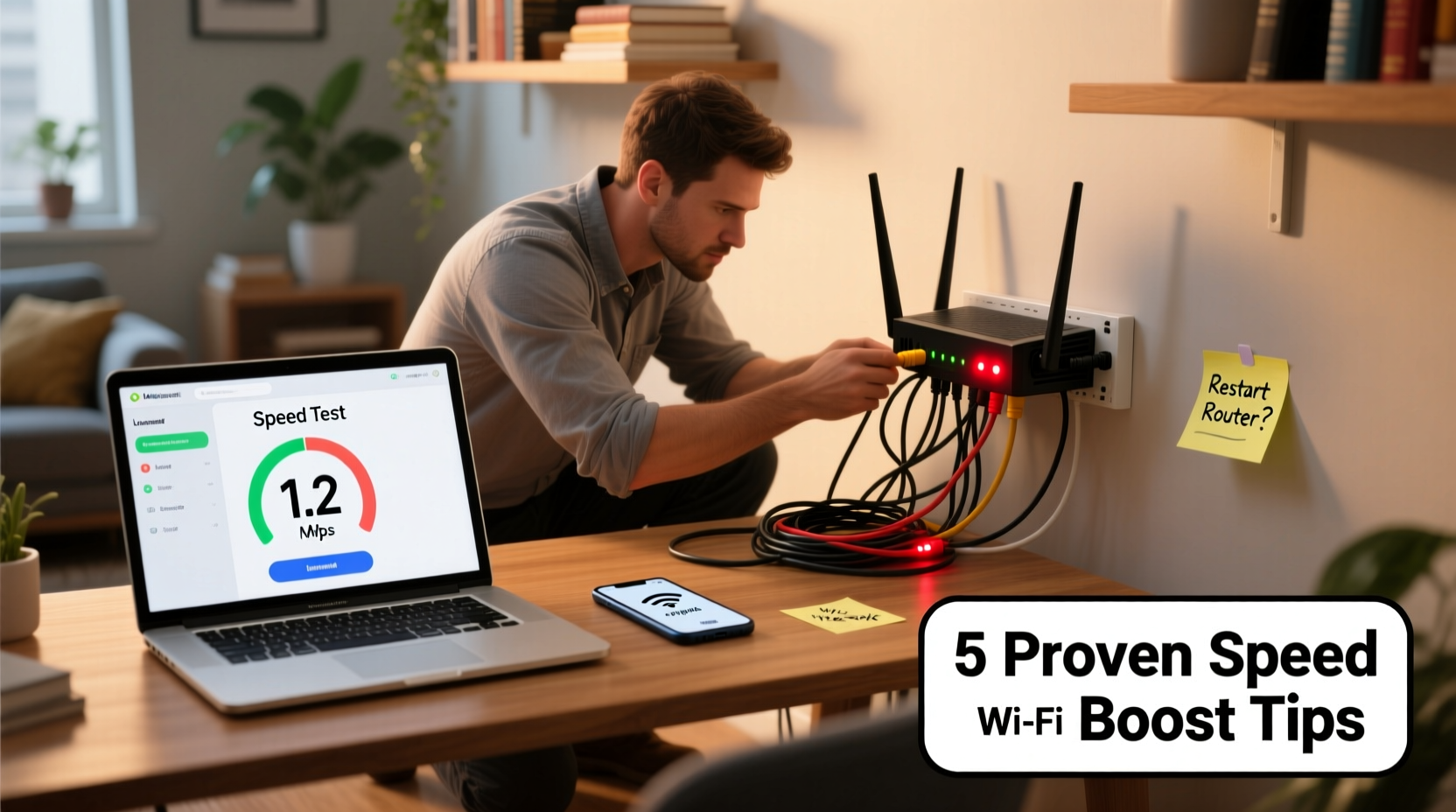
Your internet speed isn’t a single number—it’s a combination of download speed, upload speed, latency (ping), and jitter. Each plays a role in how smoothly your online activities perform. For example, streaming HD video requires strong download speeds, while video conferencing relies heavily on low latency and stable uploads.
Common culprits behind slow speeds include:
- Network congestion during peak hours
- Outdated or poorly positioned routers
- Background apps consuming bandwidth
- Interference from walls, appliances, or neighboring Wi-Fi networks
- Inadequate service plan for your household's usage
Before assuming your ISP is underdelivering, rule out local issues first. Start by testing your actual speed using tools like Speedtest.net or Fast.com. Compare results against your subscribed plan. If speeds are consistently below 80% of what you’re paying for, it’s time to investigate further.
Step-by-Step Troubleshooting Guide
Follow this logical sequence to isolate and resolve the source of your slow connection:
- Restart your modem and router. Unplug both for 30 seconds, then power them back on. This clears temporary glitches and refreshes your IP address.
- Connect via Ethernet. Plug a computer directly into the router with a cable. If speeds improve significantly, your Wi-Fi signal is likely the bottleneck.
- Check for active downloads or updates. Automatic backups, cloud syncs, or system updates can consume bandwidth silently.
- Limit connected devices. Disconnect unused smart home gadgets, phones, or tablets to reduce network load.
- Update firmware. Log into your router’s admin panel (usually 192.168.1.1) and check for available updates.
- Change Wi-Fi channel. Use a tool like Wi-Fi Analyzer (Android) or built-in macOS diagnostics to find less congested channels.
- Contact your ISP. Report consistent underperformance and ask if there are outages or throttling policies affecting your area.
Do’s and Don’ts for Maximizing Speed
| Action | Do | Don't |
|---|---|---|
| Router Placement | Place centrally, elevated, away from metal objects | Hide in cabinets or basements |
| Bandwidth Usage | Schedule large downloads off-peak (e.g., late night) | Stream 4K on multiple devices simultaneously |
| Security | Use WPA3 encryption and strong passwords | Leave default login credentials unchanged |
| Hardware | Upgrade to Wi-Fi 6 if supporting many devices | Use decade-old routers with outdated standards |
Real-World Example: Fixing a Lagging Home Office
Consider Sarah, a freelance designer working from home. She complained of frequent Zoom call drops and slow file uploads despite having a 200 Mbps plan. After testing, her wired connection showed full speed, but Wi-Fi hovered around 35 Mbps. Investigation revealed her router was tucked behind a bookshelf in a corner, blocked by thick walls. Her smart TV and gaming console were also streaming 4K content during work hours.
The solution? She relocated the router to a central hallway shelf, switched her entertainment devices to use the 5 GHz band, and set her work laptop to prioritize the 2.4 GHz band for stability. She also enabled Quality of Service (QoS) settings to prioritize video conferencing traffic. Result: consistent 180+ Mbps on Wi-Fi and zero call interruptions.
“Most home networks aren’t broken—they’re just misconfigured. Small adjustments often yield dramatic improvements.” — James Lin, Network Engineer at OpenSignal Labs
Advanced Tips to Boost Performance
Beyond basic fixes, consider these advanced strategies for sustained gains:
- Enable QoS (Quality of Service): Found in most modern routers, this feature prioritizes critical traffic like video calls or gaming over background tasks.
- Switch DNS providers: Default ISP DNS servers can be slow. Try Google (8.8.8.8) or Cloudflare (1.1.1.1) for faster domain resolution.
- Use a mesh network: For homes over 2,000 sq ft, mesh systems eliminate dead zones better than range extenders.
- Monitor bandwidth hogs: Tools like GlassWire or your router’s dashboard show which devices or apps use the most data.
- Upgrade hardware strategically: If your router is more than 4–5 years old, especially one supporting only 802.11n, an upgrade to Wi-Fi 6 can double throughput and reduce interference.
Frequently Asked Questions
Why is my internet slow even when no one else is using it?
This could be due to background processes like Windows updates, cloud backups (iCloud, Google Drive), or malware. Run a scan and review startup programs. Also, check if your ISP applies network management policies that throttle certain types of traffic.
Does turning off Wi-Fi at night help improve speed during the day?
Not directly, but rebooting your router regularly prevents memory leaks and overheating. Automate reboots weekly via router settings instead of manual shutdowns.
Can my neighbor’s Wi-Fi slow mine down?
Yes—if you're on the same channel and close proximity. Overlapping signals cause interference, especially on 2.4 GHz. Use a Wi-Fi analyzer app to pick the least crowded channel.
Final Checklist: Quick Wins for Faster Internet
Apply these five actions immediately for noticeable improvement:
- ✅ Reboot modem and router
- ✅ Move router to a central, unobstructed location
- ✅ Switch to 5 GHz band for close-range devices
- ✅ Update router firmware and change DNS to 1.1.1.1
- ✅ Run a speed test before and after each change to track progress
Take Control of Your Connection
Slow internet doesn’t have to be a daily frustration. With systematic troubleshooting and a few strategic upgrades, most households can achieve speeds close to their plan’s maximum. The key is understanding where bottlenecks occur—whether in hardware, configuration, or usage habits—and addressing them methodically. Don’t settle for buffering wheels and dropped calls. Implement these tips today, measure the results, and reclaim the fast, reliable internet you deserve.




 浙公网安备
33010002000092号
浙公网安备
33010002000092号 浙B2-20120091-4
Comments
No comments yet. Why don't you start the discussion?