
After updating to iOS 17, some iPad users have reported an unexpected and frustrating issue: screen flickering. This erratic behavior can range from subtle shimmering in low-light conditions to rapid flashing that makes the device nearly unusable. While Apple generally delivers stable software updates, occasional bugs slip through — especially on older hardware or specific models. The good news is that most cases of post-update screen flicker are fixable without visiting a service center. Understanding the root causes and applying targeted solutions can get your iPad back to normal in minutes.
Understanding Why Screen Flickering Happens After iOS 17
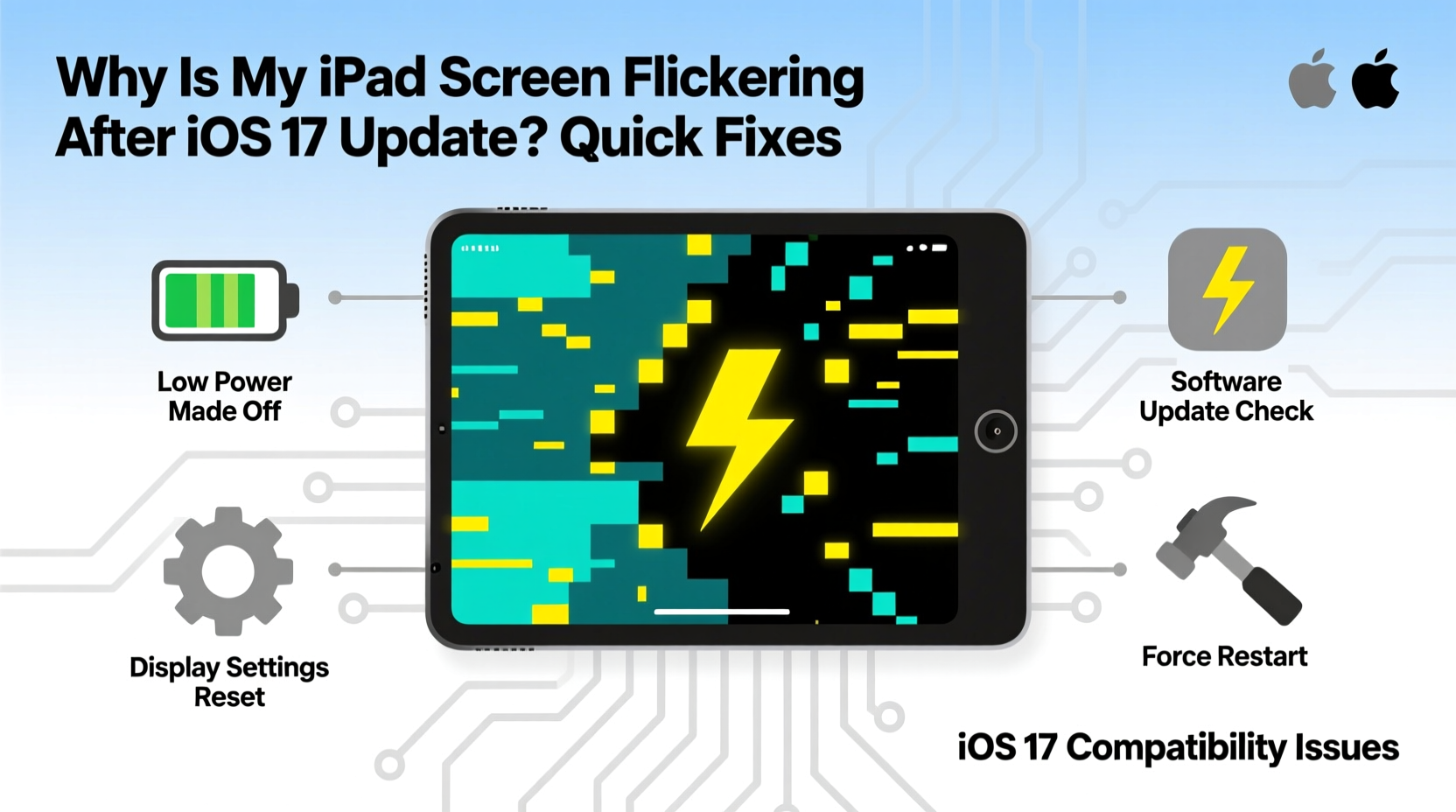
iOS 17 introduced several visual enhancements, including dynamic backgrounds, improved True Tone adjustments, and deeper integration with accessibility features like Reduce Motion and VoiceOver. These changes rely heavily on how the operating system communicates with display drivers and graphics processors. On certain iPad models — particularly those nearing end-of-life support or running on aging components — this increased demand can expose instability.
The flickering is often not a hardware failure but rather a software conflict. Common triggers include:
- Incomplete update installation: If the download or installation was interrupted, critical display-related files may be corrupted.
- Accessibility feature conflicts: Settings like Auto-Brightness, True Tone, or Zoom can misfire after an OS upgrade.
- App compatibility issues: Third-party apps not yet optimized for iOS 17 might send conflicting rendering signals to the GPU.
- Faulty cache buildup: Temporary system files can become outdated or corrupted during major updates.
Before assuming permanent damage, it’s essential to rule out these correctable software glitches. In most cases, a few well-placed troubleshooting steps will resolve the issue entirely.
Step-by-Step Guide to Fix iPad Screen Flickering
Follow this logical sequence of actions, starting with the least invasive methods before progressing to more involved solutions. Most users find success within the first three steps.
- Force Restart Your iPad
A force restart clears temporary memory and resets active processes, often eliminating transient display glitches. The method varies by model:- iPad with Face ID (iPad Pro): Press and release Volume Up, then Volume Down, then press and hold the Top button until the Apple logo appears.
- iPad with Home Button: Press and hold both the Home and Top (or Side) buttons until the screen goes black and the Apple logo shows.
- Disable True Tone and Auto-Brightness
These adaptive display features recalibrate screen color and brightness based on ambient light. After an OS update, they may malfunction.- Go to Settings > Display & Brightness.
- Toggle off True Tone.
- Navigate to Settings > Accessibility > Display & Text Size and disable Auto-Brightness.
- Turn Off Reduce Motion and Transparency Effects
iOS 17 uses advanced motion effects for transitions. On older iPads, these can strain the GPU and cause flickering.- Go to Settings > Accessibility > Motion.
- Enable Reduce Motion.
- Also toggle on Prefer Cross-Fade Transitions if available.
- Update All Apps
Outdated apps may not render correctly under iOS 17. Open the App Store, tap your profile icon, and ensure all pending updates are installed. Pay special attention to video players, browsers, and design tools that use intensive graphics. - Reset All Settings
If the above fail, reset system settings without erasing data.- Go to Settings > General > Transfer or Reset iPad > Reset.
- Select Reset All Settings. You’ll need to re-enter Wi-Fi passwords and reconfigure preferences, but photos and documents remain safe.
- Restore via Recovery Mode (Last Resort)
If flickering continues, perform a full restore using a computer.- Connect your iPad to a Mac or PC with Finder (macOS Catalina+) or iTunes (older systems).
- Enter recovery mode using the correct button combination for your model.
- Choose “Restore” — not “Update” — to reinstall iOS 17 cleanly.
Do’s and Don’ts When Dealing With Screen Flicker
| Action | Do | Don't |
|---|---|---|
| Troubleshooting | Start with a force restart and disable adaptive display features. | Jump straight to factory reset without trying simpler fixes. |
| Software Updates | Keep all apps updated post-iOS upgrade. | Ignore app update notifications after an OS change. |
| Hardware Concerns | Check for physical damage or pressure marks on the screen. | Apply screen protectors or cases that press against the display edges. |
| Backup Practices | Back up to iCloud or computer before resetting. | Restore without verifying backup integrity. |
| Long-Term Use | Use Reduce Motion on older iPad models to extend usability. | Run the latest iOS indefinitely on unsupported hardware. |
Real-World Example: How One User Fixed Persistent Flickering
Sarah, a freelance graphic designer using an iPad Air (4th generation), upgraded to iOS 17 shortly after its release. Within hours, she noticed her screen flickering during client Zoom calls, especially in dimly lit rooms. At first, she assumed it was a camera artifact, but soon realized the issue occurred even when the iPad was idle.
She tried restarting the device multiple times with no success. Then, recalling a podcast episode on iOS optimization, she disabled True Tone and Auto-Brightness. The flickering reduced significantly but didn’t disappear completely. Next, she turned on Reduce Motion — and the screen stabilized instantly.
Further investigation revealed that a third-party sketching app she used frequently had not been updated in six months. After uninstalling and reinstalling the app from the App Store (which included a compatibility patch), the flickering stopped entirely. Sarah now waits 48 hours before installing major iOS updates and checks app compatibility first.
“Many post-update issues aren’t flaws in the OS itself, but mismatches between new software and legacy configurations.” — David Lin, Mobile Systems Analyst at TechInsight Labs
Quick Fix Checklist
Use this checklist to systematically eliminate potential causes of screen flickering after an iOS 17 update:
- ✅ Perform a force restart based on your iPad model.
- ✅ Disable True Tone in Settings > Display & Brightness.
- ✅ Turn off Auto-Brightness under Accessibility settings.
- ✅ Enable Reduce Motion to minimize GPU strain.
- ✅ Update all apps via the App Store.
- ✅ Check for any pending carrier or system updates.
- ✅ Reset all settings (Settings > General > Reset > Reset All Settings).
- ✅ Back up and restore via recovery mode if necessary.
- ✅ Test the screen across different lighting environments and apps.
- ✅ Consider downgrading iOS if the device remains unstable (only recommended for non-critical security periods).
Frequently Asked Questions
Is screen flickering after iOS 17 a sign of hardware failure?
Not necessarily. While persistent flickering *can* indicate a failing display or logic board, the majority of cases following an iOS update are software-related. Try all troubleshooting steps before concluding it’s hardware damage. If the problem disappears after a reset or restore, it was likely a software conflict.
Can I downgrade from iOS 17 if the flickering doesn’t stop?
Apple typically stops signing older iOS versions within a few weeks of a new release. If you’re within that window (usually 7–14 days), you may be able to downgrade using Finder/iTunes and a compatible IPSW file. However, this process voids no warranties but requires technical precision. For most users, waiting for a patch update (e.g., iOS 17.1 or 17.2) is safer and more practical.
Will Apple release a fix for this issue?
Yes. Apple monitors user-reported bugs through its Feedback Assistant and crash logs. Widespread display issues like post-update flickering are typically prioritized. Many users who experienced similar problems after iOS 16.4 received resolution in version 16.5. Keep your iPad updated once newer incremental releases become available.
Conclusion: Regain Control of Your iPad Experience
An iPad screen flickering after the iOS 17 update is alarming, but rarely permanent. By methodically addressing software settings, app compatibility, and system stability, most users can resolve the issue quickly and avoid unnecessary repairs or replacements. The key is acting promptly with informed steps rather than panicking or assuming the worst.
Your iPad is designed to adapt — and so should your approach to managing it. Whether you’re a student, professional, or casual user, maintaining control over your device’s performance starts with understanding how software updates interact with hardware limitations. Apply these fixes today, and share your experience with others facing the same challenge.




 浙公网安备
33010002000092号
浙公网安备
33010002000092号 浙B2-20120091-4
Comments
No comments yet. Why don't you start the discussion?