
If your iPhone’s Auto-Lock setting appears grayed out or unchangeable, you're not alone. This common issue affects users across multiple iOS versions and device models. The Auto-Lock feature, designed to conserve battery by turning off the display after a period of inactivity, sometimes becomes restricted due to system-level settings, restrictions, or software glitches. When locked, it can be frustrating—especially if you rely on longer screen-on times for reading, navigation, or multitasking. This guide dives into the root causes, provides clear solutions, and helps you regain full control over your device’s display behavior.
Understanding Auto-Lock and Why It Matters
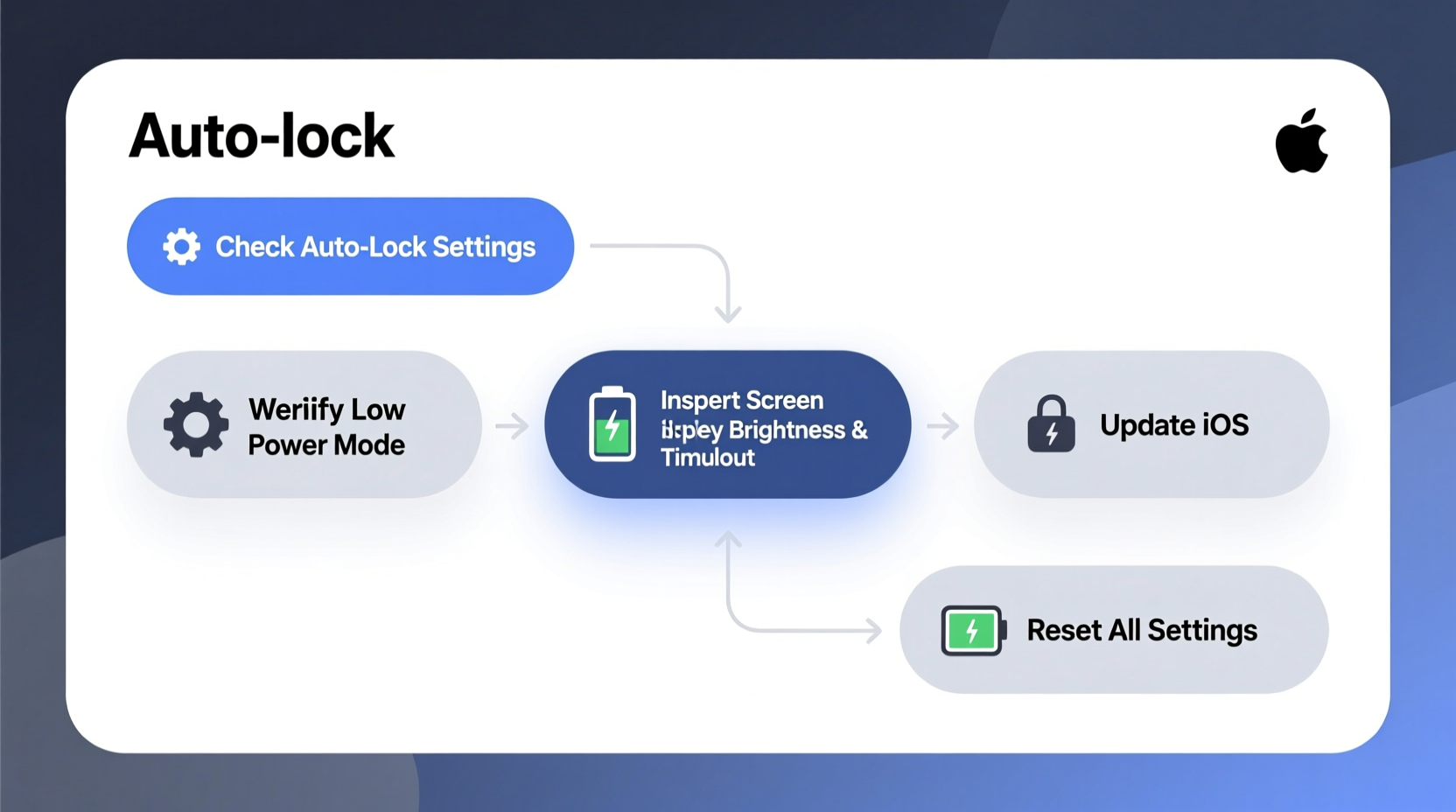
The Auto-Lock function is found under Settings > Display & Brightness > Auto-Lock. It allows users to set how quickly the screen turns off when idle—options range from 30 seconds to 5 minutes, or \"Never.\" When functioning normally, changing this setting is instant. However, if the options are dimmed or unselectable, something is actively preventing modification.
This restriction often stems from security policies, accessibility features, or third-party configurations that override user preferences. Apple implements these safeguards to protect data, enforce parental controls, or comply with corporate device management policies. While well-intentioned, they can interfere with everyday usability when not properly configured.
Common Causes of a Locked Auto-Lock Setting
A disabled Auto-Lock menu isn’t typically caused by hardware failure. Instead, it's almost always software-related. Below are the most frequent culprits:
- Screen Time Restrictions: Parental controls or downtime settings may limit display behavior.
- Guided Access: When enabled, this accessibility feature locks screen timeout to prevent exit.
- Mobile Device Management (MDM): Common in work or school-issued iPhones, MDM profiles can enforce strict display policies.
- iOS Bugs After Updates: Occasionally, bugs introduced in new iOS versions temporarily disable settings.
- Low Power Mode Conflicts: Though rare, aggressive power-saving states have been reported to affect display settings.
“Auto-Lock restrictions are usually policy-driven, not technical failures. Identifying the governing setting is key.” — Jordan Lee, iOS Systems Analyst at MobileCare Labs
Step-by-Step Troubleshooting Guide
Follow this structured approach to diagnose and resolve your Auto-Lock issue efficiently.
- Check Guided Access Status
Go to Settings > Accessibility > Guided Access. If enabled, triple-click the side button (or Home button) to end any active session. Disable it temporarily to test Auto-Lock functionality. - Review Screen Time Settings
Navigate to Settings > Screen Time. Look for active Downtime, App Limits, or Content & Privacy Restrictions. Under Content & Privacy Restrictions > Allowed Apps, ensure no restrictions block display settings. - Inspect Restrictions Profile
If Screen Time has restrictions enabled, tap Content & Privacy Restrictions > Allow Changes. Verify that “Display & Brightness” is set to “Allow.” If locked, enter your Screen Time passcode. - Check for MDM or Configuration Profiles
Open Settings > General > VPN & Device Management. If a profile is installed (e.g., from an employer or school), it may enforce fixed Auto-Lock durations. Contact the administrator if you lack removal privileges. - Restart Your iPhone
A simple reboot clears temporary glitches. Press and hold the side button and either volume button until the slider appears. Slide to power off, wait 30 seconds, then restart. - Update iOS
Outdated software may contain bugs. Go to Settings > General > Software Update and install any available updates. - Reset All Settings
As a last resort, go to Settings > General > Transfer or Reset iPhone > Reset > Reset All Settings. This preserves data but resets network, display, and privacy configurations.
Troubleshooting Checklist
✅ Auto-Lock Locked? Follow This Checklist:
- End any active Guided Access session (triple-click)
- Disable Low Power Mode temporarily
- Verify Screen Time restrictions are not limiting settings
- Check for installed configuration profiles (MDM)
- Restart the device
- Ensure iOS is up to date
- Reset all settings if unresolved
Do’s and Don’ts When Fixing Auto-Lock Issues
| Do | Don’t |
|---|---|
| Check for active accessibility features like Guided Access | Assume it’s a hardware problem without checking software first |
| Update iOS to the latest stable version | Remove MDM profiles without organizational approval |
| Use official Apple settings menus instead of third-party apps | Perform factory reset unless absolutely necessary |
| Document any installed profiles or restrictions | Ignore error messages during profile removal attempts |
Real-World Example: Resolving a Locked Auto-Lock in a School Environment
Sophia, a high school student using a district-issued iPhone, noticed her screen turned off after 30 seconds regardless of her attempts to change the Auto-Lock setting. The options were grayed out. She followed standard troubleshooting—restarting, checking Screen Time—but saw no improvement.
After reviewing Settings > General > VPN & Device Management, she discovered an active MDM profile labeled “EduSecure.” Contacting her school’s IT department, she learned that all student devices were configured to enforce a 30-second Auto-Lock to minimize distractions and preserve battery during class hours. While she couldn’t change it herself, the administrator confirmed the policy was intentional. For extended reading, her teacher allowed temporary use of Guided Access with a custom timer—balancing compliance and usability.
This case highlights how institutional policies often override individual preferences—and why understanding device management is crucial in shared or supervised environments.
Frequently Asked Questions
Why is my Auto-Lock option grayed out even after disabling Screen Time?
If disabling Screen Time doesn’t restore access, another layer of control is likely active. Check for MDM profiles under Settings > General > VPN & Device Management. Also, ensure no Guided Access session is running in the background.
Can a software update fix a locked Auto-Lock setting?
Yes. Apple periodically patches bugs that interfere with system settings. If you recently updated iOS and the issue appeared, check forums for known bugs. Conversely, installing the latest update may resolve underlying glitches affecting display settings.
Will resetting all settings delete my photos or messages?
No. Choosing Reset All Settings only clears system configurations—Wi-Fi passwords, display preferences, privacy settings, etc. Your personal data, including photos, messages, and apps, remains intact.
Regain Control of Your iPhone Experience
A locked Auto-Lock setting doesn’t mean your iPhone is broken—it means a higher-priority rule is in place. Whether it’s a parental control, accessibility tool, or enterprise policy, each restriction serves a purpose. The key is identifying which one is active and determining whether it should remain. With the steps outlined here, most users can diagnose and resolve the issue within minutes. For those in managed environments, communication with administrators may be necessary. But for personal devices, restoring full control is usually just a few taps away.




 浙公网安备
33010002000092号
浙公网安备
33010002000092号 浙B2-20120091-4
Comments
No comments yet. Why don't you start the discussion?