
One of the most convenient features on an iPhone is the flashlight—accessible instantly from the Control Center with a single tap. But when you reach for it in a dark hallway or during a power outage, only to find the flashlight icon greyed out, it can be more than just frustrating. It raises immediate questions: Is your phone broken? Did a software update disable it? Or is there a deeper issue at play?
The good news is that in most cases, a greyed-out flashlight is not a hardware failure. Instead, it’s usually tied to software settings, app conflicts, or system-level restrictions. Understanding the root causes and knowing how to navigate both quick fixes and deeper troubleshooting steps can restore this essential tool in minutes.
Common Causes of a Greyed-Out Flashlight
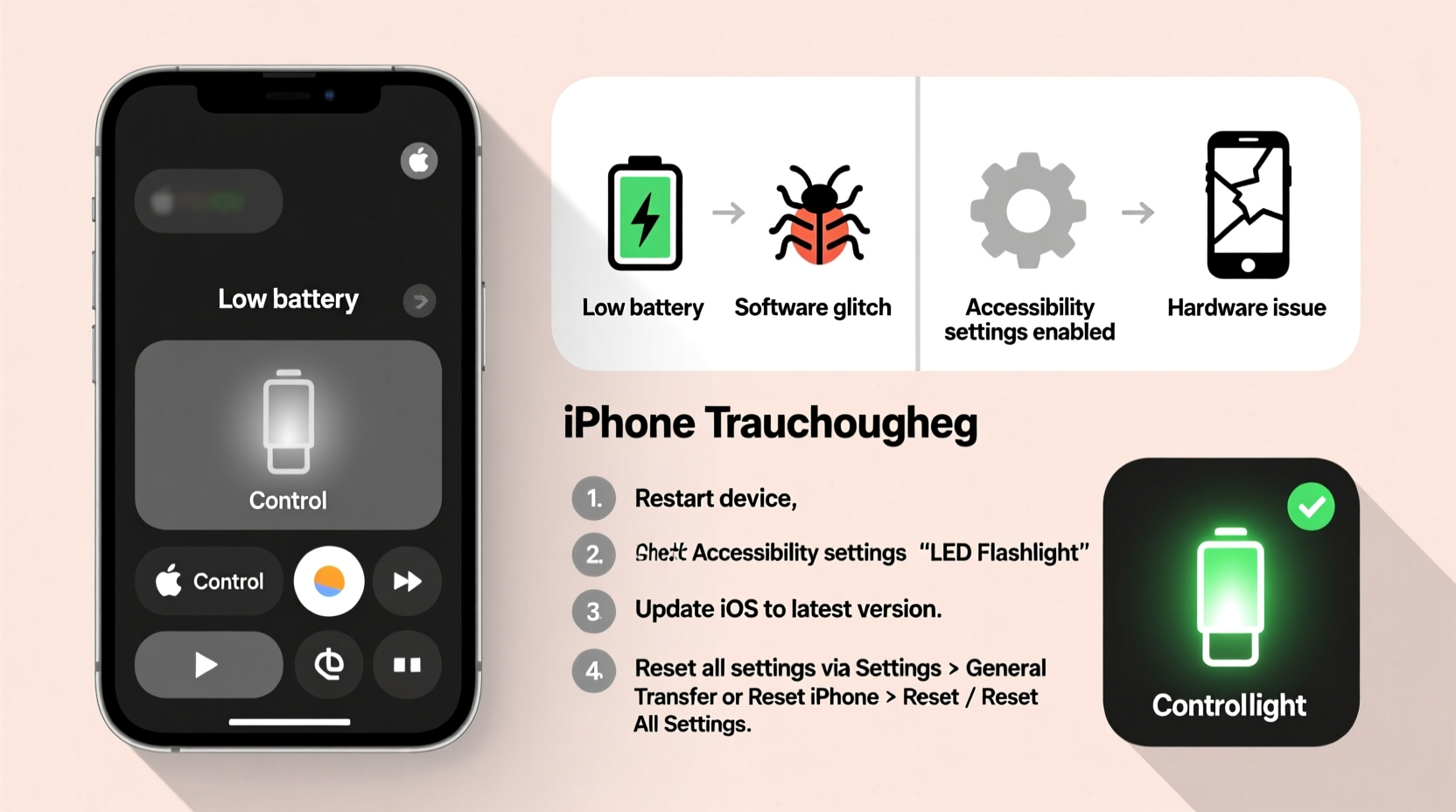
The flashlight icon in Control Center appears dimmed or unresponsive for several reasons. While Apple doesn’t always provide clear error messages, the underlying causes are often predictable and resolvable without visiting a service center.
- Camera App in Use: The iPhone’s flashlight shares hardware resources with the camera. If another app—like Instagram, Snapchat, or even a background process—is actively using the camera, the flashlight will be temporarily disabled.
- Low Power Mode: When battery levels drop below 20%, Low Power Mode activates automatically. While this mode doesn’t directly disable the flashlight, certain system optimizations may interfere with Control Center functions.
- Screen Time Restrictions: If Screen Time is enabled with Content & Privacy Restrictions, the flashlight can be blocked entirely by parental controls or organizational policies.
- iOS Software Glitches: Minor bugs after an iOS update or due to memory overload can cause Control Center components to malfunction.
- Accessibility Settings Conflicts: Certain accessibility features like VoiceOver or Zoom can alter how Control Center behaves, sometimes disabling interactive elements.
- Hardware or System Failures (Rare): In isolated cases, a damaged logic board, water exposure, or corrupted system files can prevent the flashlight from activating.
Step-by-Step Fixes via Control Center and Settings
Most flashlight problems can be resolved using built-in iOS tools. Follow these steps in order, testing the flashlight after each one.
- Close Background Camera Apps: Swipe up from the bottom (or double-click the Home button on older models) to access the app switcher. Swipe away any apps that use the camera, especially social media or scanning tools.
- Restart Your iPhone: Hold the side button and either volume button until the slide-to-power-off slider appears. Slide to turn off, wait 30 seconds, then power back on.
- Check Screen Time Restrictions:
- Go to Settings > Screen Time > Content & Privacy Restrictions.
- Tap Allowed Apps and ensure “Camera” is enabled.
- If restrictions are on, go to Content & Privacy Restrictions > Allowed Apps and verify that the flashlight isn’t blocked under “Privacy” settings.
- Reset All Settings: This won’t erase data but will reset network, privacy, and Control Center configurations.
- Navigate to Settings > General > Transfer or Reset iPhone > Reset > Reset All Settings.
- Enter your passcode and confirm. After rebooting, re-add your Wi-Fi and check the flashlight.
- Update iOS: Outdated software may contain known bugs. Go to Settings > General > Software Update and install any available updates.
Control Center Customization: Ensuring Flashlight Access
Sometimes the flashlight isn’t greyed out—it’s simply missing from Control Center. Apple allows users to customize which controls appear, and accidental removal can mimic a malfunction.
How to Re-Add the Flashlight to Control Center
- Open Settings and tap Control Center.
- Under “More Controls,” look for Flashlight. If it has a green “+” next to it, it’s not added.
- Tap the green “+” to add it. It will now appear in your Control Center.
- Swipe down from the top-right (iPhone X and later) or up from the bottom (older models) to verify it’s active and no longer greyed out.
If the flashlight is listed but still unresponsive, the issue lies beyond layout settings and requires deeper diagnostics.
| Issue | Likely Cause | Solution |
|---|---|---|
| Flashlight greyed out | Camera in use by another app | Close background apps, especially camera-based ones |
| Flashlight missing from Control Center | Removed from customization menu | Add back via Settings > Control Center |
| Flashlight flickers or turns off immediately | Overheating or low battery | Let phone cool down; charge to at least 10% |
| No response when tapping flashlight icon | System glitch or restriction | Restart device or reset all settings |
| Flashlight works in Camera app but not Control Center | Control Center corruption | Reset settings or update iOS |
Real-World Example: A Traveler’s Midnight Fix
Consider Sarah, a frequent traveler who landed late at night in Lisbon. Her Airbnb key instructions were in a dimly lit stairwell. She reached for her iPhone flashlight—only to find the icon greyed out. Panic set in as she tried swiping, tapping, and even yelling at Siri.
She remembered reading about app conflicts. Opening the app switcher, she noticed Instagram was still running from earlier that day. After swiping it away and restarting her phone, the flashlight lit up instantly. The issue? Instagram had retained camera access in the background, locking the shared LED hardware.
This scenario is more common than many realize—especially among users who multitask across photo-heavy apps. It underscores the importance of managing background processes, particularly before relying on utility features in critical moments.
“Users often overlook background app activity as a source of hardware conflicts. The flashlight and camera share the same module—when one is in use, the other can’t activate.” — Raj Mehta, iOS Systems Analyst at MobileFix Labs
Advanced Troubleshooting When Basic Fixes Fail
If the flashlight remains unresponsive after standard remedies, consider these advanced options:
Check for Overheating or Moisture
The iPhone disables certain features when internal temperatures exceed safe limits or moisture is detected. If your phone has been in direct sunlight or exposed to liquid, let it cool down or dry completely. Avoid using third-party drying methods like rice—Apple advises against them.
Test Flashlight in Safe Modes
Boot into Recovery Mode or DFU Mode to determine if the issue persists outside the normal OS environment. While complex, this helps isolate whether the problem is software-based or hardware-related.
Restore via iTunes/Finder
If all else fails, restoring the device through a computer may resolve deep system corruption:
- Connect your iPhone to a Mac or PC.
- Open Finder (macOS Catalina+) or iTunes (older systems).
- Put the iPhone into recovery mode (varies by model).
- Select “Restore” (not “Update”) to reinstall iOS from scratch.
- Set up as new or restore from backup.
Note: This should be a last resort, as it erases all data unless backed up.
FAQ: Common Questions About iPhone Flashlight Issues
Why does my flashlight work in the Camera app but not in Control Center?
This typically indicates a Control Center-specific glitch. The Camera app accesses the LED directly, bypassing Control Center’s interface. Try resetting all settings or updating iOS to fix UI corruption.
Can a screen protector or case block the flashlight?
Physically, no—but thick or poorly designed cases might cover the LED flash located near the camera. Ensure the cutout is clear. However, this would affect brightness, not cause greying out.
Does turning on the flashlight drain the battery quickly?
Yes. The LED uses significant power. On average, continuous use drains 5–10% per 10 minutes depending on model and brightness. Use sparingly when battery is low.
Preventive Checklist: Keep Your Flashlight Ready
- ✅ Close camera-intensive apps after use
- ✅ Keep iOS updated to the latest stable version
- ✅ Verify flashlight is added to Control Center monthly
- ✅ Disable unnecessary background app refresh
- ✅ Avoid exposing iPhone to extreme heat or moisture
- ✅ Test flashlight weekly, especially if used for emergencies
- ✅ Enable automatic iCloud backups
Conclusion: Stay Prepared with a Functional Flashlight
The iPhone flashlight is more than a convenience—it’s a safety feature, a navigation aid, and a tool for everyday problem-solving. When it fails, the disruption can feel outsized relative to its simplicity. But in nearly every case, the solution lies within accessible settings, mindful usage habits, or straightforward resets.
By understanding the relationship between the camera and flashlight, monitoring background apps, and maintaining your device’s software health, you can prevent most issues before they occur. Don’t wait until you’re in the dark—literally—to test this feature. Proactive maintenance ensures reliability when it matters most.




 浙公网安备
33010002000092号
浙公网安备
33010002000092号 浙B2-20120091-4
Comments
No comments yet. Why don't you start the discussion?