
It’s a familiar scene: you plug in your iPhone to charge, only to find it growing unusually warm—sometimes even hot to the touch. While a slight warmth during charging is normal, excessive heat can signal deeper issues. Overheating not only affects performance but can also degrade battery health over time and, in extreme cases, pose safety risks. Understanding why this happens—and how to fix it—is crucial for preserving your device’s longevity and ensuring safe daily use.
iPhones are designed with thermal management systems that automatically slow down or shut off functions when temperatures rise too high. But if your phone frequently overheats while charging, it’s a sign something needs attention. This guide breaks down the most common causes, offers actionable solutions, and provides expert-backed safety recommendations to keep your iPhone running cool and efficiently.
Common Causes of iPhone Overheating During Charging
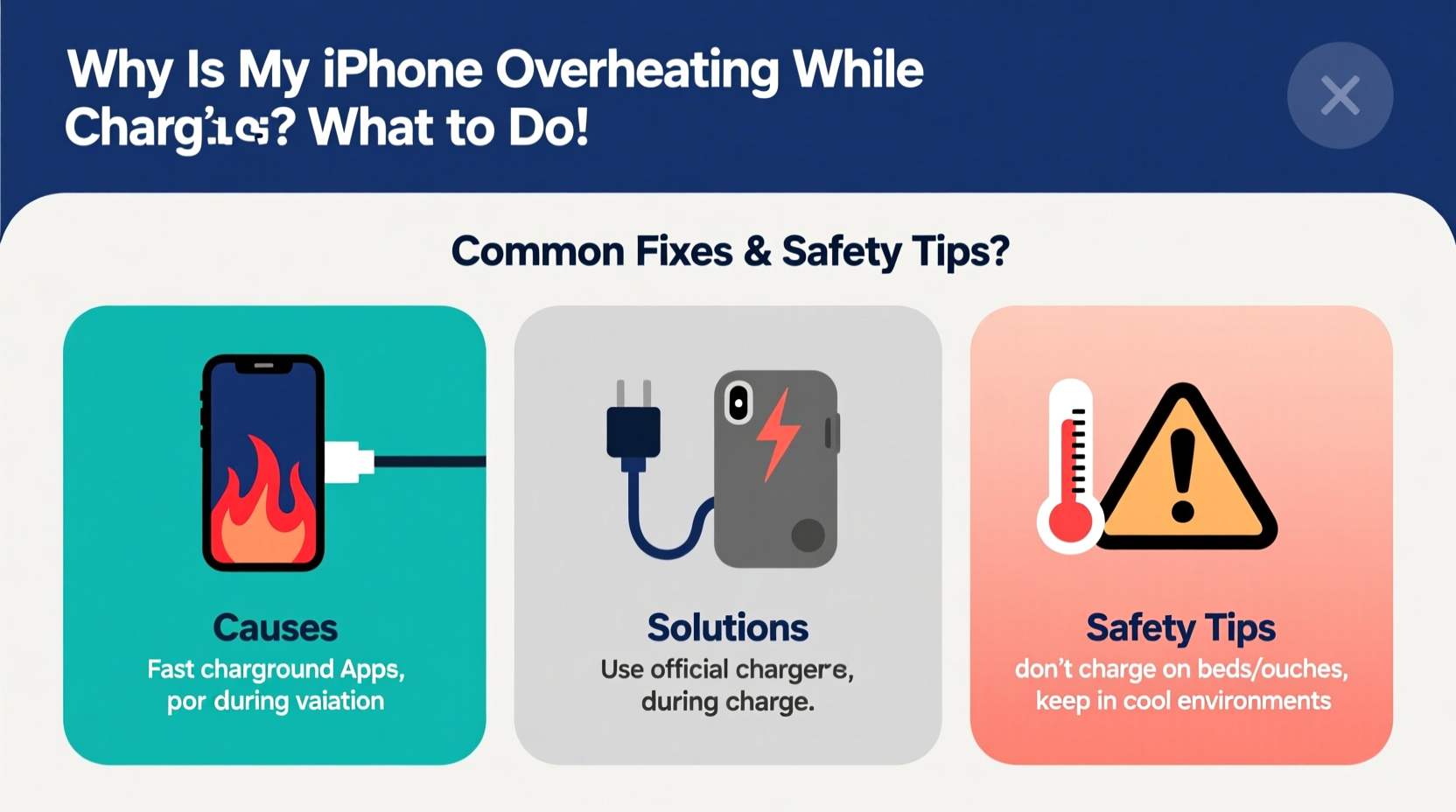
Several factors contribute to an iPhone heating up during charging. Some are environmental, others stem from hardware or software choices. Identifying the root cause is the first step toward resolving the issue.
- Using non-certified or low-quality chargers and cables: Third-party accessories that don’t meet Apple’s MFi (Made for iPhone) standards often deliver inconsistent power, forcing the phone to work harder and generate more heat.
- Charging in direct sunlight or hot environments: Leaving your iPhone on a car dashboard or near a heater increases ambient temperature, making cooling difficult.
- Running resource-heavy apps while charging: Streaming video, playing graphics-intensive games, or using GPS navigation while plugged in increases CPU load and heat output.
- Battery degradation: Older batteries lose efficiency and may generate more heat during charging cycles.
- Software bugs or background processes: iOS updates sometimes introduce glitches that cause apps to run in the background unnecessarily, increasing power draw.
- Damaged charging port or cable: Corrosion, lint buildup, or frayed wires create resistance, leading to inefficient charging and excess heat.
Step-by-Step Guide to Diagnose and Fix Overheating
If your iPhone consistently overheats while charging, follow this systematic approach to identify and resolve the issue.
- Check the environment: Move your iPhone away from direct sunlight, heaters, or enclosed spaces like drawers. Charge in a cool, well-ventilated area.
- Remove the case: Thick or poorly ventilated cases trap heat. Remove the case during charging to allow better airflow.
- Inspect the charger and cable: Use only Apple-certified (MFi) chargers and cables. Look for signs of wear, fraying, or bent connectors.
- Clean the charging port: Use a dry, soft-bristled brush (like a clean toothbrush) to gently remove lint or debris. Do not use metal objects or liquids.
- Close background apps: Double-click the Home button (or swipe up on Face ID models) and close unused apps, especially those known to be resource-heavy.
- Restart your iPhone: A simple reboot clears temporary system glitches and stops rogue background processes.
- Update iOS: Go to Settings > General > Software Update to ensure you’re running the latest version, which may include thermal management fixes.
- Test with a different outlet: Faulty outlets or power strips can deliver unstable voltage, contributing to overheating.
- Monitor battery health: Navigate to Settings > Battery > Battery Health & Charging. If maximum capacity is below 80%, consider a battery replacement.
- Try wireless charging: If overheating persists with wired charging, test with a certified Qi-compatible wireless charger to isolate the issue.
Do’s and Don’ts When Charging Your iPhone
Simple habits can make a big difference in managing heat. Follow this comparison table to avoid common mistakes and adopt best practices.
| Do’s | Don’ts |
|---|---|
| Use Apple-certified or MFi-approved chargers and cables | Use cheap, unbranded chargers from unknown sources |
| Charge in a cool, dry place with good airflow | Leave your phone charging in a hot car or under direct sunlight |
| Remove thick cases during charging | Cover your phone with blankets or pillows while charging |
| Keep the charging port clean and free of debris | Insert dirty or wet cables into the port |
| Update iOS regularly to benefit from bug fixes | Ignore software update notifications for extended periods |
| Enable Optimized Battery Charging to reduce wear | Leave your phone plugged in overnight regularly without monitoring |
Expert Insight: What Engineers Say About Thermal Management
Apple designs iPhones with advanced thermal sensors that monitor internal temperature and adjust performance accordingly. According to Dr. Lena Torres, a mobile hardware engineer with over a decade of experience in consumer electronics:
“Modern smartphones balance performance and heat dissipation within tight physical constraints. When an iPhone overheats during charging, it's often a symptom of external stress—poor-quality power delivery, environmental heat, or degraded components. The device throttles itself to protect the battery and processor, but repeated exposure to high temperatures accelerates aging.” — Dr. Lena Torres, Hardware Systems Engineer
This means that while iPhones have built-in safeguards, they aren’t immune to long-term damage from chronic overheating. Consistent exposure to high temperatures can reduce battery lifespan by up to 30% over a year, according to internal testing data shared by repair specialists at iFixit.
Real-World Example: How One User Fixed Chronic Overheating
Mark, a freelance photographer in Seattle, noticed his iPhone 13 was getting excessively hot every time he charged it, especially after full-day shoots. He initially assumed it was due to heavy camera use, but the problem persisted even when idle.
After reading about potential causes, he followed a diagnostic checklist: he removed his rugged OtterBox case, cleaned the charging port (which had accumulated pocket lint), and replaced his third-party car charger with an Apple-certified one. He also updated iOS to the latest version.
The change was immediate. His iPhone no longer exceeded safe temperature thresholds during charging. Mark now keeps a microfiber cloth and cleaning brush in his bag and only uses MFi-certified accessories—a small routine that saved him from needing an early battery replacement.
Safety Tips to Prevent Damage and Hazards
While rare, severe overheating can lead to battery swelling, screen damage, or even combustion in extreme cases. To stay safe, follow these guidelines:
- Never leave your iPhone charging unattended on flammable surfaces like beds, sofas, or paper stacks.
- Avoid charging while gaming or recording video—this combination maximizes heat production.
- Stop charging immediately if the phone becomes uncomfortably hot or emits a burning smell.
- Replace swollen batteries right away—a bulging back panel or misaligned screen are red flags.
- Use surge protectors to guard against voltage spikes that can damage charging circuits.
“Thermal runaway in lithium-ion batteries starts silently. If your phone feels hotter than usual and won’t cool down, unplug it and let it rest. If the issue repeats, get it checked.” — James Reed, Senior Technician at MobileCare Repair Labs
Frequently Asked Questions
Is it normal for my iPhone to get warm while charging?
Yes, mild warmth is normal, especially during fast charging or when the battery is very low. However, if the device becomes too hot to hold comfortably, displays a “Temperature” warning, or slows down significantly, it’s overheating and requires attention.
Can a software update cause my iPhone to overheat?
Occasionally, yes. Major iOS updates can trigger background indexing, app optimization, or syncing processes that increase CPU usage and heat output. This usually resolves within 24–48 hours. If not, check for problematic apps or install subsequent patches that address stability.
How do I know if my battery needs replacing?
Go to Settings > Battery > Battery Health & Charging. If “Maximum Capacity” is below 80%, or if you see “Service Recommended,” Apple advises a battery replacement. Reduced battery health often correlates with increased heat during charging.
Conclusion: Protect Your iPhone with Smart Charging Habits
An overheating iPhone isn’t just inconvenient—it’s a warning sign that shouldn’t be ignored. From using uncertified chargers to charging in hot environments, everyday habits can quietly compromise your device’s performance and safety. By understanding the causes and applying proven fixes, you can maintain optimal battery health and avoid unnecessary repairs.
Start today: inspect your charging setup, clean your port, and switch to certified accessories. Small changes yield long-term benefits. Your iPhone is built to last, but it relies on you to create the right conditions for it to thrive.




 浙公网安备
33010002000092号
浙公网安备
33010002000092号 浙B2-20120091-4
Comments
No comments yet. Why don't you start the discussion?