
If you've noticed your Kindle dying faster than expected—especially after a full charge—you're not alone. Amazon advertises weeks of battery life under normal use, yet many users report needing daily or even multiple daily charges. While some battery degradation over time is natural, sudden or rapid drain often points to hidden culprits. The good news? Most issues are fixable without replacing the device.
This guide dives deep into both common and overlooked causes behind fast battery drain on Kindles. From subtle settings misconfigurations to environmental factors and outdated firmware, we’ll walk through diagnostic steps, practical fixes, and long-term habits that preserve battery health. Whether you own a basic Kindle, Paperwhite, or Oasis, these insights apply across models.
Understanding Kindle Battery Expectations
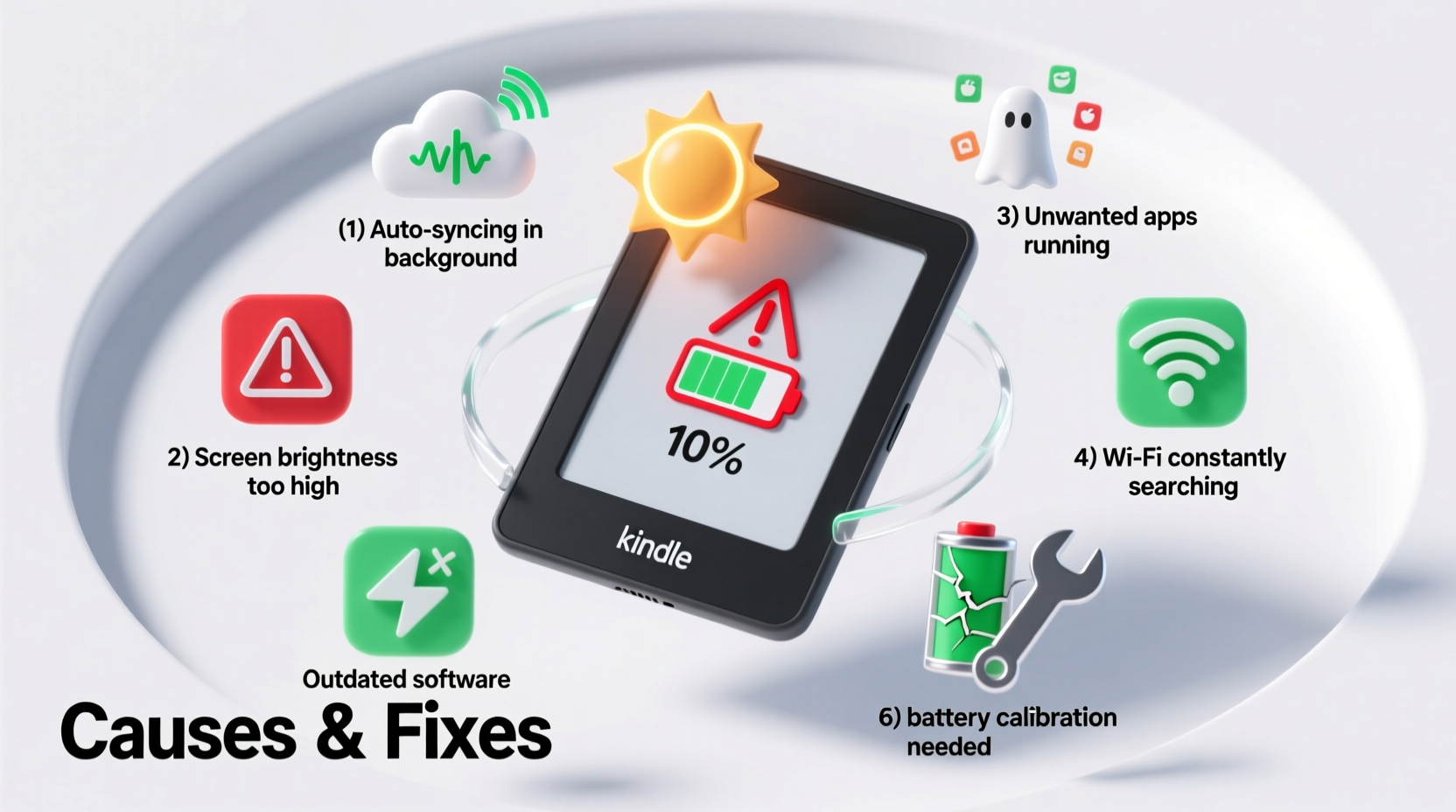
Amazon typically claims 4 to 6 weeks of battery life on a single charge for most e-readers, assuming one hour of reading per day with Wi-Fi off and brightness set to level 10–13. However, real-world usage varies widely based on settings, connectivity, ambient temperature, and software behavior.
The key misconception is treating a Kindle like a smartphone. Unlike phones, Kindles use e-Ink displays, which consume power only when turning pages. This makes them incredibly energy-efficient—when used correctly. But certain behaviors can turn an efficient device into a power-hungry one.
“Battery life isn’t just about capacity—it’s about how the device manages background processes and display refresh.” — Dr. Alan Reyes, Electronics Efficiency Researcher at MIT Media Lab
Common but Overlooked Causes of Rapid Drain
Many users assume hardware failure when their Kindle dies quickly. In reality, software and usage patterns are usually to blame. Here are five lesser-known causes:
1. Frequent Screen Refreshes from Animations
Modern Kindles include page-turn animations, cover flow effects, and dynamic home screens. While visually appealing, these features trigger more screen refreshes, which draw significantly more power than static text. Each refresh uses energy to re-draw the entire display—even though it’s momentary.
2. Background Syncing and Whispernet Activity
Even when idle, your Kindle may be syncing bookmarks, notes, or collections with your Amazon account. If Whispernet (Kindle’s free cellular or Wi-Fi service) is always active, this constant communication eats battery over time. Devices with cellular connectivity (like older Oasis or international Paperwhites) are especially prone.
3. Auto-Adjust Brightness Running Constantly
The auto-brightness feature adjusts your screen based on ambient light. However, if the sensor is dirty or exposed to fluctuating light (e.g., near a window), it recalibrates repeatedly—each adjustment requiring processing power and screen updates.
4. Corrupted Books or Malformed Files
Digital books with corrupted metadata or poorly formatted code (especially sideloaded EPUBs or PDFs) can cause excessive CPU load. Your Kindle works harder to render problematic files, leading to higher power consumption during reading sessions.
5. Outdated Firmware Causing Inefficiencies
Older software versions may contain bugs that prevent proper sleep mode activation or cause apps to run in the background unnecessarily. Amazon regularly releases updates to improve battery optimization.
Step-by-Step Diagnostic and Fix Procedure
Follow this sequence to identify and resolve the root cause of fast battery drain:
- Check current battery status: Go to Settings > Device Options > Battery. Note the percentage and estimated remaining life.
- Restart your Kindle: Hold the power button for 30 seconds until the screen flashes. This clears temporary memory glitches.
- Disable Wi-Fi and Bluetooth: Turn off wireless connections unless actively needed. Airplane Mode reduces background activity.
- Turn off auto-brightness: Set brightness manually to a comfortable level (ideally between 10–15).
- Remove recently added books: Delete any new sideloaded titles to test if one is causing high CPU usage.
- Update firmware: Connect to Wi-Fi and go to Settings > Update Your Kindle. Install any pending updates.
- Reset to factory settings: As a last resort, back up your documents via USB, then go to Settings > Reset. This eliminates configuration errors.
After each step, monitor battery performance over the next 24–48 hours. You should see gradual improvement if the issue was software-related.
Do’s and Don’ts: Kindle Battery Best Practices
| Do’s | Don’ts |
|---|---|
| Use Airplane Mode when reading offline | Leave Wi-Fi on all the time |
| Charge before battery drops below 10% | Let it fully discharge regularly |
| Store in a cool, dry place (avoid heat) | Leave in direct sunlight or hot cars |
| Enable Sleep Mode after 1 minute | Keep screen on indefinitely while idle |
| Update firmware monthly | Ignore update notifications |
Real-World Case Study: Sarah’s Sudden Battery Drop
Sarah, a college student and avid reader, relied on her Kindle Paperwhite for textbooks and novels. She noticed her device dying within a day despite minimal use. Initially, she assumed the battery had degraded after two years of ownership.
After trying several fixes—restarting, adjusting brightness, disabling Wi-Fi—she still faced poor performance. Then, she recalled installing a third-party dictionary plugin and downloading several large PDF textbooks the week before.
Upon reviewing her library, she found one PDF was over 1,200 pages with embedded fonts and images. Opening it caused the screen to flicker constantly as it struggled to render complex layouts. Removing the file immediately improved standby time. She also disabled the dictionary add-on, which ran background lookups.
Within 48 hours, her battery returned to lasting nearly two weeks again. The culprit wasn’t age or hardware—it was inefficient file formats and unnecessary extensions.
“Sometimes the biggest drain comes from what you don’t see—the invisible processes working behind the scenes.” — Lena Torres, Senior Support Engineer at Amazon Kindle Care
Checklist: Kindle Battery Optimization Routine
- ✅ Restart your Kindle weekly
- ✅ Enable Airplane Mode during reading sessions
- ✅ Manually set screen brightness (disable auto-adjust)
- ✅ Remove unused or problematic books (especially large PDFs)
- ✅ Check for firmware updates monthly
- ✅ Clean the front sensor area gently with a microfiber cloth
- ✅ Avoid extreme temperatures (above 95°F or below 32°F)
- ✅ Use original or MFi-certified USB cables for charging
- ✅ Limit use of experimental features like X-Ray or Word Wise if not essential
- ✅ Perform a factory reset every 6–12 months for optimal performance
Frequently Asked Questions
Why does my Kindle die even when I’m not using it?
Even in sleep mode, your Kindle may sync data, check for updates, or maintain network connections. If Wi-Fi or cellular is enabled, background tasks can slowly deplete the battery. Try enabling Airplane Mode before putting it down. Also, ensure no corrupted books are loading in the background.
Does screen brightness really affect battery life that much?
Yes—especially on newer Kindles with adjustable warm lights. Maximum brightness uses significantly more power than mid-level settings. While e-Ink itself is low-power, the front light LEDs are the primary energy consumers. Reducing brightness by just 20% can extend battery life by days.
Is it bad to leave my Kindle plugged in overnight?
Modern Kindles stop charging once they reach 100%, so occasional overnight charging won’t damage the battery. However, consistently keeping it at full charge accelerates long-term degradation. For best longevity, aim to keep the battery between 20% and 80% when possible.
Conclusion: Take Control of Your Kindle’s Battery Life
Your Kindle shouldn’t need daily charging. Rapid battery drain is rarely due to inevitable hardware failure—it’s usually a symptom of avoidable conditions. By understanding how settings, files, and connectivity impact power usage, you regain control over your device’s efficiency.
Start with simple changes: disable animations, turn on Airplane Mode, update your system, and audit your library. Monitor improvements over a few days. Most users see dramatic gains without spending a dollar. With consistent care, your Kindle can deliver the weeks-long battery life it was designed for—just as Amazon promised.




 浙公网安备
33010002000092号
浙公网安备
33010002000092号 浙B2-20120091-4
Comments
No comments yet. Why don't you start the discussion?