
Laptop fans are essential for regulating internal temperatures, but when they run constantly—especially at high speed—it’s more than just a nuisance. Persistent fan noise can signal overheating, inefficient performance, or even long-term hardware damage. While some fan activity is normal during intensive tasks, continuous operation under light usage points to underlying issues. Understanding why this happens and how to fix it doesn’t require technical expertise. With a few targeted steps, you can restore quiet operation, extend your laptop’s lifespan, and maintain peak performance.
Common Causes of Constant Fan Operation
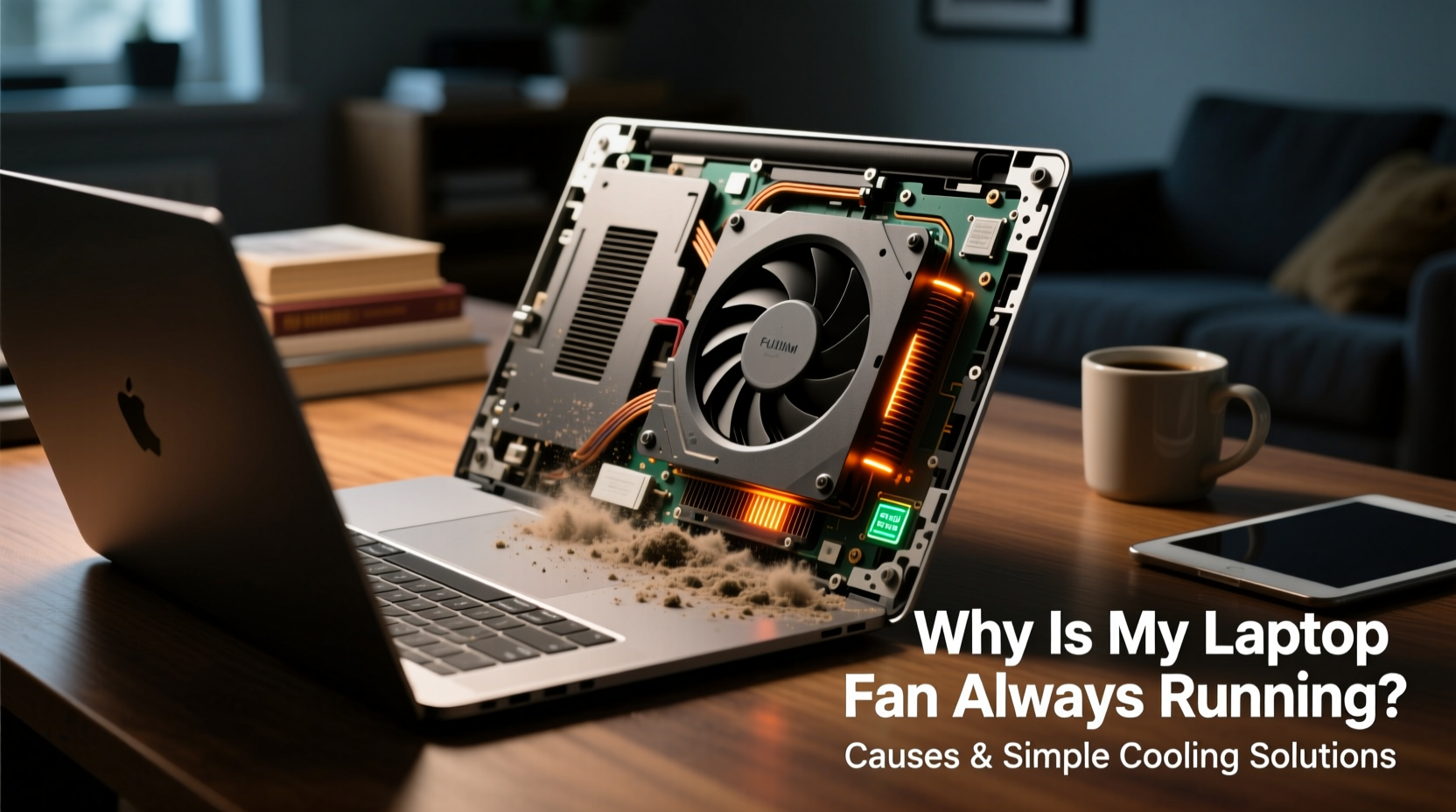
The most frequent reason for non-stop fan spinning is excessive heat buildup inside the laptop. The fan kicks in to cool critical components like the CPU and GPU. However, several factors can trigger or worsen this response:
- High CPU or GPU usage: Background processes, browser tabs, or resource-heavy applications (like video editors or games) push the processor to its limits, generating heat.
- Dust accumulation: Over time, dust clogs air vents and heatsinks, restricting airflow and reducing cooling efficiency.
- Poor ventilation: Using your laptop on soft surfaces like beds or couches blocks intake vents, trapping heat.
- Failing thermal paste: Thermal paste between the CPU and heatsink degrades over time, reducing heat transfer and forcing the fan to work harder.
- Outdated or faulty drivers: Incorrect power or graphics drivers may cause components to run inefficiently, increasing heat output.
- Ambient temperature: Operating in hot environments, such as direct sunlight or poorly ventilated rooms, raises baseline internal temperatures.
- Malware or background bloatware: Hidden programs consuming system resources can spike CPU usage without your knowledge.
Step-by-Step Guide to Diagnose and Cool Your Laptop
Before attempting repairs or upgrades, follow this systematic approach to pinpoint the cause and apply appropriate fixes.
- Monitor system temperature and usage: Use tools like HWMonitor (Windows), Core Temp, or iStat Menus (Mac) to track CPU/GPU temperatures. Normal idle temps range from 40–50°C; anything above 70°C under light use indicates a problem.
- Inspect task load: Open your system’s performance monitor. Look for processes consistently using more than 20–30% CPU. Investigate unknown entries—they could be malware or outdated software.
- Check physical ventilation: Examine the air intake (usually on the bottom) and exhaust vents (sides or back). If visibly dusty, proceed to clean them gently with compressed air.
- Evaluate usage environment: Avoid placing the laptop on fabric, pillows, or laps where airflow is obstructed. Use a hard, flat surface instead.
- Test with minimal load: Restart your laptop and avoid opening apps. If the fan still runs loudly after five minutes, the issue is likely hardware-related or due to background system processes.
- Update system software: Install the latest OS updates, BIOS firmware, and driver patches—especially for graphics and chipset components.
Effective Cooling Solutions You Can Try Today
Once you’ve diagnosed the root cause, apply these proven strategies to reduce fan activity and improve thermal management.
Clean Internal Dust Buildup
Dust is one of the biggest enemies of laptop cooling. Even moderate accumulation insulates heatsinks and fans, drastically reducing efficiency. For best results:
- Power off and unplug the laptop.
- Use compressed air to blow out vents—hold fans in place with a toothpick to prevent overspinning.
- For deep cleaning, consider opening the bottom panel (if comfortable) to access the fan and heatsink directly.
Use a Laptop Cooling Pad
A cooling pad provides additional airflow through external fans. While not a cure-all, it helps in scenarios where internal cooling is overwhelmed. Choose models with adjustable fan speeds and good ergonomics.
Reapply Thermal Paste
After 2–3 years, factory-applied thermal paste dries out, creating a thermal barrier. Replacing it with high-quality paste (e.g., Arctic MX-4 or Noctua NT-H1) can lower CPU temperatures by 5–15°C. This requires disassembling the laptop, so only attempt if confident or consult a technician.
Optimize Power Settings
Power plans directly affect CPU behavior. On Windows:
- Go to Control Panel > Hardware and Sound > Power Options.
- Select “Balanced” or customize an existing plan.
- Adjust advanced settings: Set “Maximum processor state” to 90–95% on battery and plug-in to limit heat generation.
On Macs, disable “Automatic graphics switching” only if needed for performance, but re-enable it to preserve cooling efficiency.
Manage Startup Programs and Background Apps
Too many apps launching at startup increases boot-time CPU load, triggering immediate fan response. Disable non-essential ones:
- Windows: Press Ctrl+Shift+Esc > Startup tab > Disable unnecessary entries.
- Mac: System Settings > General > Login Items > Toggle off unused apps.
“Thermal throttling due to poor airflow is the silent killer of laptop longevity. Regular maintenance prevents premature degradation.” — Dr. Rajiv Mehta, Electronics Engineer and Thermal Systems Specialist
Do’s and Don’ts: Laptop Cooling Best Practices
| Do’s | Don’ts |
|---|---|
| Use your laptop on hard, flat surfaces | Place it on beds, sofas, or blankets |
| Clean vents every 6–12 months | Ignore visible dust or blocked airflow |
| Update drivers and OS regularly | Ignore system update notifications |
| Use cooling pads in hot environments | Rely solely on cooling pads to fix deep-seated issues |
| Close unused browser tabs and apps | Run multiple virtual machines or render jobs continuously without monitoring temps |
Real-World Example: Sarah’s Overheating Work Laptop
Sarah, a freelance graphic designer, noticed her 3-year-old laptop fan running constantly—even when she was only browsing email. The machine felt hot on her lap, and battery life had dropped sharply. Initially, she assumed it was due to aging hardware. But after checking Task Manager, she found her antivirus software was scanning files every hour, spiking CPU usage to 80%. She adjusted the scan schedule and disabled a redundant cloud backup tool that launched at startup. Next, she used compressed air to clean the side vents, which were clogged with pet hair. Within 20 minutes of troubleshooting, fan noise decreased significantly, and idle temperatures dropped from 78°C to 52°C. A simple combination of software optimization and basic cleaning resolved what seemed like a serious hardware flaw.
When to Seek Professional Help
Some issues go beyond DIY fixes. Consider professional service if:
- The fan makes grinding or clicking noises—indicating physical damage.
- The laptop shuts down unexpectedly under load, a sign of severe overheating.
- You’re uncomfortable opening the device to clean or reapply thermal paste.
- Temperatures remain high (>85°C) despite all corrective actions.
Technicians can perform deep cleaning, replace faulty fans, or upgrade thermal materials safely. The cost ($50–$120) is often far less than replacing the entire device.
Frequently Asked Questions
Is it bad if my laptop fan runs all the time?
Constant fan operation under heavy use is normal. However, if it runs at full speed during idle or light tasks, it suggests inefficiency or overheating. Prolonged high RPMs can wear out the fan motor and shorten its lifespan. Addressing the root cause early prevents further strain on internal components.
Can software really make my fan run more?
Absolutely. Background processes like malware, automatic updates, syncing services, or browser extensions can consume significant CPU power. Even a single misbehaving tab in Chrome can spike usage. Monitoring your system’s resource consumption helps identify hidden culprits.
How do I know if my thermal paste needs replacing?
If your laptop is over two years old and shows higher-than-normal temperatures despite clean vents and low usage, degraded thermal paste is a likely culprit. A noticeable improvement after reapplication confirms the diagnosis. Some users report temperature drops of 10°C or more post-repair.
Final Checklist: Reduce Fan Noise in 7 Steps
- ✅ Check CPU usage via Task Manager or Activity Monitor.
- ✅ Close unnecessary apps and browser tabs.
- ✅ Clean air vents and fans with compressed air.
- ✅ Use the laptop on a hard, flat surface—never on soft materials.
- ✅ Update operating system, BIOS, and drivers.
- ✅ Adjust power settings to limit maximum processor state.
- ✅ Consider reapplying thermal paste or using a cooling pad if problems persist.
Take Control of Your Laptop’s Performance
Your laptop’s constant fan noise isn’t something you have to live with. It’s a signal—one that, when addressed promptly, can save you from reduced performance, hardware stress, and costly repairs. Most causes are preventable or fixable with routine care and smart usage habits. Whether it’s removing dust, managing software load, or optimizing settings, each step brings you closer to a quieter, cooler, and more reliable machine. Don’t wait for a shutdown or hardware failure. Start with one solution today, and experience the difference immediate attention can make.




 浙公网安备
33010002000092号
浙公网安备
33010002000092号 浙B2-20120091-4
Comments
No comments yet. Why don't you start the discussion?