
Laptop fans are designed to keep internal components cool, especially during intensive tasks like video editing or gaming. But when the fan spins continuously—even when you're not doing anything demanding—it can be more than just annoying. Persistent fan noise often signals an underlying issue that could affect performance, battery life, and long-term reliability. Understanding the root causes and knowing how to address them can save you from unnecessary stress, costly repairs, or premature hardware failure.
Understanding Laptop Cooling Systems
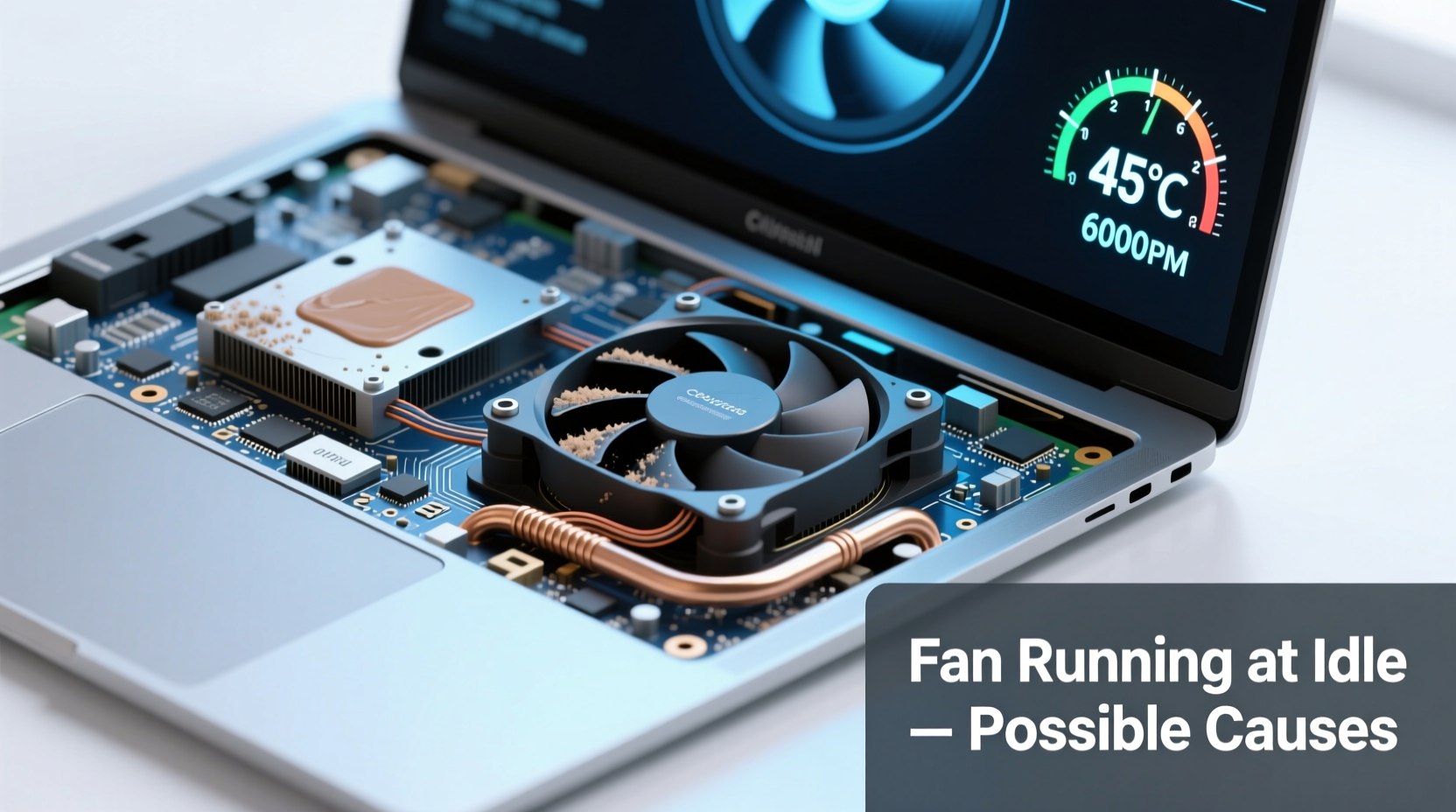
Laptops rely on compact cooling systems composed of heat sinks, thermal paste, and one or more fans. When the CPU or GPU heats up due to workload, the system increases fan speed to dissipate excess heat. Under normal conditions, fans should ramp up only when needed and slow down—or stop—during light usage or idle states.
However, modern laptops often operate with tight thermal margins. Thin designs limit airflow, and manufacturers sometimes prioritize portability over cooling efficiency. As a result, even minor background processes can trigger sustained fan activity. The key is determining whether this behavior is normal or symptomatic of a deeper problem.
“Thermal management in ultrabooks has become a balancing act between performance and acoustics. A constantly spinning fan usually means something’s off.” — Dr. Alan Zhou, Hardware Engineer at TechFlow Labs
Common Causes of Constant Fan Operation
A laptop fan running nonstop while idle isn’t always a sign of imminent failure, but it shouldn't be ignored. Several factors contribute to excessive fan use:
- Background Processes Consuming CPU: Hidden software, malware, or auto-updating apps may run unnoticed but consume significant processing power.
- Dust Accumulation: Over time, dust clogs air vents and heatsinks, reducing airflow and insulating heat.
- Failing Thermal Paste: On older laptops, dried-out thermal paste reduces heat transfer efficiency between the CPU and heatsink.
- Power Settings Misconfigured: High-performance power plans prevent the CPU from entering low-power idle states.
- Hardware Malfunction: A faulty temperature sensor might report incorrect readings, causing the fan to overreact.
- Software Bugs or Driver Issues: Outdated or buggy drivers—especially for graphics cards—can cause abnormal GPU/CPU loads.
- Environmental Factors: Using your laptop on soft surfaces like beds or couches blocks intake vents, leading to overheating.
How Background Activity Triggers Fan Use
Even when you’re not actively using your laptop, numerous background services run silently. These include cloud sync tools (like OneDrive or Dropbox), antivirus scans, Windows Update checks, and browser tabs playing audio or running scripts. Some applications don’t fully close and continue consuming resources.
To identify such culprits, open Task Manager (Ctrl+Shift+Esc) and sort processes by CPU usage. If any process consistently uses more than 5–10% CPU while idle, investigate further. For example, \"Antimalware Service Executable\" spiking CPU may indicate real-time scanning; temporarily disabling it (with caution) can confirm if it's driving fan activity.
Step-by-Step Guide to Diagnose and Fix Fan Issues
Follow this structured approach to pinpoint and resolve the cause of constant fan operation.
- Check CPU and GPU Usage: Open Task Manager and monitor resource usage under the “Processes” tab. Look for high CPU, memory, or disk usage during idle.
- Scan for Malware: Run a full system scan using Windows Defender or a trusted third-party antivirus tool. Malware often runs hidden mining scripts that max out the CPU.
- Clean Air Vents: Use compressed air to blow dust from intake and exhaust vents. Do this monthly if used in dusty environments.
- Update Drivers and OS: Ensure all drivers—particularly graphics and chipset—are up to date. Check Device Manager and Windows Update regularly.
- Adjust Power Plan Settings: Switch to “Balanced” or “Power Saver” mode. Avoid “High Performance,” which keeps CPU clocks elevated.
- Monitor Internal Temperatures: Use tools like HWMonitor, Core Temp, or SpeedFan to check real-time CPU/GPU temps. Idle temperatures above 60°C suggest cooling inefficiency.
- Reset BIOS/UEFI Settings: Enter BIOS (usually by pressing F2, Del, or Esc during boot) and restore default settings. Incorrect fan thresholds or overclocking may persist here.
- Reapply Thermal Paste (Advanced): For laptops over 3 years old, consider replacing degraded thermal paste. This requires disassembly and some technical skill.
Do’s and Don’ts: Managing Laptop Heat and Fan Noise
| Do’s | Don’ts |
|---|---|
| Use a laptop cooling pad with external fans | Place laptop on soft surfaces like beds or pillows |
| Keep operating system and drivers updated | Ignore persistent high CPU usage in Task Manager |
| Set power plan to “Balanced” for daily use | Run multiple resource-heavy apps simultaneously without monitoring heat |
| Clean air vents every 1–2 months | Disassemble the laptop without proper tools or knowledge |
| Shut down or restart weekly to clear memory leaks | Leave the laptop in direct sunlight or hot cars |
Real-World Example: Sarah’s Overheating Work Laptop
Sarah, a freelance graphic designer, noticed her three-year-old laptop fan running constantly, even after closing all design apps. Initially, she assumed it was due to heavy Photoshop use. But the noise persisted overnight and drained her battery faster.
She opened Task Manager and discovered that \"Google Chrome Helper\" was using 78% CPU despite having only two tabs open—one streaming music. After force-quitting Chrome and restarting it, CPU usage dropped to 5%. The fan slowed significantly within minutes.
Further investigation revealed outdated GPU drivers were causing poor rendering efficiency in Chrome. Updating her NVIDIA drivers reduced background load. She also switched her power plan to “Balanced” and began cleaning the side vents monthly. Within a week, idle fan noise became rare, and system temperatures stabilized around 48°C.
This case highlights how a combination of software misbehavior and neglected maintenance can mimic hardware failure.
When to Consider Hardware Repair or Replacement
If troubleshooting fails to resolve the issue, the problem may lie in physical components. Here are signs that professional repair or part replacement is necessary:
- Fan runs at maximum speed regardless of load (suggests failed temperature sensor).
- Unusual noises like grinding or clicking (indicates bearing wear or debris).
- Laptop shuts down unexpectedly under light use (thermal throttling or protection triggers).
- Surface near the fan feels excessively hot (>70°C at idle).
In such cases, visiting an authorized service center is advisable. Technicians can inspect fan mechanics, test sensors, clean internal components thoroughly, and reapply thermal interface materials. For older laptops, replacing the entire cooling module may be more cost-effective than repeated fixes.
Frequently Asked Questions
Is it harmful if my laptop fan runs all the time?
Continuous fan operation isn’t immediately dangerous, but it shortens the fan’s lifespan and indicates inefficient cooling. Prolonged high temperatures can degrade the CPU, GPU, and battery over time. Address the root cause rather than accepting constant noise as normal.
Can I turn off the fan manually?
No—and you shouldn’t. The fan is controlled automatically by the system based on temperature sensors. Manually disabling it risks severe overheating and permanent hardware damage. Instead, focus on reducing thermal load and improving airflow.
Does using a cooling pad really help?
Yes, especially on poorly ventilated surfaces. A quality cooling pad improves airflow beneath the laptop, lowering base temperatures by 5–10°C. Choose one with adjustable fan speeds and USB-powered operation for best results.
Expert-Recommended Maintenance Checklist
Stay ahead of cooling problems with this proactive checklist:
- ✅ Monitor CPU usage weekly via Task Manager
- ✅ Clean exterior vents with compressed air monthly
- ✅ Update operating system and drivers quarterly
- ✅ Check internal temperatures using HWMonitor twice a year
- ✅ Replace thermal paste every 2–3 years (for DIY-capable users)
- ✅ Avoid blocking air intakes during use
- ✅ Restart your laptop at least once a week
“Preventive maintenance is the most effective way to avoid thermal issues. Ten minutes of care each month can add years to your laptop’s life.” — Maria Tran, Senior IT Support Specialist
Conclusion: Take Control of Your Laptop’s Performance
A constantly running laptop fan isn’t something you should simply endure. It’s a signal—sometimes subtle, sometimes loud—that your device is struggling to manage heat efficiently. Whether the cause is software-related, environmental, or hardware-based, most issues are diagnosable and fixable with the right approach.
By understanding what drives fan behavior, monitoring system performance, and applying regular maintenance, you can restore quiet operation, improve responsiveness, and protect your investment. Don’t wait for a shutdown or hardware failure to act. Start today by checking your Task Manager, cleaning those vents, and optimizing your power settings. Small steps now can prevent big problems later.




 浙公网安备
33010002000092号
浙公网安备
33010002000092号 浙B2-20120091-4
Comments
No comments yet. Why don't you start the discussion?