
Suddenly hearing your laptop sound like a jet engine during takeoff can be alarming—especially when you're just browsing the web or typing a document. A loud fan isn't just annoying; it's often a warning sign that something’s wrong with your system. While some fan noise is normal under heavy workloads, persistent or sudden increases in volume usually point to underlying issues such as overheating, dust buildup, or software problems.
The good news is that most causes are fixable without professional help. With the right approach, you can restore quiet operation, improve performance, and extend your laptop’s lifespan. This guide walks through the most common reasons for excessive fan noise and provides actionable, step-by-step solutions to resolve them quickly and safely.
Understanding Why Laptop Fans Get Loud
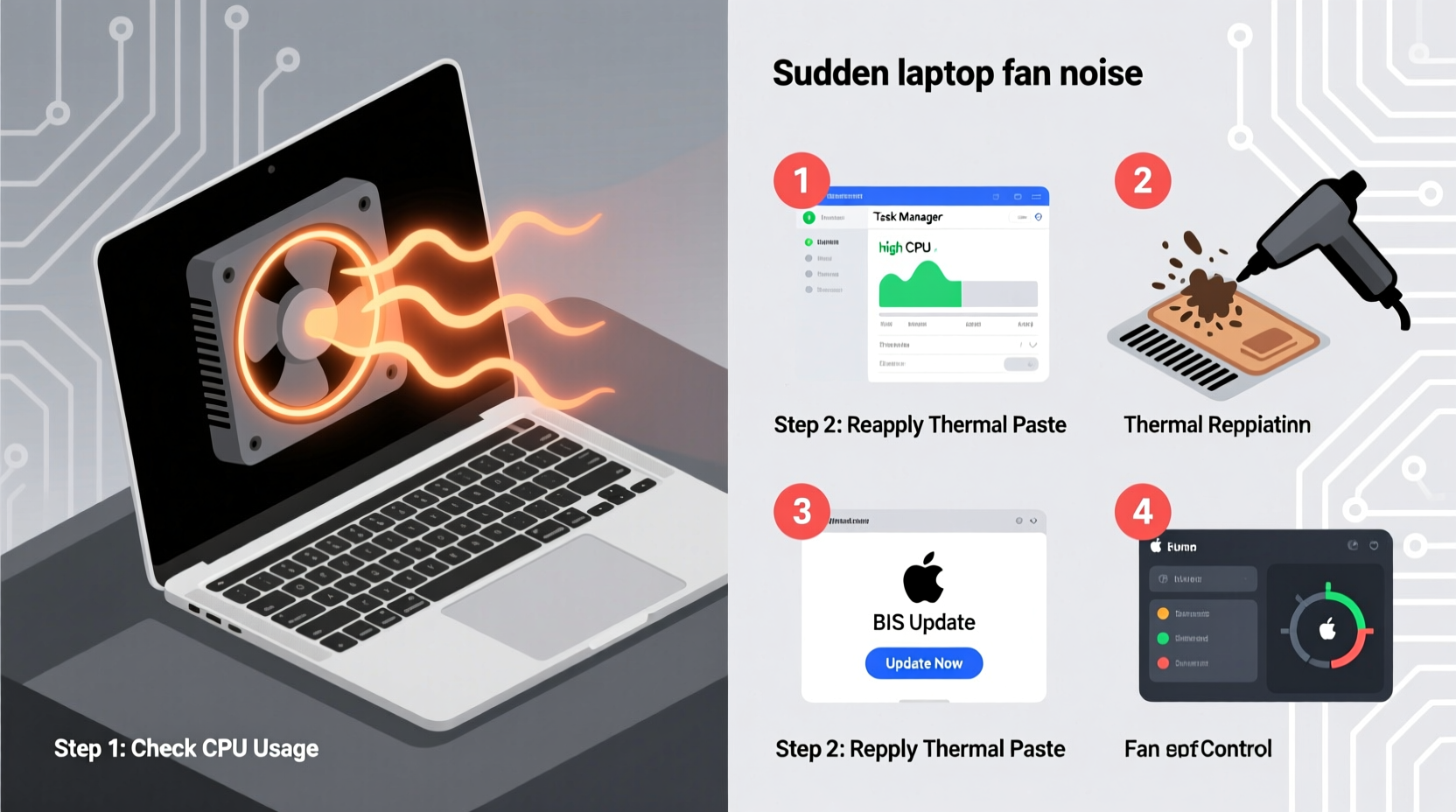
Laptop cooling systems rely on fans to expel hot air generated by the CPU, GPU, and other components. These fans automatically ramp up speed when internal temperatures rise. However, several factors can cause the fan to run at high RPMs more frequently or continuously:
- Dust accumulation inside vents and heat sinks restricts airflow.
- Poor ventilation due to using the laptop on soft surfaces like beds or couches.
- High CPU/GPU usage from background processes, malware, or resource-heavy applications.
- Failing thermal paste between the processor and heatsink reduces heat transfer efficiency.
- Aging hardware or degraded fan bearings causing mechanical noise.
- Outdated BIOS or drivers leading to inefficient power and thermal management.
Identifying the root cause is key to applying the correct fix. Jumping straight to disassembly when the issue is merely software-related can waste time and risk damage.
Step-by-Step Troubleshooting Guide
Follow this logical sequence to isolate and resolve the source of excessive fan noise. Start with non-invasive checks before moving to hardware interventions.
- Check for High Resource Usage
Open Task Manager (Windows) or Activity Monitor (Mac). Look for processes consuming high CPU or disk resources. End unnecessary tasks. Persistent high usage could indicate malware or misbehaving software. - Scan for Malware
Run a full system scan using trusted antivirus software. Some malicious programs run hidden mining scripts that max out CPU usage, forcing fans to run constantly. - Clean Air Vents and Exhaust Ports
Use compressed air to blow dust from intake grills and exhaust vents. Hold fans in place with a toothpick or plastic tool to prevent overspinning during cleaning. - Evaluate Your Usage Environment
Avoid placing the laptop on pillows, blankets, or laps where airflow is blocked. Use a hard, flat surface or a laptop cooling pad. - Update System Software
Install the latest OS updates, BIOS firmware, and graphics drivers. Manufacturers often release patches that improve thermal regulation. - Reset Power Settings
Switch to \"Balanced\" or \"Power Saver\" mode. High-performance plans keep CPU clocks elevated, increasing heat output. - Monitor Internal Temperatures
Use tools like HWMonitor (Windows), Core Temp, or iStat Menus (Mac) to check real-time CPU and GPU temps. Idle temps above 50°C or load temps exceeding 90°C signal overheating. - Reapply Thermal Paste (Advanced)
If temperatures remain high after cleaning, old or dried thermal paste may be the culprit. Replacing it requires partial disassembly but can dramatically reduce heat.
Do’s and Don’ts When Dealing With Fan Noise
| Do’s | Don’ts |
|---|---|
| Use compressed air to clean vents regularly | Blow into vents with your mouth (moisture damages components) |
| Place laptop on hard, flat surfaces | Use on soft furniture that blocks airflow |
| Update BIOS and drivers monthly | Ignore firmware update notifications |
| Install reputable antivirus software | Download pirated software or click suspicious links |
| Use cooling pads for extended sessions | Disassemble the laptop without proper tools or knowledge |
Real-World Example: Fixing a Noisy Work Laptop
Mark, a freelance graphic designer, noticed his three-year-old Windows laptop started whirring loudly even when idle. He initially assumed it was failing hardware and considered buying a replacement. Instead, he ran Task Manager and discovered a background process named “Runtime Broker” consuming 78% CPU.
After researching, he found that a recent Windows update had triggered excessive resource use by this service. He adjusted notification settings and disabled unnecessary startup apps. The CPU dropped to 12%, and the fan noise reduced significantly. A quick blast of compressed air cleared dust from the side vent, and within 20 minutes, his laptop was quiet again—saving him over $1,000 in potential replacement costs.
This case highlights how simple software fixes can resolve what seems like a hardware failure.
“Over 60% of ‘noisy fan’ cases we see in repair shops are actually caused by software bloat or dust—not broken parts. Most users can fix this themselves with basic tools.” — David Lin, Senior Technician at TechCare Pro
Essential Tips to Prevent Future Fan Issues
Prevention is far easier than repair. Incorporate these habits into your routine to maintain optimal cooling and minimize wear on your fan.
- Keep vents clear: Never cover intake areas near the bottom or sides.
- Avoid extreme environments: Don’t leave your laptop in hot cars or direct sunlight.
- Manage background apps: Disable auto-start programs you don’t need.
- Use external keyboards for long sessions: This allows you to close the lid and use a cooling stand, improving airflow.
- Monitor temperatures: Install a lightweight monitoring app to catch overheating early.
When to Consider Hardware Repair
If you’ve completed all software and cleaning steps and the fan remains excessively loud, the issue may be physical. Signs include:
- Grinding, clicking, or rattling noises (not just whooshing).
- Fan spinning erratically or stopping intermittently.
- System shutdowns due to overheating despite clean internals.
In these cases, the fan itself may need replacement. For older laptops, consider whether repair cost justifies investment versus upgrading. On newer models, a fan replacement typically costs $80–$150 and restores quiet operation.
Quick Fix Checklist
Use this checklist to rapidly diagnose and address loud fan noise:
- ✅ Open Task Manager / Activity Monitor – identify high CPU usage
- ✅ End unnecessary processes or restart the system
- ✅ Run antivirus scan to rule out malware
- ✅ Clean air intake and exhaust vents with compressed air
- ✅ Ensure laptop is on a hard, level surface
- ✅ Update operating system, BIOS, and graphics drivers
- ✅ Switch power plan to “Balanced” or “Power Saver”
- ✅ Check internal temperatures using monitoring software
- ✅ Evaluate need for professional cleaning or thermal paste reapplication
- ✅ Replace fan if damaged or excessively noisy after other fixes
Frequently Asked Questions
Is it safe to use my laptop if the fan is loud?
A loud fan isn’t immediately dangerous, but sustained high temperatures can damage internal components over time. If the system isn’t overheating (temps below 90°C under load), it’s generally safe to use temporarily. However, prolonged exposure to heat shortens the lifespan of the battery, CPU, and storage drive. Address the cause promptly.
Can I disable the fan to stop the noise?
No. Disabling the fan—even temporarily—risks catastrophic overheating. Modern laptops have safeguards that shut down the system if temperatures exceed safe limits, but relying on these repeatedly can lead to data loss and hardware degradation. The fan is essential for protection.
How often should I clean my laptop’s cooling system?
For average home or office use, clean the vents every 3–6 months. In dusty environments, pet-friendly homes, or if used on carpets/beds frequently, clean every 6–8 weeks. Internal cleaning (requiring disassembly) should be done every 1–2 years, depending on usage.
Conclusion: Take Control Before It Gets Worse
A suddenly loud laptop fan is more than an irritation—it’s a symptom of stress within your system. Whether caused by dust, software strain, or aging components, the solution is almost always within reach. By methodically checking resource usage, cleaning vents, updating software, and monitoring temperatures, you can silence the noise and protect your device’s performance.
Most fixes take less than 30 minutes and cost nothing. Even advanced steps like reapplying thermal paste are manageable with online guides and basic tools. Don’t wait for permanent damage or unexpected shutdowns. Act now to restore quiet, efficient operation and extend your laptop’s life by years.




 浙公网安备
33010002000092号
浙公网安备
33010002000092号 浙B2-20120091-4
Comments
No comments yet. Why don't you start the discussion?