
A sudden roar from your laptop’s fan can be more than just annoying—it’s often a warning sign. While fans are designed to keep internal components cool, excessive noise usually indicates an underlying issue. Ignoring it may lead to reduced performance, hardware degradation, or even permanent damage. Understanding why your laptop fan is working overtime—and what it's trying to communicate—can help you take timely action to protect your device.
The Role of Your Laptop’s Cooling System
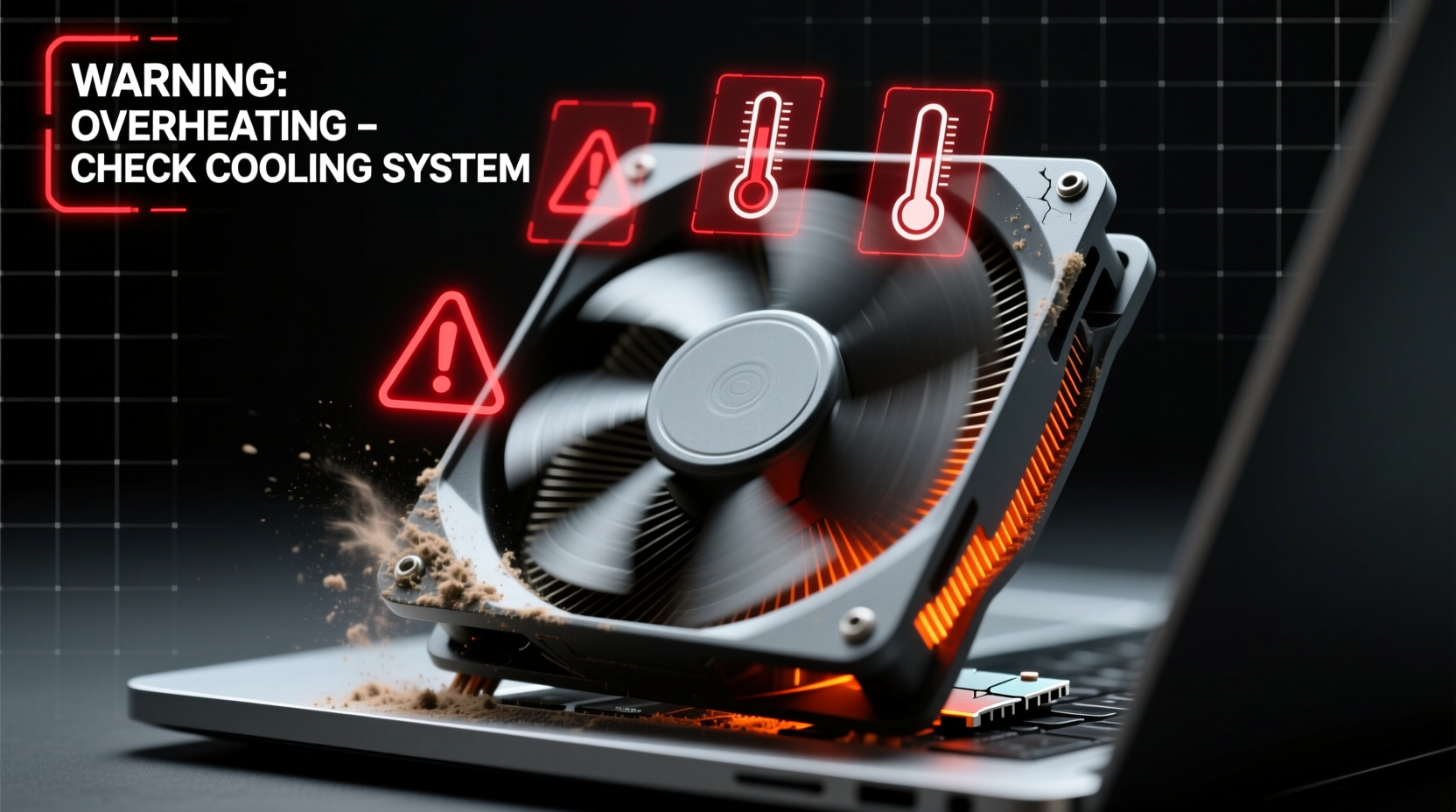
Laptops generate heat during operation, especially when running resource-heavy applications like video editors, games, or virtual machines. The cooling system, typically composed of one or more fans and a heat sink, works to dissipate this heat and maintain safe operating temperatures for the CPU and GPU.
When temperatures rise, the fan speed increases automatically to move more air through the system. This is normal behavior under load. However, if the fan runs loudly even during light tasks like browsing or word processing, something may be wrong.
“Persistent fan noise is rarely just background hum—it’s your laptop’s way of saying it’s struggling.” — Dr. Alan Reyes, Hardware Systems Engineer
Common Causes of Loud Fan Noise
Loud fan activity stems from either increased thermal demand or mechanical inefficiency. Below are the most frequent culprits:
Dust and Debris Buildup
Over time, dust accumulates in the air vents and around the fan blades and heat sink. This restricts airflow, forcing the fan to spin faster and louder to compensate. Dust acts as insulation, trapping heat inside the chassis and worsening the problem.
High CPU or GPU Usage
Background processes, malware, or demanding software can push your processor to its limits. When CPU usage stays above 80% for extended periods, the resulting heat triggers aggressive fan response. Check Task Manager (Windows) or Activity Monitor (macOS) to identify resource-hogging apps.
Failing Thermal Paste
Thermal paste transfers heat from the CPU/GPU to the heat sink. Over time—usually after 2–3 years—it dries out and loses effectiveness. Without efficient heat transfer, components overheat quickly, prompting constant high-speed fan operation.
Poor Ventilation
Using your laptop on soft surfaces like beds, couches, or blankets blocks intake vents located on the bottom. This cuts off airflow, causing rapid overheating. Even slight obstructions can have a significant impact on cooling efficiency.
Aging or Worn-Out Fan
Fans have moving parts and limited lifespans. Bearings wear down, blades become unbalanced, or motors degrade. A fan making grinding, clicking, or rattling sounds likely needs replacement, even if cooling performance seems adequate.
Outdated BIOS or Firmware
Some laptops have firmware bugs that cause incorrect temperature readings or improper fan control. Manufacturers occasionally release updates to improve thermal management algorithms. An outdated BIOS may result in unnecessarily loud or erratic fan behavior.
What the Noise Might Be Telling You
Your laptop isn’t equipped with a voice, but its fan serves as a diagnostic tool. The type and timing of the noise can reveal specific issues:
- Constant high-pitched whine: Suggests sustained high temperatures due to poor ventilation or heavy workloads.
- Intermittent bursts of noise: May indicate background processes spiking CPU usage, such as software updates or indexing.
- Grinding or rattling sounds: Points to physical fan damage or debris lodged in the blades.
- Fan spinning up at startup then calming down: Normal self-test behavior. If it stays loud, thermal thresholds are being exceeded.
In some cases, the fan ramps up because the system detects a critical temperature threshold. Modern laptops will throttle performance or shut down automatically to prevent damage—but repeated exposure to high heat shortens component lifespan.
Step-by-Step Guide to Diagnose and Reduce Fan Noise
Follow this structured approach to identify and resolve the root cause of excessive fan noise:
- Check current system load. Open Task Manager (Ctrl+Shift+Esc) or Activity Monitor. Look for processes consuming high CPU or disk resources. End unnecessary tasks.
- Monitor internal temperatures. Use tools like HWMonitor (Windows), Macs Fan Control (macOS), or Core Temp to check real-time CPU and GPU temps. Idle temps should stay below 50°C; under load, below 85°C is acceptable.
- Inspect physical ventilation. Ensure all vents are unobstructed. Avoid using the laptop on soft surfaces. Consider a cooling pad for prolonged sessions.
- Clean internal components. Power off and unplug the laptop. Use compressed air to blow dust from intake and exhaust vents. For deep cleaning, consider professional servicing or carefully opening the back panel (if comfortable).
- Update system software. Check for OS updates, driver updates (especially graphics), and BIOS/firmware upgrades from the manufacturer’s support site.
- Adjust power settings. On Windows, switch to “Balanced” or “Power Saver” mode. On macOS, disable “Automatic graphics switching” only if needed, but prefer energy-efficient modes otherwise.
- Reapply thermal paste (advanced). If temps remain high after cleaning and software fixes, consider replacing dried thermal paste. This requires disassembling the laptop and carries risk if done improperly.
Troubleshooting Checklist
- ✅ Close unused browser tabs and applications
- ✅ Run a malware scan using trusted antivirus software
- ✅ Use a hard, flat surface for laptop placement
- ✅ Clean air vents monthly with compressed air
- ✅ Monitor CPU temperature regularly
- ✅ Update operating system and drivers
- ✅ Reset SMC (macOS) or update BIOS (Windows)
- ✅ Consider professional cleaning or repair if noise persists
Real-World Example: Sarah’s Overheating Work Laptop
Sarah, a freelance graphic designer, noticed her three-year-old laptop becoming increasingly loud during Adobe Photoshop sessions. Initially, she dismissed it as normal under load. But soon, the fan stayed loud even when idle, and the bottom of the laptop became uncomfortably hot.
She checked Task Manager and found Chrome using 70% CPU despite having only five tabs open. One tab was running a cryptocurrency mining script disguised as a PDF viewer. After removing the malicious extension and clearing cached data, CPU usage dropped.
Still, the fan remained active. She used HWMonitor and discovered her CPU idled at 72°C—well above normal. A quick inspection revealed clogged vents. Using compressed air, she cleaned the intake grills. Temperatures fell to 48°C at idle, and fan noise returned to near-silent levels.
This case highlights how multiple factors—malware, dust buildup, and high ambient workload—can combine to create persistent fan issues. Addressing each layer resolved the problem without costly repairs.
Do’s and Don’ts of Laptop Fan Maintenance
| Do’s | Don’ts |
|---|---|
| Use compressed air to clean vents every few months | Blow into vents with your mouth (moisture damages components) |
| Elevate the rear of the laptop slightly for better airflow | Place the laptop on pillows, blankets, or your lap directly |
| Install reputable fan control software (e.g., FanControl, Macs Fan Control) | Manually block fans or disable them via software |
| Keep the room temperature moderate (20–25°C is ideal) | Leave the laptop in a hot car or direct sunlight |
| Shut down the laptop occasionally instead of relying on sleep mode | Ignore persistent noise or overheating warnings |
Frequently Asked Questions
Is it bad if my laptop fan is always on?
Not necessarily. Light fan operation is normal, especially on thin ultrabooks with limited cooling headroom. However, if the fan runs at high speed constantly—even during minimal use—it may indicate poor airflow, dust buildup, or a failing component. Persistent high-speed operation accelerates wear and reduces system longevity.
Can a loud fan damage my laptop?
The fan itself won’t damage the laptop, but the conditions causing the noise might. Overheating due to poor cooling can degrade the battery, warp internal components, and shorten the lifespan of the CPU and GPU. Additionally, a physically failing fan could seize or stop working entirely, leading to thermal shutdowns.
Should I replace the fan if it’s noisy?
If cleaning doesn’t reduce noise and the sound includes grinding, clicking, or uneven spinning, replacement is advisable. Replacement fans are relatively inexpensive and widely available for most models. However, if the laptop is older than four years, consider whether investing in repairs makes sense versus upgrading to a new device.
Prevention: Building Healthy Cooling Habits
Proactive care is far more effective than reactive fixes. Incorporate these habits into your routine to keep your laptop cool and quiet:
- Position matters: Always use your laptop on a hard, flat surface. Even a small book or tray can elevate it and improve airflow.
- Limit background apps: Disable auto-launch programs and browser extensions that consume resources unnecessarily.
- Enable automatic maintenance: Let your OS perform regular disk cleanup, updates, and virus scans during idle times.
- Monitor health monthly: Spend five minutes checking system temperatures and fan behavior, especially before intensive tasks.
- Upgrade when practical: Adding more RAM or switching to an SSD can reduce CPU strain and lower overall power consumption and heat output.
“Laptops are built for portability, not infinite durability. How you treat the cooling system directly impacts long-term reliability.” — Lin Zhao, Senior Technician at MobileFix Labs
Conclusion: Listen to Your Laptop
Your laptop’s fan isn’t just a background noise—it’s a vital feedback mechanism. Persistent loud operation signals stress, whether from dust, software overload, or aging hardware. By understanding the message behind the noise, you can intervene early and extend your device’s life significantly.
Simple actions like cleaning vents, managing system load, and ensuring proper airflow go a long way. More advanced steps, like reapplying thermal paste or replacing a worn fan, may be necessary for older machines. Either way, staying proactive protects your investment and keeps your computing experience smooth and silent.




 浙公网安备
33010002000092号
浙公网安备
33010002000092号 浙B2-20120091-4
Comments
No comments yet. Why don't you start the discussion?