
It’s frustrating when your laptop sounds like a jet engine, especially when you’re not running anything demanding. A loud fan during idle periods isn’t just annoying—it can signal underlying issues that affect performance, battery life, and hardware longevity. While some fan noise is normal, excessive or persistent whirring suggests something is wrong.
The good news is that most causes of loud fan noise are fixable without replacing your device. From software glitches to dust buildup, understanding the root cause allows you to take targeted action. This guide breaks down why your laptop fan runs loudly at idle, how to diagnose the problem, and what steps you can take—immediately and long-term—to restore quiet operation.
Understanding Laptop Cooling Systems
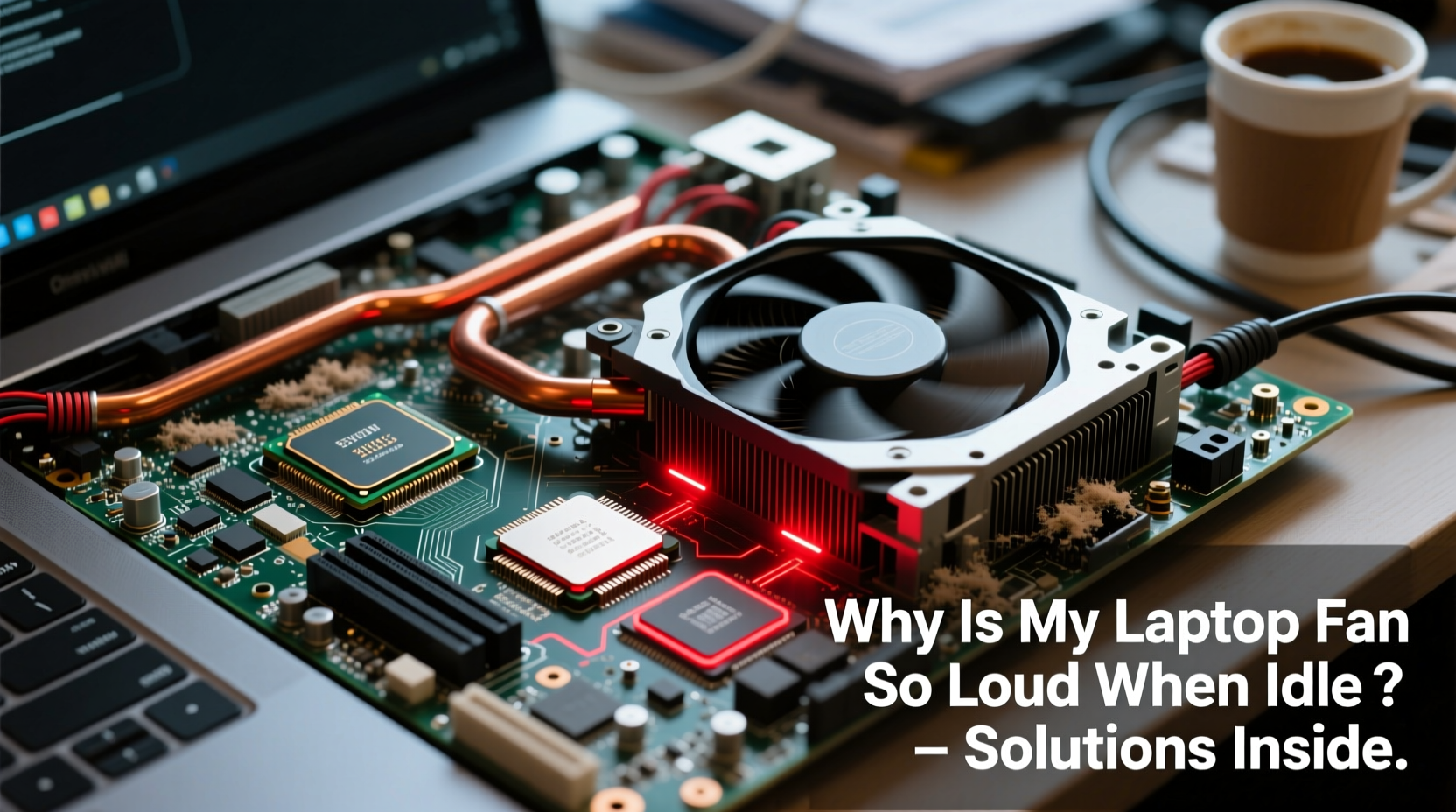
Laptops rely on internal fans and heat sinks to dissipate heat generated by the CPU, GPU, and other components. When temperatures rise, thermal sensors trigger the fan to spin faster. Under heavy load—like video editing or gaming—this is expected. But when the system is idle, fan speeds should drop significantly.
If your fan remains loud despite minimal activity, it means either:
- The system believes it’s under high thermal stress (real or false), or
- A component is working harder than necessary due to inefficiency or malfunction.
Modern laptops use dynamic fan control algorithms based on temperature thresholds. However, these systems can be thrown off by poor ventilation, outdated firmware, background processes, or failing hardware.
“Persistent fan noise at idle often points to inefficient power management or airflow obstruction—not necessarily hardware failure.” — Dr. Alan Zhou, Hardware Engineer at TechInsight Labs
Common Causes of Loud Fan Noise at Idle
1. Dust and Debris Buildup
Over time, dust accumulates in air vents and around the fan and heat sink. This restricts airflow, causing the cooling system to work harder even under light loads. A dusty laptop may run hot and noisy even when doing nothing.
2. Background Processes and High CPU Usage
You might think your laptop is idle, but hidden processes—like system updates, antivirus scans, or malware—can consume significant CPU resources. Task Manager (Windows) or Activity Monitor (macOS) often reveals apps using 20–50% CPU while appearing inactive.
3. Outdated or Corrupted Drivers
Fan control is managed by embedded controllers and drivers. If BIOS, chipset, or thermal management drivers are outdated or corrupted, the fan may default to maximum speed as a safety precaution.
4. Poor Power Management Settings
Aggressive performance plans (e.g., “High Performance” mode) keep the CPU clocked higher than needed, generating unnecessary heat. Conversely, faulty power profiles may fail to throttle down when idle.
5. Failing Hardware or Thermal Paste Degradation
On older laptops, dried-out thermal paste between the CPU and heat sink reduces heat transfer efficiency. The system overheats quickly, triggering constant fan activity. Similarly, a worn-out fan bearing can create louder noise even at low RPM.
6. Ambient Temperature and Surface Placement
Using your laptop on soft surfaces like beds or couches blocks intake vents. Even room temperature above 27°C (80°F) forces the fan to work harder to maintain safe operating temps.
Step-by-Step Guide to Diagnose and Fix Fan Noise
Follow this logical sequence to identify and resolve the issue:
- Check CPU and System Temperature
Use tools like HWMonitor (Windows), iStat Menus (macOS), or Core Temp to read real-time CPU temperatures. Normal idle temps range from 35°C to 45°C. Anything above 60°C at idle indicates a cooling problem. - Monitor Background Processes
Open Task Manager (Ctrl+Shift+Esc) and sort by CPU usage. End tasks consuming more than 10% CPU with no user activity. Watch for culprits like:- Antimalware Service Executable (may indicate aggressive scanning)
- Windows Search Indexer
- Adobe Updater, Steam, or cloud sync tools
- Unknown or suspicious processes (possible malware)
- Update System and Drivers
Go to your laptop manufacturer’s support site and download the latest:- BIOS/UEFI firmware
- Chipset drivers
- Power management utilities
- Adjust Power Plan Settings
On Windows:- Navigate to Control Panel > Hardware and Sound > Power Options.
- Select “Balanced” or customize “Power Saver” mode.
- Click “Change plan settings” > “Change advanced power settings.”
- Set “Processor power management” > “Maximum processor state” to 90% on battery and 95% plugged in.
- Ensure “System cooling policy” is set to “Passive” for better fan control.
- Clean Internal Components
Power off the laptop and disconnect the charger. Use compressed air to blow out vents. For deeper cleaning:- Remove the back panel (if comfortable and under warranty terms allow).
- Spray short bursts into fan blades and heat sink fins.
- Avoid touching components with metal nozzles.
- Reapply Thermal Paste (Advanced)
Recommended for laptops over 3 years old. Shut down, disassemble to access CPU/GPU, remove old paste with isopropyl alcohol, and apply a pea-sized amount of high-quality thermal compound (e.g., Arctic MX-4). Reassemble carefully. - Test Fan Behavior in BIOS/UEFI
Restart and enter BIOS (usually by pressing F2, F10, or Del during boot). Observe fan speed here—if still loud, the issue is hardware-related or environmental. If quiet, the OS is likely triggering excess spinning.
Do’s and Don’ts: Fan Noise Management Table
| Do’s | Don’ts |
|---|---|
| Use compressed air every 3–6 months for maintenance | Ignore consistently high idle temperatures (>60°C) |
| Place laptop on a hard, elevated surface or cooling pad | Run intensive tasks in poorly ventilated environments |
| Update BIOS and drivers regularly | Use third-party fan control apps unless experienced |
| Switch to “Battery Saver” or “Silent” mode when possible | Disassemble laptop if under warranty without consulting support |
| Scan for malware if CPU usage spikes unexpectedly | Apply excessive force when cleaning internal components |
Real Example: Resolving Fan Noise on a 4-Year-Old Dell XPS
Mark, a freelance writer, noticed his Dell XPS 13 becoming increasingly loud during email and web browsing. Despite closing all apps, the fan ran at full speed. He followed diagnostic steps:
- Task Manager showed “Antimalware Service Executable” using 38% CPU.
- He temporarily disabled real-time protection via Windows Security settings.
- Fan noise dropped immediately.
- After scheduling scans during active hours, he re-enabled protection.
- He also updated his BIOS from version 1.8.0 to 1.16.0, which included fan behavior improvements.
Result: Idle fan noise decreased by 60%, and CPU temps stabilized at 41°C. Mark now performs monthly driver checks and uses a small laptop stand for better airflow.
Checklist: What to Do When Your Laptop Fan Is Too Loud
Use this actionable checklist to troubleshoot and resolve fan issues:
- ✅ Check CPU temperature at idle (should be below 50°C)
- ✅ Open Task Manager/Activity Monitor and end high-CPU processes
- ✅ Update BIOS, chipset, and power management drivers
- ✅ Switch to “Balanced” or “Power Saver” power plan
- ✅ Clean air vents and fan with compressed air
- ✅ Avoid soft surfaces; use a hard desk or cooling pad
- ✅ Run a full malware scan using trusted antivirus software
- ✅ Reset BIOS settings to default if fan runs loud even there
- ✅ Consider thermal paste replacement for laptops over 3 years old
- ✅ Contact manufacturer support if hardware failure is suspected
Frequently Asked Questions
Can a loud fan damage my laptop?
Not directly, but sustained high fan speeds often indicate overheating, which can degrade components over time. Prolonged exposure to temperatures above 90°C may shorten the lifespan of the CPU, GPU, or battery.
Is it safe to disable the fan manually?
No. Disabling the fan—even temporarily—risks immediate overheating and thermal shutdown. At worst, it can cause permanent hardware damage. Always address the root cause instead of tampering with cooling systems.
Why does my fan turn on and off rapidly?
This “fan fluttering” usually occurs when the system hovers near a thermal threshold. It may result from aggressive fan curves or unstable workloads. Updating BIOS or using utilities like ThinkPad’s Fan Control (for Lenovo) can smooth transitions.
Preventive Maintenance Tips
Keeping your laptop cool and quiet starts with consistent care. Implement these habits:
- Schedule monthly cleanings: Blow out vents with compressed air, especially if used in dusty environments.
- Limit background apps: Disable auto-start programs in Startup tab (Task Manager) that aren’t essential.
- Monitor temperatures: Use lightweight monitoring tools to catch rising temps early.
- Avoid direct sunlight: Never leave your laptop on a car dashboard or near heaters.
- Use sleep mode wisely: Close the lid or put to sleep when not in use to reduce passive heat generation.
When to Seek Professional Help
Some issues go beyond DIY fixes. Seek professional repair if:
- The fan makes grinding or clicking noises (bearing failure).
- The laptop shuts down unexpectedly despite cleaning and updates.
- Temperature readings exceed 90°C under light use.
- You're uncomfortable opening the device or risk voiding warranty.
Authorized service centers can replace fans, reflow soldered components, or perform deep thermal maintenance safely.
Conclusion: Take Control of Your Laptop’s Performance and Noise
A loud laptop fan at idle isn’t something you have to live with. More often than not, the fix lies in simple adjustments—cleaning vents, managing background processes, or updating firmware. By understanding how your laptop manages heat and responding proactively, you can restore quiet operation and extend its usable life.
Start today: open your task manager, check your CPU usage, and feel the underside of your laptop. If it’s hot and the fan is roaring, apply the steps outlined here. Small changes lead to big improvements in both comfort and performance. Your laptop—and your ears—will thank you.




 浙公网安备
33010002000092号
浙公网安备
33010002000092号 浙B2-20120091-4
Comments
No comments yet. Why don't you start the discussion?