
Laptop fans are designed to keep internal components cool, but when they run loudly during idle periods—when the system should be nearly silent—it’s a sign something is off. Excessive fan noise can be more than just annoying; it may point to underlying hardware or software issues that, if left unchecked, could shorten your laptop’s lifespan. The good news is that most causes of loud fan noise at idle are fixable with targeted troubleshooting. From dust buildup to background processes, overheating, or outdated drivers, this guide breaks down the root causes and provides practical, step-by-step solutions.
Understanding Laptop Cooling Systems
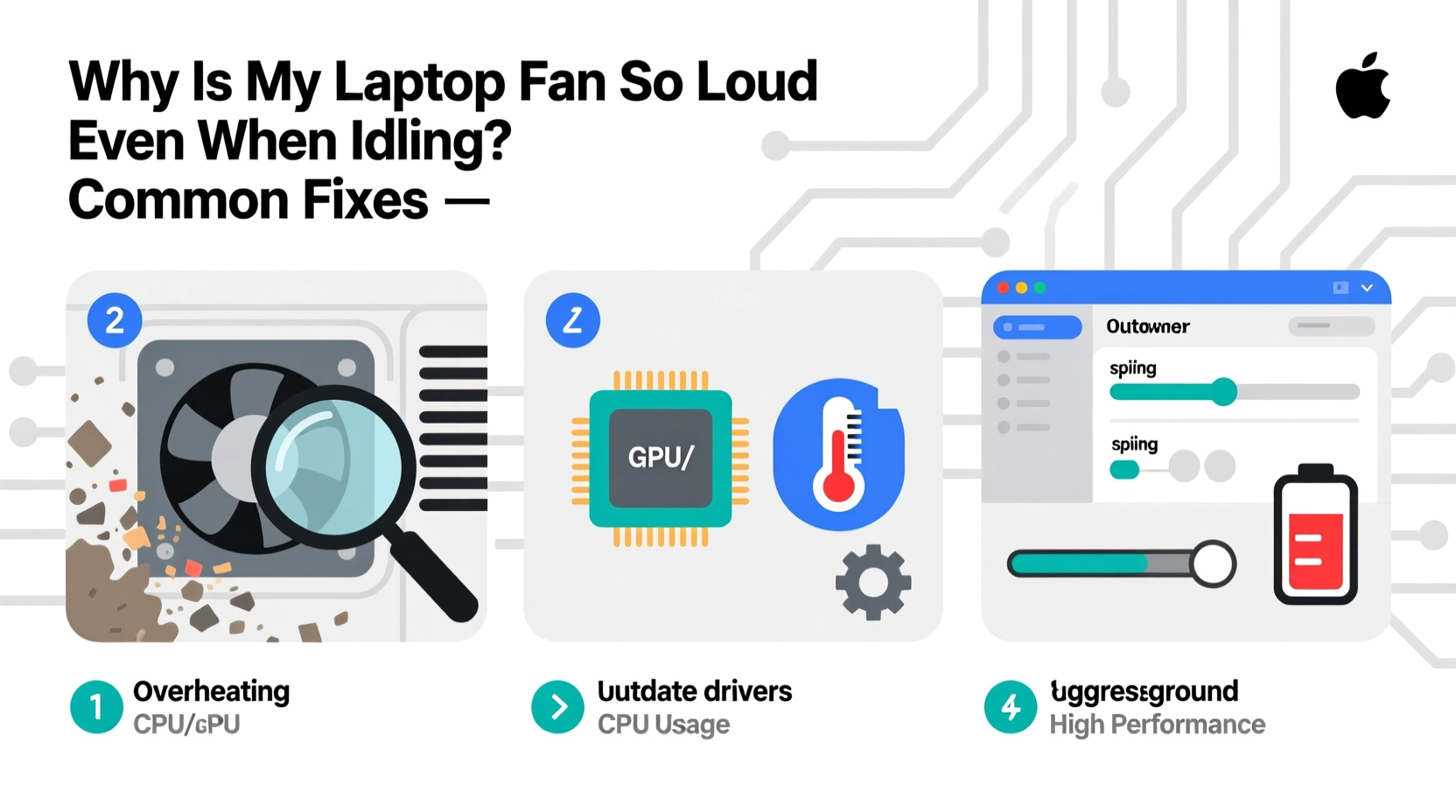
Laptops rely on active cooling systems—typically one or more small fans paired with heat sinks—to dissipate heat generated by the CPU, GPU, and other components. When these parts work harder, such as during gaming or video editing, increased fan activity is expected. However, persistent high-speed fan operation while the system is idle suggests inefficiencies in either thermal management or system resource usage.
Fans ramp up speed based on temperature readings from internal sensors. If the system detects rising temperatures—even slightly above normal thresholds—the fan will spin faster to compensate. But sometimes, the fan runs loudly not because of actual heat, but due to inaccurate sensor data, poor airflow, or unnecessary background tasks consuming processing power.
Common Causes of Loud Fan Noise at Idle
Several factors can trigger excessive fan activity even when your laptop isn’t performing intensive tasks. Identifying the cause is the first step toward resolution.
- Dust and debris buildup: Over time, dust clogs air vents and heatsinks, reducing airflow and causing components to overheat.
- Background processes and startup apps: Hidden programs running in the background can consume CPU resources, increasing heat output.
- Poor ventilation: Using your laptop on soft surfaces like beds or couches blocks intake vents, trapping heat.
- Outdated BIOS or drivers: Firmware and driver bugs can mismanage thermal regulation or power states.
- Failing thermal paste: On older laptops, dried-out thermal paste between the CPU and heatsink reduces heat transfer efficiency.
- Aggressive power settings: High-performance power plans keep the CPU clocked higher than necessary, generating excess heat.
- Malware or cryptomining scripts: Malicious software can secretly use system resources, leading to sustained CPU load.
“Even minimal CPU usage can trigger fan spikes if thermal pathways are compromised. It’s not always about how hard the processor works—it’s about how well heat escapes.” — Dr. Alan Reyes, Hardware Engineer at TechTherm Labs
Step-by-Step Guide to Diagnose and Fix Fan Noise
Follow this structured approach to identify and resolve the source of your noisy laptop fan.
- Check CPU and GPU usage: Open Task Manager (Ctrl+Shift+Esc) and sort processes by CPU usage. Look for any app using more than 5–10% consistently while idle.
- Monitor system temperature: Use tools like HWMonitor, Core Temp, or SpeedFan to check real-time CPU and GPU temps. Idle temperatures above 50°C (122°F) suggest a cooling issue.
- Inspect physical condition: Examine air vents for visible dust. Shine a flashlight into intake and exhaust grills. If clogged, proceed to cleaning.
- Evaluate power plan settings: Navigate to Control Panel > Power Options and switch from “High Performance” to “Balanced” or “Power Saver.”
- Update BIOS and drivers: Visit your laptop manufacturer’s support site and download the latest BIOS, chipset, and fan control drivers.
- Test on a hard, flat surface: Place the laptop on a desk or tray to ensure unobstructed airflow underneath and around vents.
- Scan for malware: Run a full system scan using Windows Defender or a trusted third-party antivirus tool.
When to Consider Internal Cleaning
If external inspection reveals heavy dust accumulation or internal temperatures remain high despite low CPU usage, internal cleaning may be necessary. This involves opening the bottom panel (if user-accessible), disconnecting the battery, and gently removing dust from fans, heatsinks, and vents using compressed air.
Do’s and Don’ts: Managing Fan Noise Effectively
| Do’s | Don’ts |
|---|---|
| Use your laptop on hard, flat surfaces for optimal airflow | Place your laptop on beds, pillows, or carpets that block vents |
| Set power plan to “Balanced” for everyday use | Leave “High Performance” mode enabled indefinitely |
| Clean air vents every 3–6 months depending on environment | Ignore persistent fan noise thinking it’s normal |
| Update BIOS and drivers regularly | Download BIOS updates from unofficial sources |
| Monitor temperatures with free software tools | Run intensive tasks for hours without checking system heat |
Real-World Example: Resolving Fan Noise on a 3-Year-Old Work Laptop
Consider Sarah, a remote project manager using a three-year-old Dell Latitude for daily video calls and document editing. She noticed her laptop fan would spin loudly within minutes of booting, even when no applications were open. Initially, she assumed it was age-related wear. After following diagnostic steps, she discovered Chrome was running multiple background tabs and extensions, consuming 18% CPU continuously. She also found her power plan set to “High Performance” from a past presentation.
Sarah closed unused tabs, disabled non-essential extensions, changed her power plan, and cleaned the side vents with compressed air. Within 20 minutes, fan noise dropped significantly. Her idle CPU temp fell from 62°C to 43°C. This case illustrates how a combination of software optimization and basic maintenance can restore quiet operation—without costly repairs.
Advanced Fixes for Persistent Issues
If basic troubleshooting fails, deeper interventions may be required.
Reapplying Thermal Paste
On laptops more than two years old, especially those used frequently under load, thermal paste between the CPU/GPU and heatsink can dry out and crack, losing its ability to conduct heat efficiently. Replacing it with high-quality thermal compound (e.g., Arctic MX-4 or Noctua NT-H1) can reduce operating temperatures by 5–15°C.
This procedure requires disassembling the laptop, removing the heatsink, wiping off old paste, and applying a pea-sized amount of new paste before reassembly. Only attempt this if you’re comfortable with hardware repair or consult a technician.
Using Fan Control Software (With Caution)
Some users turn to third-party fan control utilities like Notebook FanControl or SpeedFan to manually regulate fan speed. While effective in some cases, improper settings can lead to overheating. Always monitor temperatures closely when adjusting fan curves and avoid setting minimum speeds too low.
Note: Many modern laptops lock fan control to the BIOS for safety reasons, making manual override impossible.
Preventive Maintenance Checklist
Stay ahead of fan noise with regular upkeep. Use this checklist monthly or quarterly:
- ✅ Clean external vents with a soft brush or compressed air
- ✅ Check Task Manager for abnormal CPU/GPU usage
- ✅ Update operating system and drivers
- ✅ Verify power plan is set to “Balanced”
- ✅ Scan for malware using updated antivirus software
- ✅ Ensure laptop is placed on a ventilated surface
- ✅ Monitor internal temperatures using free tools
- ✅ Restart your laptop weekly to clear memory leaks and background clutter
Frequently Asked Questions
Is it normal for my laptop fan to run constantly?
Not entirely. While occasional fan activity is normal, constant high-speed spinning—especially at idle—is not. Brief bursts are acceptable, but continuous noise suggests an underlying issue such as dust buildup, software load, or failing cooling components.
Can a loud fan damage my laptop?
The fan itself won’t cause direct damage, but sustained high RPMs are often symptoms of overheating. Prolonged exposure to high temperatures can degrade the CPU, GPU, battery, and solder joints over time, potentially leading to hardware failure.
Should I replace my laptop fan if it’s noisy?
Replacement should be a last resort. First, clean the fan and heatsink, update firmware, and optimize software. If the fan makes grinding or clicking noises, or doesn’t spin freely, then mechanical failure is likely, and replacement may be necessary. Most laptop fans cost $15–$40 and can be replaced with moderate technical skill.
Final Thoughts and Action Plan
A loud laptop fan at idle isn’t something to ignore. It’s a signal that your device is working harder than it should to stay cool. In many cases, the fix is simple: clean the vents, close unnecessary programs, adjust power settings, or update drivers. For older machines, deeper maintenance like reapplying thermal paste can breathe new life into performance and acoustics.
Start today by spending 10 minutes reviewing your startup apps and checking CPU usage. Then, spend another 10 cleaning the vents and adjusting your power plan. These small actions can dramatically reduce noise, extend your laptop’s lifespan, and improve your overall computing experience.




 浙公网安备
33010002000092号
浙公网安备
33010002000092号 浙B2-20120091-4
Comments
No comments yet. Why don't you start the discussion?