
Laptop fans are designed to keep internal components cool, but when they start running constantly at high speed, the noise can be more than just annoying—it’s a sign something’s wrong. A loud fan often indicates overheating, dust buildup, or inefficient software usage. Ignoring it can lead to reduced performance, hardware damage, or even permanent system failure. The good news? Most causes of excessive fan noise are fixable with simple, practical steps you can take at home.
Understanding what triggers your laptop’s cooling system helps you address the root cause—not just the symptom. Whether you're working from home, studying, or gaming, a quieter, cooler laptop improves both comfort and longevity. This guide walks you through common reasons for loud fan noise, actionable solutions, and preventive habits that keep your device running smoothly.
Why Laptop Fans Turn Into Jet Engines
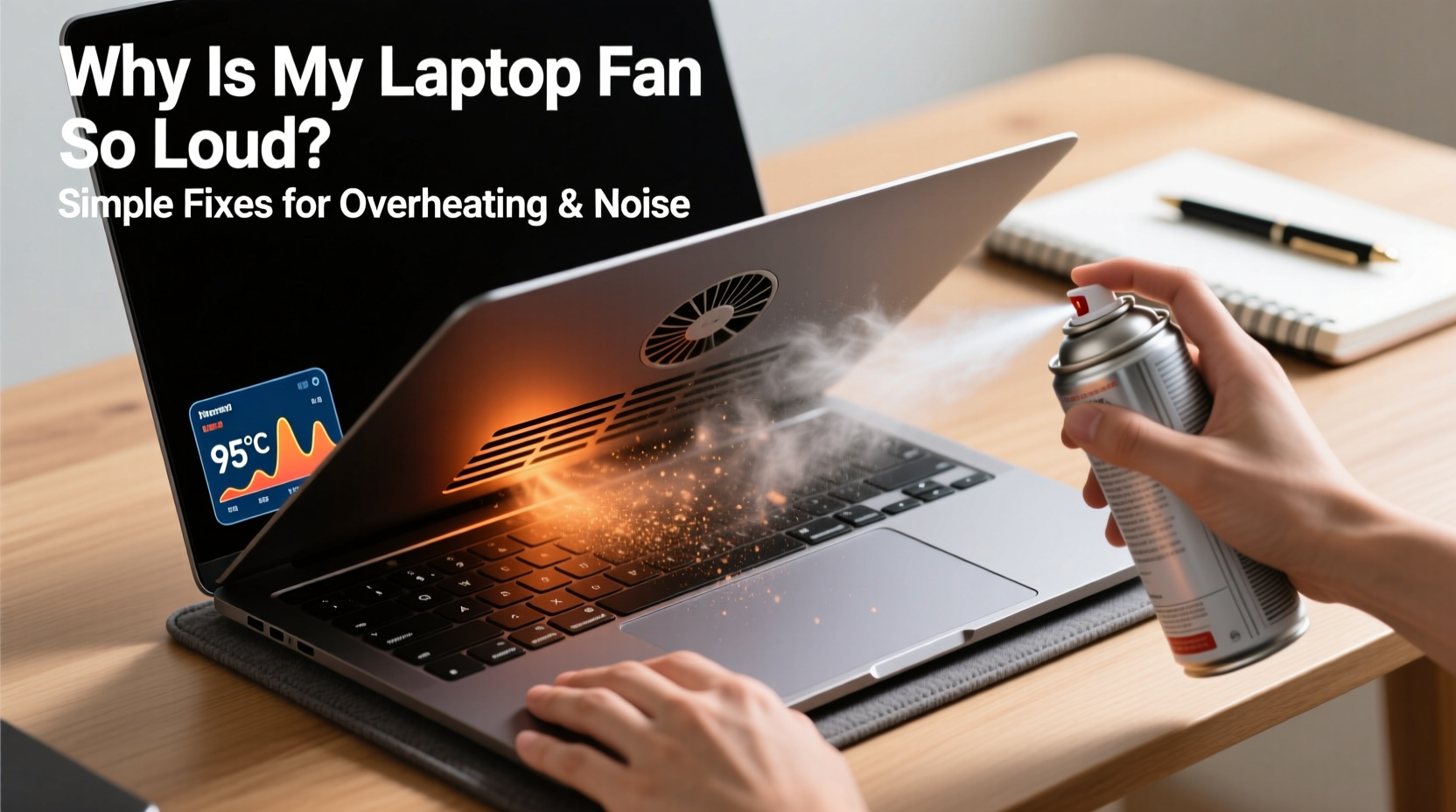
Laptop fans activate when the internal temperature rises, typically due to CPU or GPU workload. Under normal conditions, fans run quietly and intermittently. But when they become persistently loud, it usually means the system is struggling to manage heat. Several factors contribute to this:
- High CPU/GPU usage: Resource-heavy applications like video editors, games, or virtual machines push processors to their limits, generating excess heat.
- Dust accumulation: Over time, dust clogs air vents and heatsinks, reducing airflow and insulating heat inside the chassis.
- Poor ventilation: Using your laptop on soft surfaces like beds or couches blocks intake vents, trapping hot air.
- Aging thermal paste: The compound between the processor and heatsink degrades over time, reducing heat transfer efficiency.
- Background processes: Malware, outdated drivers, or unnecessary startup programs can cause hidden CPU spikes.
- Ambient temperature: Hot rooms make cooling harder, forcing fans to work longer and louder.
According to Dr. Alan Reeves, a thermal systems engineer at TechLife Labs, “A laptop’s fan isn’t just a noise issue—it’s a diagnostic tool. Persistent high RPMs signal thermal stress that, if unaddressed, can shorten component lifespan by up to 40%.”
“Fan noise is your laptop’s way of asking for help. Respond early, and you’ll avoid costly repairs later.” — Dr. Alan Reeves, Thermal Systems Engineer
Simple Fixes to Reduce Fan Noise and Overheating
You don’t need technical expertise to make meaningful improvements. Start with these accessible, low-cost solutions that deliver immediate results.
1. Clean the Vents and Airflow Paths
Dust is one of the most common culprits behind overheating. Even a thin layer on the heatsink can act as insulation, forcing the fan to compensate. Use compressed air to blow out dust from the exhaust and intake vents. Hold the can upright and use short bursts to avoid moisture buildup.
For deeper cleaning, consider opening the bottom panel (if your model allows it) to access internal components. Avoid using vacuum cleaners—they generate static electricity that can damage circuits.
2. Elevate Your Laptop for Better Airflow
Using your laptop on a flat, hard surface is essential. Soft materials like pillows or blankets block the intake vents located on the underside. Elevating the rear of the laptop by 1–2 inches improves airflow significantly.
Use a simple stand, a book, or a dedicated laptop cooling pad. These not only raise the device but often include additional fans that assist with heat dissipation.
3. Monitor and Manage System Resources
Check which processes are consuming CPU power. On Windows, open Task Manager (Ctrl+Shift+Esc). On macOS, use Activity Monitor (found in Applications > Utilities). Look for apps or background tasks using more than 20–30% CPU consistently.
Common offenders include:
- Outdated or buggy software updates
- Malware or crypto-mining scripts
- Multiple browser tabs with autoplay videos
- Unoptimized game settings
End unnecessary tasks, update drivers, or uninstall suspicious programs. Consider switching to lightweight alternatives—for example, using Firefox instead of Chrome if memory usage is high.
Step-by-Step Guide to Diagnose and Fix Fan Noise
Follow this structured approach to identify and resolve the source of your laptop’s loud fan.
- Observe when the noise occurs: Does it happen during startup, idle mode, or only under load? Note patterns.
- Check surface placement: Move the laptop to a hard, flat desk. Avoid carpeted or fabric-covered areas.
- Clean external vents: Use compressed air to clear visible dust from all openings.
- Monitor temperatures: Install tools like HWMonitor (Windows) or iStat Menus (macOS) to track CPU and GPU temps. Idle should be 40–50°C; above 70°C under light load is concerning.
- Analyze task usage: Open your system monitor and sort by CPU usage. Terminate high-consumption processes not essential to your work.
- Update software: Ensure OS, BIOS, and drivers are current. Outdated firmware can mismanage thermal controls.
- Adjust power settings: Set your power plan to “Balanced” or “Power Saver” to limit maximum processor state to 90–95%, reducing heat output.
- Consider internal cleaning or repasting: If temps remain high after all else, open the device (or have it serviced) to clean internal components and replace dried thermal paste.
Do’s and Don’ts: Managing Laptop Heat and Noise
| Action | Do | Don't |
|---|---|---|
| Ventilation | Use on hard, flat surfaces; elevate slightly for airflow | Place on beds, laps, or cushions that block vents |
| Cleaning | Use compressed air every 3–6 months | Insert sharp objects or use household vacuums |
| Software | Keep OS and drivers updated; close unused apps | Leave dozens of browser tabs open indefinitely |
| Cooling Accessories | Use a cooling pad with adjustable fans | Rely solely on cheap, non-adjustable pads with weak airflow |
| Hardware Maintenance | Replace thermal paste every 2–3 years | Ignore persistent high temps despite cleaning |
Real-World Example: How Sarah Fixed Her Overheating Work Laptop
Sarah, a freelance graphic designer, noticed her 3-year-old laptop becoming increasingly loud during Adobe Photoshop sessions. The fan would spin up within minutes of startup, even when she wasn’t actively editing. At first, she assumed it was normal for demanding software—but soon, the machine began throttling performance, slowing down her workflow.
She followed a systematic approach: first checking Task Manager, where she found an outdated antivirus program consuming 45% CPU in the background. After uninstalling it and installing a lighter alternative, CPU usage dropped. She then cleaned the side vents with compressed air and placed the laptop on a small stand to improve airflow. Finally, she adjusted her power settings to cap maximum processor frequency at 90%.
The result? Fan noise decreased by 60%, and sustained temperatures dropped from 85°C to 65°C during design work. Sarah didn’t need to upgrade hardware—just optimize what she already had.
When to Seek Professional Help
While many issues can be resolved at home, some require expert attention. Consider professional servicing if:
- Fans run loudly even when the laptop is idle or turned off (possible firmware issue).
- You smell burning or see discoloration near vents.
- Temperatures exceed 90°C regularly despite cleaning and optimization.
- Your laptop shuts down unexpectedly during use—a sign of critical overheating.
Technicians can perform deep internal cleaning, reapply high-quality thermal paste, inspect for failing fans, or replace damaged heat pipes. For older models, this maintenance can extend usable life by 1–2 years.
Preventive Habits for Long-Term Quiet Operation
Prevention is far easier than repair. Incorporate these habits into your routine to maintain optimal cooling performance:
- Monthly vent check: Spend two minutes blowing out dust from vents with compressed air.
- Quarterly software audit: Review startup programs and remove unnecessary ones.
- Annual internal inspection: Especially for laptops over two years old, consider opening or sending in for cleaning.
- Use power-saving modes: When battery life isn’t critical, choose energy-efficient settings to reduce heat generation.
- Avoid direct sunlight: Never leave your laptop on a car seat or windowsill where temperatures soar.
Frequently Asked Questions
Is it safe to use my laptop if the fan is loud?
In most cases, yes—but it’s a warning sign. Prolonged high temperatures can degrade internal components over time. Address the cause promptly to avoid long-term damage.
Can I disable the fan to stop the noise?
No. The fan is essential for preventing overheating. Disabling it—even temporarily—risks permanent hardware failure. Instead, fix the underlying issue causing the fan to run hard.
How often should I clean my laptop’s internals?
Every 12–18 months for typical home or office use. More frequently (every 6–9 months) if used in dusty environments, for gaming, or in high ambient temperatures.
Final Checklist: Silence Your Laptop Fan in 7 Steps
- ✅ Place laptop on a hard, flat surface
- ✅ Blow out dust from vents using compressed air
- ✅ Check Task Manager/Activity Monitor for high CPU users
- ✅ Close unnecessary apps and browser tabs
- ✅ Update operating system and drivers
- ✅ Adjust power settings to limit max processor state
- ✅ Consider professional cleaning or thermal paste replacement if issues persist
Take Control of Your Laptop’s Performance Today
A loud laptop fan doesn’t have to be the soundtrack of your digital life. With a few smart adjustments, you can restore quiet operation, improve system responsiveness, and protect your investment. Most fixes take less than an hour and cost nothing. By understanding the link between heat, airflow, and software efficiency, you gain control over your device’s health.
Start with one step today—clean those vents, check your background apps, or adjust your power plan. Small actions lead to big improvements. Share your success story or ask questions in the comments below. Let’s build a community of smarter, quieter computing.




 浙公网安备
33010002000092号
浙公网安备
33010002000092号 浙B2-20120091-4
Comments
No comments yet. Why don't you start the discussion?