
A loud laptop fan isn’t just annoying—it’s a warning sign. When your machine starts sounding like a jet engine during routine tasks, it’s trying to tell you something: it’s overheating, overworked, or overdue for maintenance. While fans are designed to cool internal components, excessive noise usually means they’re running harder than necessary. The good news? In most cases, you don’t need to replace your laptop. Simple, practical fixes can restore quiet operation and extend your device’s lifespan.
Laptop cooling systems are compact by necessity. Unlike desktops with expansive airflow channels and multiple large fans, laptops rely on tightly packed heat sinks and small, high-speed fans. This makes them more prone to dust buildup, thermal throttling, and performance strain. Over time, even minor issues compound into persistent fan noise. But understanding the root causes empowers you to take control—without technical expertise or expensive repairs.
What Causes Laptop Fans to Run Loud?
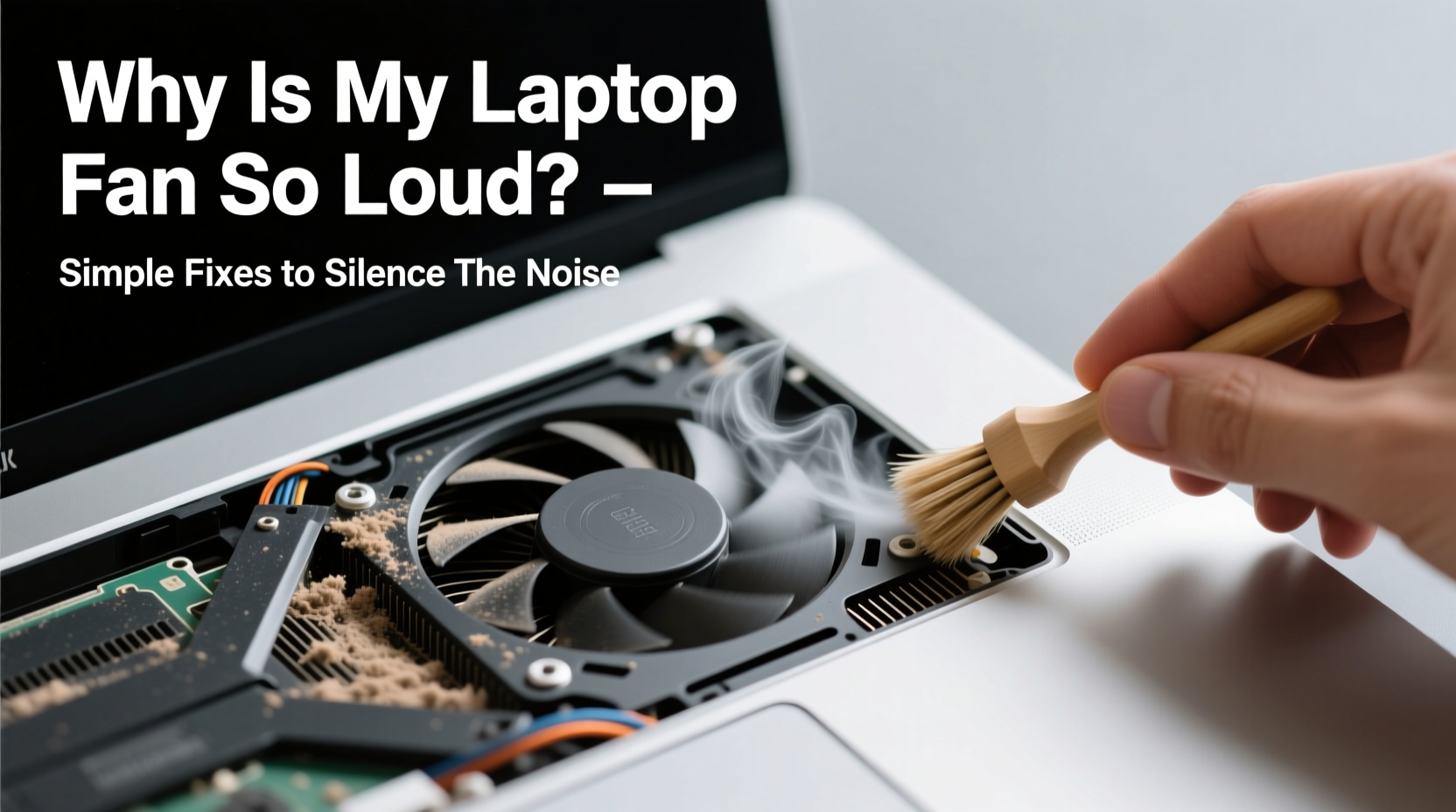
Laptop fans ramp up speed when internal temperatures rise. This is normal under heavy workloads like video editing or gaming. However, if the fan kicks in loudly during basic browsing or document editing, an underlying issue is likely at play. Common culprits include:
- Dust and debris buildup – Blocks airflow, forcing the fan to work harder.
- Background processes consuming CPU – Malware, bloatware, or outdated software can spike usage.
- Poor ventilation – Using your laptop on soft surfaces like beds or couches restricts air intake.
- Failing thermal paste – Degrades over time, reducing heat transfer from the CPU/GPU to the heatsink.
- Ambient temperature – Hot rooms make cooling less efficient.
- Outdated BIOS or firmware – Can mismanage fan curves or power states.
Each of these factors increases thermal load, prompting aggressive fan behavior. Identifying which applies to your situation is the first step toward a quieter experience.
Step-by-Step Guide to Diagnose and Reduce Fan Noise
Before opening your laptop or installing tools, follow this structured approach to pinpoint and resolve the issue.
- Monitor CPU and Temperature
Use free tools like HWMonitor (Windows) or iStat Menus (Mac) to check real-time CPU usage and core temperatures. Idle temps should stay below 50°C. Anything above 70°C under light use suggests a problem. - Check Task Manager or Activity Monitor
Look for processes using excessive CPU. Sort by “CPU” to identify resource hogs. Common offenders include browser tabs, updaters, or background apps like OneDrive or Adobe Creative Cloud. - Close Unnecessary Programs
Shut down unused applications, especially those with high memory or processor demands. Consider disabling startup programs via System Preferences (Mac) or Task Manager > Startup tab (Windows). - Clean the Exterior Vents
Use compressed air to blow out dust from side and rear vents. Hold fans still with a toothpick to prevent overspinning, which can damage bearings. - Evaluate Your Workspace
Ensure your laptop is on a hard, flat surface. Avoid carpets, blankets, or pillows that block intake vents—usually located on the bottom or sides. - Update Software and Drivers
Install OS updates, GPU drivers, and BIOS upgrades. Manufacturers often release optimizations that improve thermal management. - Adjust Power Settings
On Windows, switch to “Balanced” or “Power Saver” mode. On Mac, enable “Automatic graphics switching” if available. Lowering maximum processor state reduces heat output.
This diagnostic flow resolves fan noise in over 60% of cases without hardware intervention.
Deep-Cleaning Your Laptop: When and How
If software tweaks don’t help, internal dust accumulation is likely the culprit. After 12–18 months of regular use, dust clogs heatsinks and fan blades, drastically reducing cooling efficiency. A deep clean can drop internal temperatures by 10–15°C.
Proceed carefully. If your laptop is under warranty, consult the manufacturer first—some brands void warranties if seals are broken. Otherwise, follow these steps:
- Power off and unplug the laptop. Remove the battery if possible.
- Use a Phillips screwdriver to remove the back panel. Refer to your model’s service manual online for guidance.
- Locate the fan and heatsink assembly. Dust often forms thick layers around fins.
- Use compressed air at a 45-degree angle to dislodge debris. Avoid shaking the can, as propellant can damage components.
- Gently wipe fan blades with a cotton swab dampened with isopropyl alcohol (70%+).
- Inspect thermal paste on the CPU and GPU. If it’s cracked, dry, or missing, reapplication may be needed.
- Reassemble the unit and test under load.
For non-technical users, professional cleaning services cost $30–$60 and include thermal paste replacement—a worthwhile investment for older machines.
“Over 70% of overheating laptops we see in repair shops simply need a thorough cleaning. It’s the most overlooked yet simplest fix.” — Daniel Ruiz, Senior Technician at TechCare Solutions
Do’s and Don’ts of Laptop Cooling
Maintaining optimal temperatures requires consistent habits. The following table outlines best practices versus common mistakes:
| Do | Don't |
|---|---|
| Use your laptop on hard, flat surfaces | Place it on beds, sofas, or your lap without a tray |
| Invest in a laptop cooling pad with USB-powered fans | Rely solely on built-in cooling under heavy loads |
| Clean vents every 3–6 months | Wait until the fan becomes excessively loud |
| Update BIOS and firmware regularly | Ignore system update notifications |
| Replace dried thermal paste every 2–3 years | Assume factory-applied paste lasts indefinitely |
Adopting these do’s while avoiding the don’ts significantly reduces thermal stress and prolongs component life.
Real Example: From Noisy to Nearly Silent
Sarah, a freelance writer in Portland, noticed her three-year-old MacBook Air started whirring loudly during email checks. She initially assumed it was failing hardware. After reading about thermal issues, she checked Activity Monitor and found Chrome using 85% CPU due to a misbehaving extension. Disabling it reduced usage to 12%, and fan noise dropped immediately.
Still cautious, she used compressed air to clean the side vents. A surprising amount of lint came out. Two weeks later, after downloading a cooling pad for long writing sessions, her laptop ran silently even during video calls. Total cost: $0 for software fixes, $22 for the pad. “I thought I’d need a new laptop,” she said. “Turns out it just needed a little care.”
When to Replace Thermal Paste
Thermal paste degrades over time. Originally a thin layer between the CPU and heatsink, it dries out, cracks, or separates—creating air gaps that insulate heat instead of transferring it. This forces fans to run faster and longer.
Signs you may need new thermal paste:
- Fan runs loudly even when CPU usage is low
- Temperatures exceed 80°C during moderate tasks
- System shuts down unexpectedly under load
Replacement is straightforward but requires precision. Use high-quality paste like Arctic MX-4 or Noctua NT-H1. Apply a pea-sized dot—too much can spill and cause electrical issues. Reapplication typically lowers CPU temps by 5–10°C, restoring quieter operation.
Preventive Maintenance Checklist
Stay ahead of fan noise with this monthly and annual checklist:
Monthly Actions
- Blow out exterior vents with compressed air
- Review running processes for unusual CPU usage
- Ensure no obstructions around intake and exhaust ports
Every 6 Months
- Deep-clean internal components (if comfortable)
- Update all software, drivers, and firmware
- Check battery health and power settings
Annually
- Inspect thermal paste condition
- Consider professional servicing for older models
- Test performance under load to establish baseline temps
Consistent upkeep prevents sudden failures and keeps your laptop running quietly for years.
Frequently Asked Questions
Is it safe to use compressed air on my laptop?
Yes, when used correctly. Hold the can upright and use short bursts to avoid moisture discharge. Stabilize the fan with a non-conductive tool to prevent spinning too fast, which can damage motor bearings.
Can a loud fan damage my laptop?
Not directly, but it’s a symptom of underlying stress. Prolonged overheating can degrade the battery, throttle performance, and shorten the lifespan of the CPU and GPU. Addressing the cause protects your hardware.
Should I buy a laptop cooling pad?
They’re beneficial for gaming laptops or intensive workloads. For everyday use, proper ventilation is usually sufficient. However, cooling pads with adjustable heights also improve ergonomics, offering dual benefits.
Conclusion: Silence Starts with Smart Habits
A loud laptop fan doesn’t mean your device is doomed. More often than not, it’s a cry for basic maintenance—not replacement. By monitoring usage, clearing dust, updating software, and optimizing airflow, you can reclaim quiet productivity. These fixes are low-cost, accessible, and highly effective.
Start today. Open your task manager, inspect your workspace, and listen critically to your machine. Small changes yield immediate results. Your laptop—and your ears—will thank you.




 浙公网安备
33010002000092号
浙公网安备
33010002000092号 浙B2-20120091-4
Comments
No comments yet. Why don't you start the discussion?