
A laptop that once ran quietly now sounding like a jet engine? Sudden fan noise is more than just annoying—it’s a warning sign. While fans are designed to cool internal components, excessive or constant loud spinning usually points to an underlying issue. The good news: in most cases, the cause is fixable without professional help.
Loud fan noise typically stems from heat buildup. When your laptop’s CPU or GPU works harder or can’t dissipate heat efficiently, the cooling system ramps up—often audibly. But pinpointing the root cause matters. Is it dust clogging the vents? A rogue background app? Or hardware nearing its thermal limits?
This guide breaks down the most common reasons for sudden fan noise and provides clear, step-by-step solutions you can apply immediately—no technical degree required.
Common Causes of Sudden Laptop Fan Noise
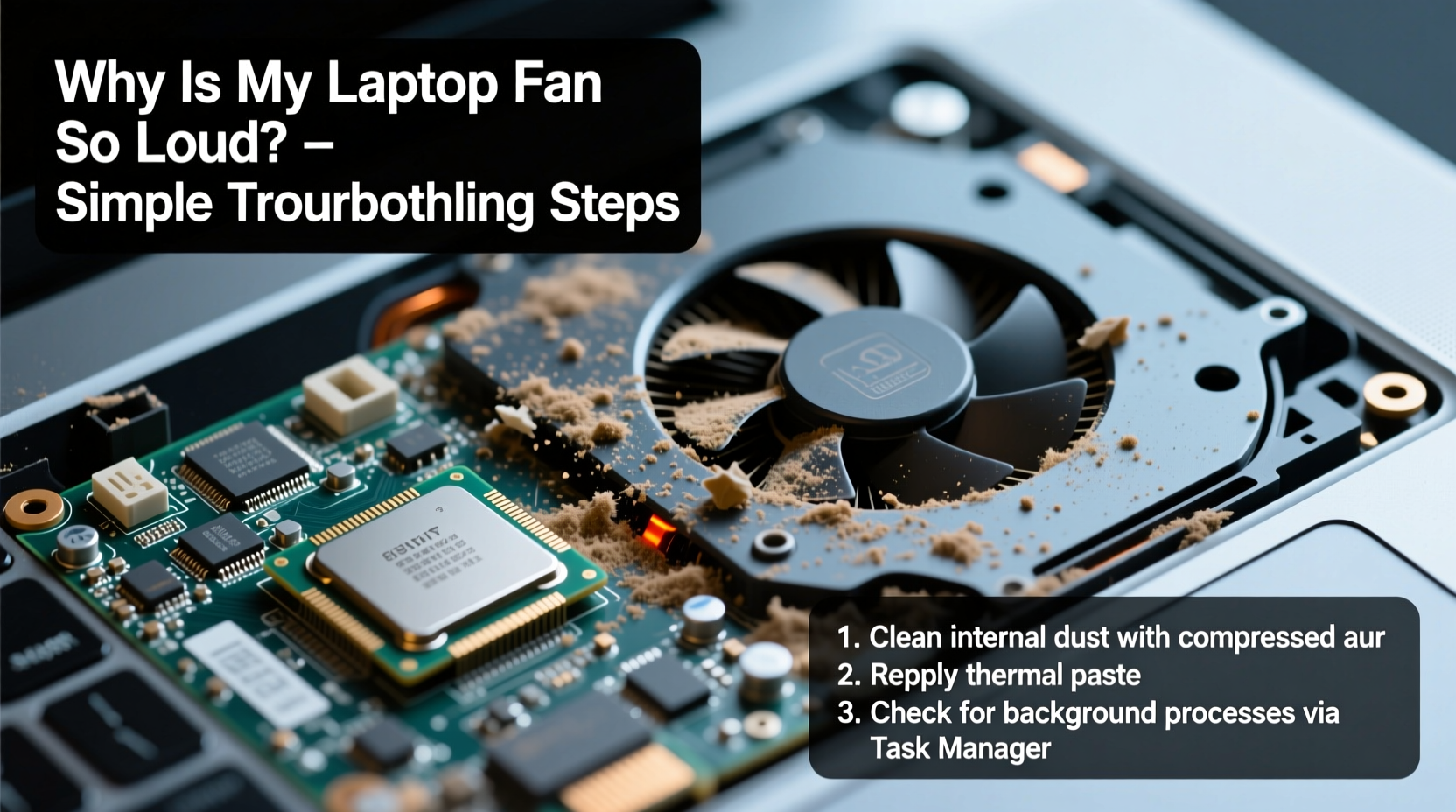
Fans don’t turn into vacuum cleaners overnight. A sudden increase in noise usually reflects a change in how your laptop is operating or being used. Understanding the triggers helps you respond appropriately.
- Dust and debris buildup: Over time, dust accumulates in air vents and heatsinks, blocking airflow and reducing cooling efficiency.
- High CPU or GPU usage: Resource-heavy applications—like video editors, games, or browser tabs with autoplay videos—can spike processor temperatures.
- Background processes and malware: Hidden software may be consuming resources silently, forcing the system to work harder.
- Poor ventilation: Using your laptop on soft surfaces like beds or couches blocks intake vents, trapping heat.
- Failing thermal paste: On older laptops, dried-out thermal paste between the CPU and heatsink reduces heat transfer, leading to higher temps.
- Ambient temperature: Hot rooms or direct sunlight raise baseline temperatures, making fans run more aggressively.
- Power settings: High-performance modes keep the CPU running at peak speed, generating more heat.
Step-by-Step Troubleshooting Guide
Before opening up your device or reinstalling software, follow this logical sequence to identify and resolve the issue safely.
- Check current system load: Press Ctrl + Shift + Esc (Windows) or open Activity Monitor (Mac) to see which apps or processes are using the most CPU. Close unnecessary programs.
- Inspect physical placement: Ensure the laptop isn’t on a pillow, blanket, or uneven surface. Use a desk or a laptop cooling pad.
- Clean exterior vents: Use compressed air to blow out dust from side and rear vents. Hold the fan in place with a toothpick to prevent overspinning during cleaning.
- Update your OS and drivers: Outdated graphics drivers or firmware can cause inefficient power management. Check your manufacturer’s website for updates.
- Adjust power settings: Switch from “High Performance” to “Balanced” or “Power Saver” mode to reduce CPU strain.
- Scan for malware: Run a full system scan using Windows Defender or a trusted antivirus tool to rule out crypto-mining malware.
- Monitor internal temperatures: Use tools like HWMonitor (Windows) or iStat Menus (Mac) to check real-time CPU and GPU temps. Idle temps above 50°C (122°F) suggest a cooling problem.
When to Consider Internal Cleaning
If external cleaning doesn’t help and temperatures remain high under light use, internal dust buildup may be the culprit. This requires opening the back panel—a task best done with care.
For most users, taking the laptop to a repair shop for a professional cleaning is safer. However, if you’re comfortable with basic hardware, you can remove the bottom cover, gently clean the fan blades with a cotton swab, and use compressed air on the heatsink.
“Over 60% of overheating issues in laptops under three years old are due to blocked airflow from dust accumulation.” — Dr. Alan Zhou, Hardware Engineer at TechCare Labs
Software and Settings That Quiet the Fan
Sometimes, the hardware is fine—the software is the problem. Misconfigured settings or runaway processes trick the system into thinking it needs maximum cooling.
Manage Startup Programs
Too many apps launching at startup can overload the CPU during boot, triggering aggressive fan response.
- Open Task Manager (Windows) or System Settings > Users & Groups > Login Items (Mac).
- Disable non-essential programs like cloud sync tools, chat apps, or updaters.
- Restart and observe if fan noise decreases during startup.
Use Fan Control Software (With Caution)
Some laptops allow manual fan speed control via third-party tools like SpeedFan (Windows) or Macs Fan Control (Mac). These let you set minimum/maximum speeds based on temperature thresholds.
Warning: Never set fans too low—undercooling can damage components. Use only to smooth out erratic behavior, not suppress necessary cooling.
Reset BIOS/UEFI Settings
In rare cases, corrupted BIOS settings can misreport temperatures or disable thermal throttling. Resetting to default values often resolves phantom overheating.
- Restart your laptop and press the BIOS key (usually F2, F10, or Del).
- Navigate to “Save Defaults and Exit” or similar option.
- Confirm and reboot.
Do’s and Don’ts: Preventing Future Fan Issues
| Do | Don't |
|---|---|
| Use your laptop on hard, flat surfaces | Place it on beds, sofas, or laps without a barrier |
| Clean vents every 3–6 months | Ignore persistent grinding or clicking noises |
| Close unused browser tabs and apps | Run multiple virtual machines or render jobs unattended |
| Update software regularly | Install unknown software from untrusted sources |
| Use power-saving mode when possible | Block exhaust vents with walls or books |
Real-World Example: The Case of the Overheating Student Laptop
Jessica, a college student, noticed her two-year-old laptop started whirring loudly during online lectures. Initially, she assumed it was age-related wear. But after following basic checks, she discovered the issue wasn’t hardware failure—it was behavior-driven.
She routinely used her laptop on her bed while watching YouTube, with five Chrome windows open and Zoom running in the background. The soft surface blocked the bottom intake vents, and multiple tabs were running autoplay videos. CPU usage hovered near 80%, even during “light” tasks.
After switching to a desk, closing unused tabs, and cleaning the side vents with compressed air, fan noise dropped significantly. She also disabled auto-play in her browser and set Chrome’s hardware acceleration to off. Within a day, idle temperatures fell from 68°C to 45°C, and the fan rarely spun above medium speed.
Her experience shows that user habits often play a bigger role than hardware condition—especially in laptops less than three years old.
When Hardware Repair Is Necessary
If all software and cleaning steps fail, the issue may be mechanical. Common hardware problems include:
- Failing fan motor: Produces grinding, clicking, or inconsistent spinning.
- Dried thermal paste: Common in laptops over 3–4 years old; requires reapplication.
- Loose heatsink or damaged heat pipe: Rare but serious; leads to rapid overheating.
Replacing a fan is relatively inexpensive—typically $30–$80 plus labor. Thermal paste replacement is even cheaper but requires disassembly expertise. If your laptop frequently shuts down due to overheating or the fan stops working entirely, seek professional service promptly.
Preventive Maintenance Checklist
Stay ahead of fan issues with regular maintenance. Print or bookmark this checklist for quarterly review.
- ✅ Clean exterior vents with compressed air
- ✅ Check CPU/GPU temperatures at idle and under load
- ✅ Review running processes for unusual activity
- ✅ Update operating system and drivers
- ✅ Remove unnecessary startup programs
- ✅ Verify laptop is on a ventilated surface
- ✅ Scan for malware or cryptominers
- ✅ Reset power plan to balanced mode
Frequently Asked Questions
Is it bad if my laptop fan is always loud?
Consistently loud fan noise suggests your laptop is either under heavy load or struggling to cool itself. Occasional loudness during gaming or video editing is normal. Constant high-speed operation during idle tasks, however, may lead to long-term wear, reduced battery life, or thermal throttling that slows performance.
Can I disable the laptop fan?
No. Disabling the fan—even temporarily—risks severe overheating, which can permanently damage the CPU, GPU, or motherboard. Some BIOS settings allow fan curve adjustments, but complete shutdown is unsafe and typically blocked by firmware.
How long should a laptop fan last?
Most laptop fans last 5–8 years under normal conditions. Dust, humidity, and continuous high-speed operation shorten lifespan. Signs of failure include irregular spinning, loud grinding, or sudden shutdowns due to overheating.
Conclusion: Take Control Before It Gets Worse
A loud laptop fan isn’t something to ignore. It’s your device signaling distress—often due to preventable causes. From simple fixes like changing where you place your laptop to deeper interventions like cleaning internals or managing software load, most issues can be resolved quickly and affordably.
The key is acting early. Waiting until your laptop shuts down from overheating risks data loss and hardware damage. By applying the steps in this guide, you’ll not only reduce noise but also extend your laptop’s performance life and reliability.




 浙公网安备
33010002000092号
浙公网安备
33010002000092号 浙B2-20120091-4
Comments
No comments yet. Why don't you start the discussion?