
Laptop keyboards are essential for productivity, communication, and everyday computing. When keys start producing random characters—such as pressing “A” and getting “S,” or multiple letters appearing at once—it can be both frustrating and disruptive. This erratic behavior rarely means the entire laptop is failing, but it does signal an underlying issue that needs attention. The good news? In most cases, the problem is fixable without professional repair. Understanding the root causes and knowing how to clean your keyboard properly can restore smooth typing and extend your device’s lifespan.
Common Causes of Random Letter Input
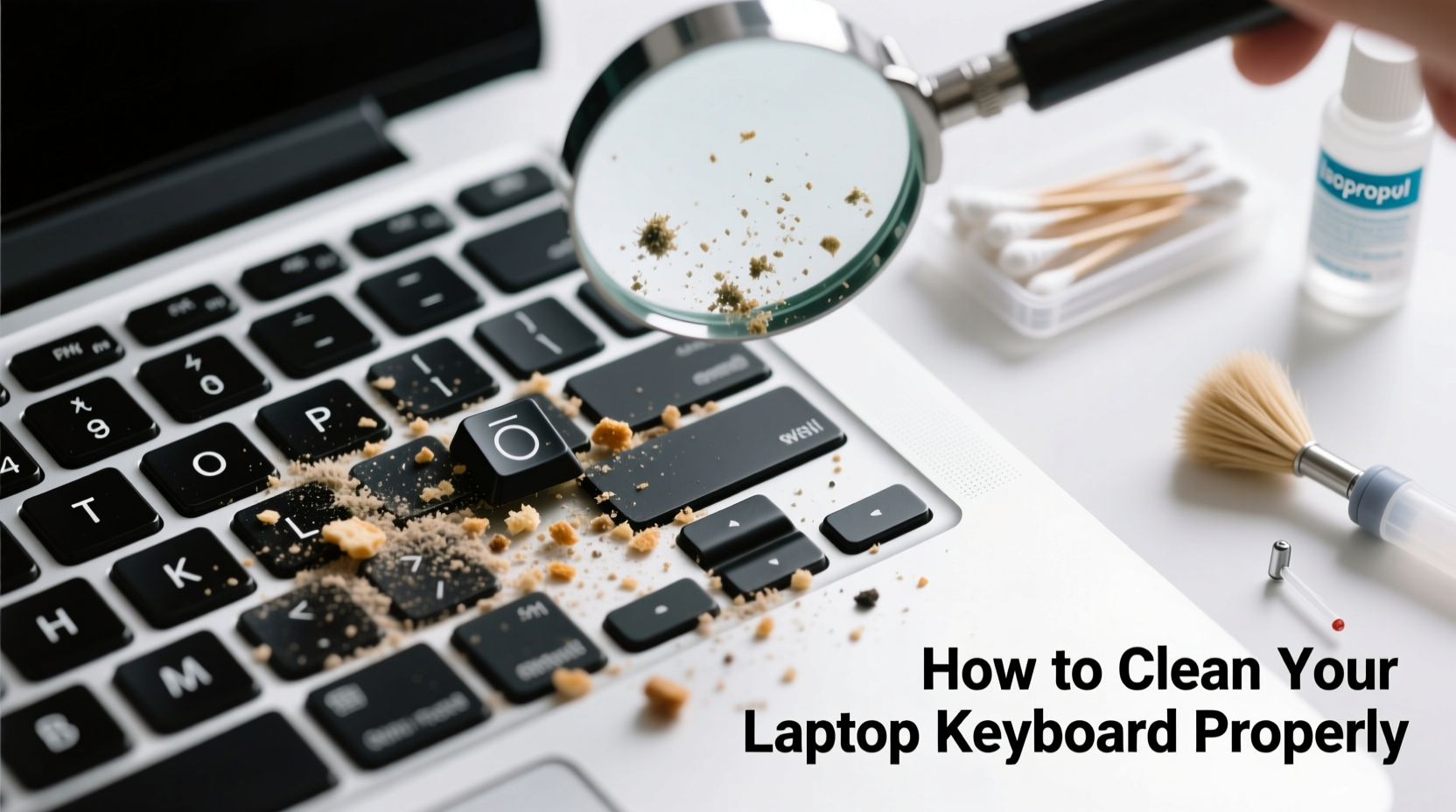
A laptop keyboard sending unintended keystrokes isn’t always a hardware failure. Several factors—ranging from debris buildup to software conflicts—can trigger this behavior. Identifying the cause is the first step toward resolution.
- Dirt, dust, and debris: Crumbs, pet hair, and pocket lint accumulate under keys over time, causing physical interference with key switches.
- Liquid spills: Even small amounts of moisture can short-circuit internal circuits or corrode contacts beneath the keys.
- Sticky residue: Sugary drinks or oily fingers leave behind residue that attracts more grime and interferes with proper key actuation.
- Faulty drivers or settings: Outdated, corrupted, or misconfigured keyboard drivers may lead to incorrect input registration.
- Hardware malfunction: Damaged membrane layers, worn-out key mechanisms, or loose ribbon cables can result in ghost typing.
- Software conflicts: Background applications, especially those with global hotkeys (like screen recording tools), may simulate keystrokes.
- Stuck Function (Fn) key: If the Fn key is stuck or registering continuously, it can alter normal key output.
Step-by-Step Guide to Cleaning Your Laptop Keyboard Properly
Cleaning your laptop keyboard isn't just about appearance—it's critical for functionality. Done correctly, it removes contaminants that interfere with electrical contacts and mechanical movement. Follow this detailed process to clean safely and effectively.
- Power down and unplug: Turn off your laptop completely and disconnect the charger. If possible, remove the battery (only on older models with removable batteries).
- Tilt the laptop: Hold it at a 75-degree angle to prevent debris from falling deeper into the chassis.
- Use compressed air: Spray short bursts between keys, moving in one direction across the keyboard. Avoid shaking the can, as moisture can spray out and damage components.
- Clean around each key: Use a soft-bristled brush (like a clean toothbrush) to dislodge stubborn particles. Gently sweep around and under keycaps where visible debris collects.
- Dampen a microfiber cloth: Lightly moisten it with distilled water or a 70% isopropyl alcohol solution. Never spray liquid directly onto the keyboard.
- Wipe the surface: Gently clean each key and the spaces between them. Focus on areas with sticky residue or discoloration.
- Address sticky keys: For keys that feel gummy, apply a tiny amount of alcohol to a cotton swab and carefully work it around the base of the affected key.
- Let it dry completely: Allow at least 30 minutes for any moisture to evaporate before powering on the device.
This routine should be performed every 2–3 months for regular users, or monthly in dusty environments or homes with pets.
Do’s and Don’ts of Laptop Keyboard Maintenance
| Do’s | Don’ts |
|---|---|
| Use compressed air regularly to prevent buildup | Shake or tilt the can of compressed air while spraying |
| Clean hands before using the laptop | Eat or drink near the keyboard |
| Use a keyboard cover designed for your model | Peel off keycaps unless you know how to reattach them securely |
| Store your laptop in a clean, dry place | Use excessive moisture during cleaning |
| Update keyboard drivers through Device Manager (Windows) or System Settings (Mac) | Ignore persistent issues after cleaning—early intervention prevents further damage |
When Cleaning Isn’t Enough: Diagnosing Hardware and Software Issues
If your keyboard continues to type random letters after thorough cleaning, the problem may lie beyond surface-level contamination. It’s important to distinguish between software anomalies and actual hardware failure.
Start by testing the keyboard in another operating environment. Boot from a Linux USB drive or use Safe Mode (Windows) to see if the issue persists. If random inputs stop in these modes, the culprit is likely a background application or driver conflict.
To check drivers:
- On Windows: Open Device Manager > Keyboards > right-click your keyboard > Update driver or uninstall and restart to reinstall.
- On Mac: Go to Apple Menu > System Settings > Keyboard, and reset any custom shortcuts. You can also reset the SMC (System Management Controller) on Intel-based Macs.
If the issue remains across all environments, inspect for physical damage. Press each key individually and listen for inconsistent feedback. Keys that don’t click properly or feel mushy may have internal wear. In some cases, a single malfunctioning key can trigger cascading false inputs due to circuit bridging.
“Over 60% of keyboard malfunctions we see in service centers are caused by avoidable debris accumulation. Regular maintenance could save users hundreds in premature replacements.” — Rajiv Mehta, Senior Technician at TechCare Repair Labs
Mini Case Study: Recovering a Sticky, Glitchy Keyboard
Sarah, a freelance writer, noticed her laptop was inserting random 'u' and 'i' characters while she typed. At first, she assumed a virus or software bug. She tried restarting, scanning for malware, and even reinstalling her word processor—but the issue remained.
After reading about debris-related keyboard faults, she decided to clean it herself. Using compressed air, she removed visible crumbs between the 'U' and 'I' keys. She then used a cotton swab dampened with isopropyl alcohol to clean around the affected area. After letting it dry for 40 minutes, she powered on the laptop—and the problem vanished.
Upon closer inspection, she realized she often ate toast while working, and buttery crumbs had seeped under the keys, creating conductivity issues. Since then, Sarah avoids eating near her laptop and schedules monthly cleanings. Her keyboard has worked flawlessly for over a year.
Checklist: Troubleshooting and Maintaining Your Laptop Keyboard
Use this checklist to systematically address and prevent keyboard issues:
- ✅ Restart the laptop to rule out temporary glitches
- ✅ Inspect for visible debris or liquid damage
- ✅ Clean with compressed air and a microfiber cloth
- ✅ Test individual keys for responsiveness
- ✅ Boot into Safe Mode or alternate OS to isolate software issues
- ✅ Update or reinstall keyboard drivers
- ✅ Disable unnecessary startup apps with hotkey functions
- ✅ Consider a protective silicone cover if frequently exposed to dust or food particles
- ✅ Schedule quarterly deep cleans
- ✅ Consult a technician if problems persist after all steps
Frequently Asked Questions
Can I remove laptop keys to clean underneath?
Yes, but only if you’re confident in reattaching them. Most laptop keys use scissor-switch mechanisms that can break if pried incorrectly. Use a plastic spudger or flat tool gently. Note: Removing keys voids warranty on some models. Refer to your manufacturer’s guide before proceeding.
Why does my keyboard type when I’m not pressing anything?
This \"ghost typing\" is often caused by moisture, debris bridging circuits, or a failing keyboard controller. It can also stem from a stuck modifier key (like Ctrl or Alt). Try cleaning first, then test in another OS environment. If it continues, professional repair or replacement may be needed.
Is it safe to use alcohol on my laptop keys?
Yes, 70% isopropyl alcohol is safe and effective for disinfecting and dissolving sticky residues. Always apply it to a cloth or swab—not directly to the keyboard—and ensure the laptop is off and dry before use.
Conclusion: Take Control of Your Keyboard’s Performance
A laptop keyboard that types random letters doesn’t automatically mean replacement is necessary. More often than not, the fix lies in consistent maintenance and informed troubleshooting. By understanding the common causes—from trapped debris to outdated drivers—you gain the power to diagnose and resolve issues quickly. Proper cleaning techniques not only restore function but also protect your investment over time.
Regular care extends far beyond aesthetics; it preserves the precision and reliability of one of your device’s most-used components. Whether you're a student, remote worker, or casual user, taking a few minutes every few weeks to maintain your keyboard pays long-term dividends in performance and peace of mind.




 浙公网安备
33010002000092号
浙公网安备
33010002000092号 浙B2-20120091-4
Comments
No comments yet. Why don't you start the discussion?