
It starts subtly—a period appears when you press “L,” or an “M” turns into a “<” symbol. You restart the laptop, thinking it’s a glitch, but the problem persists. Your keyboard is typing wrong characters, and while hardware issues or language settings might come to mind, there’s another possibility many overlook: malware. Misfiring keys aren’t always mechanical; they can be symptoms of deeper digital threats. Understanding the root cause—whether it’s a simple setting mix-up or malicious software—is critical to protecting your data and device.
Common Causes of Incorrect Keyboard Input
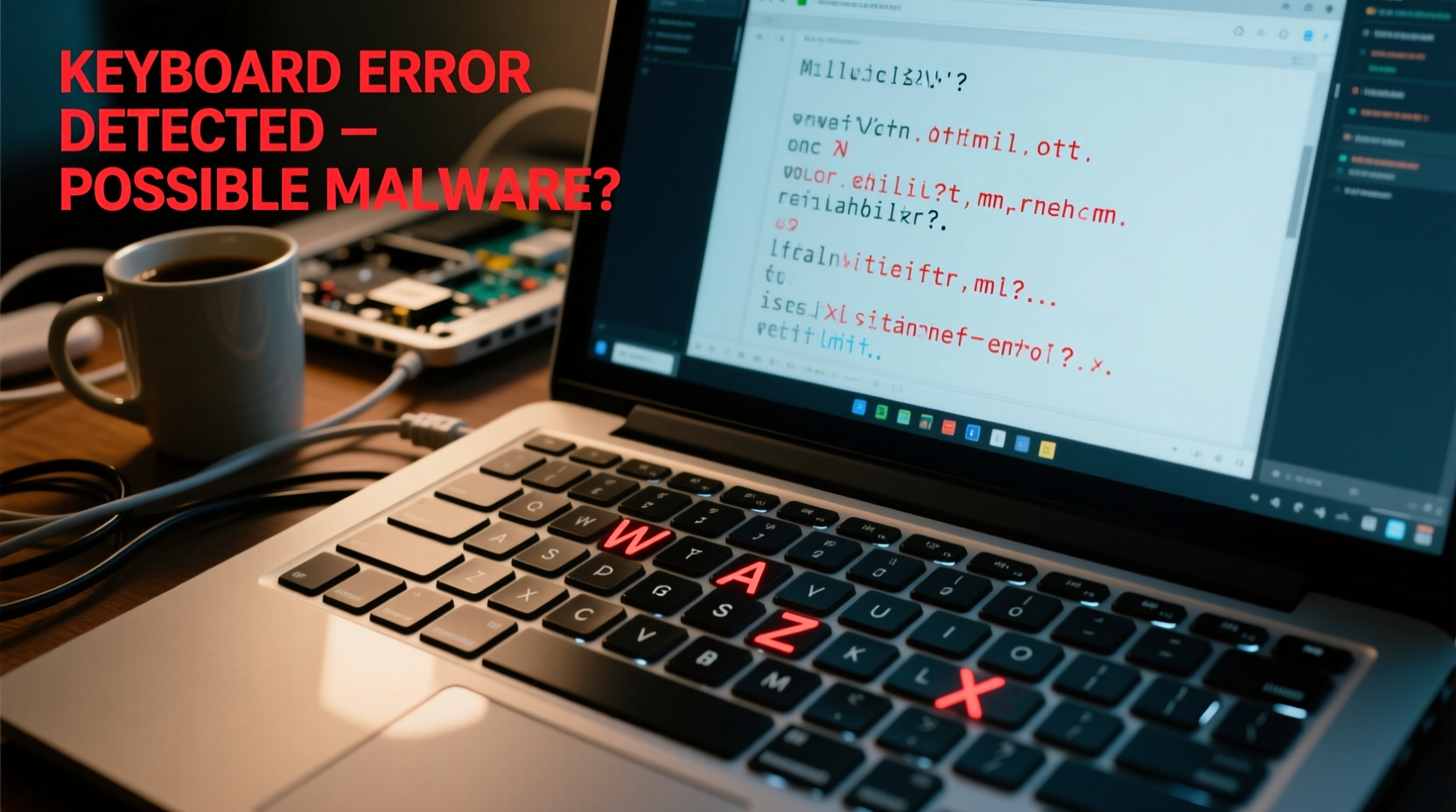
Before jumping to conclusions about malware, it’s essential to rule out simpler explanations. Many users panic at the first sign of erratic typing, not realizing that several non-malicious factors could be responsible.
- Language or keyboard layout changes: Accidentally switching from US QWERTY to UK English or a different regional layout can cause letters to map incorrectly. For example, pressing “Z” may produce “Y” due to European AZERTY layouts.
- Sticky or damaged keys: Dust, debris, or liquid spills can interfere with key mechanisms, causing double inputs or incorrect character registration.
- Driver issues: Outdated or corrupted keyboard drivers may lead to inconsistent behavior across applications.
- External peripherals: Connected Bluetooth keyboards or USB devices with mismatched layouts can override your built-in keyboard settings.
- Accessibility features: Sticky Keys, Filter Keys, or Mouse Keys—when enabled accidentally—can alter typing behavior.
When Typing Errors Signal Malware Infection
If basic troubleshooting fails and the issue reappears after reboot, especially alongside other strange behaviors, malware becomes a plausible culprit. Certain types of malicious software are designed specifically to intercept and manipulate keystrokes—a technique known as keystroke logging or keylogging.
Keyloggers don’t just record what you type; some advanced variants can also inject false inputs, redirect keystrokes, or simulate ghost typing. This manipulation may appear as random characters, duplicated letters, or symbols appearing where none were pressed.
Other forms of malware, such as remote access trojans (RATs), can hijack your input system entirely. Attackers use these tools to control your machine remotely, potentially altering keyboard output for obfuscation or sabotage.
“Modern keyloggers go beyond passive monitoring—they actively interfere with user input to confuse victims and evade detection.” — Dr. Lena Patel, Cybersecurity Researcher at SecureEdge Labs
Red Flags That Suggest Malware Is Involved
Not every keyboard glitch indicates infection, but certain patterns should raise alarms:
- Characters change only in specific apps (e.g., browsers or password fields).
- Typing errors occur more frequently during sensitive tasks like online banking.
- New processes appear in Task Manager using high CPU without explanation.
- Unfamiliar programs launch at startup.
- Browser redirects, pop-ups, or toolbars appear unexpectedly.
- Antivirus alerts trigger intermittently, even after removal attempts.
Differentiating Hardware, Software, and Malware Issues
To determine the true source of your keyboard problems, a systematic approach is necessary. The table below outlines diagnostic clues to help isolate the cause.
| Symptom | Possible Cause | How to Test |
|---|---|---|
| Wrong characters on login screen and BIOS | Hardware failure or physical damage | Test with external USB keyboard |
| Errors only in Windows/macOS interface | Software misconfiguration or driver issue | Check language settings and update drivers |
| Problems only in web browsers or financial apps | Potential keylogger or form-grabbing malware | Run antivirus scan in safe mode |
| Keys register multiple times or delay response | Filter Keys enabled or sticky keys | Disable accessibility features in settings |
| Strange network activity when typing | Active data exfiltration via malware | Monitor traffic with firewall or Wireshark |
Step-by-Step Guide to Diagnose and Fix Keyboard Input Issues
Follow this structured process to identify and resolve the underlying cause of incorrect character input.
- Test with an external keyboard
Connect a USB or wireless keyboard. If the new device works correctly, the issue is likely hardware-related with your built-in keyboard. - Verify keyboard layout settings
- On Windows: Go to Settings > Time & Language > Language & Region. Ensure the correct keyboard layout is selected under your preferred language.
- On macOS: Open System Settings > Keyboard > Input Sources and confirm the active layout.
- Restart in Safe Mode
Boot your laptop in Safe Mode to disable third-party drivers and startup programs. If the keyboard functions normally here, malware or a conflicting application is likely the cause. - Scan for malware
Use trusted antivirus software (e.g., Bitdefender, Malwarebytes, or Windows Defender) to perform a full system scan. Pay special attention to real-time protection logs. - Update or reinstall keyboard drivers
- On Windows: Open Device Manager, expand \"Keyboards,\" right-click your device, and select \"Update driver\" or \"Uninstall device\" (restart to reinstall).
- On Mac: Reset the SMC (System Management Controller) and NVRAM, which can resolve input inconsistencies.
- Check for unauthorized remote access tools
Look for remote desktop software like AnyDesk, TeamViewer, or Chrome Remote Desktop installed without your knowledge. Uninstall suspicious applications immediately. - Monitor network connections
Use built-in tools like Resource Monitor (Windows) or Activity Monitor (macOS) to check if any process is sending data when you type sensitive information.
Mini Case Study: The Freelancer Who Almost Lost Her Client Data
Sophie, a freelance copywriter from Portland, began noticing that her “E” key would occasionally produce “3” instead. At first, she assumed it was a fluke. But over time, passwords failed, emails contained garbled text, and her banking site logged her out repeatedly.
She tested an external keyboard—no issues. She checked language settings—correctly set to US English. Then, while reviewing startup programs, she found an unfamiliar executable named “sys_update.exe” launching silently each boot.
After running a deep scan with Malwarebytes, the tool flagged the file as a variant of DarkVNC, a known RAT capable of capturing keystrokes and manipulating input. Sophie disconnected from the internet, removed the malware, reset all passwords, and enabled two-factor authentication. She later learned the infection originated from a phishing email disguised as a client contract.
Her experience underscores a vital truth: seemingly minor keyboard glitches can mask serious security breaches.
Prevention Checklist: Protect Against Malware-Induced Keyboard Issues
Once resolved, prevent recurrence with proactive measures.
- ✅ Regular Antivirus Scans
- Perform weekly full-system scans using updated antivirus software.
- ✅ Keep Systems Updated
- Install OS and firmware updates promptly to patch vulnerabilities.
- ✅ Avoid Suspicious Downloads
- Never install software from untrusted sources or cracked applications.
- ✅ Enable Firewall Protection
- Ensure your firewall is active and configured to alert on outbound connections.
- ✅ Use Strong, Unique Passwords
- Prevent lateral movement if one account is compromised.
- ✅ Monitor Startup Programs
- Review login items monthly for unrecognized entries.
- ✅ Backup Critical Data
- Use automated cloud or external backups to recover quickly if infected.
Frequently Asked Questions
Can malware really make my keyboard type wrong characters?
Yes. Advanced malware, particularly keyloggers and remote access trojans, can intercept, modify, or simulate keystrokes. Some variants intentionally corrupt input to confuse users or bypass detection mechanisms.
Is a factory reset enough to remove keyboard-targeting malware?
In most cases, yes. A complete wipe and reinstall of the operating system will eliminate persistent malware. However, if the infection has reached the firmware level (rare but possible), specialized tools may be required. Always back up files securely before resetting—and scan them before restoring.
Why do only certain keys act up? Is that still malware?
Partially. While hardware wear often affects individual keys, malware can also target specific keystrokes associated with passwords (like “Enter,” “Backspace,” or alphanumeric keys). Context matters: if those keys fail only during logins or financial transactions, malware is more likely.
Conclusion: Don’t Ignore the Warning Signs
A malfunctioning keyboard is more than an inconvenience—it can be a silent alarm signaling a breach. Whether caused by spilled coffee or a covert cyberattack, incorrect character input demands attention. By methodically eliminating common causes and remaining vigilant for behavioral red flags, you protect not just your typing accuracy, but your personal and financial security.
The digital world moves fast, but so do threats. Responding early to subtle anomalies builds resilience against larger compromises. If something feels off—even slightly—investigate it. Your laptop’s odd typing might just be the first clue to a much bigger story.




 浙公网安备
33010002000092号
浙公网安备
33010002000092号 浙B2-20120091-4
Comments
No comments yet. Why don't you start the discussion?