
If your laptop keyboard is suddenly typing the wrong characters—such as pressing “P” and getting “:”—you’re not imagining things, and it’s not necessarily time to replace your device. This issue affects users across brands like Dell, HP, Lenovo, and Apple, especially on older models or machines exposed to dust, spills, or wear. The root causes range from physical debris under keys to incorrect language settings and outdated drivers. Fortunately, most problems can be resolved quickly without professional help.
The frustration of inaccurate typing disrupts productivity, whether you're drafting an email, coding, or writing a report. But before assuming hardware failure, consider that software misconfigurations and minor mechanical obstructions are far more common—and easier to fix. Understanding the underlying cause saves time, money, and unnecessary stress.
Common Causes of Incorrect Keyboard Input
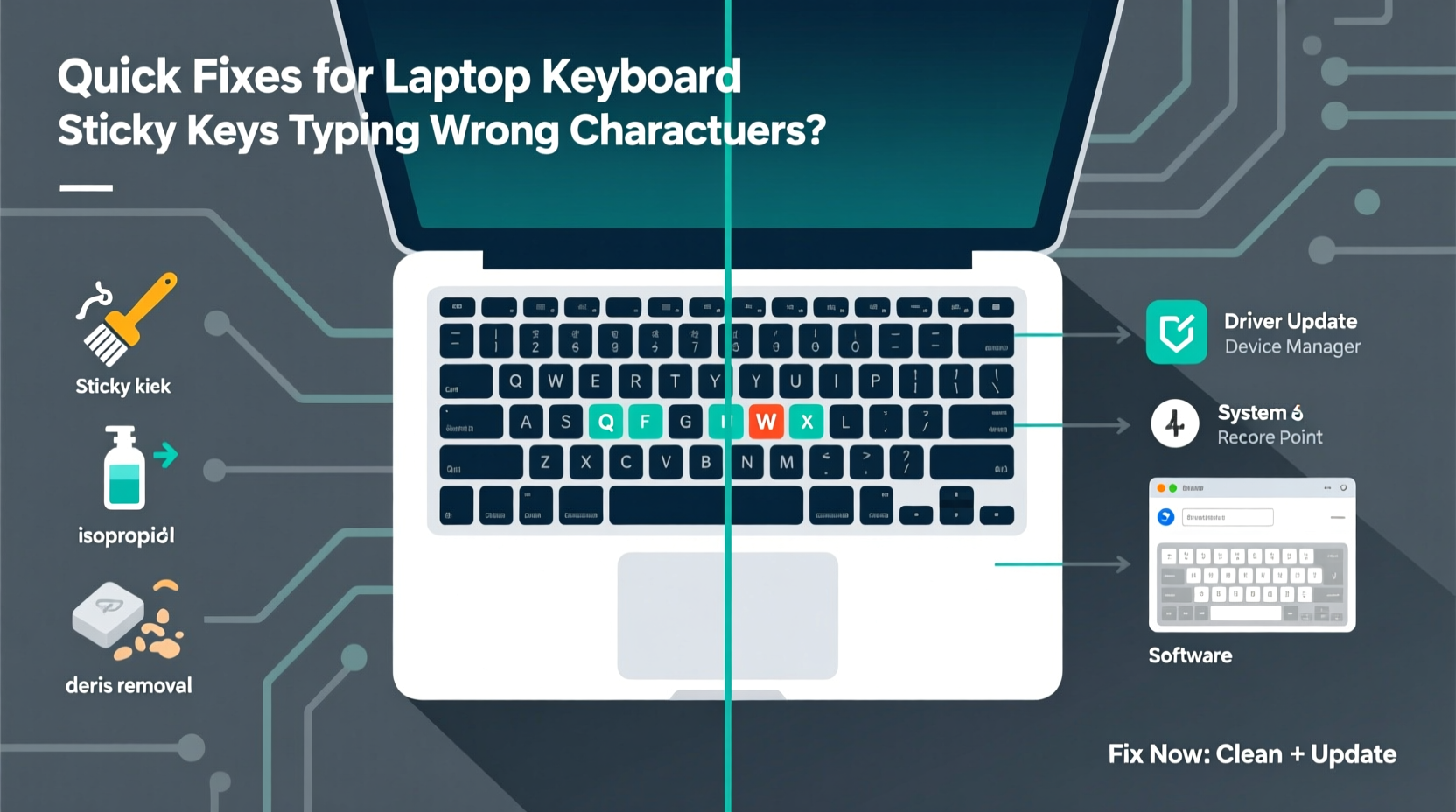
A laptop keyboard registering wrong characters usually stems from one of several key issues. Identifying the source is the first step toward resolution.
- Sticky or jammed keys: Dirt, dust, or liquid residue can trap keys in a partially pressed state, causing repeated or incorrect inputs.
- Language or layout mismatch: Accidentally switching input languages (e.g., US QWERTY to UK International) changes how keystrokes are interpreted.
- Outdated or corrupted drivers: Keyboard drivers manage communication between hardware and OS; when faulty, they misinterpret signals.
- Hardware failure: Damaged circuits or worn-out internal connections may send erratic signals.
- Function key lock (Fn Lock): Some laptops remap keys when Fn Lock is enabled, turning letters into symbols or shortcuts.
Before disassembling your laptop or seeking repairs, test simple fixes that resolve 80% of cases.
Step-by-Step Guide to Diagnose and Fix Keyboard Issues
Follow this structured approach to isolate and correct the problem efficiently.
- Test individual keys: Open Notepad or TextEdit and press every key slowly. Note which ones produce incorrect output.
- Check language settings: On Windows, press Win + Space to cycle through installed input methods. On macOS, click the input menu in the top-right corner. <3> Clean the keyboard physically: Turn off the laptop, tilt it at a 75-degree angle, and use compressed air to blow out debris. For sticky keys, gently wipe around them with a cotton swab dampened with isopropyl alcohol (70%).
- Update or reinstall keyboard drivers: Access Device Manager (Windows), expand \"Keyboards,\" right-click your keyboard, and choose \"Update driver\" or \"Uninstall device\" (restart to reinstall).
- Disable Filter Keys: Go to Settings > Ease of Access > Keyboard and ensure \"Filter Keys\" is turned off. This feature ignores brief or repeated keystrokes, mimicking malfunction.
- Test with an external USB keyboard: Plug in a known-working keyboard. If it functions correctly, the issue is likely internal to the built-in keyboard.
This sequence helps determine whether the fault lies in software, configuration, or hardware. Most users find resolution within the first three steps.
Do’s and Don’ts When Troubleshooting Keyboard Problems
| Do’s | Don’ts |
|---|---|
| Use compressed air regularly to prevent buildup under keys | Don’t pour liquids directly onto the keyboard |
| Keep your operating system and drivers updated | Don’t use sharp objects to pry off keys unless necessary |
| Check regional and language settings monthly if you multiboot | Don’t ignore persistent double-typing—it may signal early hardware decay |
| Back up data before updating firmware or drivers | Don’t assume all third-party cleaning tools are safe—stick to trusted utilities |
Adhering to best practices prevents recurring issues and extends the lifespan of your keyboard. Simple habits like covering your laptop when not in use or avoiding eating near it significantly reduce contamination risks.
Real-World Example: Sarah’s Sudden Symbol Problem
Sarah, a freelance writer using a three-year-old HP laptop, began noticing that pressing “L” produced a semicolon instead. At first, she thought she was hitting the wrong key. After ruling out typos, she realized other keys were also misbehaving—“M” gave a forward slash, and “K” triggered a comma.
She followed basic troubleshooting: rebooted, cleaned the keyboard with compressed air, and checked for spills (there had been none). Then, while opening her browser, she noticed a small globe icon in her taskbar showing “ENG INTL.” She recalled attending a virtual event where she briefly switched to international English for accent marks.
By pressing Win + Space, she cycled back to standard US QWERTY, and instantly, the keyboard returned to normal. The issue wasn’t hardware damage or dirt—it was simply an overlooked language setting change.
This case illustrates how easily configuration errors mimic hardware failure. A five-second fix saved her from unnecessary repair costs.
“Many so-called ‘broken keyboards’ are just victims of misconfigured input settings. Always verify software before assuming hardware failure.” — Jordan Lee, Senior Tech Support Analyst at NotebookCare Solutions
Comprehensive Checklist: Fix Your Keyboard in Under 15 Minutes
Use this checklist whenever your keyboard behaves erratically:
- ✅ Reboot the laptop to clear temporary glitches
- ✅ Press Win + Space (Windows) or check input menu (macOS) to confirm correct keyboard layout
- ✅ Inspect for stuck or gummy keys; clean with isopropyl alcohol if needed
- ✅ Blow out debris using compressed air at a low pressure
- ✅ Disable Filter Keys and Sticky Keys in accessibility settings
- ✅ Update keyboard drivers via Device Manager (Windows) or System Information (macOS)
- ✅ Test with an external keyboard to isolate the issue
- ✅ Reset NVRAM/PRAM on Mac (restart and hold Cmd+Option+P+R)
- ✅ Run built-in hardware diagnostics (available on most major brands)
- ✅ Backup and perform a clean OS reinstall if all else fails
Completing this list typically resolves input inaccuracies. If the problem persists after all steps, internal circuitry or ribbon cable damage may require professional service.
Frequently Asked Questions
Why does my 'A' key type '@' instead?
This usually happens when the keyboard layout is set to US International. In this mode, pressing Shift + 2 creates a quotation mark but also makes the apostrophe key a dead key. When you press 'A' afterward, it combines into “@”. Switch back to standard US layout in your input settings to restore expected behavior.
Can spilled coffee permanently damage my keyboard?
Yes. Liquid exposure can corrode internal contacts or short-circuit the membrane layer beneath the keys. If spillage occurs, power down immediately, unplug the charger, invert the laptop, and let it dry for at least 48 hours in a well-ventilated area. Even then, some keys may remain unresponsive or erratic. Consider professional cleaning or replacement if issues persist.
How do I know if my keyboard needs replacing?
If multiple keys fail consistently after thorough cleaning and driver updates, and an external keyboard works perfectly, the internal unit is likely failing. Signs include delayed response, ghost typing (keys appearing without being pressed), or complete zones of unresponsiveness. Replacement cost varies by model but often ranges from $50–$150 at authorized centers.
Preventive Maintenance Tips for Long-Term Keyboard Health
Once fixed, maintain your keyboard to avoid future issues:
- Monthly cleaning: Use a soft brush or compressed air to remove lint and skin flakes.
- Avoid eating over the keyboard: Crumbs accelerate stickiness and attract moisture.
- Use a silicone cover: Thin, transparent overlays protect against dust and spills without affecting typing feel.
- Monitor driver updates: Enable automatic updates or check monthly through your manufacturer’s support site.
- Calibrate touch sensitivity (if applicable): Some modern laptops include self-test routines accessible via BIOS or diagnostic tools.
Regular care reduces the likelihood of sudden failures. Think of your keyboard as a high-use tool—it benefits from routine attention just like any precision instrument.
“A clean keyboard isn’t just about appearance—it directly impacts accuracy and reliability. Five minutes a month can prevent hours of frustration.” — Dr. Anita Patel, Human-Computer Interaction Researcher, MIT Media Lab
Conclusion: Take Control of Your Typing Experience
Your laptop keyboard should respond accurately every time you press a key. When it doesn’t, start with the simplest explanations: a changed language setting, accumulated grime, or outdated drivers. These are fast to diagnose and easy to correct. More complex hardware faults exist, but they’re less common than people assume.
By following systematic checks, maintaining cleanliness, and understanding how software influences hardware behavior, you regain control over your workflow. Don’t tolerate inconsistent typing—it undermines confidence and efficiency. Apply these strategies now, and keep your laptop performing like new.




 浙公网安备
33010002000092号
浙公网安备
33010002000092号 浙B2-20120091-4
Comments
No comments yet. Why don't you start the discussion?