
A sudden or persistent buzzing noise from your laptop when running demanding applications—like video editing software, games, or multiple browser tabs—can be more than just annoying. It may signal an underlying hardware or software issue that, if ignored, could lead to reduced performance or even permanent damage. While some fan noise is normal during high CPU or GPU usage, a distinct electrical buzz, coil whine, or mechanical vibration often points to specific causes that require attention.
This article breaks down the most common reasons behind a buzzing laptop under load, separates myths from facts, and provides actionable, step-by-step solutions. Whether you're using a gaming rig, a work laptop, or a budget ultrabook, understanding the root cause helps you take control before minor issues escalate.
Common Causes of Buzzing Noises Under Load
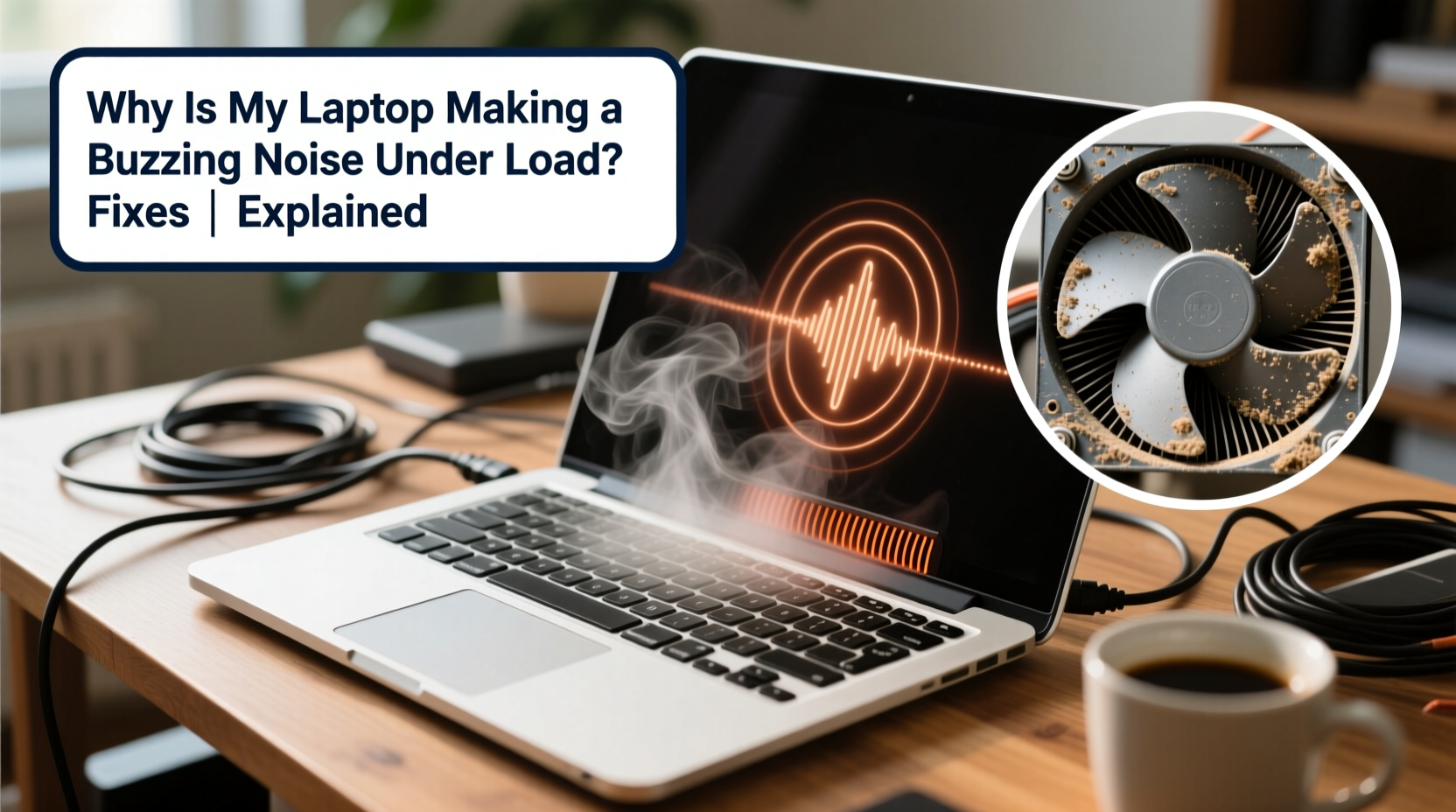
Laptop buzzing isn’t always due to one single component. Several internal systems can generate unusual sounds when pushed to their limits. Identifying the source is the first step toward an effective fix.
- Fan Noise and Vibration: As the CPU or GPU heats up, fans spin faster. If dust-clogged or unbalanced, they can produce a buzzing or rattling sound.
- Coil Whine: High-pitched buzzing or ringing caused by electrical components (like inductors or capacitors) vibrating under current fluctuations. Common during graphics-intensive tasks.
- Hard Drive Issues (if applicable): Older laptops with mechanical hard drives may emit buzzing or clicking when reading/writing data aggressively.
- Loose Internal Components: Screws, brackets, or shielding that vibrate at certain frequencies when fans run at high RPMs.
- Power Supply or Charging Circuit Noise: Transformers or voltage regulators can emit audible buzzing, especially with low-quality chargers.
- Speaker Interference: Electromagnetic interference from nearby components can cause speakers to buzz, particularly when the GPU draws heavy power.
Step-by-Step Diagnosis Process
Before attempting repairs, determine exactly what’s causing the noise. Follow this logical sequence to narrow down the culprit.
- Monitor System Load: Open Task Manager (Windows) or Activity Monitor (macOS) and observe CPU, GPU, and disk usage. Run a stress test (e.g., Prime95 or FurMark) and note when the buzzing starts.
- Check Temperature: Use tools like HWMonitor or Core Temp. Overheating (>90°C) forces fans to max out, increasing noise and vibration risk.
- Unplug and Test on Battery: Disconnect the charger. If the buzzing stops, the issue may be with the power adapter or charging circuit.
- Disable Speakers: Mute audio output. If the buzz disappears, electromagnetic interference (EMI) from GPU or power delivery might be affecting audio circuits.
- Boot into BIOS/UEFI: Restart and enter BIOS. Run the system idle and under minimal load. If buzzing persists, it's hardware-related and not OS-dependent.
- Listen for Location: Place your ear near different areas—the vents, keyboard deck, bottom panel—to pinpoint where the sound originates.
Proven Fixes for Each Cause
Once you’ve identified the likely source, apply targeted solutions. Some fixes are simple and safe; others require caution or professional help.
Fan and Cooling System Fixes
Dust buildup is the number one cause of abnormal fan noise. Over time, lint and debris restrict airflow, forcing fans to spin faster and unevenly.
- Clean air vents using compressed air. Hold fans still with a toothpick to prevent overspinning.
- Reapply thermal paste if temperatures are high. Old or dried paste reduces heat transfer efficiency.
- Replace worn-out fans. Most manufacturers offer replacement parts online.
Reducing or Managing Coil Whine
Coil whine—a high-frequency buzzing—is common in high-performance laptops but generally harmless. However, it can be distracting.
- Limit GPU load via graphics settings in games or apps. Reducing frame rates slightly can eliminate the triggering frequency.
- Update BIOS and GPU drivers. Manufacturers sometimes release firmware updates that optimize power delivery and reduce noise.
- Avoid overclocking. Pushing components beyond factory specs increases electrical stress and coil vibration.
- Use AC power instead of battery. Voltage fluctuations on battery can worsen coil whine.
“Coil whine is a physical byproduct of rapid current changes in compact electronics. While annoying, it rarely indicates failure.” — Dr. Alan Reyes, Electrical Engineer, IEEE Member
Addressing Hard Drive Noise
If your laptop uses a traditional HDD, aggressive read/write operations can produce buzzing or clicking. SSDs eliminate this issue entirely.
- Back up data and replace the HDD with an SSD. This also improves speed and reliability.
- Run CHKDSK (Windows) or Disk Utility (macOS) to check for disk errors.
- Defragment the drive (HDD only) to reduce mechanical strain during access.
Securing Loose Components
Vibrations from fans or speakers can resonate through loose panels or screws.
- Power off and unplug the laptop. Gently press on the chassis while the fan is running to see if the noise changes.
- Open the back panel (if comfortable) and check for loose screws, metal shields, or cables touching moving parts.
- Tighten any loose fasteners and use rubber washers or adhesive pads to dampen vibrations.
Charger and Power-Related Solutions
A faulty or non-OEM charger can introduce electrical noise into the system.
- Try a different, manufacturer-approved charger. Avoid cheap third-party adapters.
- Inspect the charging port for debris or looseness. A damaged port can cause arcing or inconsistent power delivery.
- Use the laptop on battery only to confirm if the noise disappears.
Do’s and Don’ts When Fixing Laptop Buzzing
| Do’s | Don’ts |
|---|---|
| Use compressed air to clean vents regularly | Blow into vents with your mouth (moisture damages components) |
| Update BIOS and drivers from official sources | Overclock components without proper cooling |
| Replace thermal paste every 2–3 years | Ignore persistent high temperatures |
| Use a cooling pad for sustained loads | Place laptops on soft surfaces that block airflow |
| Seek professional repair for internal issues if unsure | Disassemble the laptop under warranty without authorization |
Mini Case Study: Resolving Buzzing in a Gaming Laptop
Mark, a graphic designer and casual gamer, noticed his 2021 gaming laptop started emitting a loud buzzing noise whenever he rendered videos or played AAA titles. The sound was a mix of fan roar and high-pitched whine, localized near the left vent.
He followed a diagnostic process: first checking temperatures (which peaked at 94°C), then cleaning the vents with compressed air. After disassembly, he found the fan blades were warped and coated in dust. He replaced the fan and reapplied thermal paste. The temperature dropped to 78°C under load, and the buzzing decreased significantly—though a faint coil whine remained at maximum GPU boost.
Mark adjusted his game settings to cap FPS at 60 and disabled GPU overclocking in the control panel. The remaining noise became imperceptible during normal use. His proactive maintenance extended the laptop’s usable life by over two years.
Preventive Maintenance Checklist
To avoid future buzzing and maintain optimal performance, follow this monthly and annual checklist.
- Monthly: Wipe exterior vents with a dry microfiber cloth.
- Every 3 Months: Use compressed air to clear dust from intake and exhaust grills.
- Biannually: Check system temperatures under load.
- Annually: Inspect fan operation and consider reapplying thermal paste.
- As Needed: Update BIOS, chipset, and GPU drivers.
- Long-Term: Replace HDD with SSD; consider external cooling for heavy workloads.
FAQ
Is coil whine dangerous?
No, coil whine is not harmful. It results from electromagnetic vibrations in power components and does not indicate imminent failure. While annoying, it doesn’t degrade hardware lifespan under normal conditions.
Can software cause a buzzing noise?
Not directly. However, software that pushes the CPU or GPU to high utilization (e.g., video rendering, machine learning apps) can trigger hardware responses—like fan acceleration or power surges—that produce noise.
Should I stop using my laptop if it’s buzzing?
Not necessarily. If temperatures are normal and performance is stable, the noise may be benign. However, if accompanied by overheating, shutdowns, or performance throttling, discontinue use and investigate immediately.
Conclusion: Take Control of Your Laptop’s Health
A buzzing laptop under load isn’t something to ignore. While some noise is expected during intense tasks, persistent or worsening sounds often point to preventable issues like dust buildup, failing components, or inefficient power delivery. By systematically diagnosing the source and applying the right fixes—whether cleaning fans, updating firmware, or upgrading hardware—you protect both performance and longevity.
Small actions today, like regular cleaning or using the right charger, can prevent costly repairs tomorrow. Don’t wait for symptoms to worsen. Address the buzz now, and keep your laptop running quietly and efficiently for years to come.




 浙公网安备
33010002000092号
浙公网安备
33010002000092号 浙B2-20120091-4
Comments
No comments yet. Why don't you start the discussion?