
Laptops are designed to operate quietly, so a sudden or persistent whirring sound can be alarming. While some level of fan noise is normal—especially during heavy tasks—not all sounds indicate healthy operation. Understanding the source of the noise, its patterns, and what triggers it can help you determine whether it’s harmless or a sign of an underlying issue.
The truth is, most whirring noises originate from internal components working under load. However, ignoring unusual sounds can lead to reduced performance, overheating, or even permanent hardware damage. This guide breaks down the common causes of laptop whirring, how to diagnose them, and when professional intervention is necessary.
Understanding the Source: Common Causes of Whirring Noises
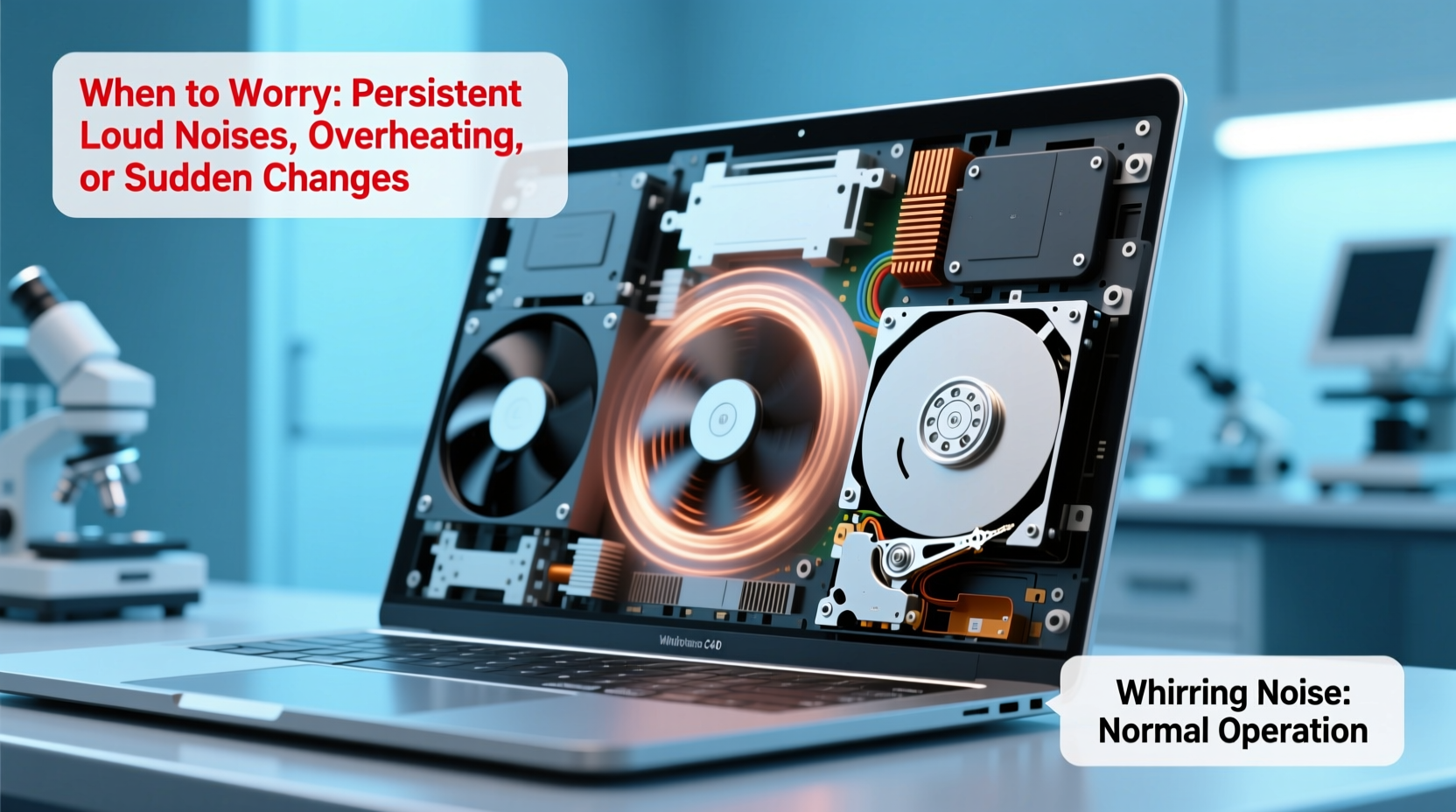
A whirring or humming sound in laptops typically comes from moving parts inside the device. The two primary suspects are the cooling fan and the hard disk drive (HDD), though solid-state drives (SSDs) and optical drives can also contribute in rare cases.
- Cooling Fan: Most laptops have at least one fan that spins to dissipate heat generated by the CPU and GPU. When the system runs demanding applications—like video editing software, games, or virtual machines—the processor heats up, triggering the fan to spin faster and louder.
- Hard Disk Drive (HDD): If your laptop uses a traditional spinning HDD instead of an SSD, the mechanical platters and read/write heads can produce a low hum or clicking sound during data access. A rhythmic whirring may indicate the drive is working hard or failing.
- Dust Buildup: Over time, dust accumulates on fan blades and heatsinks, causing imbalance and increased noise. A dusty fan might make a grinding or uneven whirring sound.
- Failing Bearings: Fans rely on small bearings to rotate smoothly. As these wear out, they can create high-pitched whines or irregular buzzing.
- Loose Components: In some cases, screws or internal brackets may become loose, vibrating against the chassis and amplifying fan noise.
When Is Whirring Normal? Context Matters
Not every whirring noise signals danger. Laptops are engineered to manage thermal loads dynamically, and fan speed adjusts accordingly. Here’s when you likely don’t need to worry:
- During intensive tasks: Playing games, rendering videos, or running multiple browser tabs increases CPU usage, leading to higher temperatures and louder fan activity.
- After waking from sleep: A brief burst of fan noise as the system ramps up is normal.
- In warm environments: Ambient heat reduces cooling efficiency, prompting fans to run more frequently.
- Newly installed software: Background updates or indexing processes (e.g., Windows Search) can temporarily spike disk and CPU usage.
However, if the noise persists even when the laptop is idle—such as while reading documents or browsing simple web pages—it may point to inefficient resource management or hardware stress.
“Fan noise under load is expected, but constant high-speed operation at idle suggests either a software issue or inadequate ventilation.” — Dr. Alan Reyes, Hardware Systems Engineer
Warning Signs: When to Worry About the Noise
Sometimes, a whirring sound evolves into something more concerning. Pay attention to these red flags:
| Sound Type | Possible Cause | Action Required |
|---|---|---|
| High-pitched whine that increases with brightness | Coil whine (electrical component vibration) | Monitor; not harmful but annoying |
| Rhythmic clicking or grinding | Failing HDD or obstructed fan | Immediate backup and inspection |
| Irregular buzzing or rattling | Loose fan blade or debris in fan | Clean or replace fan |
| Fan runs constantly at full speed, even when cool | Thermal sensor failure or BIOS issue | Diagnostic check needed |
| Whirring followed by sudden shutdown | Overheating due to blocked airflow | Stop use and inspect cooling system |
If your laptop shuts down unexpectedly after prolonged whirring, this is a strong indicator of thermal throttling or overheating. Continued use under these conditions risks damaging the motherboard, CPU, or GPU.
Mini Case Study: Sarah’s Overheating Laptop
Sarah, a freelance graphic designer, noticed her three-year-old laptop began making loud whirring noises during photo edits. Initially, she dismissed it as normal strain. But over weeks, the fan ran nonstop—even when idle—and the bottom became too hot to touch.
She ran a diagnostic tool and discovered CPU temperatures exceeding 95°C. Upon opening the case (with professional guidance), she found the fan clogged with pet hair and dust. After cleaning, temperatures dropped to 65°C under load, and the noise vanished. Her early action prevented potential GPU degradation.
Troubleshooting Steps: What You Can Do Now
Before assuming hardware failure, follow this step-by-step checklist to identify and resolve common issues:
- Check CPU and Disk Usage: Open Task Manager (Ctrl+Shift+Esc on Windows or Activity Monitor on macOS). Look for processes consuming excessive resources. End unnecessary tasks.
- Update Software and Drivers: Outdated graphics drivers or OS bugs can cause inefficient processing. Check for updates via Settings > Update & Security.
- Scan for Malware: Some malware runs background scripts that max out CPU. Use a trusted antivirus program to perform a full scan.
- Evaluate Ventilation: Ensure the laptop isn’t on a soft surface like a bed or couch that blocks air intake. Use a hard, flat surface or a cooling pad.
- Adjust Power Settings: Switch to “Balanced” or “Power Saver” mode to limit CPU performance and reduce heat generation.
- Listen for Changes: Boot into BIOS/UEFI (usually by pressing F2 or Del during startup). If the fan still whirs loudly without the OS loading, the issue is likely hardware-related.
When Cleaning Is Necessary
Dust accumulation is one of the top contributors to noisy fans. While modern laptops are sealed, older models or those used in dusty environments benefit from periodic cleaning.
For user-accessible models:
- Power off and unplug the laptop.
- Use compressed air to blow dust from vents and fan exhausts.
- Avoid using vacuum cleaners—they generate static electricity.
- If comfortable, remove the back panel (check manufacturer guides) and gently clean the fan blades with a cotton swab.
Note: Many ultrabooks and newer laptops have non-removable batteries and sealed designs. In such cases, professional servicing is recommended.
Preventive Maintenance Checklist
Regular upkeep minimizes the risk of disruptive noises and extends your laptop’s lifespan. Follow this actionable checklist:
- ✅ Clean air vents every 3–6 months
- ✅ Avoid eating or working in dusty environments
- ✅ Keep software updated to prevent inefficiencies
- ✅ Use task manager weekly to spot rogue processes
- ✅ Replace HDD with SSD if still using mechanical drive
- ✅ Back up data regularly—especially if HDD is making odd sounds
- ✅ Consider thermal paste reapplication every 2–3 years for older laptops
Upgrading to an SSD eliminates one major source of mechanical noise and significantly improves system responsiveness. Even budget-friendly SSDs today offer better durability and silence compared to aging HDDs.
Frequently Asked Questions
Is it safe to use my laptop if it’s making a whirring noise?
Yes, if the noise occurs only during heavy use and temperatures remain below 85°C. However, if the sound is constant, accompanied by overheating, or includes grinding/clicking, stop using it immediately and investigate the cause.
Can a whirring noise mean my hard drive is failing?
Possibly. A failing HDD often produces rhythmic clicking, grinding, or repetitive whirring. If you hear these sounds, back up your data right away. Use tools like CrystalDiskInfo (Windows) to check the drive’s health status.
Will closing unused programs reduce fan noise?
Often, yes. Background apps—especially browsers with many tabs, cloud sync services, or outdated antivirus software—can keep the CPU active. Closing them reduces heat output and allows the fan to slow down.
Conclusion: Act Early, Protect Your Investment
A whirring laptop isn’t always a crisis, but it’s a signal worth heeding. Whether it’s dust buildup, a failing fan, or a struggling hard drive, early detection can prevent costly repairs or data loss. By monitoring system behavior, maintaining cleanliness, and understanding the difference between normal operation and warning signs, you take control of your device’s longevity.
Don’t wait until the noise becomes unbearable or your laptop starts shutting down. Apply the steps outlined here today—check your task manager, clean the vents, update your system, and consider upgrading to an SSD. Small actions now can extend your laptop’s life by years.




 浙公网安备
33010002000092号
浙公网安备
33010002000092号 浙B2-20120091-4
Comments
No comments yet. Why don't you start the discussion?