
Laptop overheating is more than just an annoyance—it can lead to sudden shutdowns, reduced performance, and even permanent hardware damage. If your device feels like a mini oven during everyday tasks, it's time to act. The good news: most overheating issues stem from preventable causes and can be resolved quickly with the right steps. Understanding why heat builds up and how to manage it effectively not only improves comfort but also extends your laptop’s lifespan.
What Causes Laptop Overheating?
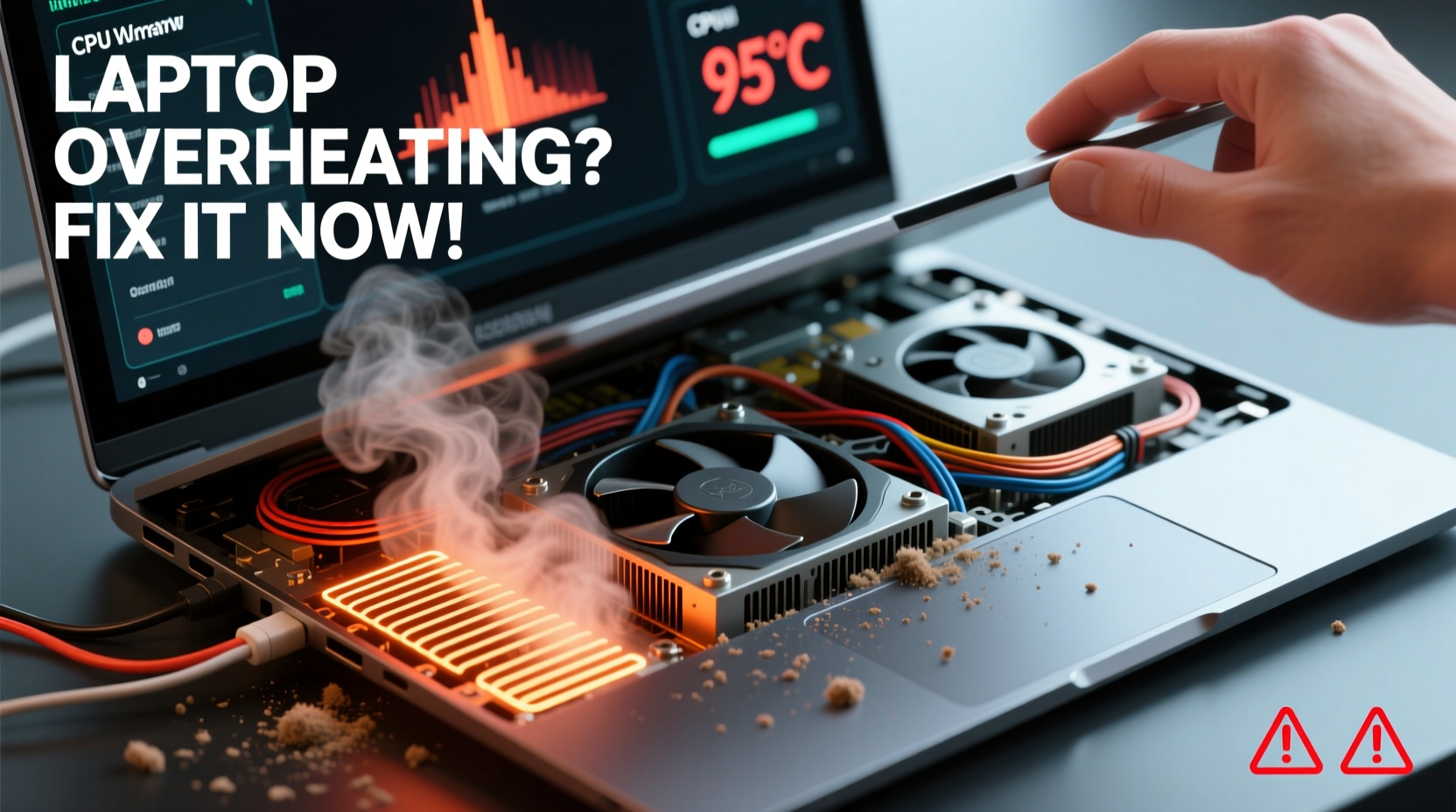
Laptops generate heat naturally as processors, graphics cards, and batteries work under load. However, excessive heat usually results from poor airflow, dust buildup, or inefficient cooling systems. Common culprits include:
- Dust accumulation in vents and fans: Over time, dust clogs air intakes, blocking airflow and reducing cooling efficiency.
- Blocked ventilation paths: Using a laptop on soft surfaces like beds or couches restricts airflow from bottom vents.
- Outdated or failing thermal paste: The compound between the CPU/GPU and heatsink degrades over time, reducing heat transfer.
- High-performance tasks: Video editing, gaming, or running multiple applications simultaneously increases internal temperature.
- Aging or malfunctioning fans: Fans wear out or fail silently, leaving components without active cooling.
- Poor ambient conditions: Operating in hot rooms or direct sunlight raises baseline temperatures.
While some heat is normal, consistent overheating—indicated by loud fan noise, sluggish performance, or automatic shutdowns—should never be ignored.
Immediate Steps to Cool Down Your Laptop
If your laptop is already hot to the touch or performing poorly, take these actions immediately to reduce temperature and prevent further strain on components.
- Shut down unnecessary programs: Close all unused tabs and background applications. High CPU usage generates excess heat.
- Elevate the laptop: Use a hard, flat surface like a desk. Prop it slightly with small stands or books to improve airflow from the bottom.
- Use a cooling pad: External laptop cooling pads with built-in fans provide additional airflow and help dissipate heat.
- Turn off Wi-Fi and Bluetooth: Disabling wireless functions reduces power draw and lowers internal temperature.
- Reduce screen brightness: Lower brightness settings decrease energy consumption and heat output.
- Let it rest: Power down completely for 20–30 minutes to allow internal components to cool fully.
These steps offer temporary relief. For lasting results, deeper inspection and maintenance are required.
Step-by-Step Guide to Fix Overheating Permanently
Long-term solutions require addressing the root causes of heat buildup. Follow this detailed process to restore optimal cooling performance.
1. Clean Internal Dust Buildup
Dust is one of the leading causes of overheating. Even minor accumulation inside fans and heatsinks can severely impair cooling.
- Power off the laptop and unplug it.
- Remove the battery if possible (consult your model’s manual).
- Use compressed air to blow out vents on both sides of the chassis. Hold fans in place with a toothpick to avoid overspinning.
- For thorough cleaning, open the back panel (if comfortable doing so) and target fan blades, heatsinks, and intake grills.
- Reassemble carefully and test.
2. Replace Thermal Paste
Thermal paste degrades after 2–3 years, losing its ability to transfer heat efficiently from the CPU and GPU to the heatsink.
- Disassemble the laptop to access the processor(s).
- Carefully remove old paste using isopropyl alcohol and a lint-free cloth.
- Apply a pea-sized amount of high-quality thermal paste (e.g., Arctic MX-4 or Noctua NT-H1).
- Reattach heatsink and reassemble.
This task requires precision. If you're uncomfortable, consider professional servicing.
3. Optimize Power Settings
Adjusting your operating system’s power plan can significantly reduce heat generation.
| Setting | Action | Benefit |
|---|---|---|
| Power Mode | Select \"Balanced\" or \"Power Saver\" | Reduces CPU max frequency and power draw |
| Processor Power Management | Set max processor state to 80–90% | Lowers peak heat output during heavy tasks |
| Display Timeout | Shorten idle time before sleep | Minimizes unnecessary energy use |
4. Monitor Temperature Regularly
Use software tools to track internal temperatures and catch issues early.
- Windows: HWMonitor, Core Temp, or MSI Afterburner
- Mac: iStat Menus or TG Pro
Normal idle temperatures range from 40°C to 50°C. Under load, staying below 85°C is ideal. Consistently exceeding 90°C indicates a serious problem.
Do’s and Don’ts of Laptop Cooling
Some common habits worsen overheating. Avoid these pitfalls and adopt better practices.
| Do’s | Don’ts |
|---|---|
| Use your laptop on hard, flat surfaces | Place it on beds, sofas, or your lap without support |
| Clean vents monthly with compressed air | Ignore loud fan noises or frequent throttling |
| Update BIOS and drivers regularly | Run resource-heavy apps continuously without breaks |
| Invest in a quality cooling pad | Use freezer or ice to cool the device—condensation damages electronics |
“Over 60% of laptop failures related to heat could have been prevented with routine maintenance and proper ventilation.” — Dr. Alan Reyes, Hardware Reliability Engineer at TechInsight Labs
Real Example: Recovering a Gaming Laptop from Chronic Overheating
Mark, a freelance video editor, relied on his high-performance gaming laptop for rendering 4K footage. After 18 months of constant use, he noticed the system would shut down unexpectedly during exports. The bottom was too hot to touch, and fan noise was persistent.
He first tried software fixes—closing background apps and lowering resolution—but the issue persisted. Upon opening the chassis, he found thick layers of dust coating the fan and heatsink. After a thorough cleaning and thermal paste replacement, internal temperatures dropped from 98°C to 72°C under the same workload. His laptop now runs smoothly, and he schedules cleanings every four months.
This case highlights how physical maintenance often resolves what seems like a complex hardware failure.
Essential Overheating Prevention Checklist
Stay ahead of heat-related issues with this actionable checklist:
- ✅ Clean air vents and fans every 3–6 months
- ✅ Use a laptop cooling pad during extended sessions
- ✅ Replace thermal paste every 2–3 years
- ✅ Keep your workspace cool and well-ventilated
- ✅ Update firmware and drivers to optimize power management
- ✅ Avoid multitasking with heavy applications (e.g., gaming + streaming)
- ✅ Monitor CPU/GPU temperatures weekly using reliable tools
- ✅ Replace faulty fans promptly—don’t rely on passive cooling
Frequently Asked Questions
Can overheating permanently damage my laptop?
Yes. Prolonged exposure to high temperatures can degrade solder joints, warp components, and shorten the lifespan of the battery, CPU, and motherboard. Repeated thermal throttling may also lead to data corruption or system instability.
Is it safe to use compressed air on my laptop?
Yes, when used correctly. Hold the can upright and use short bursts to avoid moisture discharge. Avoid tilting the can, and don’t insert the nozzle deeply into ports. Always power off the device first.
Why does my laptop overheat even when idle?
If your laptop overheats at idle, suspect background processes (like malware or updates), a failing fan, or dried-out thermal paste. Run a virus scan, check Task Manager for abnormal CPU usage, and inspect hardware cooling components.
Take Control Before It’s Too Late
Overheating isn’t something to tolerate—it’s a warning sign. With regular care and smart usage habits, you can keep your laptop running cooler, faster, and longer. The fixes aren’t complicated or costly, but they make a dramatic difference in performance and reliability. Whether you’re a student, remote worker, or creative professional, your device deserves proper attention.




 浙公网安备
33010002000092号
浙公网安备
33010002000092号 浙B2-20120091-4
Comments
No comments yet. Why don't you start the discussion?